Enterprise SSO
Enterprise SSO (single sign-on) lets employees log in to LumoAuth with their existing corporate identity provider. LumoAuth supports three protocols: SAML 2.0 (as both Service Provider and Identity Provider), OpenID Connect (OIDC) federation, and direct LDAP / Active Directory authentication (LDAP is the directory protocol corporate networks use). All three integrate with LumoAuth's Just-in-Time (JIT) provisioning so user accounts are created automatically on first login.
Supported Protocols
Enterprise SSO, social login, LDAP, SCIM (automatic user provisioning) and webhooks are all configured from Settings → Integrations:

| Protocol | Use Case | LumoAuth Role |
|---|---|---|
| SAML 2.0 | Enterprise SSO with Okta, Azure AD, PingFederate, etc. | Service Provider (SP) and Identity Provider (IdP) |
| OpenID Connect | SSO with external OIDC providers | Relying Party (RP) |
| LDAP / Active Directory | Direct directory authentication | LDAP client with JIT provisioning |
SAML 2.0
LumoAuth as Service Provider (SP)
When LumoAuth acts as a SAML SP, it delegates authentication to an external SAML IdP (like Okta or Azure AD).
Flow:
- User starts single sign-on at
/orgs/{orgId}/saml/sp/login(your application links or redirects there). - LumoAuth generates a SAML AuthnRequest and redirects to the IdP.
- User authenticates at the IdP.
- IdP sends a SAML Assertion back to LumoAuth.
- LumoAuth validates the assertion and creates or links the user account.
- User is logged in.
Configuration
Configure SAML IdP connections in the Enterprise SSO (SAML) section of Settings → Integrations. The section lists your identity providers, shows the service provider metadata URL, and has the Copy SP metadata URL and Add SAML IdP buttons. (The old /saml-idps list URL now redirects here.)
Click Add SAML IdP. Paste the IdP's metadata URL under Import from IdP metadata and click Fetch from metadata URL to fill the form in, or enter the values by hand:
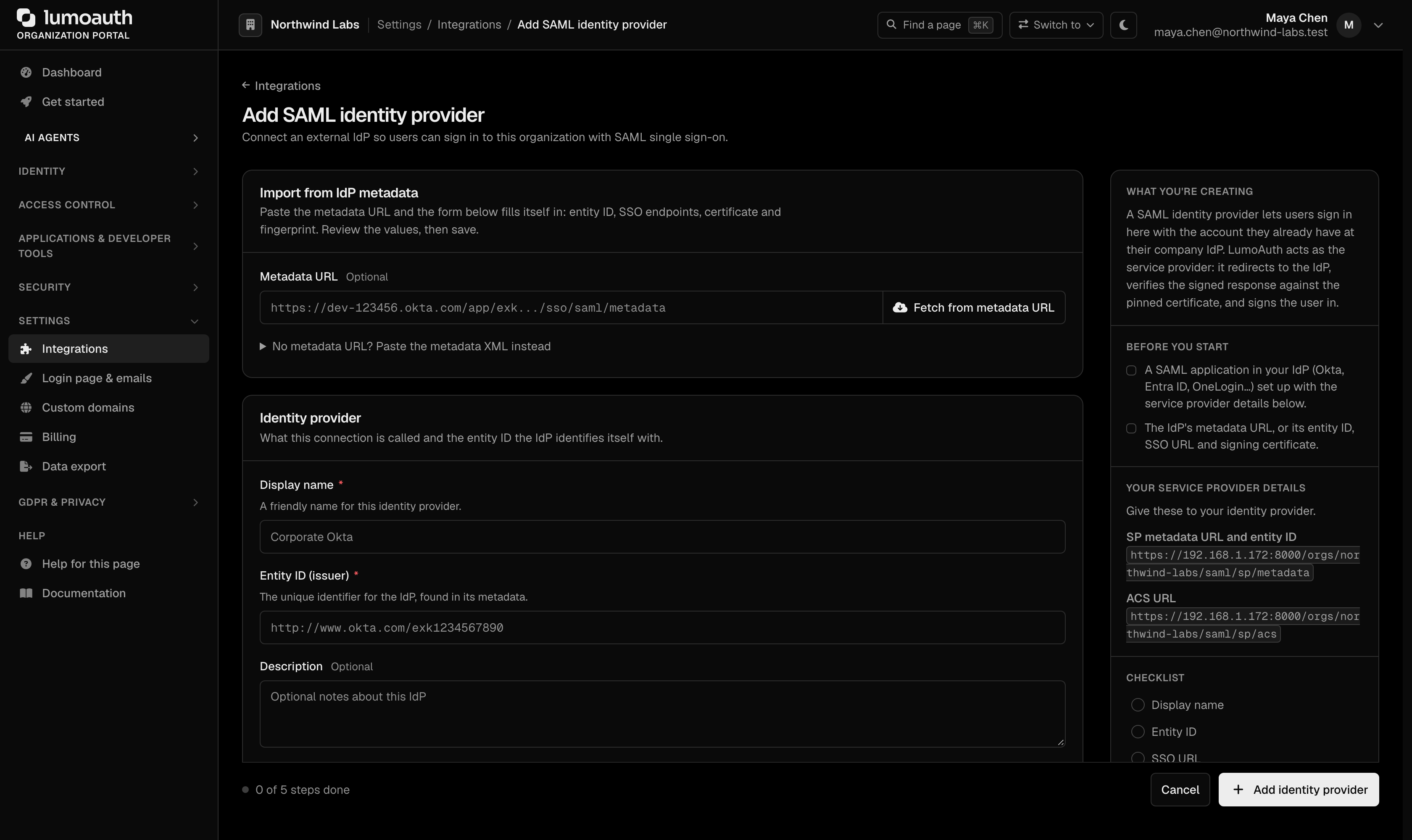
Required Settings:
| Setting | Description |
|---|---|
| Display name | A friendly name for this identity provider |
| Entity ID (issuer) | The identity provider's entity ID |
| SSO URL | Single Sign-On URL for SAML requests |
| SLO URL | Single Logout URL (optional) |
| X.509 certificate (PEM) | The IdP's signing certificate, for signature verification |
| Certificate fingerprint (SHA-256) | Must match the certificate; filled automatically when importing from metadata |
| NameID format | Format for the user identifier (email address, persistent, transient, unspecified) |
| Allowed email domains | Optional, comma-separated (acme.com, acme.co.uk). Only addresses in these domains and their sub-domains can be provisioned or linked through this IdP. Required to link existing accounts when the organization has more than one SAML IdP. |
How SAML users are matched
A SAML user is bound to the IdP that issued their NameID, stored as saml:{idpConfigId}:{nameId} (NameIDs too long for the column become saml:{idpConfigId}:sha256:{hex}). A NameID is only unique within its IdP, so one IdP can no longer assert another IdP's NameID and land in that user's account.
On sign-in LumoAuth looks for, in order:
- The account bound to this IdP and NameID.
- An existing account with the asserted email, only when the IdP asserts
email_verifiedand is authoritative for the email's domain. The IdP is authoritative when the domain is in its Allowed email domains. With that list empty, LumoAuth falls back to the entity ID host (an IdP athttps://idp.acme.comcovers@acme.com), but only when this is the organization's only SAML IdP and no other IdP lists the domain. Accounts that already have a local password, a social provider or a different SAML IdP are never taken over. - A new account (just-in-time provisioning), only for domains the IdP is authoritative for; otherwise refused and audited as
saml_jit_domain_mismatch.
Accounts created before per-IdP binding
Older SAML accounts stored the bare NameID. On upgrade (migration Version20260928300001):
- Organizations with one SAML IdP are migrated automatically. Any bare-NameID row left over is upgraded on the user's next sign-in (
saml_legacy_binding_upgraded). - Organizations with several SAML IdPs keep the bare-NameID rows, because LumoAuth cannot tell which IdP issued them. Those users' sign-ins are refused with "Account already exists but is not linked to this identity provider; please ask your administrator to relink it." and audited as
saml_legacy_binding_ambiguous(withidp_config_idanduser_id).
Set Allowed email domains on every IdP first, so LumoAuth can suggest which IdP each legacy user belongs to, then relink them in one of three ways. Relinking keeps the user's NameID and binds it to the IdP you choose.
- Portal: open Integrations → SAML IdP → Edit for the IdP that issues the users' NameIDs. The Legacy users panel (shown only when the organization has more than one SAML IdP and legacy users exist) lists each user with the IdP whose allowed email domains claim their address; users only this IdP claims are pre-selected. Choose Preview relink to … (the button names the IdP) to see what would change (a dry run), then Relink N users.
- Admin API:
GET /orgs/{orgId}/api/v1/admin/identities/legacy-samlreturns the report (suggested_idp_idper user).POSTthe same path with{"idp_id": 7, "all_matching_domains": true, "dry_run": true}(or"user_ids": [...]) to preview, then again with"dry_run": false. See Federated identities. - CLI:
lumo identities legacy-saml, thenlumo identities legacy-saml --idp 7 --relink --dry-runand--relink --yes. Seelumo identities.
Each relinked user is signed out everywhere, emailed, and audited as identity.link.created; the run as a whole is audited as identity.link.bulk_relinked. Users holding permissions you lack, and NameIDs already linked to someone else at that IdP, are skipped.
Linking a SAML identity to an existing account
To link a single account to an IdP (for example a user who signed up with a password before SSO was set up, or whose NameID changed), open the user in Users, go to Federated identities and choose Link SAML identity: pick the Identity provider and enter the NameID the IdP asserts for the user. The link buttons appear in this section once the organization has a SAML IdP (or an LDAP directory) configured.
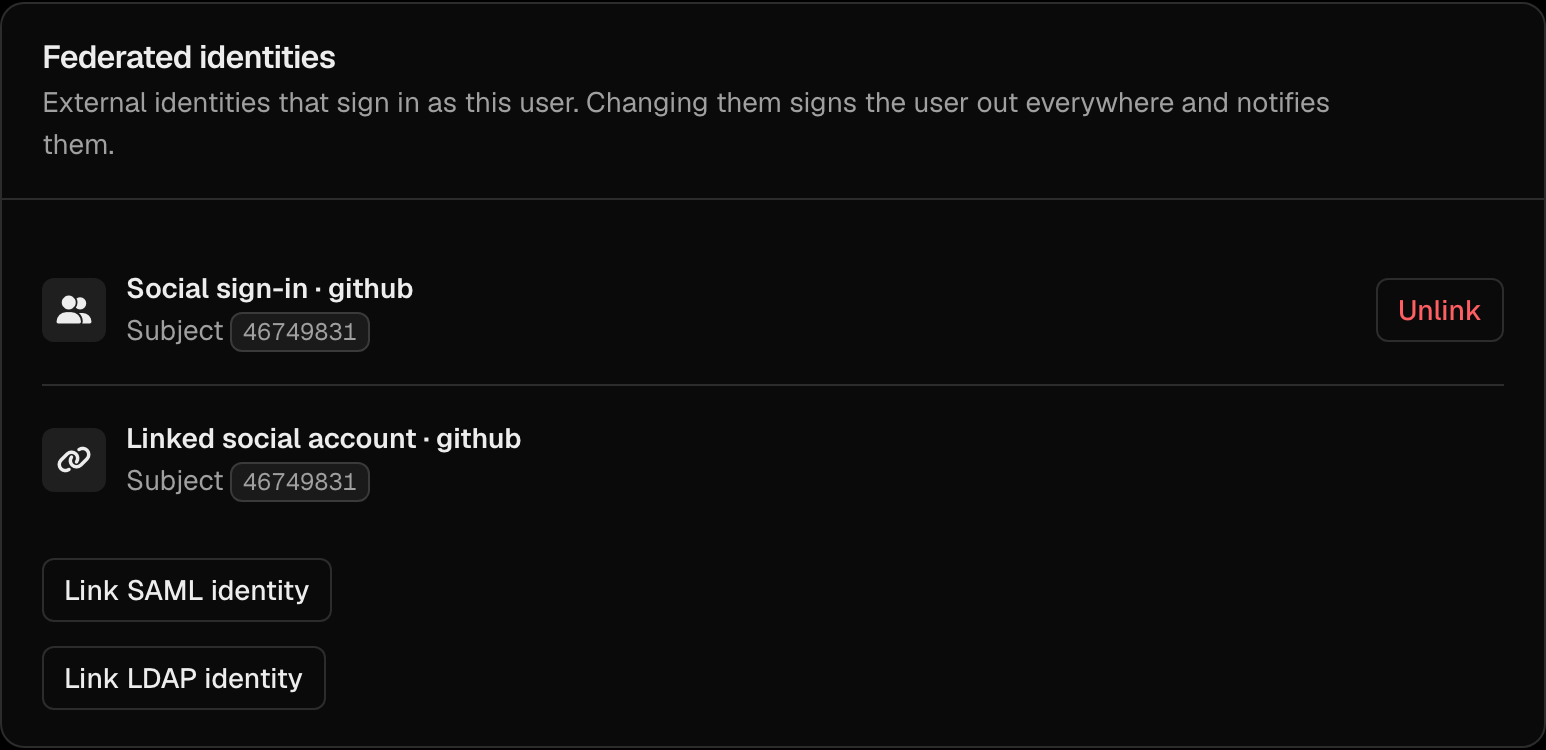
The same is available as POST /orgs/{orgId}/api/v1/admin/users/{userId}/identities and lumo users identities link <user> --saml-idp <id> --name-id <nameid>. The link is refused when another user already holds that NameID at the IdP, or when the account is linked to LDAP or a social provider (unlink that first). See Relinking federated identities.
LumoAuth SP Metadata:
Your SAML IdP needs LumoAuth's SP metadata, available at:
/orgs/{orgId}/saml/sp/metadata
Or configure manually in your IdP:
- SP Entity ID:
https://your-domain.com/orgs/{orgId}/saml/sp/metadata - ACS URL:
https://your-domain.com/orgs/{orgId}/saml/sp/acs - SLO URL:
https://your-domain.com/orgs/{orgId}/saml/sp/slo
Single logout messages must be signed by the IdP. LumoAuth always requires a signature on LogoutRequest and LogoutResponse messages at the SLO endpoint, independent of the Require signed responses setting, so that nobody who merely knows a user's NameID can end their session. Enable "sign logout messages" (Okta: Sign SAML logout requests; Entra: certificate-based signing) on the IdP side, or leave SLO unconfigured. Details in SAML SP.
LumoAuth as Identity Provider (IdP)
LumoAuth can also act as a SAML IdP, letting external applications authenticate users stored in LumoAuth.
SAML SP (client) applications are listed alongside your other apps on the Applications page:
/orgs/{orgId}/portal/applications
To register a new SAML SP client, click New application and choose SAML 2.0 as the protocol, or open the full SAML form directly at:
/orgs/{orgId}/portal/applications/saml/create
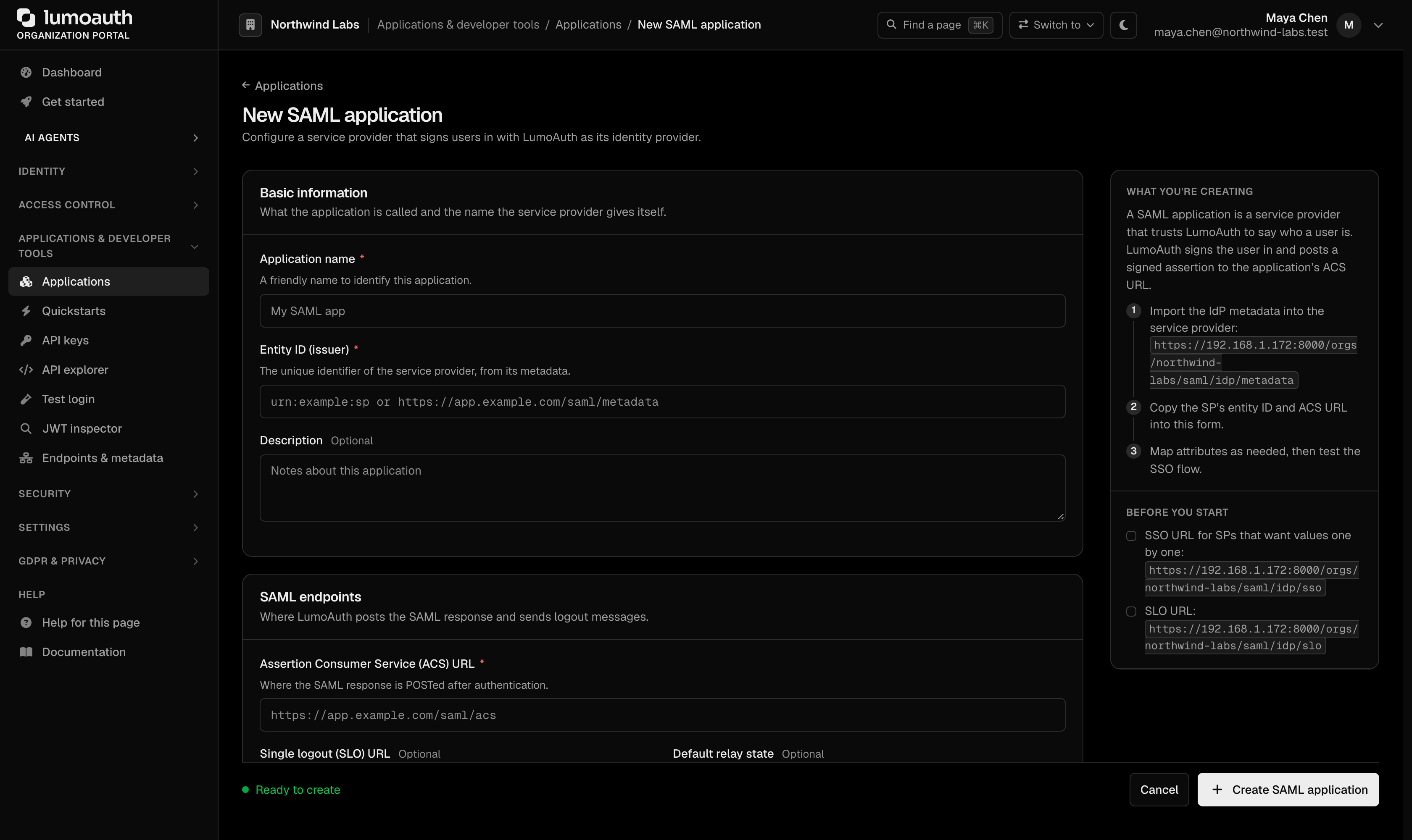
LumoAuth's IdP metadata for these clients is published at /orgs/{orgId}/saml/idp/metadata, with the SSO endpoint at /orgs/{orgId}/saml/idp/sso and single logout at /orgs/{orgId}/saml/idp/slo.
For each SAML client:
- Entity ID (issuer) — the service provider's entity ID.
- Assertion Consumer Service (ACS) URL — where to send the SAML assertion.
- NameID format and NameID source — how to identify the user.
- Attribute Statements — which user attributes to include.
OpenID Connect (OIDC) Federation
Connect External OIDC Providers
LumoAuth can act as an OIDC Relying Party (RP), delegating authentication to external OIDC identity providers.
Configure in the Enterprise SSO (OIDC) section of Settings → Integrations (Add OIDC IdP, or one of the vendor presets under OIDC quick connect).
Register the redirect URI shown there (/orgs/{orgId}/oidc/rp/callback) with your identity provider.
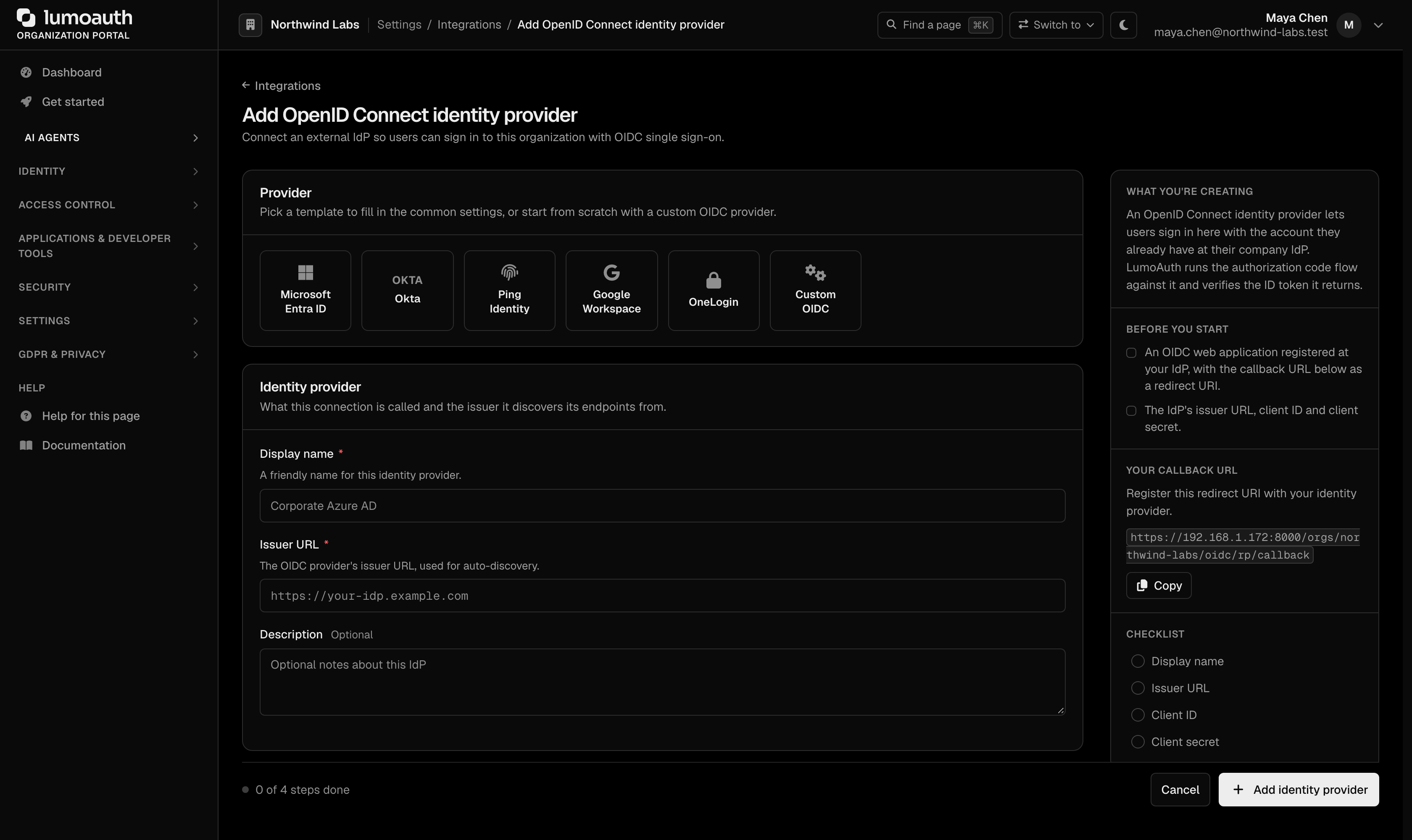
Required Settings:
| Setting | Description |
|---|---|
| Display name | A friendly name for this identity provider |
| Issuer URL | The OIDC provider's issuer (e.g., https://accounts.google.com) |
| Client ID | OAuth client ID from the external provider |
| Client secret | OAuth client secret |
| Scopes | Scopes to request (e.g., openid profile email) |
| Endpoints (optional) | Leave blank to auto-discover from the issuer's .well-known/openid-configuration |
OIDC Discovery: if the provider supports OIDC Discovery, LumoAuth can auto-configure by entering just the issuer URL.
LDAP / Active Directory
Direct LDAP Authentication
Connect LumoAuth directly to an LDAP or Active Directory server to authenticate users against the corporate directory.
Configure in the Directory sync (LDAP/AD) section of Settings → Integrations (Add LDAP/AD directory):
/orgs/{orgId}/portal/integrations
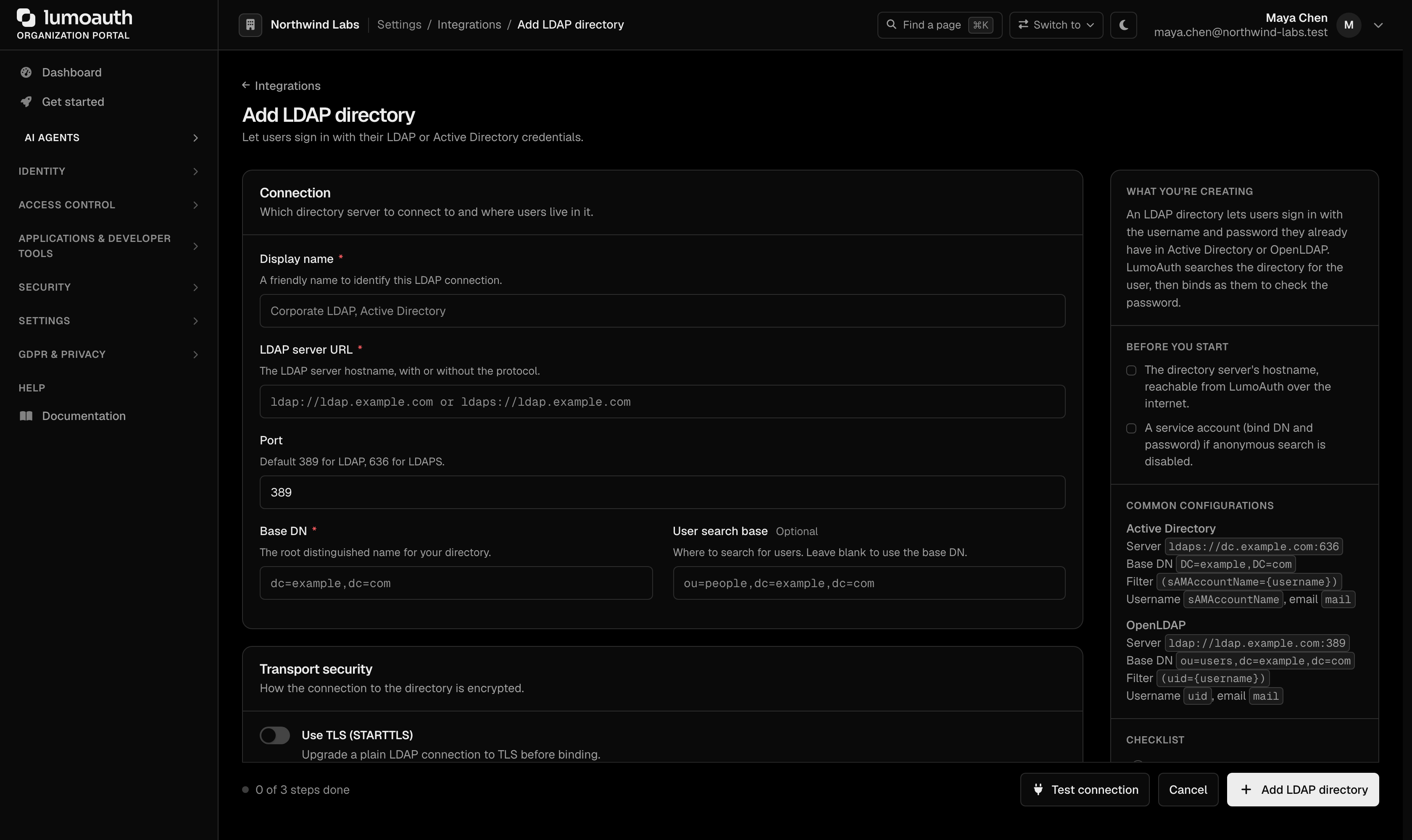
Required Settings:
| Setting | Description |
|---|---|
| Display name | How the directory is listed in the portal |
| LDAP server URL | LDAP server hostname or IP, with or without the protocol. Must resolve to a public address: private network address ranges, loopback, link-local and similar targets are refused when you save. |
| Port | Connection port (389 for LDAP, 636 for LDAPS) |
| Base DN | Base Distinguished Name for user searches |
| User search base | Optional sub-tree under the base DN to search |
| Bind DN | DN of the service account for LDAP queries |
| Bind password | Password for the service account. Stored encrypted at rest and never shown again; leave the field blank when editing to keep it, except when you change the server URL, port or bind DN: then the password must be re-entered so a stored secret is never sent to a new host. |
| User search filter | LDAP filter to find users (e.g., (sAMAccountName={username})) |
| Use TLS (STARTTLS) / Use SSL (LDAPS) | STARTTLS or LDAPS. Strongly recommended. The server certificate is always verified; there is no "skip verification" option. |
Connection rules
These rules are applied on every save and on every sign-in; they cannot be switched off.
| Rule | Why |
|---|---|
| The host must be a public, resolvable hostname or IP | Prevents LumoAuth from being pointed at internal infrastructure (SSRF). Directories behind a firewall need a public endpoint or a tunnel with a public address. |
TLS certificates are verified (LDAP_OPT_X_TLS_DEMAND) | A man-in-the-middle on the directory link would see every user's password. Use a certificate from a CA the LumoAuth host trusts. |
| Empty passwords are refused before any bind | The LDAP authentication standard defines "DN + empty password" as an unauthenticated bind, which Active Directory and some OpenLDAP setups answer with success. LumoAuth never performs it. |
| The portal Test connection button reports generic errors | Could not connect to the LDAP server. or Could not start TLS with the LDAP server (certificate verification is required). The exact reason is in the application log, not in the browser. |
LDAP authentication. The LDAP authentication standard defines the unauthenticated bind: a DN with an empty password succeeds without proving anything. Any login form that forwards a user's password to LDAP must refuse an empty password before calling bind. See the standards reference.
Attribute Mapping
The form's attribute fields name the LDAP attribute to read for each profile field:
| Field | Typical LDAP attribute |
|---|---|
| Username attribute | sAMAccountName or uid |
| Email attribute | mail |
| Name attribute | displayName |
| Given name attribute | givenName |
| Surname attribute | sn |
Group membership and phone numbers are not read from the directory.
JIT Provisioning from LDAP
When JIT (Just-In-Time) provisioning is enabled:
- User attempts to log in with LDAP credentials.
- LumoAuth authenticates against the LDAP server.
- If the user does not exist in LumoAuth, an account is automatically created.
- The user profile is populated from LDAP attributes.
How LDAP users are matched
An LDAP account is linked to its directory entry by (directory connection, DN), so an email change in the directory does not create a second account, and the directory's mail attribute (often user-editable) cannot move a user into someone else's account.
When no account is linked to the DN yet, LumoAuth may adopt the account with the same email only if nothing else owns it. The sign-in is refused (it fails like a wrong password) and audited as ldap.account_link_refused with a reason when the account:
reason | The account… |
|---|---|
bound_to_different_dn | is already linked to another DN |
bound_to_different_directory | is linked to another LDAP connection |
federated_account | is linked to a social provider |
different_auth_source | comes from another sign-in source (SAML, SCIM, …) |
local_password | has its own local password |
platform_admin | is a LumoAuth operator account, which can never be linked to a directory entry |
The same rule applies with JIT provisioning off: the user can only sign in to the account linked to their directory entry. To let a refused user in, link the account to the directory entry explicitly: open the user in Users → Federated identities → Link LDAP identity, pick the directory and enter the DN (or leave it empty to look the entry up by the user's email, then username). The same is available as POST /orgs/{orgId}/api/v1/admin/users/{userId}/identities with {"type": "ldap", "ldap_config_id": 1, "dn": "..."} and lumo users identities link <user> --ldap-config 1 --dn "...". The user's local password keeps working unless you also choose Directory sign-in only (ldap_only / --ldap-only).
Relinking federated identities
A federated link decides which external identity signs in as an account, so an administrator changing one could hand the account to someone else. LumoAuth therefore treats link, unlink and relink like a credential change:
- You need the
users.editpermission (admin:users:writefor API keys), and you cannot change the links of an account that holds permissions you do not have. - Signed-in administrators must have passed MFA (multi-factor authentication) in the last 10 minutes (the same step-up as issuing a temporary access code).
- The user's sessions and tokens are revoked and the user receives an email with a "This wasn't me" link.
- Every change is audited:
identity.link.created,identity.link.removed,identity.link.bulk_relinked.
An account signs in through one federated source at a time: linking SAML is refused while the account is linked to LDAP or a social provider, and linking LDAP is refused while it is linked to SAML. Unlink the other source first (Unlink in the portal, DELETE /users/{userId}/identities/{type}, or lumo users identities unlink <user> --type saml|ldap|social). Unlinking LDAP also turns off Directory sign-in only; the user then needs a password reset to sign in with a local password.
JIT User Provisioning
Regardless of the SSO protocol, LumoAuth supports JIT provisioning.
How It Works
When a user authenticates via an external IdP for the first time:
- LumoAuth receives the user's identity information (email, name, etc.).
- If no LumoAuth account exists for that user, one is created.
- The user profile is populated from the IdP's assertion or claims.
- For social-login providers, the provider's default roles are assigned.
- The external identity is linked to the LumoAuth account.
Configuration
JIT provisioning settings per IdP connection:
| Setting | Description |
|---|---|
| Just-in-time provisioning | Create accounts automatically on first SSO login |
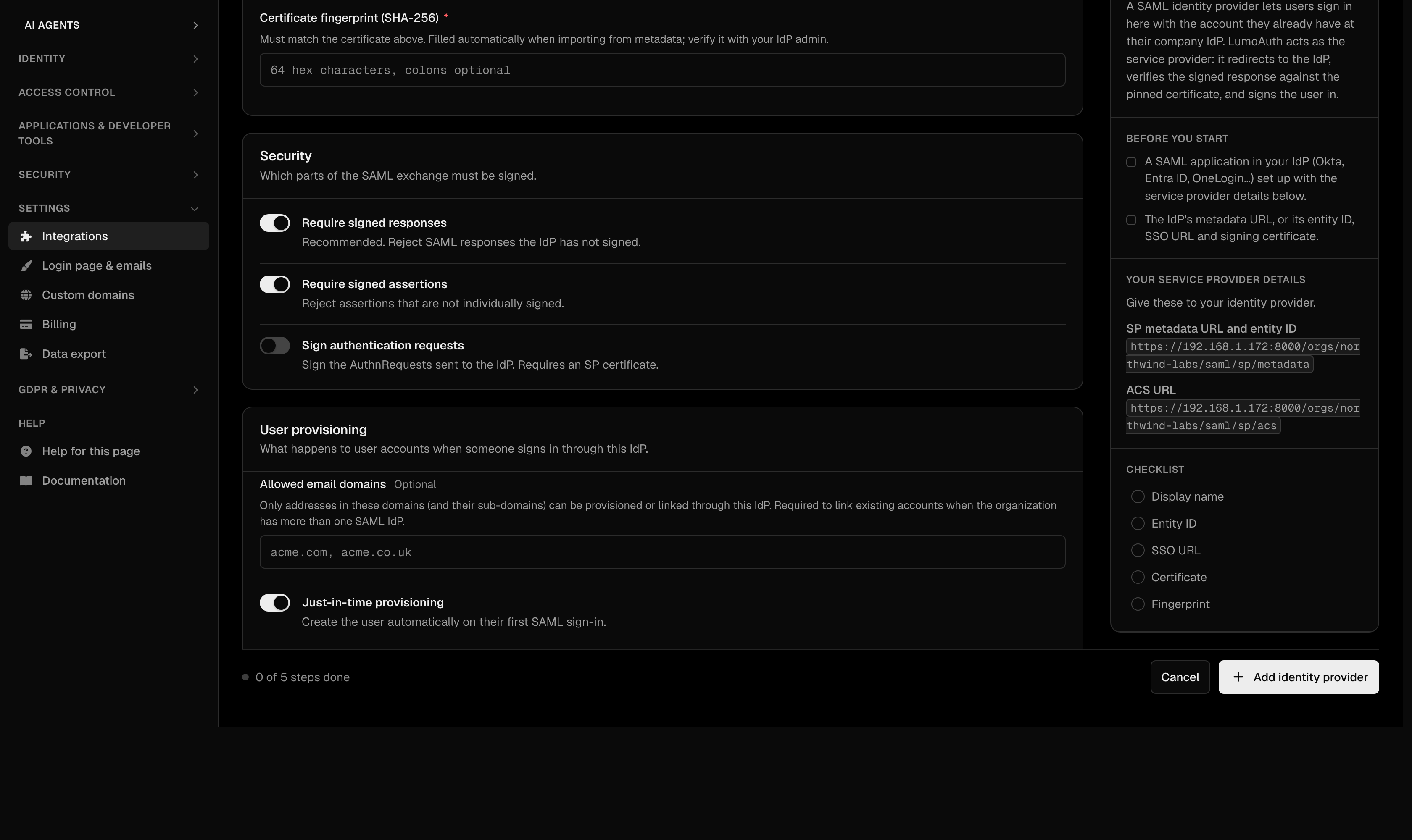
| Attribute mappings (LDAP) | Map directory attributes to the LumoAuth user profile (the LDAP form's Provisioning section has only Just-in-time provisioning). SAML attributes are mapped automatically, see SAML SP |
| Update user attributes on sign-in (SAML, OIDC) | Sync user profile on every login (not just the first) |
On the SAML and OIDC forms these switches are in the User provisioning section:
Roles for provisioned users
Provisioned users start with no roles unless the connection defines default roles, and default roles can never make someone an administrator:
- Social login providers have a Default roles field. System roles and roles that confer administrator authority are refused when you save, and you must hold every permission in the roles you pick. See Social Login.
- SAML IdPs have no default-roles field in the portal today. If a stored configuration carries one, any privileged role in it is skipped at sign-in and an audit event
saml_default_role_skippedis written. - OIDC IdPs and LDAP assign no roles on provisioning.
Grant roles afterwards in the portal, through groups, or let your IdP manage job-function roles through SCIM groups. The single rule behind all of this is described in No privilege gain.
Single Logout
LumoAuth supports single logout flows:
- SAML SLO — when a user logs out of LumoAuth, the SAML logout request is sent to the IdP. Inbound logout messages from the IdP must be signed.
- OIDC Logout — front-channel and back-channel logout supported.
- Session Termination — all LumoAuth sessions are invalidated.
Common SSO Configurations
Okta
- In Okta Admin → Applications → Create App Integration → SAML 2.0.
- Set SSO URL to:
https://your-domain.com/orgs/{orgId}/saml/sp/acs. - Set Audience URI to:
https://your-domain.com/orgs/{orgId}/saml/sp/metadata. - Configure attribute statements (email, firstName, lastName).
- Download the IdP metadata and import into LumoAuth.
Azure AD
- In Azure Portal → Enterprise Applications → Create New.
- Set up SAML SSO configuration.
- Set Reply URL to:
https://your-domain.com/orgs/{orgId}/saml/sp/acs. - Set Identifier to:
https://your-domain.com/orgs/{orgId}/saml/sp/metadata. - Download the Federation Metadata XML and import into LumoAuth.
Google Workspace
- In Google Admin → Security → SSO with third-party IdP.
- Or use OIDC: configure LumoAuth as an OIDC RP with Google's issuer URL.
Related Guides
- Authentication Overview — all authentication methods
- Social Login — OAuth-based social identity providers
- SAML Applications — configure SAML SP applications
- SCIM Provisioning — automated user provisioning from IdPs
Standards used on this page
| Plain name | Standard |
|---|---|
| SAML 2.0 | OASIS SAML 2.0 |
| OpenID Connect (OIDC) | OpenID Connect Core 1.0 |
| LDAP authentication | RFC 4513 |
| Private network address ranges | RFC 1918 |
See the standards reference for what each one covers and how LumoAuth uses it.