Authentication Overview
LumoAuth supports several authentication methods that you can combine per organization: email and password, passwordless magic links, social login, MFA (multi-factor authentication), adaptive (risk-based) MFA, passkeys (WebAuthn/FIDO2, the browser and authenticator standards behind passkeys), push notifications, enterprise SSO (SAML, OIDC federation, LDAP), and device authorization for input-constrained devices. Use this page to pick the right method for your users and to understand how all authentication flows plug into the OAuth 2.0 login pipeline.
Supported Authentication Methods
| Method | Description | Best For |
|---|---|---|
| Email & Password | Credential-based login | Most applications |
| Magic Link & Email-First | Passwordless sign-in via emailed link; optional email-first UI | Consumer apps, low-friction login |
| Social Login | OAuth/OIDC login via Google, GitHub, Microsoft, etc. | Consumer apps |
| Multi-Factor Authentication | Second factor by strength tier: passkey, push, authenticator app, text or email code; recovery codes | Security-sensitive apps |
| Adaptive MFA | Risk-based, context-aware MFA | Reducing friction while keeping security high |
| Passkeys & WebAuthn | FIDO2 passwordless authentication | Phishing-resistant login |
| Push Authentication | Mobile push notification approval | High-assurance, passwordless |
| Enterprise SSO | SAML 2.0, OIDC federation, LDAP/Active Directory | B2B and enterprise apps |
| Device Authorization | Sign in on another device for input-constrained devices | CLI tools, IoT, smart TVs |
How Authentication Works in LumoAuth
The Login Flow
- User initiates login. Your application redirects the user to LumoAuth's authorization endpoint.
- LumoAuth presents the login page. Based on organization configuration, it shows email/password, social buttons, passkeys, magic link, etc.
- User authenticates. Enters credentials, clicks a social button, or uses a passkey.
- MFA challenge (if configured). A second factor is prompted based on policy or risk score.
- Consent (if needed). For third-party apps, the user approves the requested scopes.
- Redirect back. LumoAuth redirects to your app with an authorization code.
- Token exchange. Your app exchanges the code for access, ID, and refresh tokens.
Organization-Specific URLs
All authentication flows use organization-specific URLs:
Authorization:  /orgs/{orgId}/api/v1/oauth/authorize
Token:          /orgs/{orgId}/api/v1/oauth/token
User Info:      /orgs/{orgId}/api/v1/oauth/userinfo
OIDC Discovery: /orgs/{orgId}/api/v1/.well-known/openid-configuration
Each organization can independently configure:
- Which authentication methods are enabled
- Social login providers and their credentials
- MFA policies and enforcement
- Adaptive authentication risk thresholds
- Password policies and complexity requirements
- Email verification requirements
Authentication Configuration
Configure authentication for an organization under Security → Sign-in settings:
/orgs/{orgId}/portal/settings/authentication
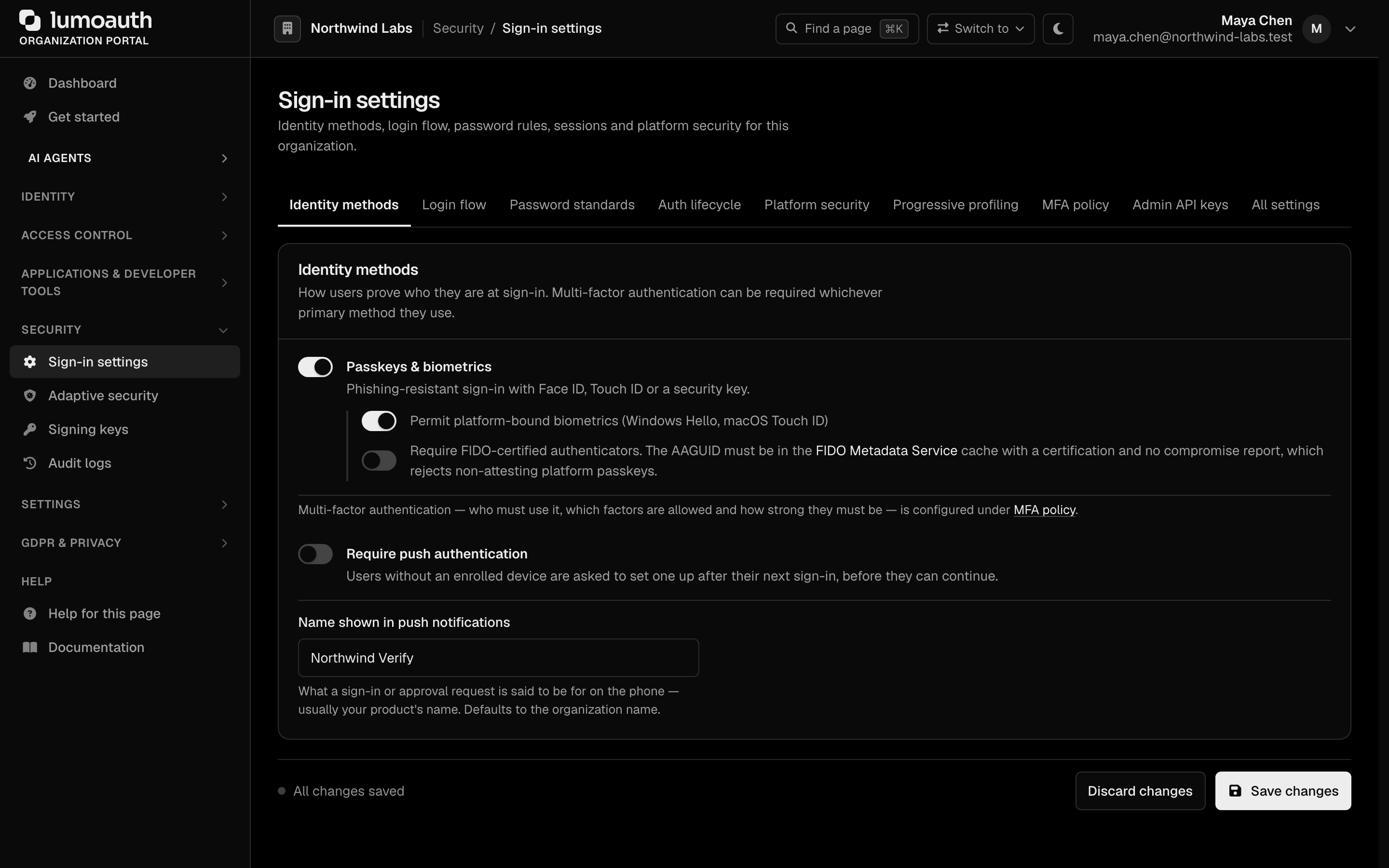
Available Settings
The page is split into sections; the ones that control sign-in are:
| Section | Settings |
|---|---|
| Identity methods | Passkeys & biometrics (passwordless passkey sign-in and enrollment) and Require push authentication |
| Login flow | Email-first login and Magic link login |
| Password standards | A standard template (Fair, Moderate, Strict or Custom), minimum length and character requirements |
| Auth lifecycle | Session timeout, Password rotation interval, Enforce periodic password resets and Reject passwords found in known breaches (with Minimum breach count and Also check at sign-in) |
| MFA policy | Who must use MFA, the allowed factors, and what happens on a risky sign-in by a user without MFA (allow / prompt for MFA setup / email verification / block) |
Risk-based adaptive authentication is configured on its own page, Security → Adaptive security (/orgs/{orgId}/portal/settings/adaptive-auth) — see Adaptive MFA.
Choosing the Right Authentication Method
For Consumer Applications (B2C)
Start with Email/Password or Magic Link, plus Social Login for low-friction signup. Add Adaptive MFA to protect high-risk logins without adding friction for normal users.
For Business Applications (B2B)
Use Enterprise SSO (SAML 2.0 or OIDC) so employees can log in with their corporate identity provider. Layer on MFA enforcement for compliance.
For Machine-to-Machine
Use the Client Credentials grant type — no user interaction needed. See OAuth Clients and Applications Overview.
For CLI Tools and IoT
Use the Device Authorization Flow — display a code on the device, user authenticates on their phone or computer.
Security Features Across All Methods
Regardless of which authentication method you choose, LumoAuth provides:
- Brute-force protection — rate limiting on login attempts.
- CSRF protection — all forms include CSRF tokens.
- Secure password hashing — a strong adaptive hash (Argon2id or bcrypt), selected automatically by Symfony's password hasher.
- Login attempt logging — every attempt is recorded in the audit log.
- Session management — track and revoke active sessions.
- Email verification — prevent account takeover via unverified emails.
Next Steps
Choose an authentication method to learn more:
- Email & Password
- Magic Link & Email-First
- Social Login
- Multi-Factor Authentication
- Adaptive MFA
- Passkeys & WebAuthn
- Push Authentication
- Enterprise SSO
- Device Authorization Flow
Standards used on this page
| Plain name | Standard |
|---|---|
| Device authorization (sign in on another device) | RFC 8628 |
See the standards reference for what each one covers and how LumoAuth uses it.