Applications
Applications in LumoAuth represent OAuth 2.0 / OIDC clients. OAuth 2.0 is the core sign-in and token protocol (the authorize and token endpoints and the supported grant types); OpenID Connect builds an identity layer on top of it by adding an id_token (a signed statement of who signed in) and a user-info endpoint. Every app, API, or service that needs to authenticate users or request tokens must be registered here.
Application Types
| Type | Description | Example |
|---|---|---|
| Web Application | Server-side app with a backend | Node.js, PHP, Python web app |
| Single-Page Application (SPA) | Client-side JavaScript app | React, Angular, Vue app |
| Native / Mobile | Desktop or mobile application | iOS, Android, Electron app |
| Machine-to-Machine (M2M) | Service-to-service communication | Backend APIs, cron jobs, microservices |
| Device | Input-constrained device | CLI tools, smart TVs, IoT |
The portal's Create application page offers three starting points for OpenID Connect applications: Web application, Single-page or mobile app and Machine to machine. They only preset the grant types, default scopes and whether the client has a secret; you can change all of these on the application's Configuration tab afterwards.
Managing Applications
Portal
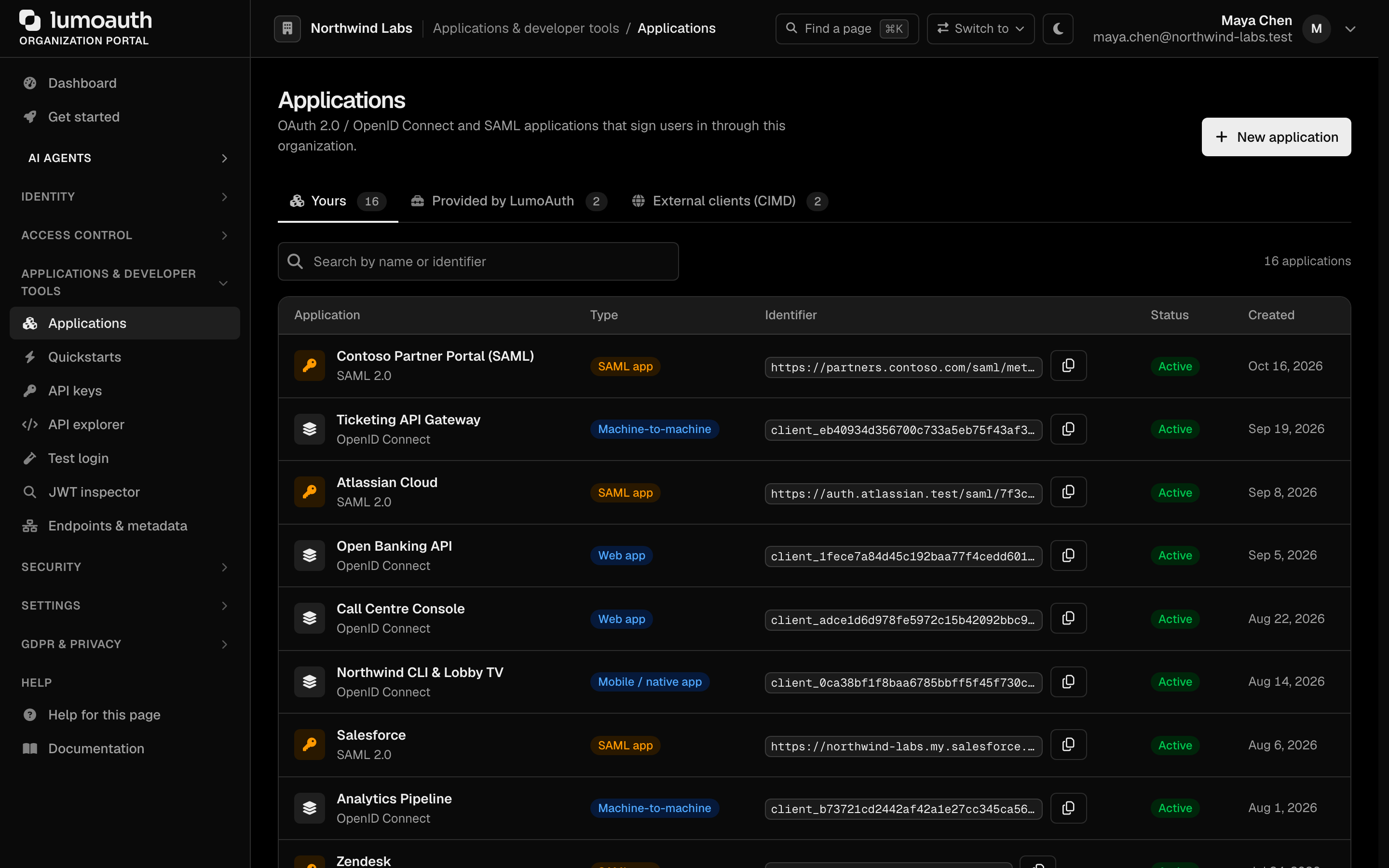
Open Applications in the portal sidebar (/orgs/{orgId}/portal/applications):
- New application - Register a new OpenID Connect or SAML application
- Application list - Two tabs: Yours (the applications you registered) and Provided by LumoAuth (first-party apps such as the CLI and Test login, which you can open but not delete). Search by name or identifier; each row shows the application's type (Web app, Single-page app, Machine-to-machine or SAML app), identifier with a copy button, status and creation date
- Application detail - Click an application to open its Credentials, Configuration, Security, Branding and Developer tabs
Creating an Application
- Go to
/orgs/{orgId}/portal/applications - Click New application
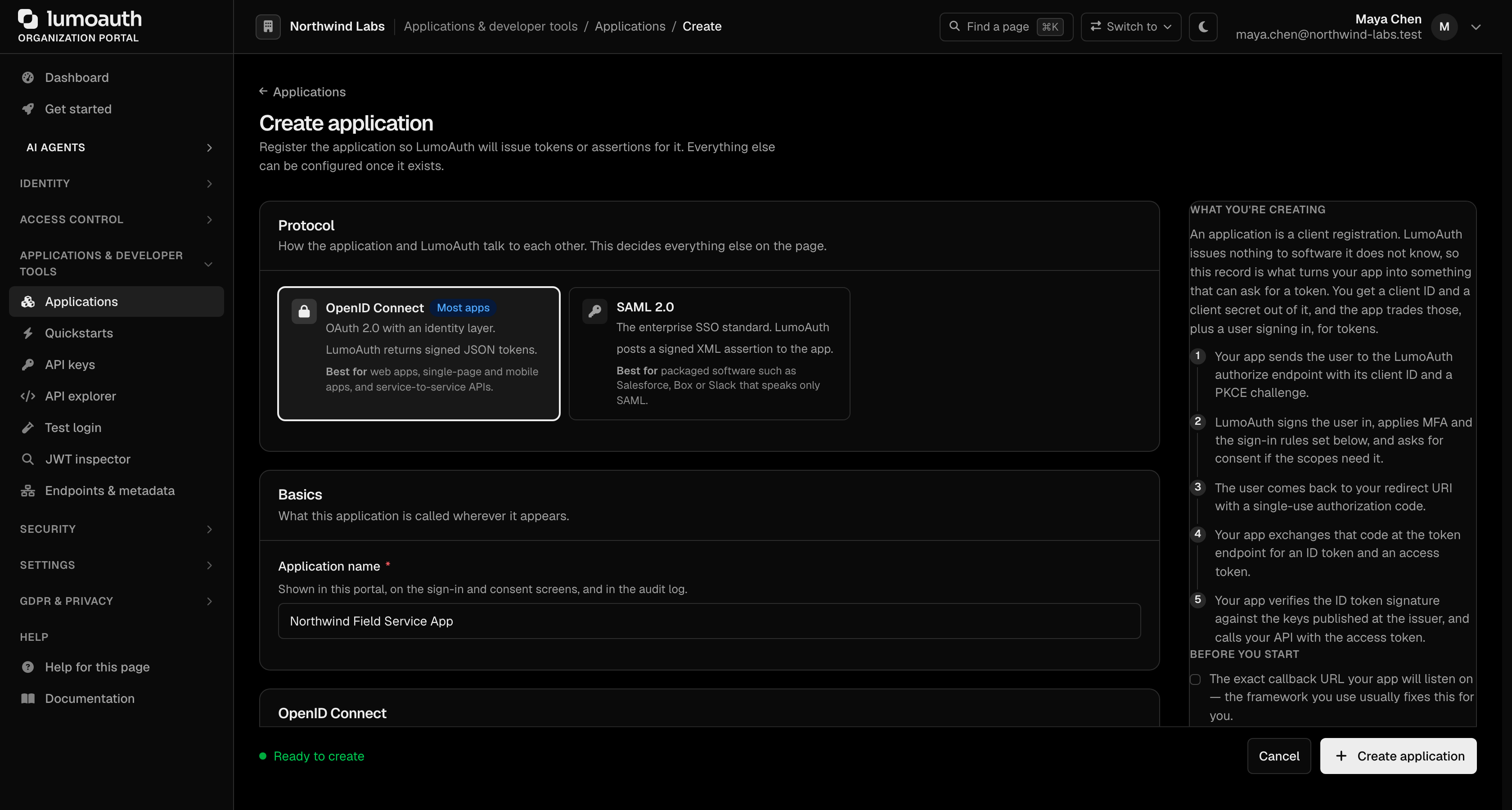
- On the Create application page, fill in:
| Field | Description |
|---|---|
| Protocol | OpenID Connect (most apps) or SAML 2.0 (see SAML Applications) |
| Application name | Display name, shown in the portal, on the sign-in and consent screens, and in the audit log |
| What the application is | Web application, Single-page or mobile app, or Machine to machine. This sets the grant types and default scopes; both can be changed afterwards |
| Redirect URI | The callback URL LumoAuth returns the user to after sign-in. Matched exactly; more can be added afterwards |
| Who can sign in | Everyone (default), Individual users only, or Customer organization members only |
-
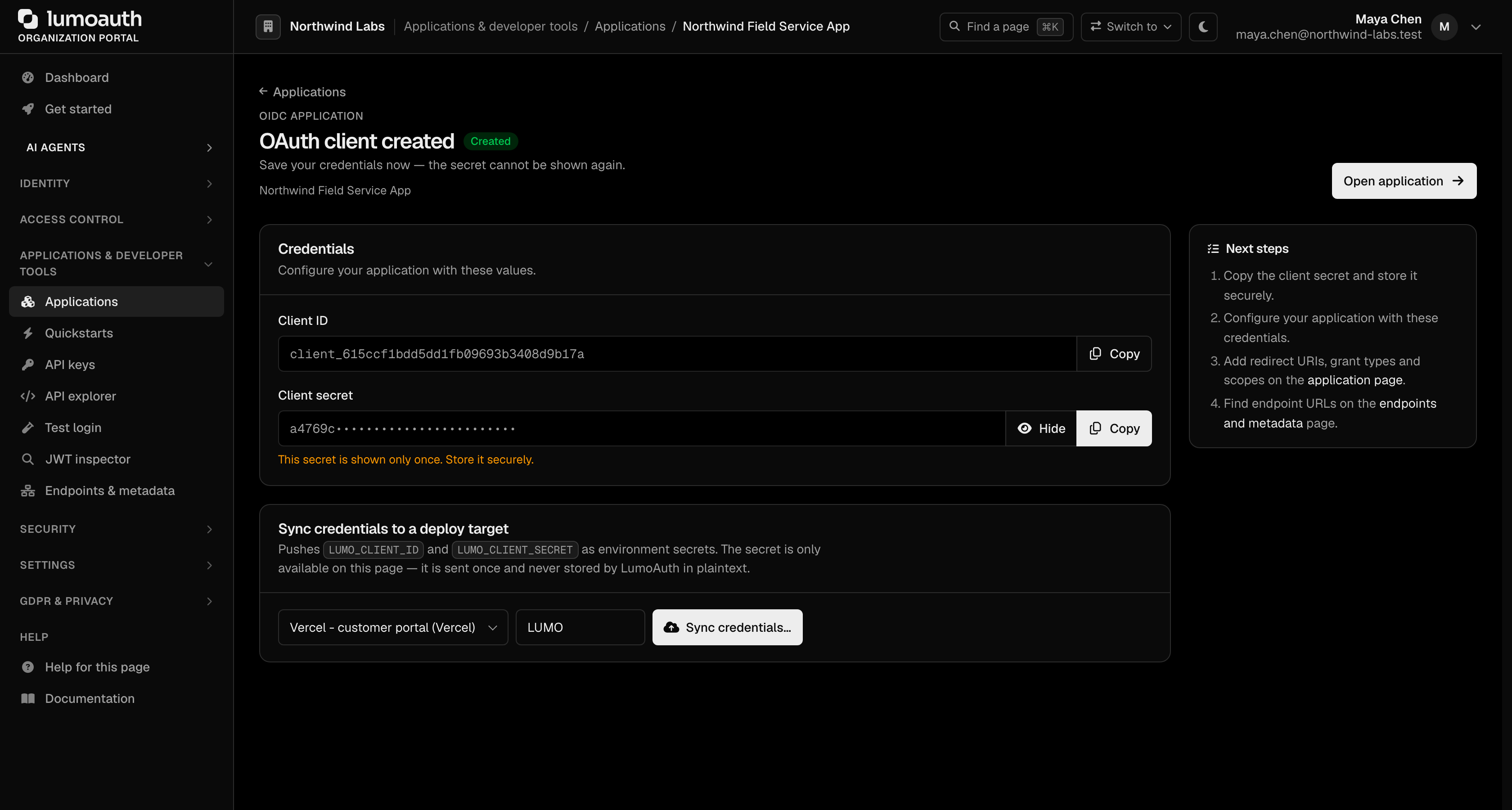
Click Create application. The next page shows:
- Client ID - Public identifier for the application
- Client secret - Secret key (for confidential clients only). It is shown once; copy it before leaving the page
If an organization secrets manager is connected, a Sync credentials to a deploy target card on the same page pushes
LUMO_CLIENT_IDandLUMO_CLIENT_SECRETstraight into it (see Secrets managers).
- Click Open application to finish the setup on the application's tabs:
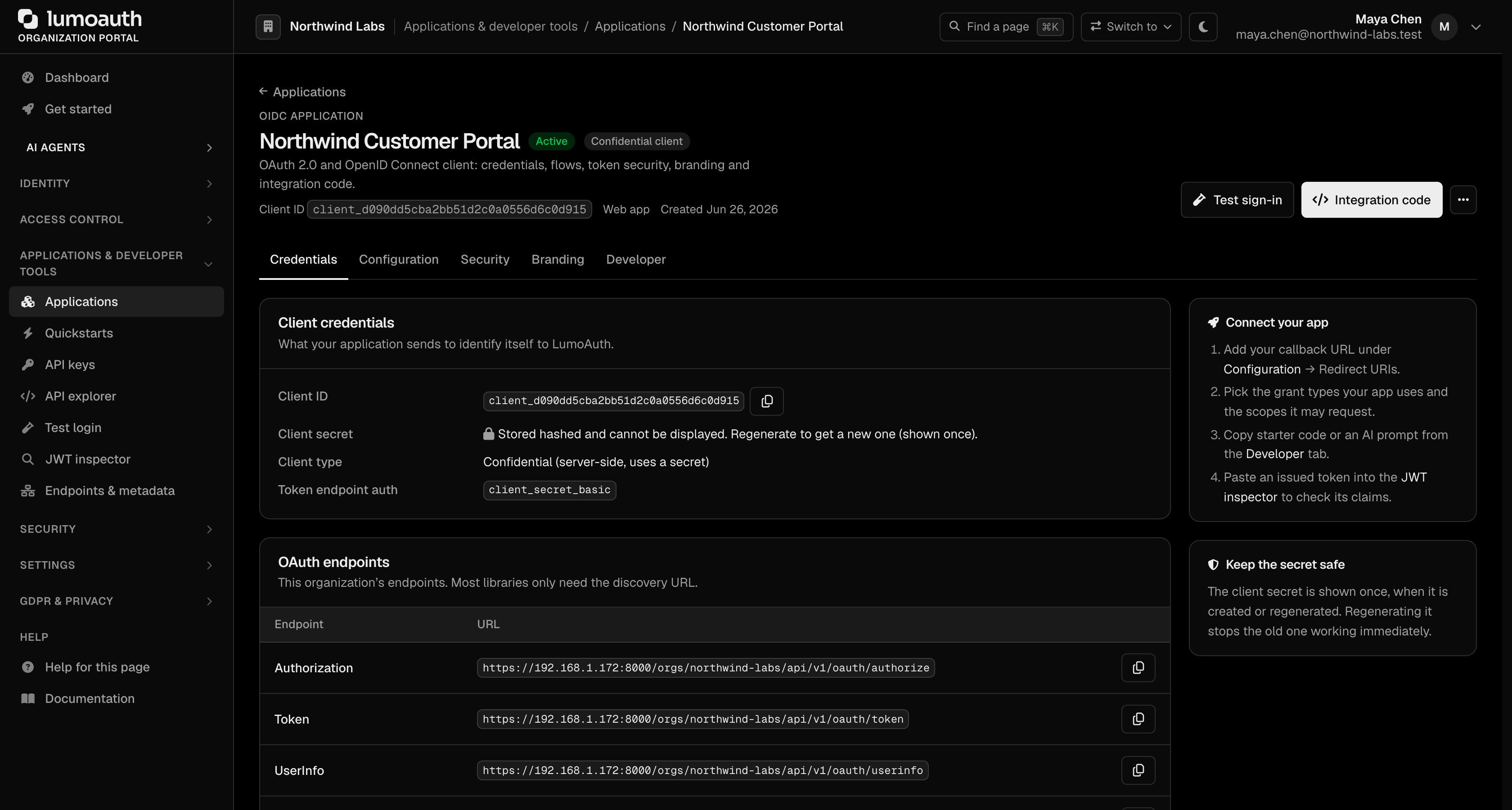
| Tab | What you configure there |
|---|---|
| Credentials | Client ID, Regenerate for the client secret, and the organization's OAuth endpoints |
| Configuration | Grant types, redirect URIs, allowed scopes, user access, resource indicators, CORS origins, application metadata, logout URIs |
| Security | Access token format and lifetimes, JWT claims, passkeys and MFA, FAPI 2.0 and client authentication |
| Branding | Per-application login page and consent page |
| Developer | Test token generation and integration code |
The header of an application also carries Test sign-in (runs a sign-in against the application), Integration code (jumps to the Developer tab's ready-made prompts and code) and a ... menu with edit and Delete application.
Client Confidentiality
| Client Type | Has Secret | Use Case |
|---|---|---|
| Confidential | Yes | Web apps with a backend that can securely store the secret |
| Public | No | SPAs, mobile apps, CLI tools that cannot securely store secrets |
Public clients must use PKCE (a one-time secret that protects the sign-in code) together with the Authorization Code flow. PKCE binds the authorization request to a one-time code_verifier so an intercepted authorization code cannot be exchanged for a token by an attacker.
In This Section
| Guide | Description |
|---|---|
| OAuth 2.0 & OIDC | Grant types, token flows, and OIDC integration |
| SAML Applications | Register SAML Service Providers |
| Signing Keys | JWT signing key management and rotation |
| API Keys | Scoped keys for admin API and dynamic client registration |
Standards used on this page
| Plain name | Standard |
|---|---|
| OAuth 2.0 (the core sign-in and token protocol) | RFC 6749 |
| OpenID Connect (OIDC) | OpenID Connect Core 1.0 |
| Proof Key for Code Exchange (PKCE) | RFC 7636 |
See the standards reference for what each one covers and how LumoAuth uses it.