Add authentication to your React app
This guide walks you through adding authentication, user management, and access control to a React application using the @lumoauth/react SDK.
Before you start
You need:
- A LumoAuth account with an organization (sign up)
- A registered OAuth application with a redirect URI (e.g.,
http://localhost:5173/auth/callback) - Node.js 18+
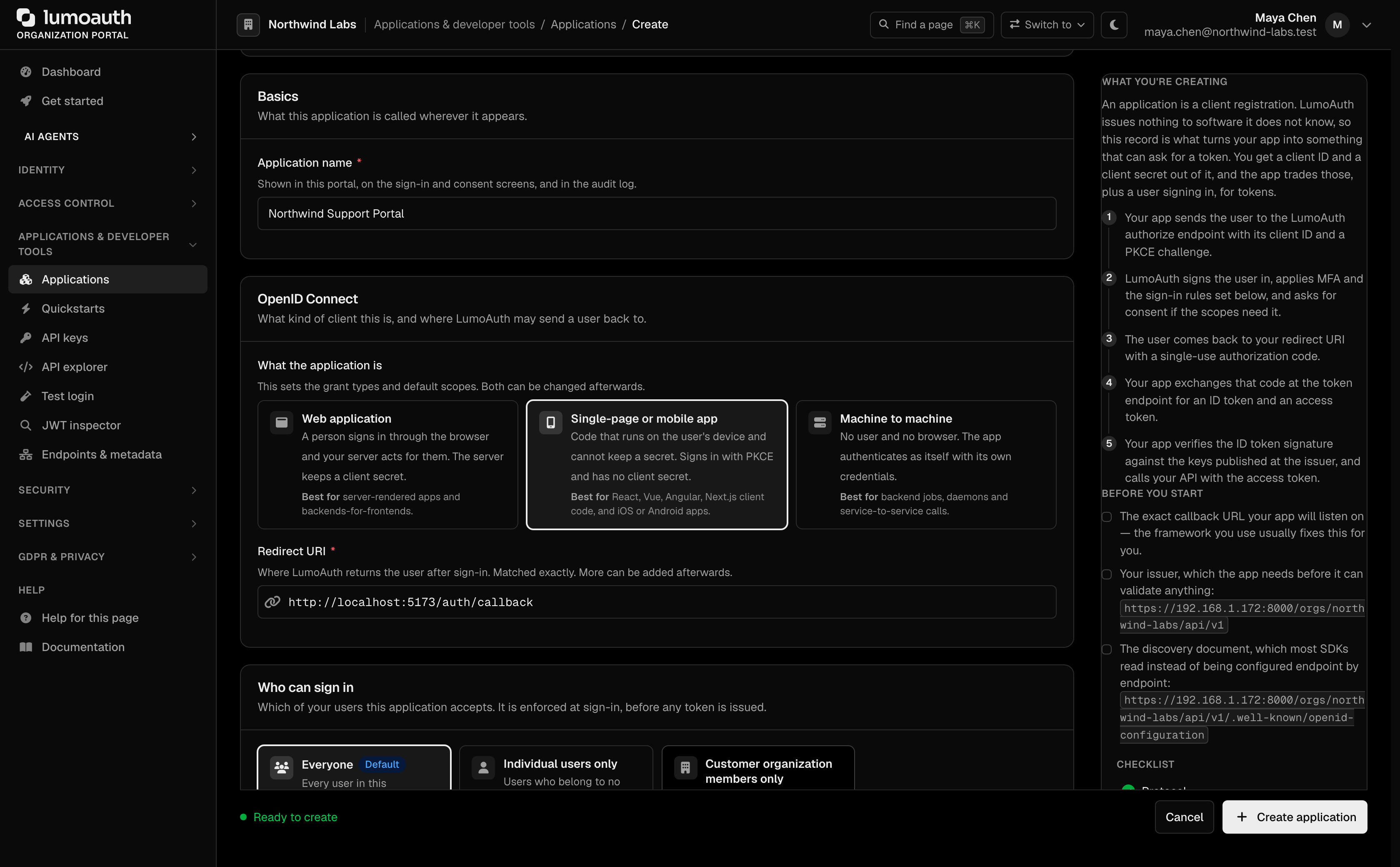
To register the application, open Applications in the portal sidebar and click New application. Enter an Application name, choose Single-page or mobile app, enter the Redirect URI, and click Create application.
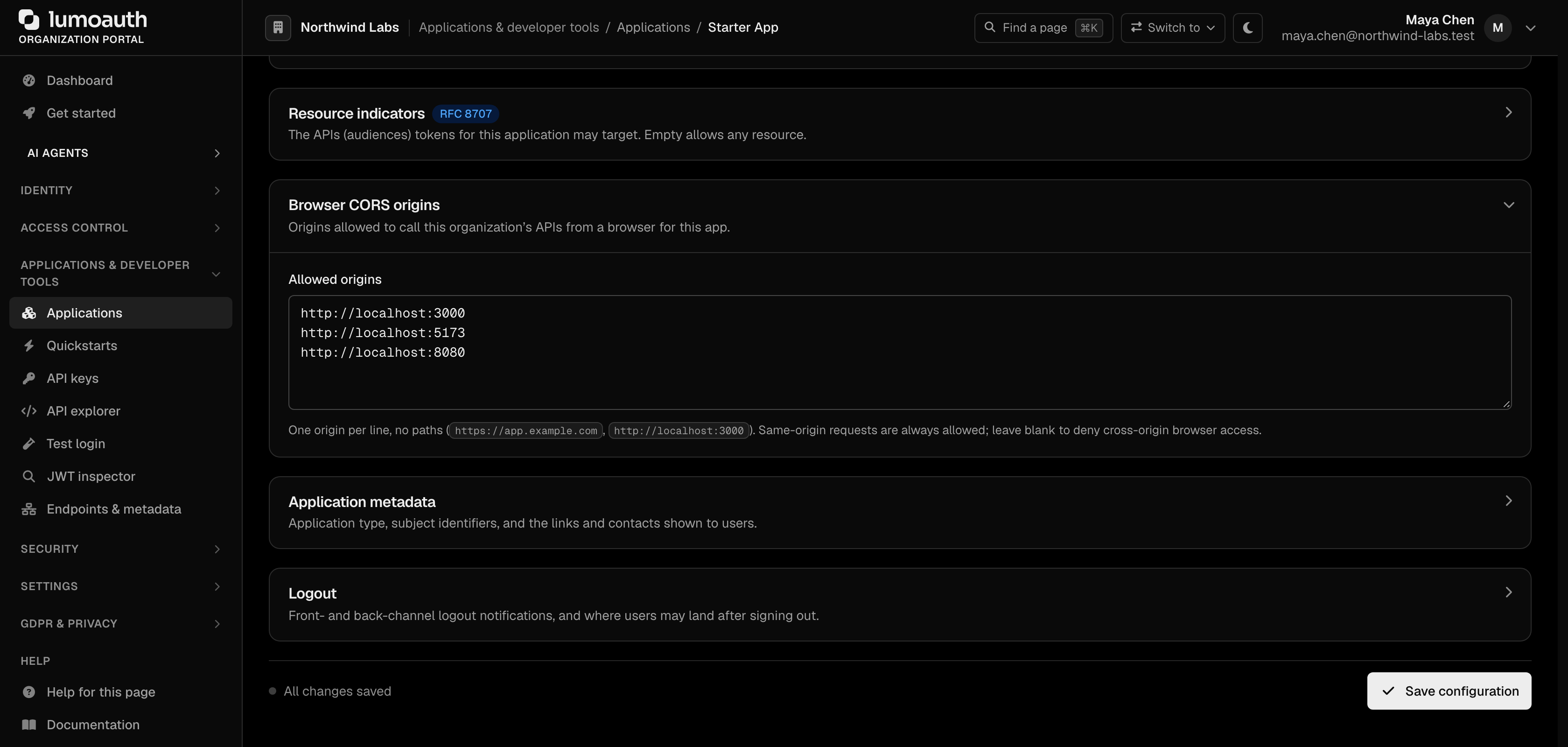
Because this app finishes sign-in in the browser, also add its origin (for example http://localhost:5173) under Browser CORS origins on the application's Configuration tab and click Save configuration. Otherwise the token request is blocked by CORS right after sign-in.
From your organization portal, note your Organization ID and Client ID. The Quickstarts page (under Applications & developer tools) has a React tab that shows your organization ID and client ID pre-filled, ready to copy.
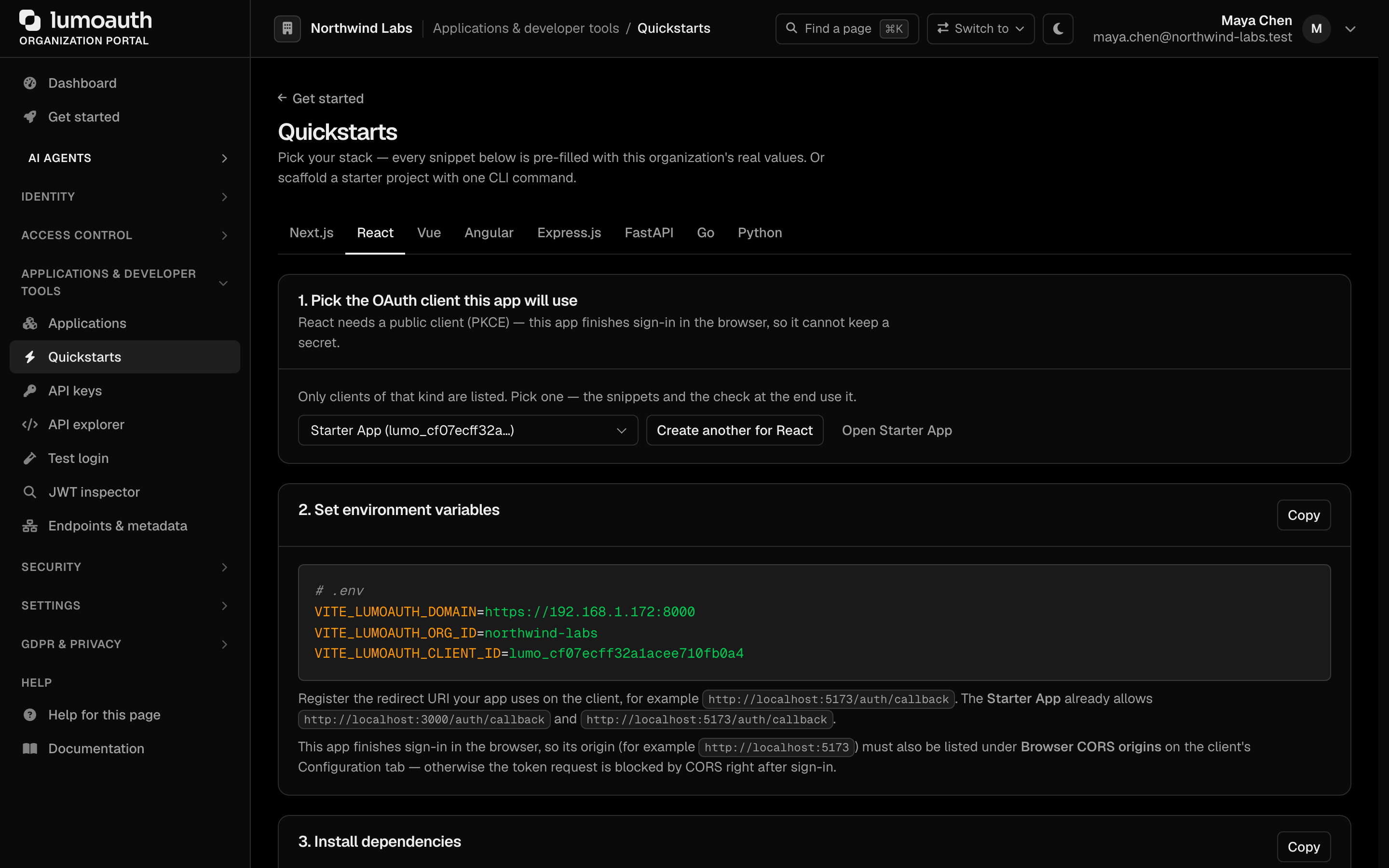
The tab's first step lists only OAuth clients of the kind these snippets need; if none exists, Create one for this framework opens the create form with the right type preselected and brings you back. Its last step, Check it worked, shows the first sign-in that completes through the selected client.
Install the SDK
npm install @lumoauth/react
The routing example below uses React Router. If your app doesn't already have it, install it too:
npm install react-router
Set up the provider
Wrap your app with LumoAuthProvider. This makes authentication state available throughout your component tree.
import ReactDOM from 'react-dom/client';
import { LumoAuthProvider } from '@lumoauth/react';
import App from './App';

ReactDOM.createRoot(document.getElementById('root')!).render(
  <LumoAuthProvider
    domain="https://app.lumoauth.dev"
    orgId="acme-corp"
    clientId="your-client-id"
    redirectUri="http://localhost:5173/auth/callback"
    afterSignInUrl="/dashboard"
  >
    <App />
  </LumoAuthProvider>
);
Add sign-in and sign-up pages
The SDK provides pre-built components that handle the full authentication flow, including social login buttons when configured in your organization.
import { SignIn } from '@lumoauth/react';

export default function SignInPage() {
  return (
    <div style={{ display: 'flex', justifyContent: 'center', paddingTop: '4rem' }}>
      <SignIn afterSignInUrl="/dashboard" signUpUrl="/sign-up" />
    </div>
  );
}
import { SignUp } from '@lumoauth/react';

export default function SignUpPage() {
  return (
    <div style={{ display: 'flex', justifyContent: 'center', paddingTop: '4rem' }}>
      <SignUp afterSignUpUrl="/dashboard" signInUrl="/sign-in" />
    </div>
  );
}
Handle the OAuth callback
Mount AuthCallback on the route matching your redirect URI. It exchanges the authorization code for tokens and redirects the user.
import { AuthCallback } from '@lumoauth/react';

export default function CallbackPage() {
  return (
    <AuthCallback
      afterSignInUrl="/dashboard"
      loading={<p>Signing you in...</p>}
      error={(err) => <p>Something went wrong: {err}</p>}
    />
  );
}
Protect your routes
Use SignedIn and SignedOut to conditionally render content based on authentication status.
import { BrowserRouter, Routes, Route } from 'react-router';
import { SignedIn, SignedOut, RedirectToSignIn, UserButton } from '@lumoauth/react';
import SignInPage from './pages/SignInPage';
import SignUpPage from './pages/SignUpPage';
import CallbackPage from './pages/CallbackPage';
import Dashboard from './pages/Dashboard';

export default function App() {
  return (
    <BrowserRouter>
      <header style={{ display: 'flex', justifyContent: 'flex-end', padding: '1rem' }}>
        <SignedIn>
          <UserButton showName />
        </SignedIn>
      </header>

      <Routes>
        <Route path="/sign-in" element={<SignInPage />} />
        <Route path="/sign-up" element={<SignUpPage />} />
        <Route path="/auth/callback" element={<CallbackPage />} />
        <Route
          path="/dashboard"
          element={
            <>
              <SignedIn><Dashboard /></SignedIn>
              <SignedOut><RedirectToSignIn /></SignedOut>
            </>
          }
        />
      </Routes>
    </BrowserRouter>
  );
}
Use hooks for auth state
Access the current user, sign-out function, and tokens from any component.
import { useAuth, useUser } from '@lumoauth/react';

export default function Dashboard() {
  const { signOut, getToken } = useAuth();
  const user = useUser();

  const callApi = async () => {
    const token = await getToken();
    const res = await fetch('https://api.myapp.com/data', {
      headers: { Authorization: `Bearer ${token}` },
    });
    const data = await res.json();
    console.log(data);
  };

  return (
    <div>
      <h1>Welcome, {user?.displayName}</h1>
      <p>Email: {user?.email}</p>
      <button onClick={callApi}>Fetch Data</button>
      <button onClick={() => signOut()}>Sign Out</button>
    </div>
  );
}
Add access control
Use the Protect component or authorization hooks to gate features by permission, relationship, or policy.
import { Protect, usePermission } from '@lumoauth/react';

export function AdminPanel() {
  return (
    <Protect permission="admin.access" fallback={<p>You don't have access to this section.</p>}>
      <h2>Admin Panel</h2>
      <p>Only members with the <code>admin.access</code> permission can see this.</p>
    </Protect>
  );
}

export function EditButton() {
  const { allowed, isLoading } = usePermission('documents.edit');

  if (isLoading) return null;
  if (!allowed) return null;

  return <button>Edit Document</button>;
}
What's next?
- Configure social login in your organization to show social buttons on SignIn/SignUp
- Set up MFA for additional security
- Define roles and permissions to use with the Protect component
- SDKs & Libraries - Full SDK API reference