Your first 15 minutes in the portal
This is the one setup guide to follow after you sign up. It walks the organization portal in the order most teams need it: sign in, register an application, add users and roles, create an API key, and verify an end-to-end login.
What you'll set up
By the end of this guide you will have:
- Authentication configured (email/password, optionally social login)
- An OAuth application registered
- Users added to the organization
- An API key with only the scopes you need
- A working login flow verified with curl
Step 1: Sign up and open your organization portal
- Go to app.lumoauth.dev and create an account. Choose an organization ID (for example
acme-corp). It becomes part of every URL, so pick something URL-safe and stable. - Verify your email, then sign in. Your account is created with a Starter App so you can try a login straight away from Get started in the sidebar.
Your portal is at:
https://app.lumoauth.dev/orgs/{your-organization-slug}/portal/
The portal dashboard is the landing page for all organization settings.
An organization is an isolated identity environment. Users, applications, roles and settings belong to exactly one organization and are invisible to others. If you sell to other companies, your customers are customer organizations inside your organization.
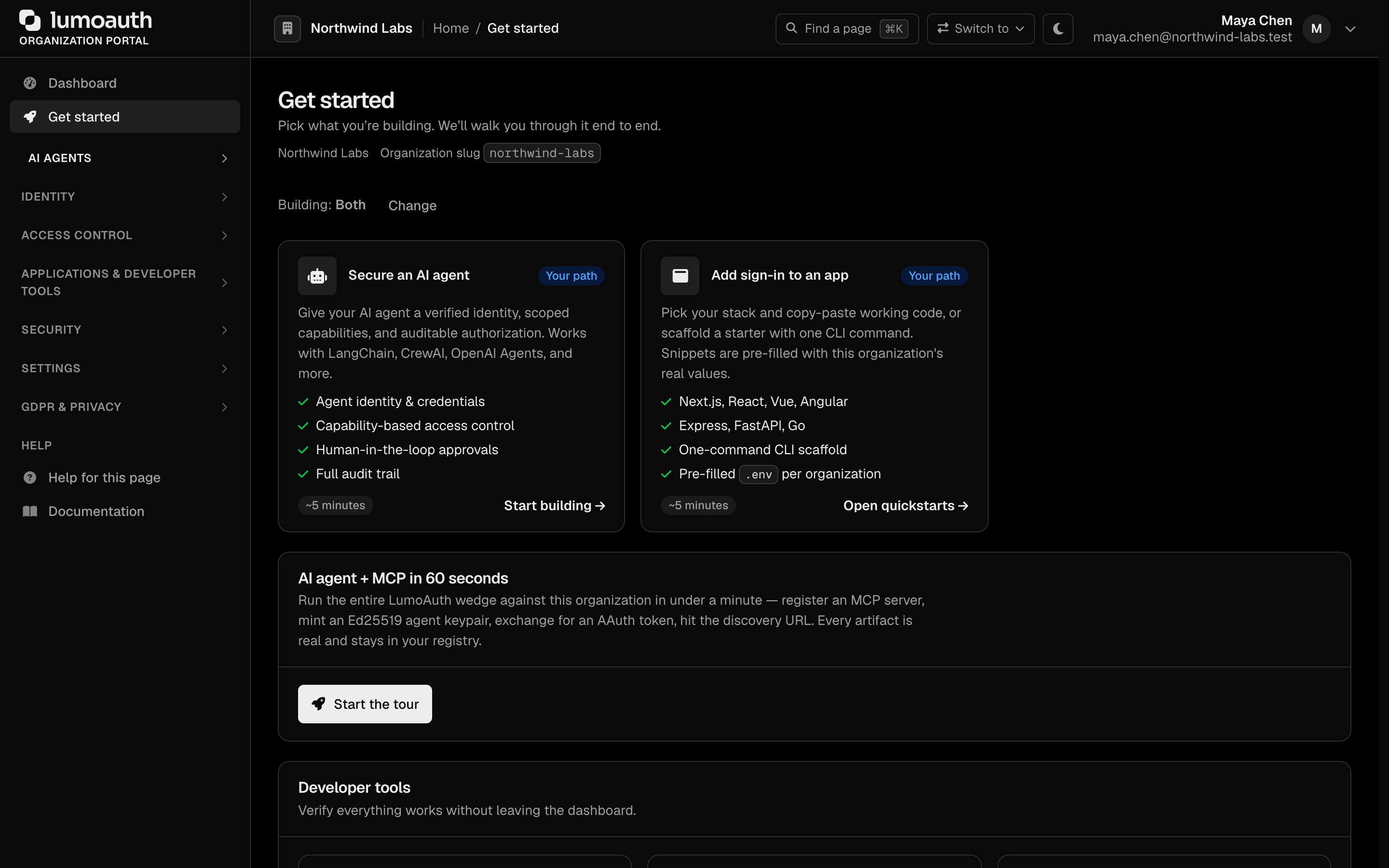
Open Get started in the sidebar. It first asks What are you building? — an app people sign in to, an AI agent, or both — and leads with that path from then on (change it any time). It links to the framework quickstarts (pre-filled with your organization's values) and lists your organization slug, auth server URL and OIDC discovery URL under Your organization credentials. Test login runs a real sign-in against your organization in two clicks. Until an application has signed someone in, the dashboard shows this set-up path instead of empty analytics. The steps below cover the same ground in more detail.
Step 2: Configure authentication settings
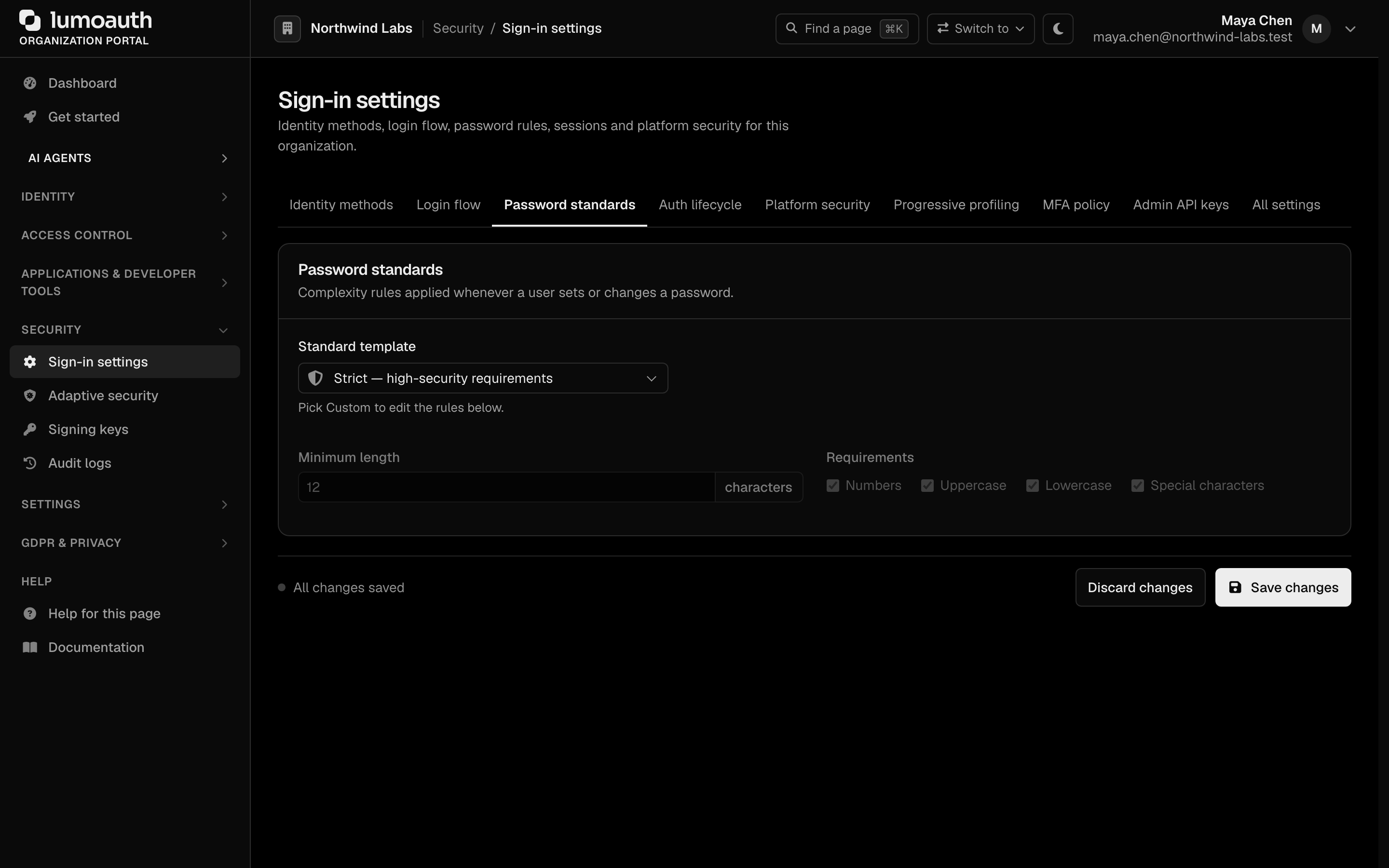
Go to Security → Sign-in settings at /orgs/acme-corp/portal/settings/authentication. The page is one form split into section tabs (Identity methods, Login flow, Password standards, Auth lifecycle, Platform security, Progressive profiling, MFA policy, Admin API keys; All settings shows them together); click Save changes at the bottom when you are done.

Basic settings
- Login flow — Email-first login and Magic link login
- Password standards — pick a Standard template (Fair, Moderate, Strict) or Custom to set the minimum length and complexity rules yourself
- Auth lifecycle — session timeout, breached-password checks and password rotation
Self-registration is not on this page: turn Enable self registration on or off under Settings → Login page & emails → Login page.
Enable MFA (optional)
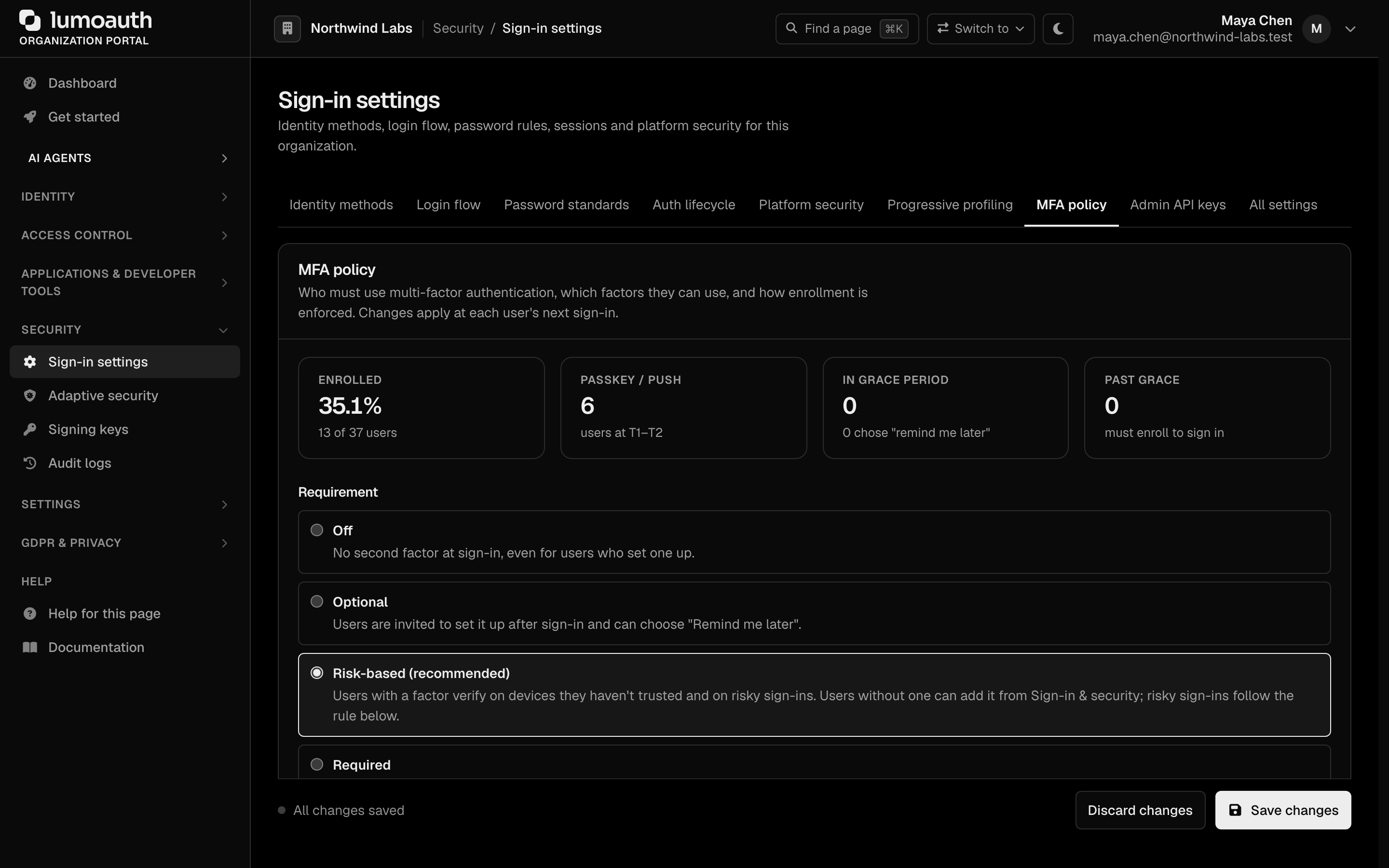
In the MFA policy tab:
- Under Requirement, choose Off, Optional, Risk-based (recommended) or Required.
- Under Allowed factors, tick the factors users may enroll: Passkeys (strongest), LumoAuth app push, Authenticator app (TOTP) (works with Google Authenticator, Authy, 1Password, etc.), Text message (SMS) (requires an SMS provider) and Email code.
- Click Save changes.
Enable Adaptive MFA (optional)
Go to Security → Adaptive security (/orgs/acme-corp/portal/settings/adaptive-auth) and turn on Enable the adaptive security engine to have LumoAuth score each sign-in and step up only when needed:
- Low risk → no MFA prompt (with Skip MFA on trusted sign-ins)
- Medium risk → MFA challenge
- High risk → block and force MFA

The risk engine looks at device fingerprint, IP reputation, geolocation, impossible travel, and behavioral patterns.
Step 3: Add social login providers (optional)
Go to Settings → Integrations (/orgs/acme-corp/portal/integrations) and open the Social login section.
To add Google login:
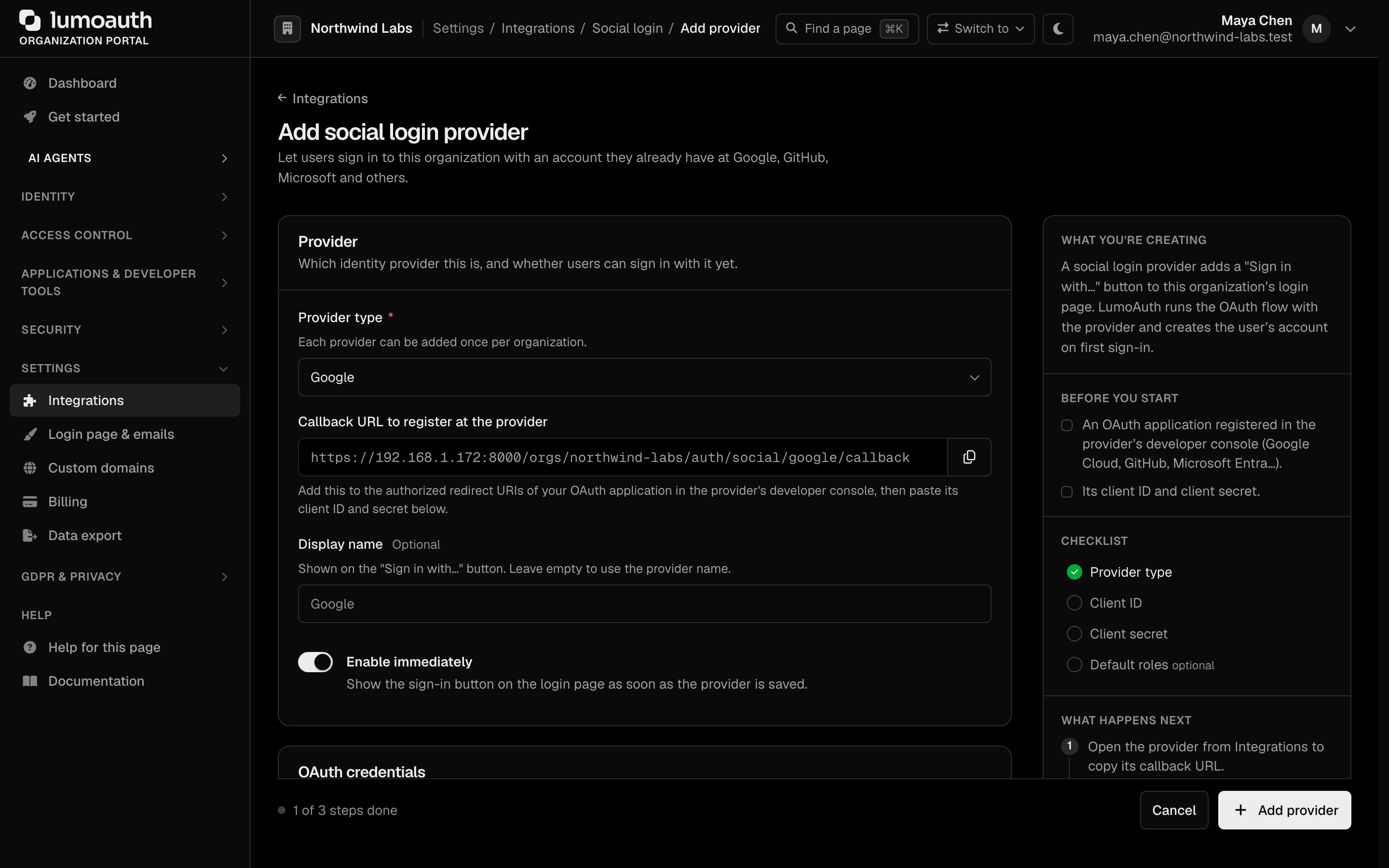
- Click Add provider and choose Google as the Provider type.
- Copy the Callback URL to register at the provider into your OAuth application in Google Cloud Console.
- Enter your Google OAuth Client ID and Client secret.
- Leave Enable immediately on and click Add provider.
Repeat for GitHub, Microsoft, Facebook, Apple, or LinkedIn as needed. Users will then see the corresponding buttons on the hosted login page.
Step 4: Create an OAuth application
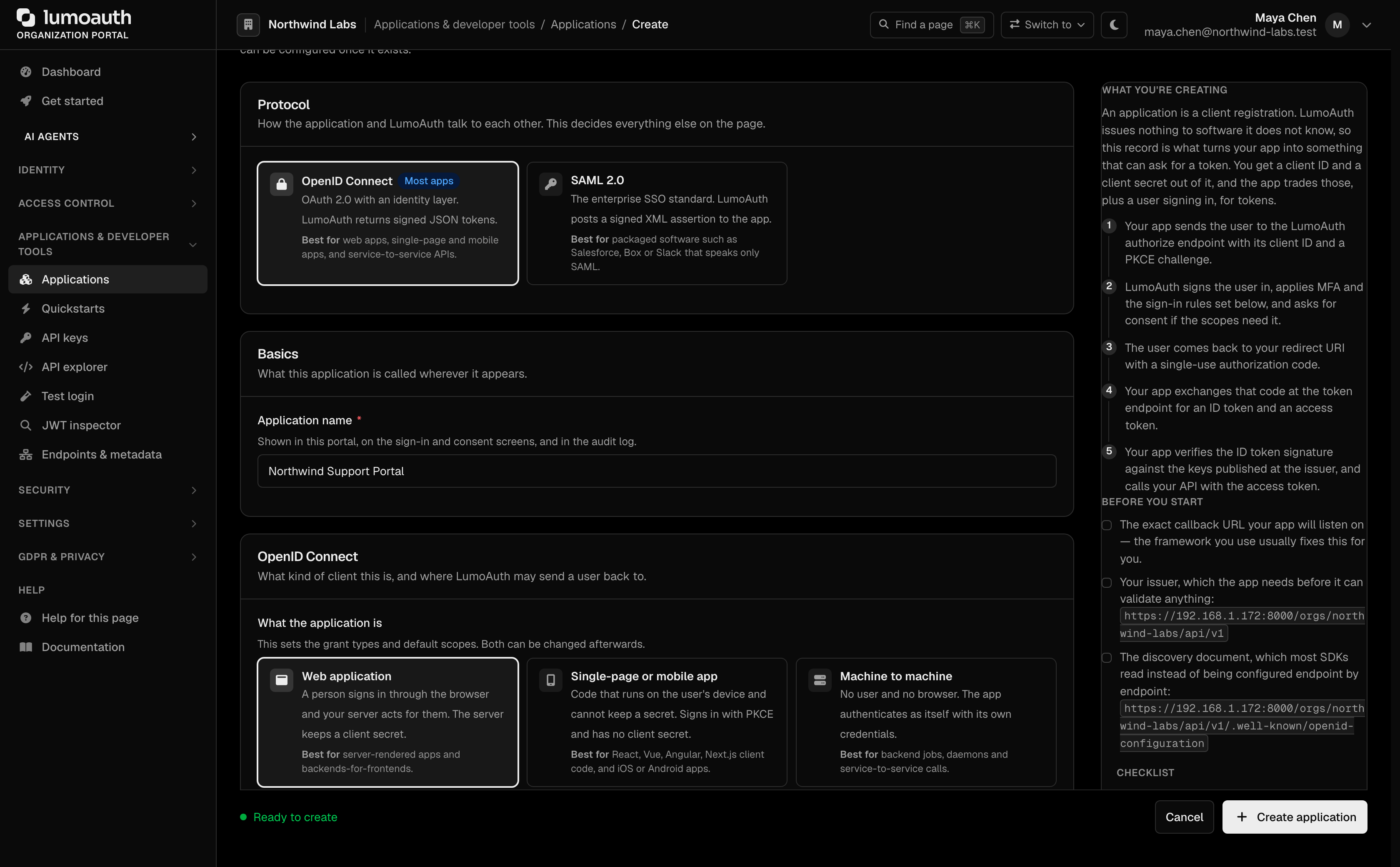
Pick the scenario that matches where your code runs. Browser and mobile apps cannot keep a secret, so choose Single-page or mobile app; it creates a public client that signs in with PKCE (a one-time secret that protects the sign-in code).
Go to Applications at /orgs/acme-corp/portal/applications.
-
Click New application.
-
Fill in:
- Protocol: OpenID Connect
- Application name:
My Web App - What the application is: Web application
- Redirect URI:
https://myapp.example.com/callback - Who can sign in: Everyone (the other choices are Individual users only and Customer organization members only)
-
Click Create application.
Choose Machine to machine instead for a service that calls APIs without a user.
The scenario you pick sets the grant types and default scopes. You can change them, and add more redirect URIs, on the application's Configuration tab afterwards.
You will receive:
- Client ID:
client_abc123... - Client Secret:
secret_xyz789...
Copy the client secret now. It is shown once, on the page you land on after creating the application, and cannot be displayed again (you can regenerate it later). The client ID is public. The secret belongs only on your server, never in a browser or mobile app.
Step 5: Add users
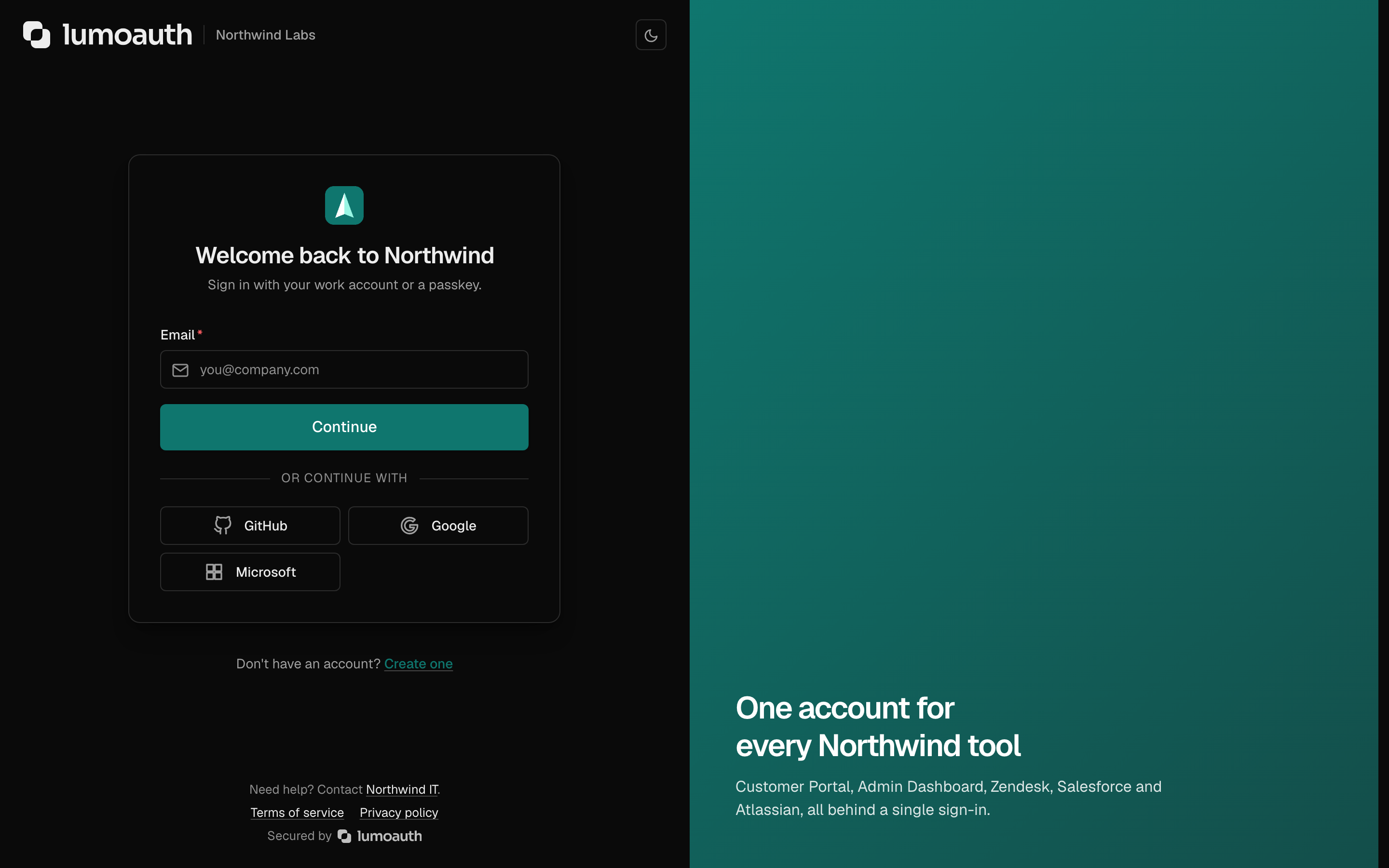
Option A — self-registration
If registration is enabled, users can sign up at the organization's hosted login page:
https://app.lumoauth.dev/orgs/acme-corp/login
Option B — create users manually
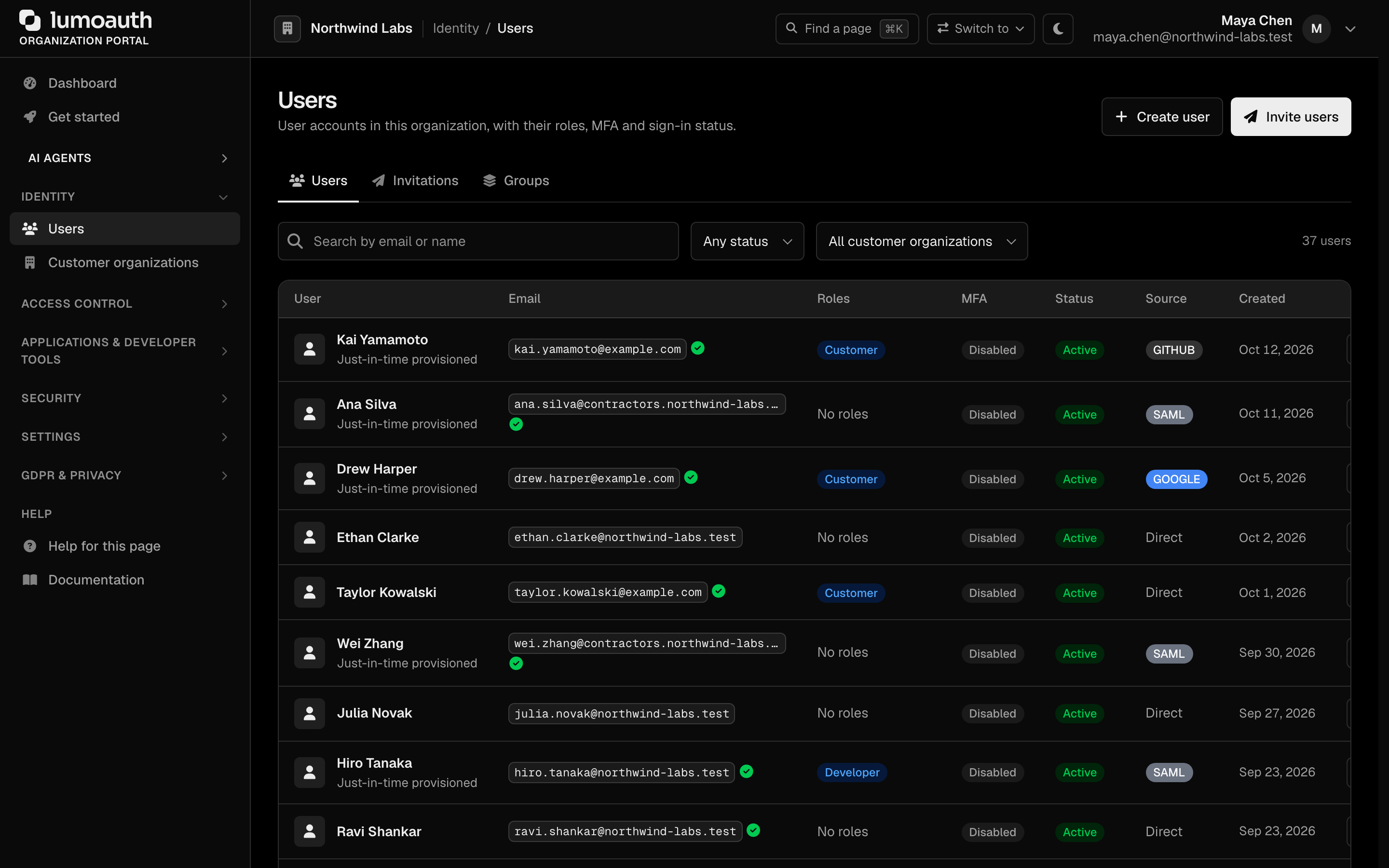
Go to Identity → Users at /orgs/acme-corp/portal/users.
- Click Create user.
- Fill in Full name, Email address and an initial Password. The password is required here and must meet the organization's password policy (including the breached-password check). To let the user choose their own password, invite them instead (Option C).
- Tick the roles to assign under Roles.
- Click Create user.

Option C — invite users
Go to Identity → Users → Invite users at /orgs/acme-corp/portal/users/invite.
- Enter email addresses (one per line, or comma-separated).
- Optionally add a Personal message and select roles to assign on signup.
- Click Send invitations.
Invited users receive an email with a registration link that is valid for 7 days.

Step 6: Set up roles and permissions
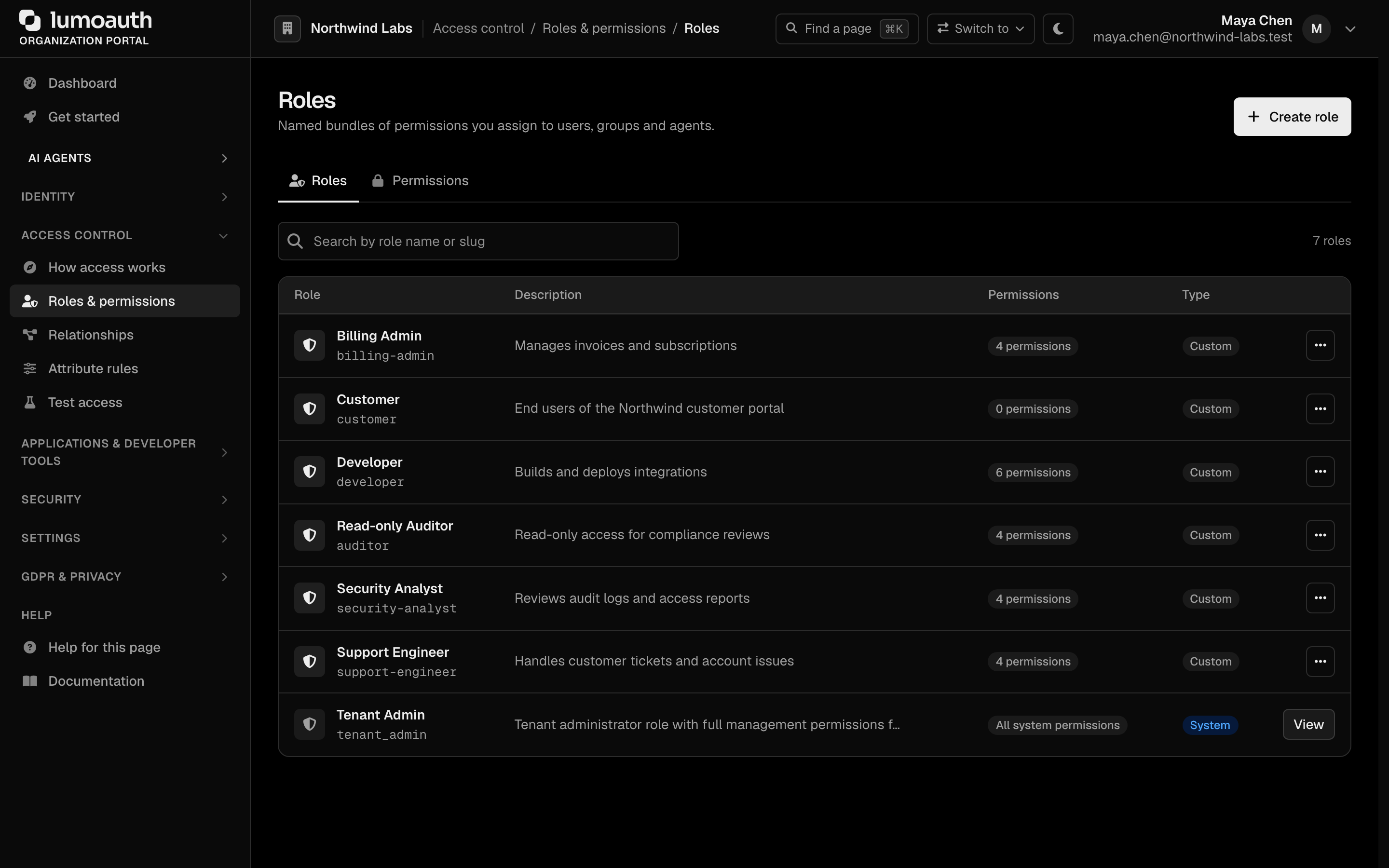
Go to Access control → Roles & permissions at /orgs/acme-corp/portal/roles.
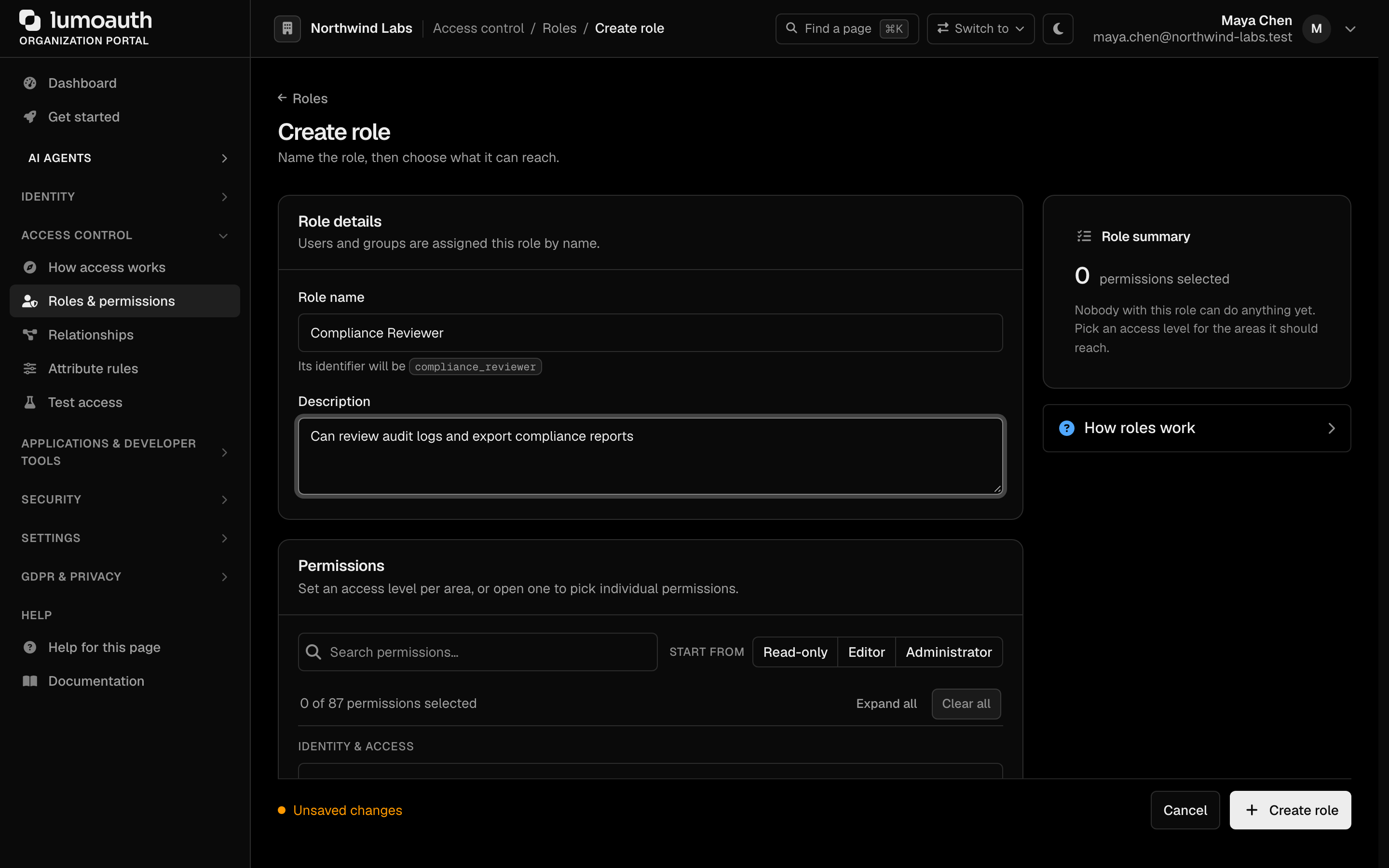
Create a role
- Click Create role.
- Enter:
- Role name:
Editor - Description:
Can read and edit content
- Role name:
- Under Permissions, set an access level (None, View, Edit or Full) for each area the role should reach, or open an area to pick individual permissions. Read-only, Editor and Administrator under Start from fill in a sensible starting set.
- Click Create role.
Assign roles to users
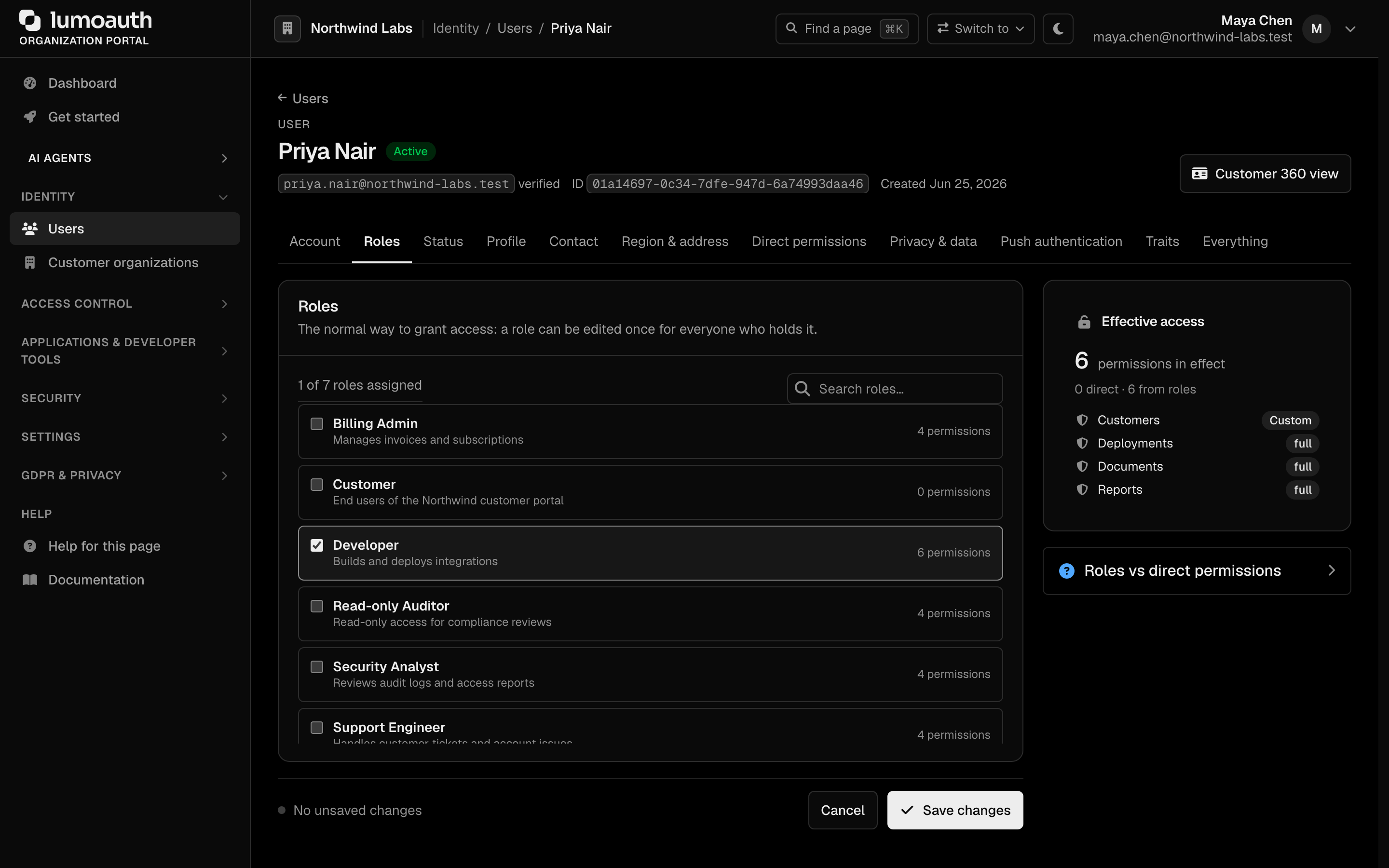
- Go to Identity → Users and open a user.
- Open the Roles tab, tick one or more roles.
- Click Save changes.
Step 7: Create an API key with only the scopes you need
Scripts, CI jobs, Terraform and the lumo CLI authenticate with an organization API key rather than a user login.
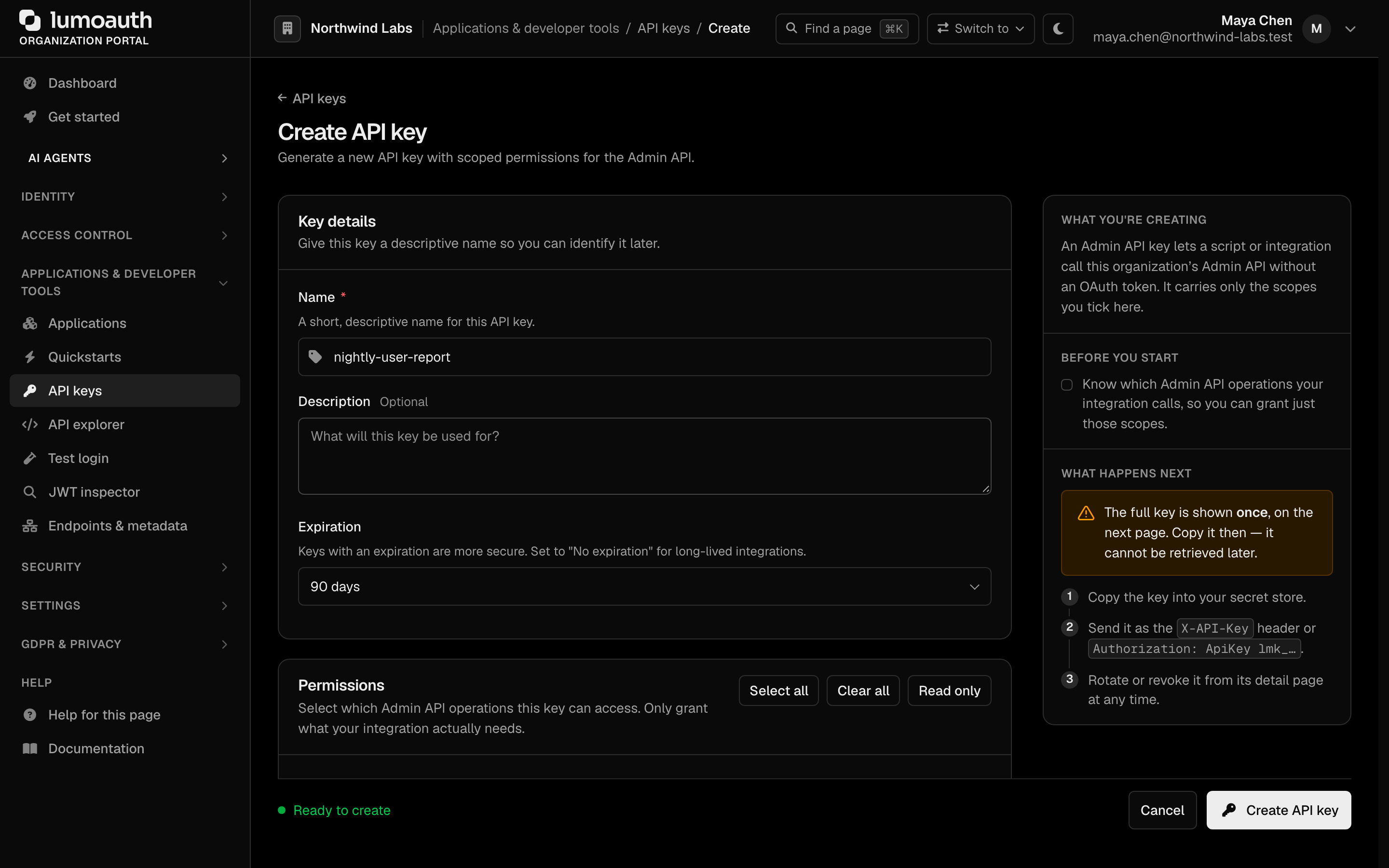
Go to Applications & developer tools → API keys at /orgs/acme-corp/portal/settings/api-keys.
- Click Create API key.
- Name it after the job that will use it (
nightly-user-report) and pick an Expiration. - Under Permissions, tick only the scopes that job needs. For a read-only report that is
admin:users:read; leave every:writescope unticked. - Click Create API key, then copy the key once. It starts with
lmk_and is not shown again.
Test it:
curl https://app.lumoauth.dev/orgs/acme-corp/api/v1/admin/users \
  -H "X-API-Key: lmk_your_key_here"
A key with admin:users:read can list users but gets 403 on POST, and cannot reach other resources at all. API keys never create a browser session and are refused on the portal pages, so keep them out of browsers. Full scope catalogue: API Keys; the rules behind it: Credentials and access model.
- SCIM policy (Settings → Integrations → SCIM provisioning → Inbound SCIM,
/orgs/acme-corp/portal/integrations/scim): before connecting an identity provider, decide whether it may create, update and delete users, manage groups, and which attributes it may overwrite. The SCIM API enforces these toggles. allow_root_admin_login: off by default, and keep it off. It would let LumoAuth operators sign in through your hosted login page. It is changed only by LumoAuth operators at your request; see Organization settings.
Step 8: Test the login flow
OIDC discovery
Verify the organization's discovery document (the JSON file that lists your sign-in endpoints and public keys) is reachable:
curl https://app.lumoauth.dev/orgs/acme-corp/api/v1/.well-known/openid-configuration
Initiate login
Open this URL in a browser (replace YOUR_CLIENT_ID):
https://app.lumoauth.dev/orgs/acme-corp/api/v1/oauth/authorize?
  response_type=code&
  client_id=YOUR_CLIENT_ID&
  redirect_uri=https://myapp.example.com/callback&
  scope=openid profile email&
  state=random_state_value
The state value is an opaque string your app generates and checks when the user comes back. It stops an attacker from forging a callback for a different user. Browser and mobile apps cannot keep a client secret, so they use Authorization Code with PKCE and a public client instead.
What happens:
- LumoAuth shows the hosted login page.
- The user enters credentials (or clicks a social login button).
- If MFA is enabled, LumoAuth prompts for the second factor.
- LumoAuth redirects back to
redirect_uriwith an authorization code. - Your app exchanges the code for tokens (next step).
Step 9: Verify with the API
Exchange the authorization code for tokens:
curl -X POST https://app.lumoauth.dev/orgs/acme-corp/api/v1/oauth/token \
  -d grant_type=authorization_code \
  -d code=YOUR_AUTH_CODE \
  -d redirect_uri=https://myapp.example.com/callback \
  -d client_id=YOUR_CLIENT_ID \
  -d client_secret=YOUR_CLIENT_SECRET
Call the userinfo endpoint with the access token:
curl -H "Authorization: Bearer YOUR_ACCESS_TOKEN" \
  https://app.lumoauth.dev/orgs/acme-corp/api/v1/oauth/userinfo
Done
You now have:
- Authentication configured
- An OAuth application registered
- Users in the organization
- A least-privilege API key for automation
- An end-to-end login flow verified
Next steps
| What to do | Guide |
|---|---|
| Add social login | Social Login Guide |
| Enable enterprise SSO | Enterprise SSO |
| Set up adaptive MFA | Adaptive MFA |
| Configure fine-grained authorization | Zanzibar |
| Enable SCIM provisioning | SCIM 2.0 |
| Set up audit logging | Audit Logs |
| Configure webhooks | Webhooks |