Adaptive MFA
Adaptive MFA (multi-factor authentication) evaluates signals about each login attempt — device fingerprint, IP reputation, new country, geo-velocity, ASN/network anomaly, login velocity, recent failures, and user-behavior analytics — and triggers MFA only when the computed risk score is elevated. Trusted users log in without friction, suspicious activity gets a challenge, and high-risk activity is blocked entirely.
How Adaptive MFA Works
Risk Assessment Engine
Each login attempt is evaluated by LumoAuth's risk engine, which produces a risk score from 0 to 100. The score is mapped to a level using the organization's thresholds, and each level has an action (defaults shown):
| Risk Score (default thresholds) | Level | Default action | Configurable? |
|---|---|---|---|
| 0–49 | Low | Permit (MFA can be skipped when Adaptive MFA is on) | — |
| 50–79 | Medium | MFA challenge | always mfa |
| 80–94 | High | MFA challenge (high_risk_action) | mfa, block, allow |
| 95–100 | Critical | Login refused (critical_risk_action) | block, mfa, allow |
The medium and high thresholds are set on the Adaptive security page; the critical threshold and the two action settings are not shown there and keep their stored values unless changed through the Admin API.
The block action is evaluated before the login completes — no session,
remember-me cookie, or token is ever created for a refused attempt. By default
only the critical band blocks, so organizations that were relying on the
previous "high = MFA" behaviour see no change unless they opt in to
high_risk_action: block.
Blocking is enforced for the organization login form, the global /login form,
passkey (WebAuthn, the browser standard behind passkeys) sign-in and inbound SAML federation. Logins established
programmatically after an upstream identity provider redirect (social login,
inbound OIDC, OAuth re-authentication) cannot be refused once the upstream
provider has already authenticated the user; for those flows a block outcome
is downgraded to a mandatory MFA challenge and the audit entry carries
decision: block_unenforced.
Risk Signals
The risk engine analyzes multiple signals, each of which can be enabled or disabled per organization (see Choose Which Risk Signals Are Active):
| Signal | What It Detects | Example |
|---|---|---|
| Device Fingerprinting | User is logging in from an unrecognized device or changed browser/OS fingerprint | First login from a new laptop |
| IP Reputation | Known malicious, proxy, VPN, or Tor exit node IPs | Login from a known VPN |
| New Country | Login from a country the user has not used before | User normally in the US, now in Japan |
| Geo-Velocity | Impossible travel detection | Paris login 10 minutes after a Sydney login |
| ASN Anomaly | Login from an unexpected network/ASN | Sudden switch to a hosting-provider ASN |
| Login Velocity | Unusually frequent login attempts | A burst of logins in a short window |
| Failed-Login Detection | Recent failed login attempts | Multiple wrong passwords before a successful login |
| User Behavior Analytics (UBA) | Deviation from normal user behavior | Unusual navigation patterns or access requests |
Decision Flow
Configuration
Enable Adaptive MFA
Navigate to Security → Adaptive security at:
/orgs/{orgId}/portal/settings/adaptive-auth
In the Security engine section, turn on Enable the adaptive security engine, then click Save changes. While the engine is disabled, the page title carries an Engine off badge.

The action for a risky sign-in by a user who has no second factor (Risky sign-ins by users without MFA) is set separately, in the MFA policy section of Security → Sign-in settings (/orgs/{orgId}/portal/settings/authentication).
Settings
The page is divided into Security engine, Risk thresholds, Adaptive MFA, Detection signals, Network guard, AI risk assessment and Trusted IP ranges.
| Setting | Field | Description | Default |
|---|---|---|---|
| Enable the adaptive security engine | enabled | Turn on risk-based authentication (the page shows an Engine active / Engine off badge) | Off |
| Medium risk, MFA challenge | medium_risk_threshold | Score at/above which an MFA challenge is triggered | 50 |
| High risk, block and force MFA | high_risk_threshold | Score at/above which high_risk_action applies | 80 |
| Critical risk threshold | critical_risk_threshold | Score at/above which critical_risk_action applies. Not shown on the portal page; saving the page keeps the stored value. | 95 |
| High risk action | high_risk_action | mfa (challenge), block (refuse login) or allow. Not shown on the portal page. | mfa |
| Critical risk action | critical_risk_action | block (refuse login), mfa or allow. Not shown on the portal page. | block |
| Risky sign-ins by users without MFA | no_mfa_action (Sign-in settings → MFA policy) | What to do when an MFA challenge is required but the user has no second factor: allow, prompt, email, or block (refuse login) | allow |
| Skip MFA on trusted sign-ins | adaptive_mfa_enabled | Let users who already have MFA skip the second factor on sign-ins scored as low risk | Off |
| MFA skip threshold | adaptive_mfa_threshold | Sessions scored below this skip the prompt. MFA is always enforced at or above the medium-risk threshold. | 30 |
| Trusted IP ranges | trusted_ip_ranges | IPs/CIDRs that are always treated as low risk | None |
| Block datacenter and VPN ranges / Block Tor exit nodes (Network guard) | block_vpn, block_tor | Hard-block logins from a Tor exit node (block_tor) or a VPN, proxy or hosting/datacenter IP (block_vpn), decided before any scoring and regardless of the risk thresholds. Only flags reported by an IP-intelligence provider (your own or the managed Fraud Shield feed) count, never an IP-prefix guess, so without one these toggles cannot be relied on. Trusted IP ranges are exempt. | Tor: On; datacenter/VPN: Off |
Choose Which Risk Signals Are Active
Rather than assigning numeric weights, you enable or disable individual risk signals; LumoAuth's risk engine (AI-assisted via RiskAssessmentService) scores each login over the enabled signals. Toggle these in the Detection signals section of the Adaptive security page:
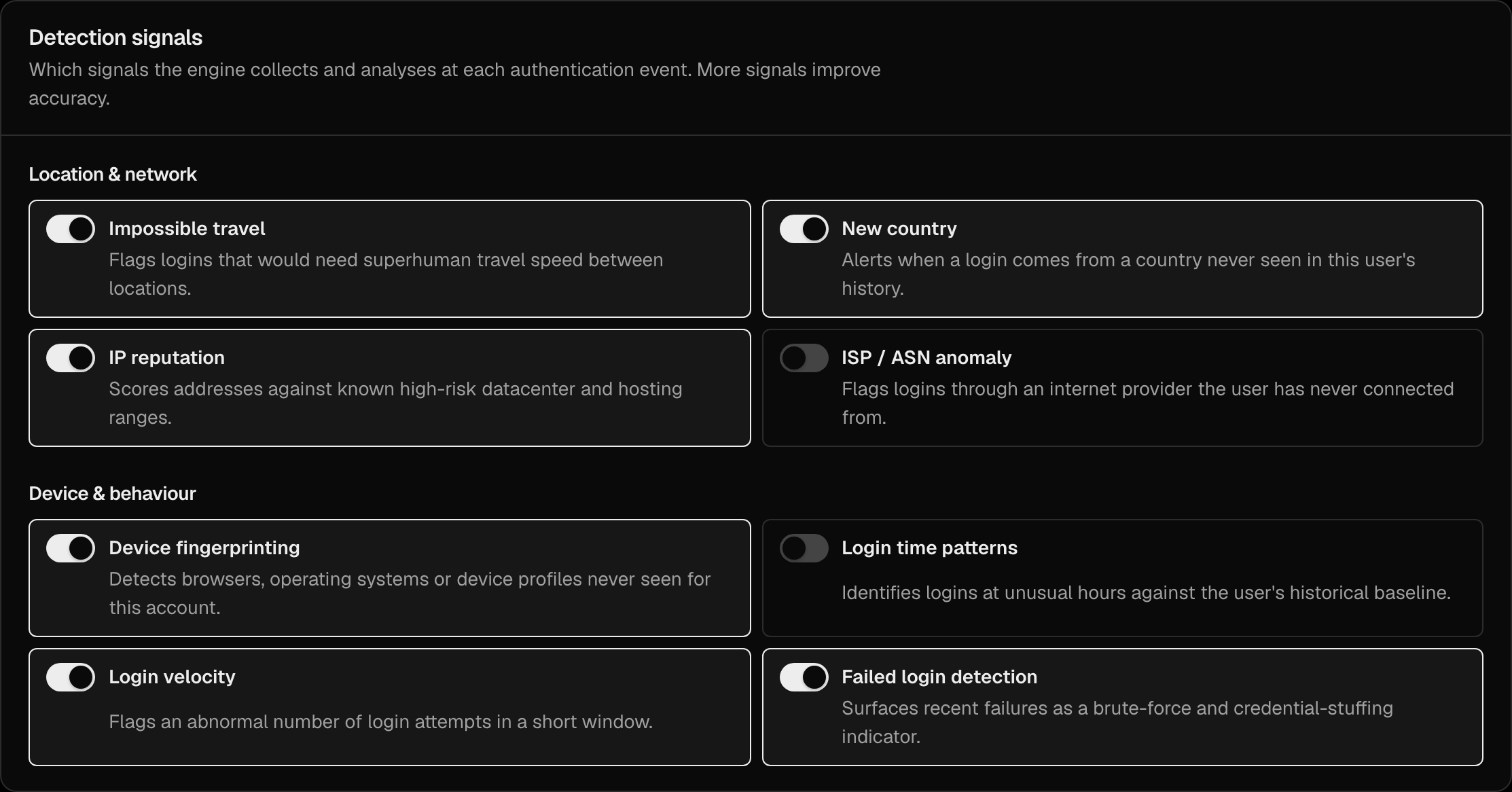
| Signal | Portal label | Field |
|---|---|---|
| Geo-velocity / impossible travel | Impossible travel | enable_geo_velocity |
| New country | New country | enable_new_country |
| Device fingerprinting | Device fingerprinting | enable_device_fingerprinting |
| IP reputation | IP reputation | enable_ip_reputation |
| ASN anomaly | ISP / ASN anomaly | enable_asn_anomaly |
| User behavior analytics (UBA) | Login time patterns | enable_uba |
| Login velocity | Login velocity | enable_login_velocity |
| Failed-login detection | Failed login detection | enable_failed_login_detection |
For example, if your users frequently travel, disable enable_new_country and rely more on enable_device_fingerprinting and enable_ip_reputation. Tune the Medium and High thresholds to control how aggressively challenges and blocks are applied.
AI Risk Data Sharing
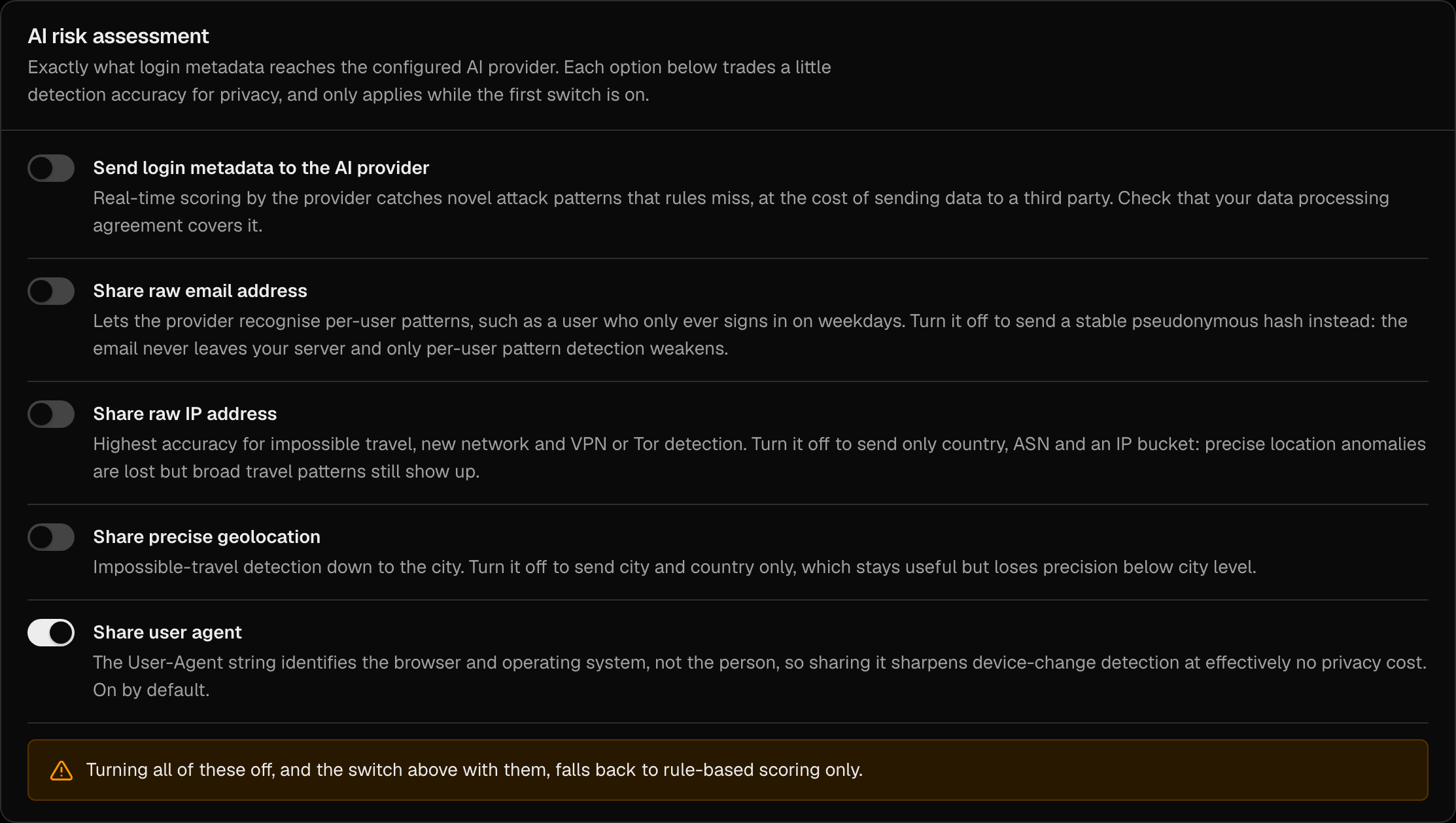
In the AI risk assessment section, when AI-assisted scoring is enabled (Send login metadata to the AI provider, ai_risk_enabled), you control exactly what context is shared with the model: precise geolocation (Share precise geolocation, ai_risk_share_precise_geo), raw IP (Share raw IP address, ai_risk_share_raw_ip), raw email (Share raw email address, ai_risk_share_raw_email), and user-agent (Share user agent, ai_risk_share_user_agent). The user-agent switch is on by default; the others are off — enable only what your privacy policy permits.
Risk Events and Fraud Detection
Event Types
LumoAuth generates security events for each adaptive authentication decision:
| Event | Description |
|---|---|
adaptive_auth.decision | One entry per evaluated login with decision (permit, challenge, block, block_unenforced), risk_score, risk_level, the contributing signals and, for refusals, the reason |
adaptive_auth.error | Risk scoring failed (the login proceeded without a risk decision — fail open) |
adaptive_auth.block / adaptive_auth.challenge | A sign-in was refused / challenged (alongside the decision row) |
adaptive_auth.ai_assessment | The AI risk assessment ran for a sign-in |
adaptive_auth.ai_quota_exceeded / adaptive_auth.ai_risk_assessment_disabled_by_tenant | The AI assessment was skipped because the quota was spent or the organization switched it off |
Individual signals (impossible travel, new device, VPN, failed-attempt bursts) are not separate events; they appear in the signals list of the adaptive_auth.decision row.
Viewing Risk Events
All adaptive auth events appear in the audit log (Security → Audit logs):
/orgs/{orgId}/portal/audit-logs
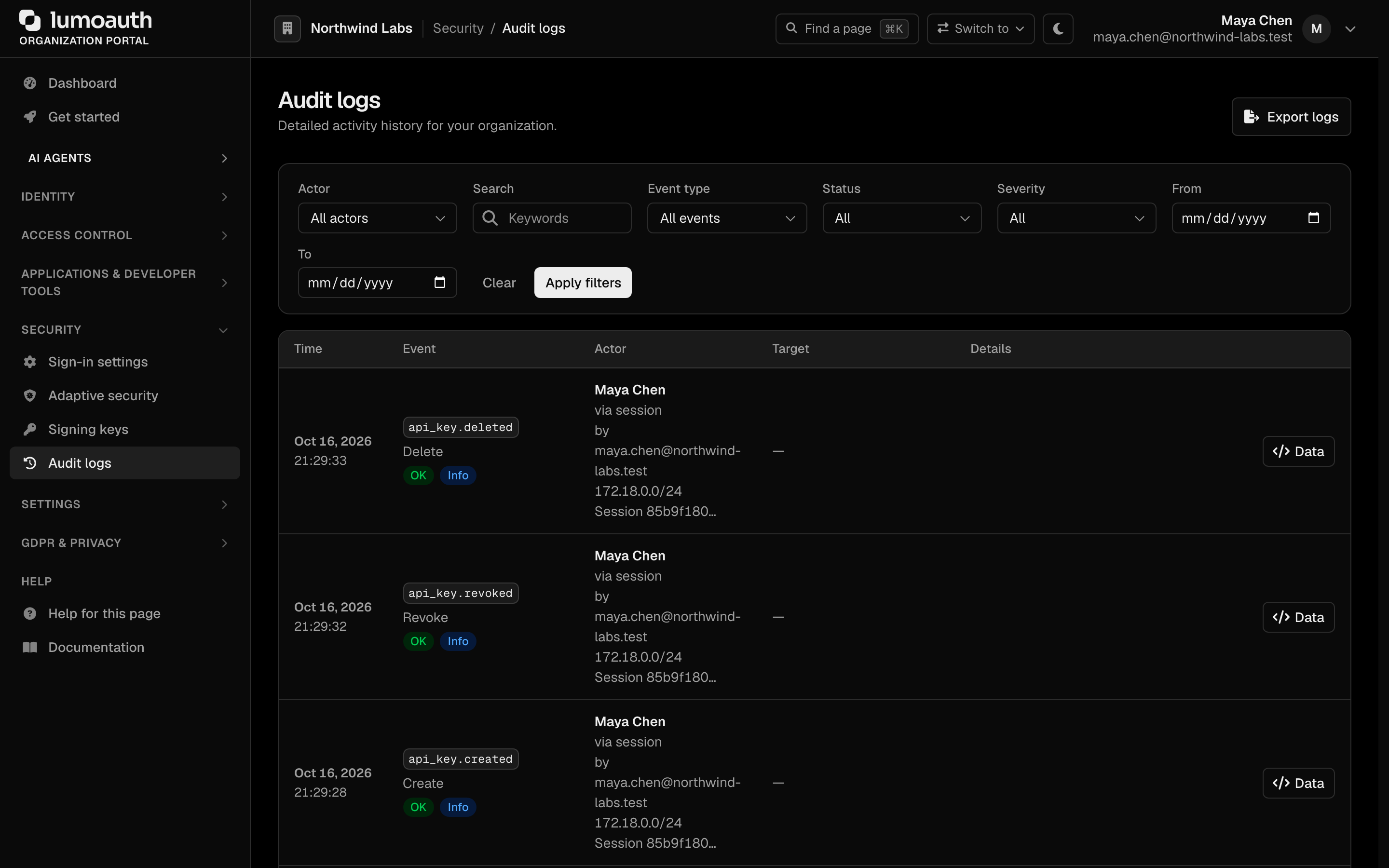
Filter by event type to see:
- Risk scores for recent logins.
- Which signals triggered elevated risk.
- Blocked login attempts.
- MFA challenge outcomes.
User-Facing Behavior
Low-Risk Login
The user experiences a normal login flow — they enter credentials and are immediately authenticated. No MFA prompt is shown.
Medium-Risk Login (MFA Challenge)
After entering credentials, the user is redirected to the MFA challenge:
- The MFA challenge page is displayed and the user's default factor starts automatically (push, passkey, authenticator app, text or email code).
- The user completes it, or picks Try another way.
- On successful verification, login proceeds.
- A trusted device does not skip this challenge: medium risk always asks, even when the browser has a valid "Trust this device" cookie. The user may tick Trust this device again.
High-Risk Login (not refused)
- All of the user's trusted devices are revoked before the challenge, so every browser asks again on its next sign-in.
- If the user holds a passkey or a LumoAuth app push device, the challenge requires one of them (tier 2 or stronger); authenticator-app, text and email codes are not offered. Users without such a factor are challenged with the factors they have.
- On success, login proceeds.
Adaptive MFA and Trusted Devices
Adaptive risk and the MFA policy's trusted devices are evaluated together after the first sign-in step:
| Risk level | Trusted device cookie | Result |
|---|---|---|
| Low | Valid | Challenge skipped (trusted device) |
| Low | None or invalid | Challenge skipped if adaptive_mfa_enabled is on and the score is below adaptive_mfa_threshold; otherwise challenged |
| Medium | Any | Challenged — trust is ignored |
| High / Critical (not refused) | Any | All trusted devices revoked; challenged, with passkey or push required when the user has one |
High / Critical (block action) | Any | Login refused before a session is created |
Trust is also revoked when the user changes their password, removes a factor or recovers their account. Sensitive actions (step-up) always require a fresh verification, whatever the risk level.
Users without any factor are never challenged; for them the Risky sign-ins by users without MFA setting above decides what happens on a risky sign-in.
Blocked Login (Critical Risk, or High Risk with block)
- The login is refused before any session is created; the credentials are not accepted even though they were correct.
- A deliberately generic message is shown on the login page — it does not reveal which signal (IP, device, location) caused the refusal.
- The refusal is written to the audit trail (
adaptive_auth.decisionwithdecision: block; a Tor/VPN network block also writessecurity.ip_blockedwith the blocking reason) and recorded as an automated decision under GDPR Art. 22, so the user can contest it from Account → Automated decisions. Every block decision raises a high security alert; challenge and allow decisions do not. - The user can try again from a known device or network, or contact an administrator, who can add a trusted IP range or lower the enforcement level.
Impossible Travel Detection
LumoAuth detects when a user's login locations indicate physically impossible travel.
Example: User logs in from New York at 2:00 PM, then from London at 2:30 PM. Since it is impossible to travel 3,400 miles in 30 minutes, this triggers a high-risk alert.
How It Works
- Each login records the user's approximate geolocation (via IP).
- The system calculates the distance between consecutive logins.
- Given the time difference, it determines if the implied travel speed is realistic.
- If the implied speed is unrealistic, the signal is added to the risk score.
Thresholds
The thresholds are fixed, not configurable: an implied speed above 1,000 km/h over more than 100 km adds +80 (impossible travel); above 500 km/h adds +40 (very fast travel). The comparison is always against the user's previous sign-in attempt, with the elapsed time floored at six minutes so two quick sign-ins from nearby places do not trigger it. Switch the signal on or off under Detection signals on the Adaptive security page.
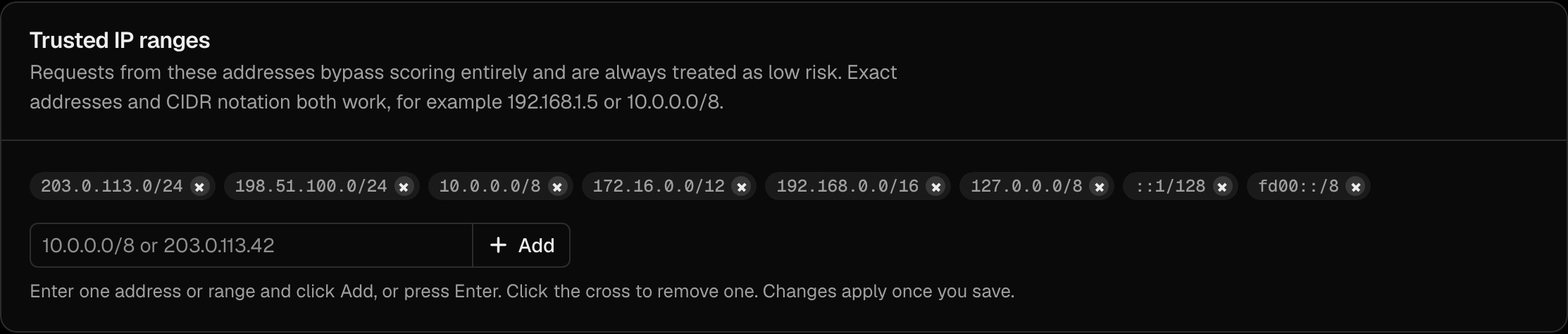
Trusted IP Ranges
You can define IP ranges that are always considered low-risk. This is useful for:
- Office IP ranges.
- VPN exit nodes used by your organization.
- Known customer network ranges.
Logins from trusted IPs bypass adaptive risk scoring (other security measures like rate limiting still apply).
Add them in the Trusted IP ranges section of the Adaptive security page: enter an address or CIDR range, click Add, then Save changes.
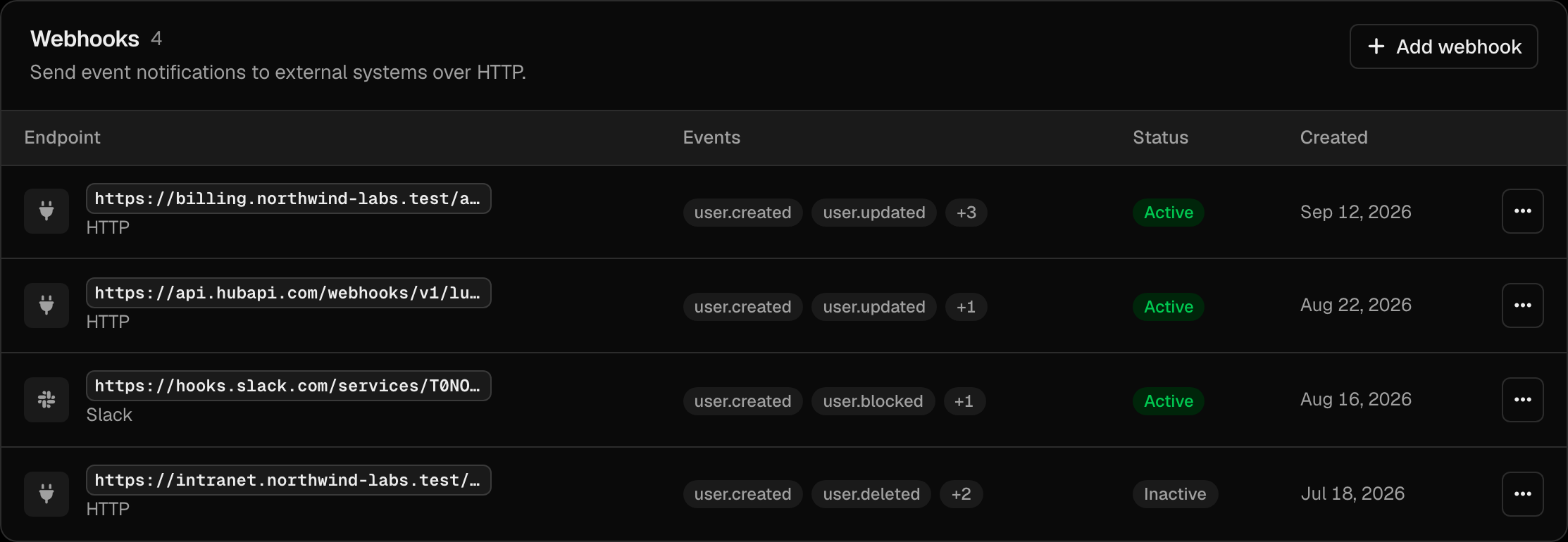
Integration with Webhooks
Adaptive auth events can be sent to external systems via webhooks:
{
  "event": "adaptive_auth.decision",
  "decision": "block",
  "timestamp": "2026-03-18T10:30:00Z",
  "user_id": "usr_abc123",
  "risk_score": 85,
  "signals": {
    "new_device": true,
    "impossible_travel": true,
    "ip_reputation": "suspicious"
  },
  "action_taken": "blocked",
  "ip_address": "203.0.113.42",
  "location": {
    "country": "Unknown",
    "city": "Unknown"
  }
}
Configure webhooks in the Webhooks section of Settings → Integrations (Add webhook):
/orgs/{orgId}/portal/integrations
Best Practices
- Start with medium thresholds and adjust based on your user base.
- Keep Trust this device enabled in the MFA policy to reduce prompts for returning users; elevated risk still challenges them.
- Monitor audit logs regularly to tune your thresholds and which signals are enabled.
- Set up webhook alerts for high-risk events.
- Combine with the MFA policy — keep the requirement at Risk-based and let users enroll passkeys or the LumoAuth app, which high-risk sign-ins require.
- Test with real users before enforcing: enable the engine with the high-risk action left at MFA, read the
adaptive_auth.decisionrows in the audit log, and only then opt in tohigh_risk_action: block. - Whitelist office IPs if your users have stable network environments.
Adaptive MFA vs. Always-On MFA
| Aspect | Always-On MFA | Adaptive MFA |
|---|---|---|
| User Experience | MFA every login | MFA only when risk is elevated |
| Security | Consistent protection | Dynamic, context-aware protection |
| Friction | High | Low for normal logins |
| Coverage | Same for all logins | Stronger for suspicious logins |
| Best For | High-security environments | Consumer apps, B2B SaaS |
Related Guides
- Multi-Factor Authentication — MFA methods and enrollment
- Audit Logs — view adaptive auth events
- Webhooks — get notified about risk events
- Security Overview — overall security architecture