Device Authorization Flow
The Device Authorization Flow is the OAuth flow for devices that cannot run a browser or accept typed credentials — CLI tools, smart TVs, game consoles, IoT devices, and kiosks. The device shows a short user code and a verification URL; the user opens that URL on a second device (phone or laptop), logs in, and types the code. The device polls the token endpoint until the user finishes, then receives tokens.
This is the standard OAuth 2.0 device authorization flow used by CLIs, smart TVs, and other input-constrained devices. The device shows a short user_code; the user types it on a second device to authorize.
How It Works
- Device requests authorization — calls the device authorization endpoint.
- User code displayed — the device shows a code and a URL to the user.
- User opens URL on another device — typically phone or laptop.
- User enters the code and authenticates — standard login flow on the second device.
- Device polls for tokens — periodically checks if the user has completed authentication.
- Tokens issued — once the user authorizes, the device receives access and refresh tokens.
- Device to Auth Server: POST /device_authorization
- Auth Server to Device: device_code + user_code
- Note: 2. Display: "Go to URL,<br/>enter code: ABCD-1234"
- User's Phone to Auth Server: Opens URL, enters code, logs in
- Device to Auth Server: Poll POST /token
- Auth Server to Device: access_token + refresh_token
Endpoints
All device flow endpoints are organization-specific:
| Endpoint | URL | Purpose |
|---|---|---|
| Device Authorization | /orgs/{orgId}/api/v1/oauth/device_authorization | Request device + user codes |
| Device Verification | /orgs/{orgId}/api/v1/oauth/device | User-facing page to enter the code |
| Token | /orgs/{orgId}/api/v1/oauth/token | Poll for tokens (grant_type=device_code) |
Step-by-Step Guide
1. Request Device Authorization
The device calls the authorization endpoint:
curl -X POST https://your-domain.com/orgs/{orgId}/api/v1/oauth/device_authorization \
  -d client_id=YOUR_CLIENT_ID \
  -d scope="openid profile email"
Response:
{
  "device_code": "GmRh...device_code",
  "user_code": "ABCD-1234",
  "verification_uri": "https://your-domain.com/orgs/{orgId}/api/v1/oauth/device",
  "verification_uri_complete": "https://your-domain.com/orgs/{orgId}/api/v1/oauth/device?user_code=ABCD-1234",
  "expires_in": 600,
  "interval": 5
}
2. Display the Code to the User
The device displays:
To sign in, visit: https://your-domain.com/orgs/acme-corp/api/v1/oauth/device
Enter code: ABCD-1234
Or display a QR code pointing to verification_uri_complete for a smoother mobile experience.
3. User Authenticates on Their Device
The user:
- Opens the verification URL, which shows the Link your device page.
- Enters the Device code (if not in the URL) and submits the form.
- Logs in with their credentials (or social login).
- Approves the device on the Authorize Device page.
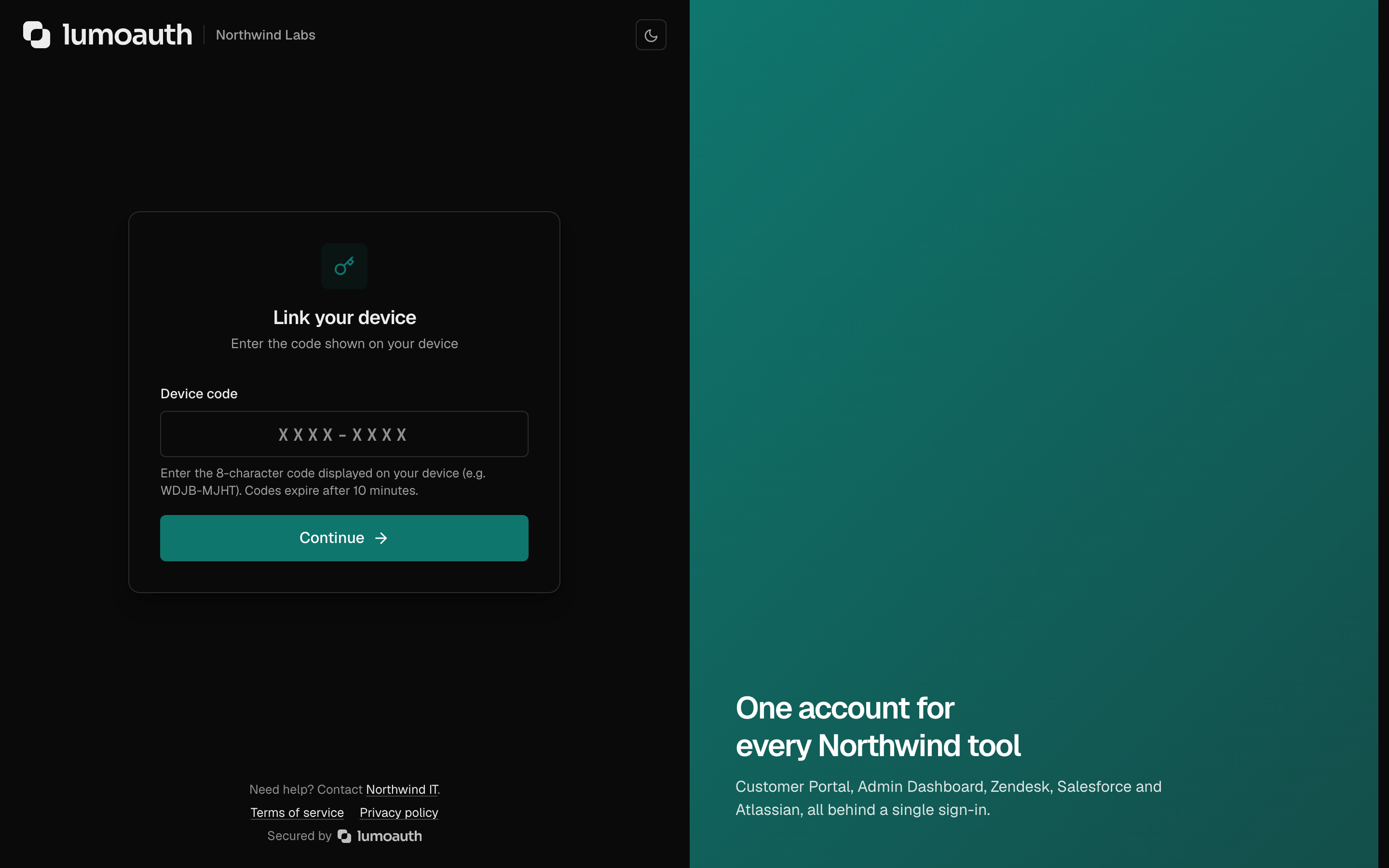
The code-entry form is CSRF-protected; a code posted from another site is refused and the form is shown again.
4. Device Polls for Tokens
The device polls the token endpoint at the specified interval:
curl -X POST https://your-domain.com/orgs/{orgId}/api/v1/oauth/token \
  -d grant_type=urn:ietf:params:oauth:grant-type:device_code \
  -d device_code=GmRh...device_code \
  -d client_id=YOUR_CLIENT_ID
While waiting:
{
  "error": "authorization_pending",
  "error_description": "The user has not yet completed authorization"
}
After user authorizes:
{
  "access_token": "eyJ...",
  "token_type": "Bearer",
  "expires_in": 3600,
  "refresh_token": "def...",
  "id_token": "eyJ..."
}
Use Cases
| Device | Example |
|---|---|
| CLI Tools | lumo login command that displays a code |
| Smart TVs | Streaming apps that display a code on screen |
| IoT Devices | Connected devices without a full browser |
| Kiosks | Public terminals with limited input capabilities |
| Game Consoles | Authenticate with a code shown on the TV |
Configuration
Create a Device Flow Application
- Go to Applications (
/orgs/{orgId}/portal/applications) and click New application. - Keep OpenID Connect as the protocol and choose Single-page or mobile app, which creates a public client (no client secret for devices).
- On the application's Configuration tab, configure Allowed scopes.
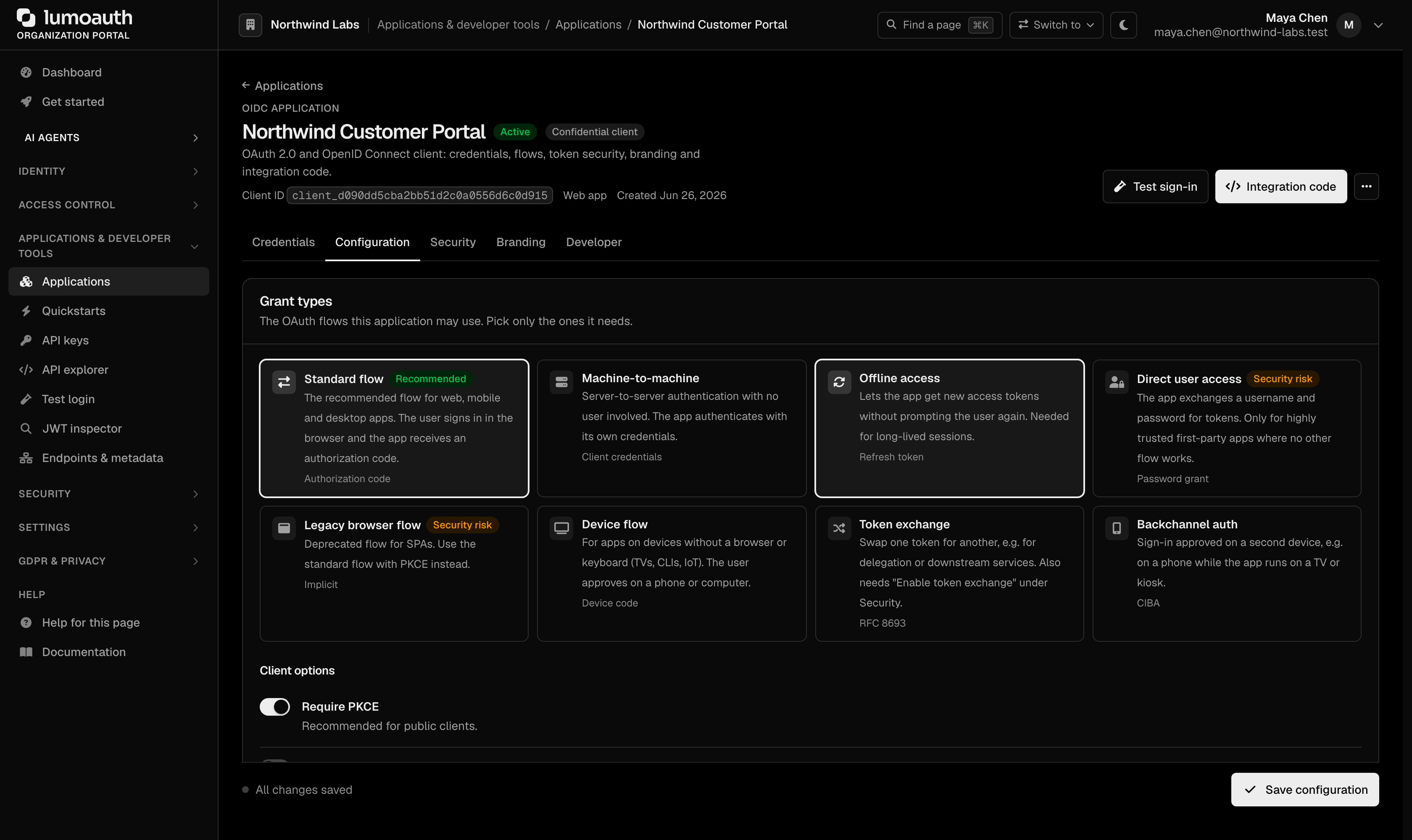
- The client's grant types must include
urn:ietf:params:oauth:grant-type:device_code; otherwise the device authorization endpoint answersunauthorized_client. The Grant types list on the Configuration tab does not offer the device grant, so it cannot be switched on from the portal.
Device Code Defaults
These values are fixed by the server (not configurable per application) and are returned in the device authorization response:
| Value | Description | Default |
|---|---|---|
Code Expiration (expires_in) | How long the device/user code is valid | 10 minutes (600 s) |
Polling Interval (interval) | Minimum seconds between token polls | 5 seconds |
| User Code Format | Format of the code shown to users | for example XXXX-XXXX |
Related Guides
- Authentication Overview — all authentication methods
- Device Authorization Grant (API reference) — endpoint details and error codes
- OAuth 2.0 & OIDC — token management and OAuth flows
Standards used on this page
| Plain name | Standard |
|---|---|
| Device authorization (sign in on another device) | RFC 8628 |
See the standards reference for what each one covers and how LumoAuth uses it.