Email & Password Authentication
Email and password is the most common authentication method: users register with an email address and password, then log in with those credentials. LumoAuth stores passwords using a strong adaptive hash (Argon2id or bcrypt, selected automatically by Symfony's password hasher), enforces a configurable password policy, can require email verification, and integrates with MFA (multi-factor authentication) and adaptive risk scoring.
How It Works
- Registration — user provides email, name, and password.
- Email verification — LumoAuth sends a verification email with a unique link.
- Login — user enters email and password.
- MFA (if configured) — second factor challenge.
- Session created — user receives tokens and a session cookie.
Configuration
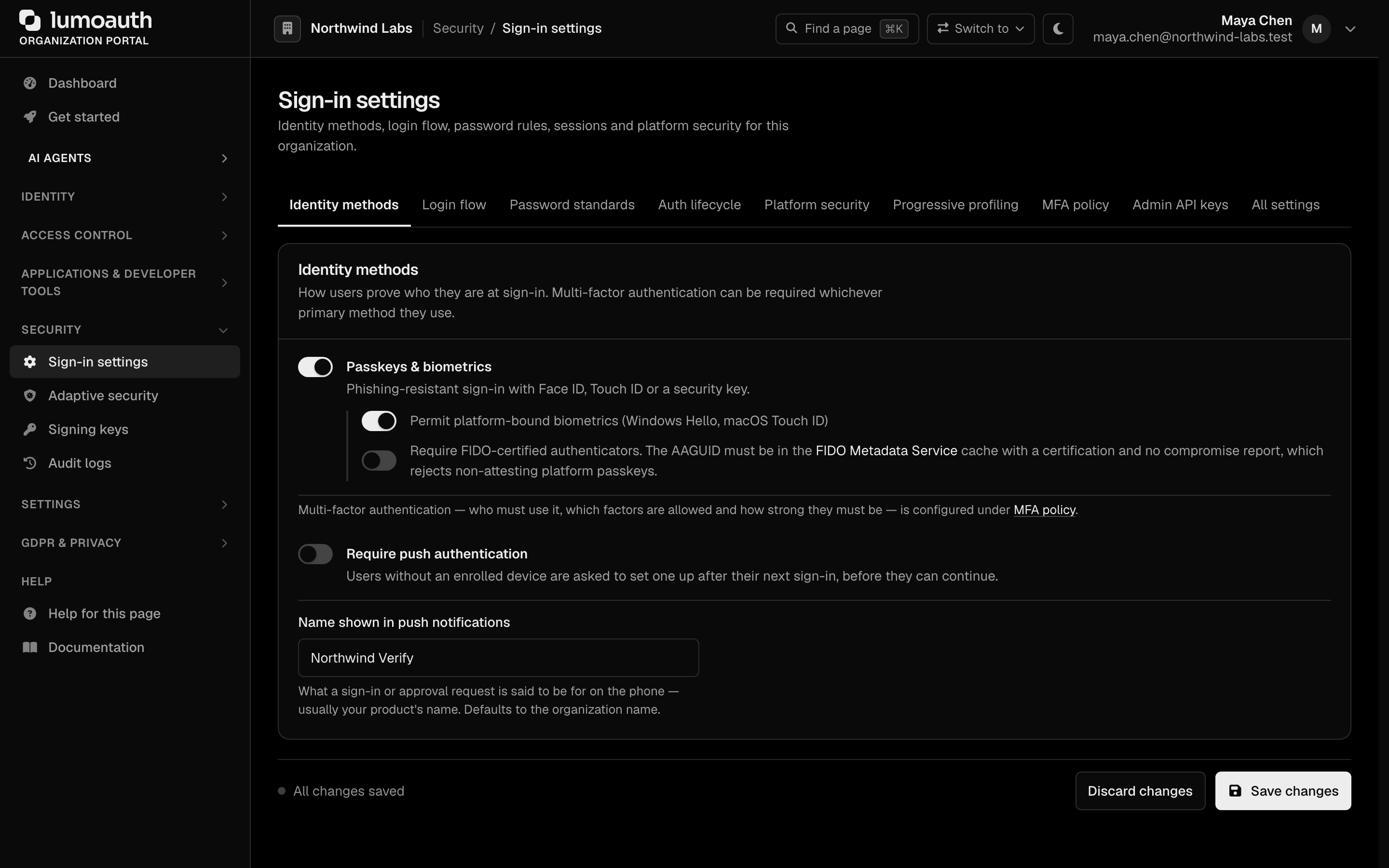
Navigate to Security → Sign-in settings at:
/orgs/{orgId}/portal/settings/authentication
Registration
Users self-register at the organization's /orgs/{orgId}/register page (see User Registration Flow below). If you prefer accounts to be created only by admins or through invitations, simply do not surface the registration link in your application and create users via the portal instead.
Email Verification
Self-registered accounts must verify their email address before they can log in; the Sign-in settings page has no switch for this. For a self-service sign-up:
- A verification email is sent immediately after registration.
- Users cannot authenticate until they click the verification link.
- Verification links are valid for 24 hours.
- Users can request a new verification email, signed in or not (see Resending the verification email).
- A self-service sign-up that is never verified is deleted 48 hours after it was created (by
app:cleanup-expired-tokens), which frees the address again.
Password Policy
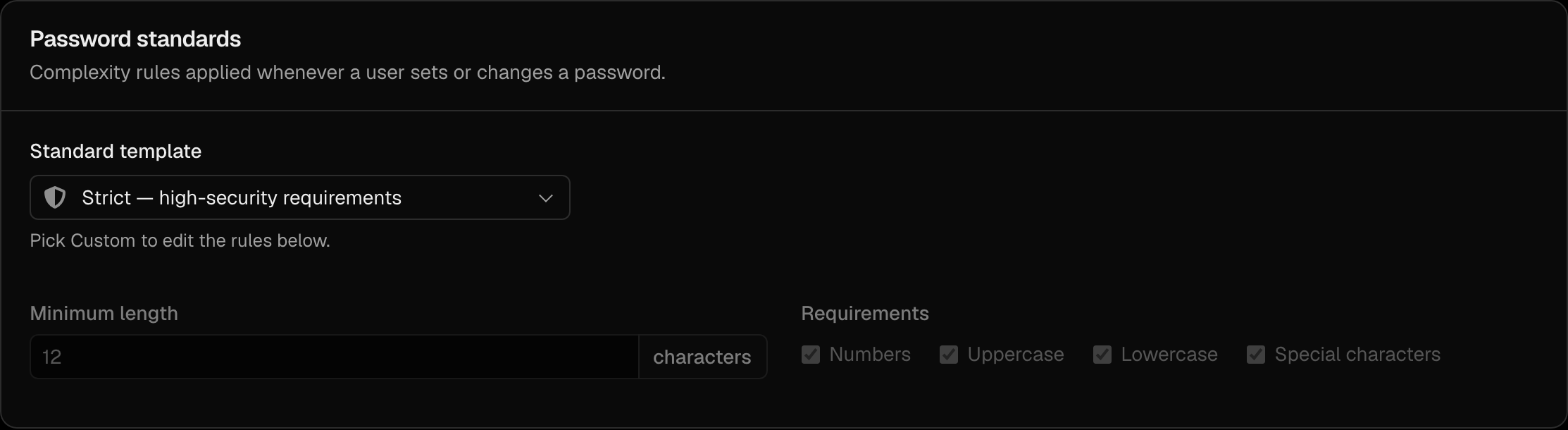
Configure password requirements in the Password standards section. Choose a Standard template (Fair, Moderate, Strict or Custom); the individual rules can only be edited after picking Custom:
| Setting | Description | Recommended |
|---|---|---|
| Minimum length | Minimum number of characters | 12+ |
| Uppercase | At least one uppercase letter | Yes |
| Lowercase | At least one lowercase letter (new; the Strict template turns it on) | Yes |
| Numbers | At least one digit | Yes |
| Special characters | At least one symbol | Optional |
Passwords are hashed with a strong adaptive algorithm (Argon2id or bcrypt) before storage — plaintext passwords are never written to disk.
The organization's policy and the breached-password check apply to every way a password is set: self-registration, reset, change, an admin setting a password in the portal (creating a user needs a password; an empty one is refused), POST /admin/users with a password (a user created without one signs in passwordlessly or sets one from a link), SCIM (automatic user provisioning), and accepting a customer organization invitation (the inviting organization's policy).
User Registration Flow
Self-Registration
Users can register at the organization's registration page, which the Create one link on the login page opens:
/orgs/{orgId}/register
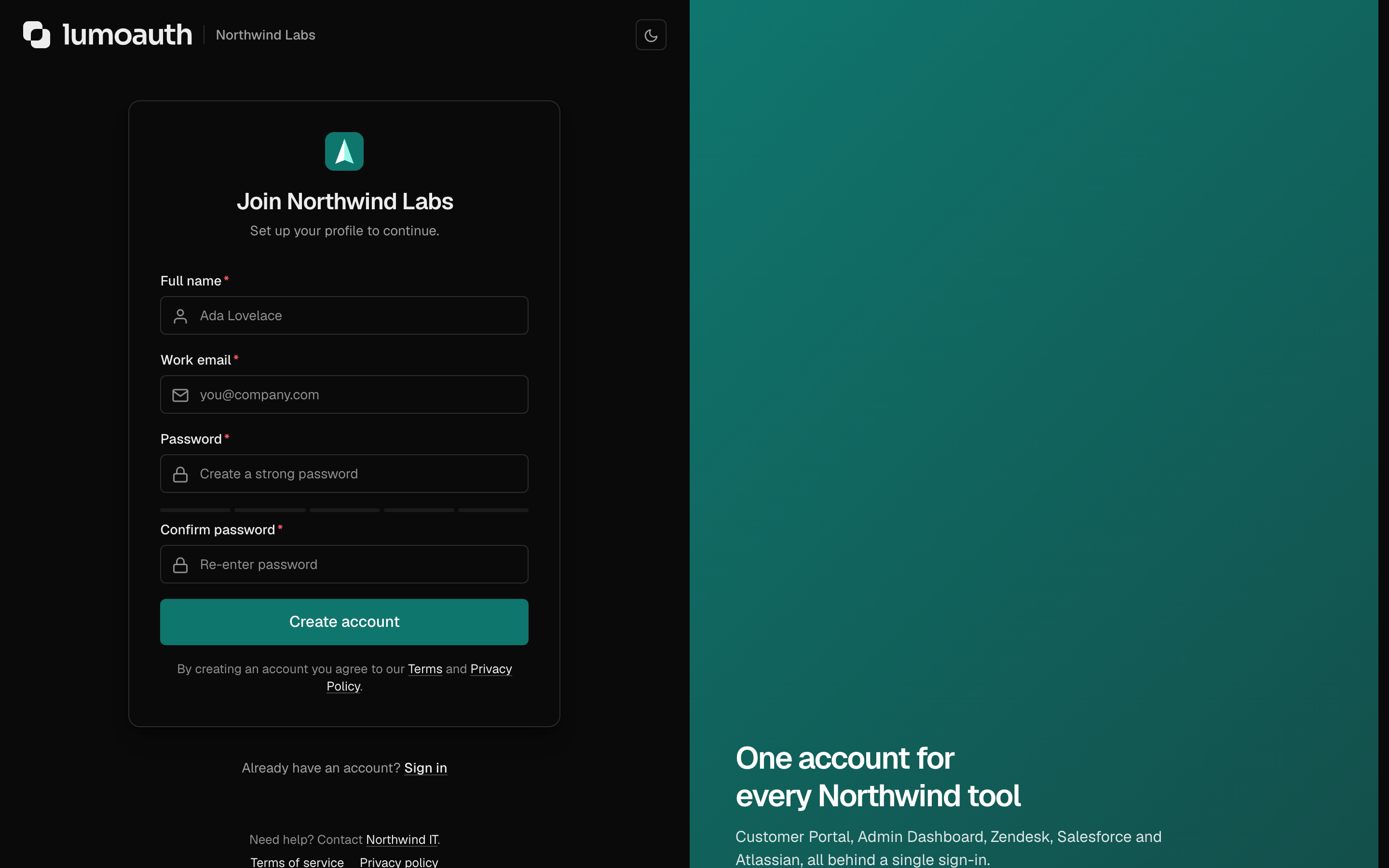
The registration form collects:
- Full name
- Work email
- Password, entered twice (validated against the password policy)
After registration:
- An email verification link is sent. The account stays inactive until then.
- The user sees "Thanks! Check your email to finish setting up your account."
- Clicking the verification link activates the account.
The response is the same whether or not the address already has an account in this organization, so the form cannot be used to find out who is registered:
- Address with an existing account in this organization: no account is created. The owner receives an Account already exists email with a sign-in link and a password-reset link.
- Address with an unverified sign-up waiting: the verification link is sent again.
Both emails are limited to 3 per address per hour. Addresses are compared case-insensitively.
Accounts are unique per organization: an address that already has an account in another organization can still sign up here, or accept this organization's invitation, and gets a separate account with its own password and factors. The public Create an organization sign-up (/register) is the one exception: an address can create only one organization. A second attempt is answered like a repeat sign-up (the owner is told by email) and creates nothing, while being invited into further organizations always works.
An invitation can claim an address that is only held by an unverified self-service sign-up. The pending sign-up is removed when the invitation is accepted, so nobody can block an invite by registering the address first.
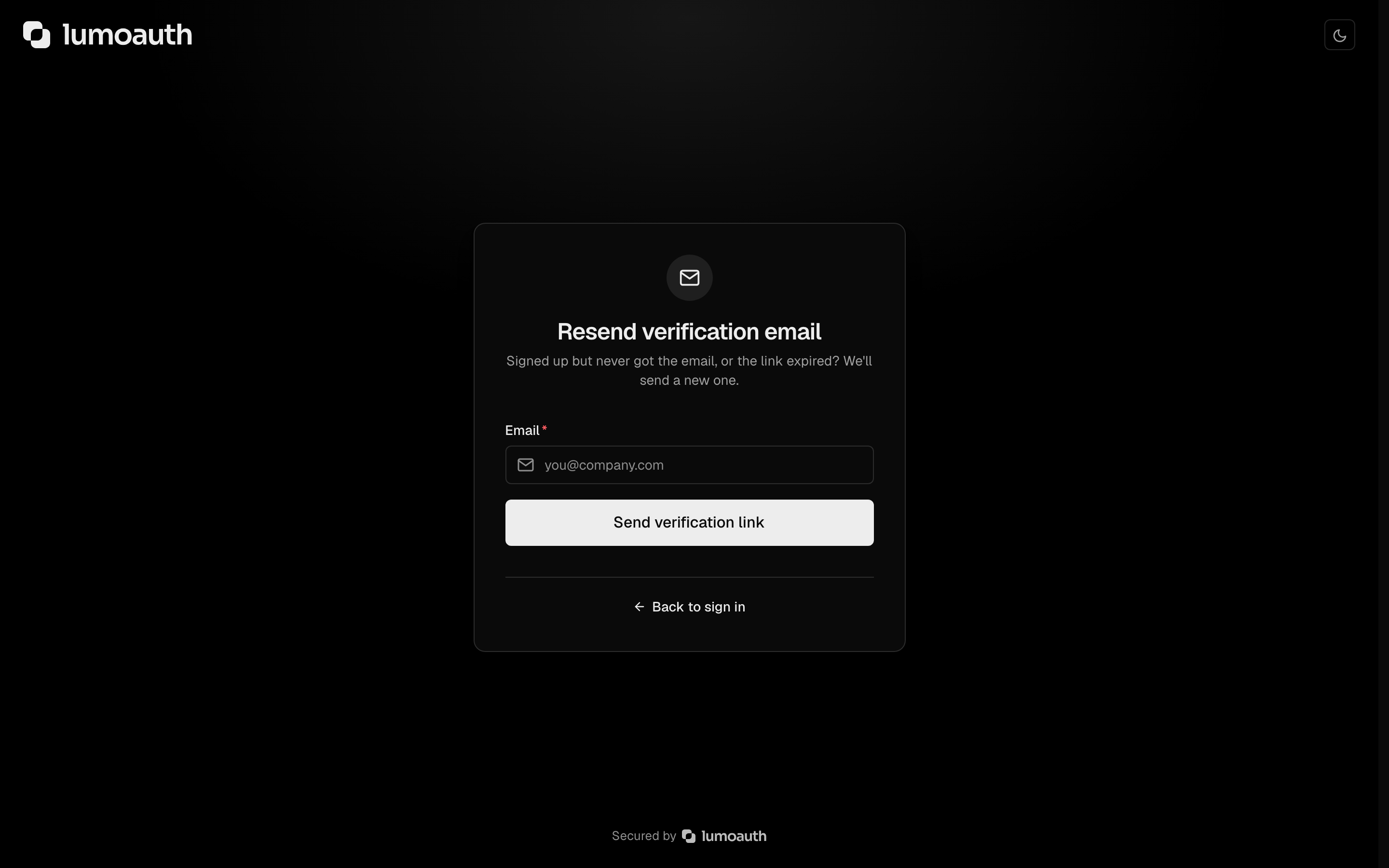
Resending the verification email
| Where | Who | Behaviour |
|---|---|---|
/verify-email/resend | Anyone (not signed in) | Enter the address; a new link is sent if it has a sign-up waiting for verification. Always answers "If that address has an account waiting for verification, we've sent a new verification link." Limited to 3 per address and 20 per IP per hour. |
/resend-verification | The signed-in user | Opens a confirm page; the POST (with CSRF token) sends the link. |
/account/forgot-password | Anyone | For an address whose sign-up is still unverified, the verification link is sent instead of a reset link. |
Admin-Created Users
Admins can create users directly at:
/orgs/{orgId}/portal/users/create
Open Users and click Create user:
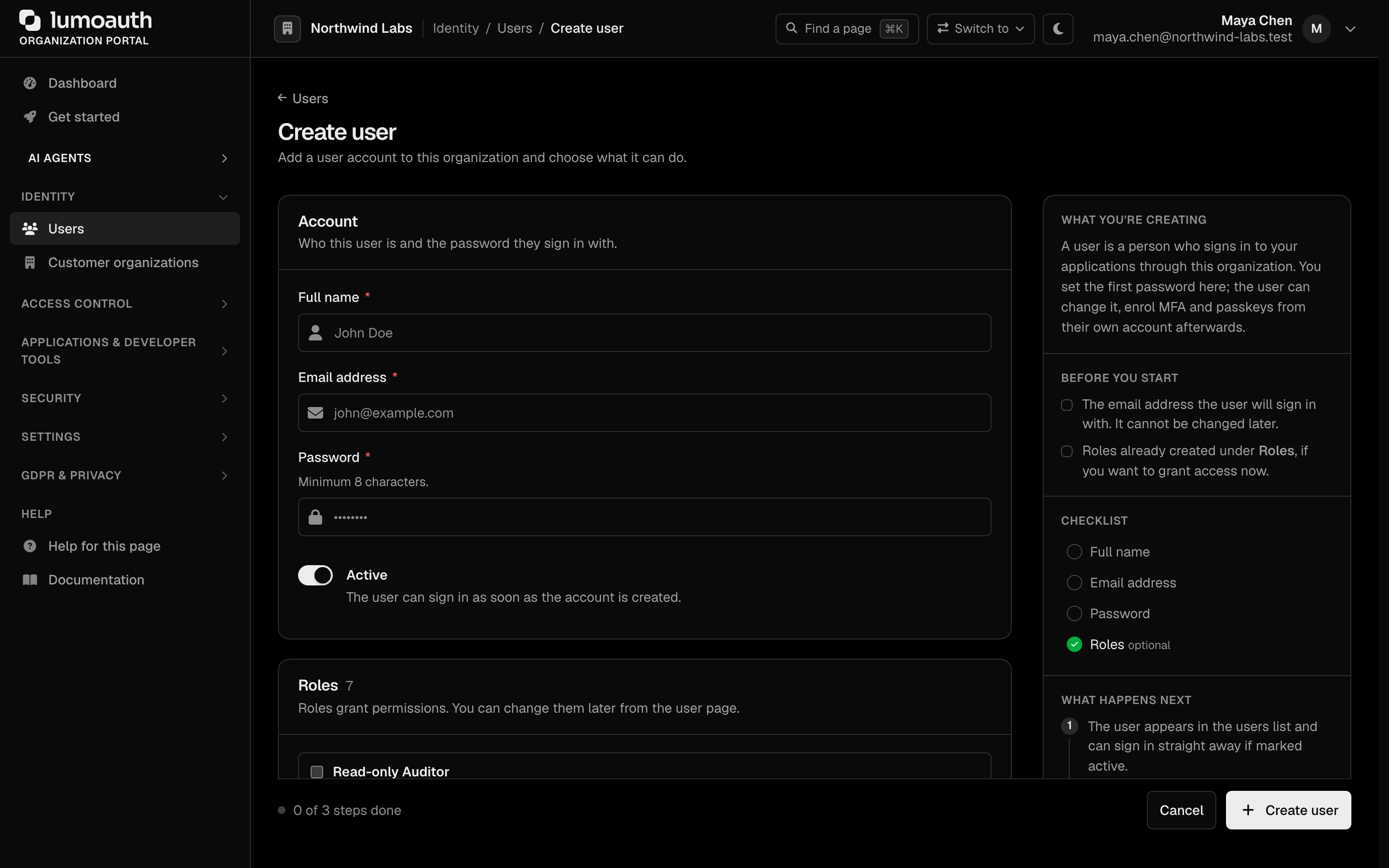
For an admin-created user you:
- Set the first password (required).
- Choose whether the account is Active, so the user can sign in as soon as it is created.
- Can assign roles immediately.
Invited Users
Invite users via email at:
/orgs/{orgId}/portal/users/invite
Open Users and click Invite users:
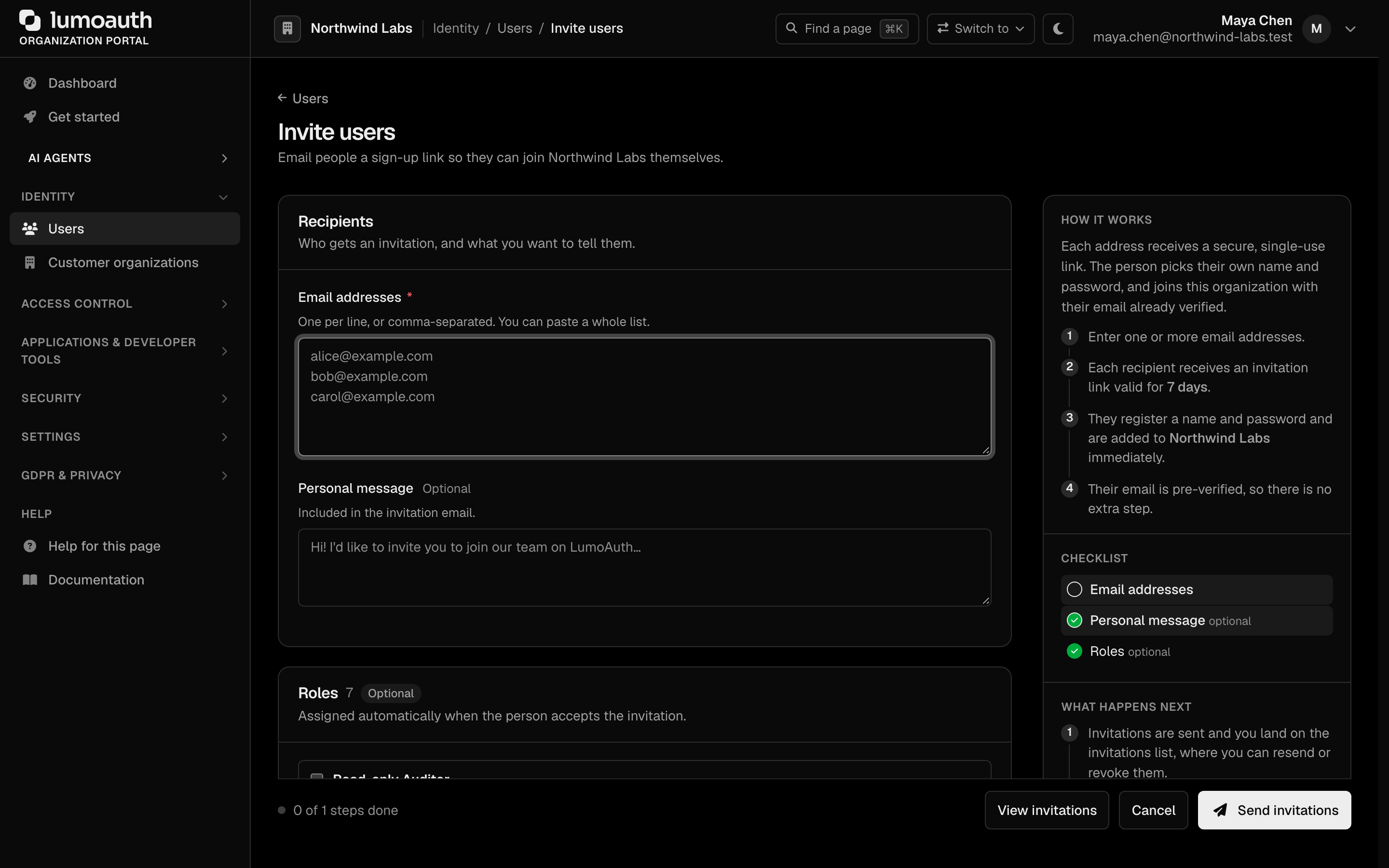
Invitation flow:
- Admin enters email addresses, an optional personal message, and selects roles.
- Send invitations emails each address a unique, single-use registration link, valid for 7 days.
- Invited users complete registration (setting their name and password). Their email is already verified.
- Pre-assigned roles are automatically applied.
Login Flow
The organization's login page is presented at:
/orgs/{orgId}/login
Or within an OAuth flow:
/orgs/{orgId}/api/v1/oauth/authorize?...
With Email-first login on, the page asks for the email first and shows the password field on the next step:
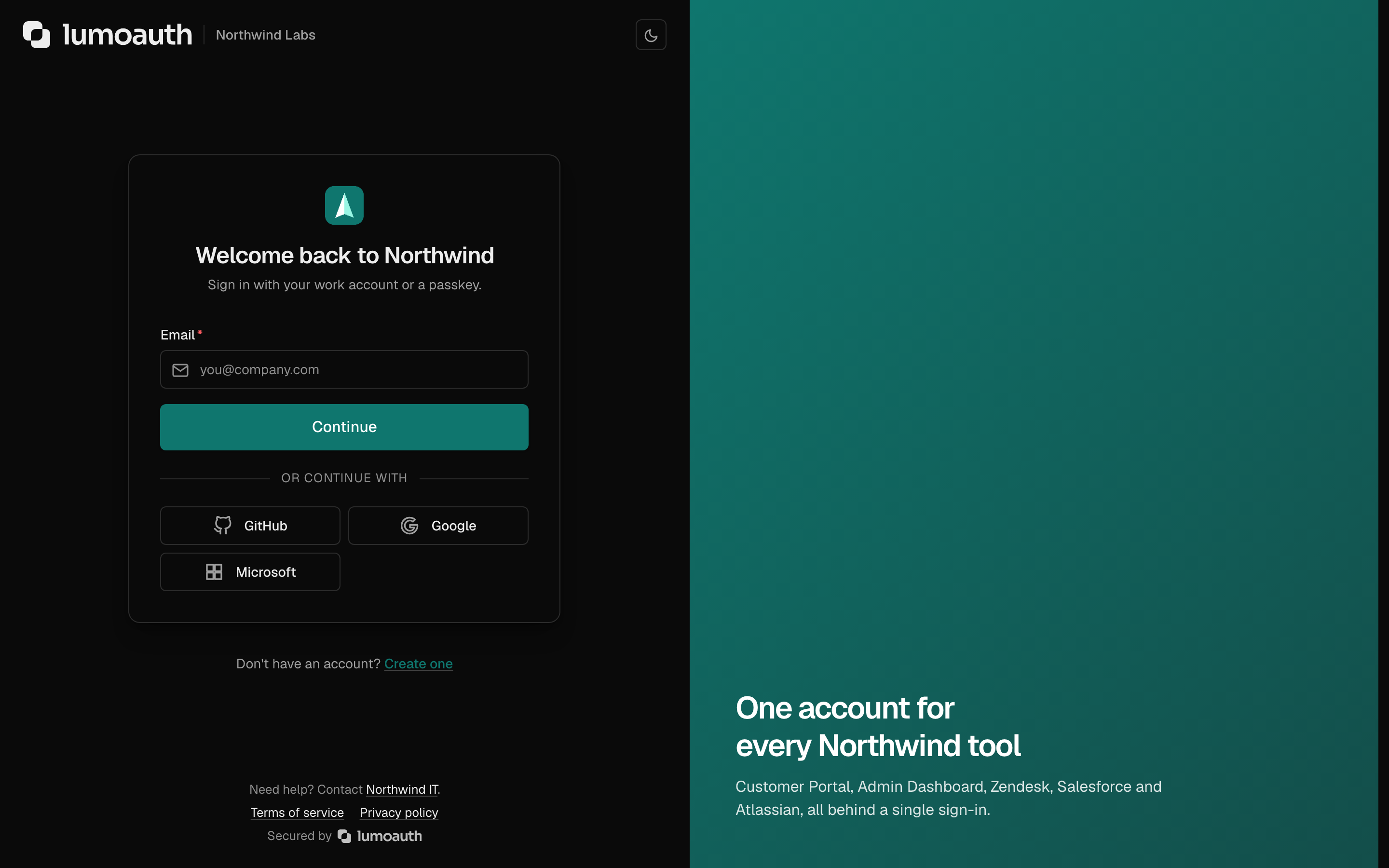
When the user has more than one way to sign in (for example a passkey or the LumoAuth app), the next step first offers a choice of methods, with social sign-in buttons below if the organization has enabled any. Choosing Use password shows the password field:
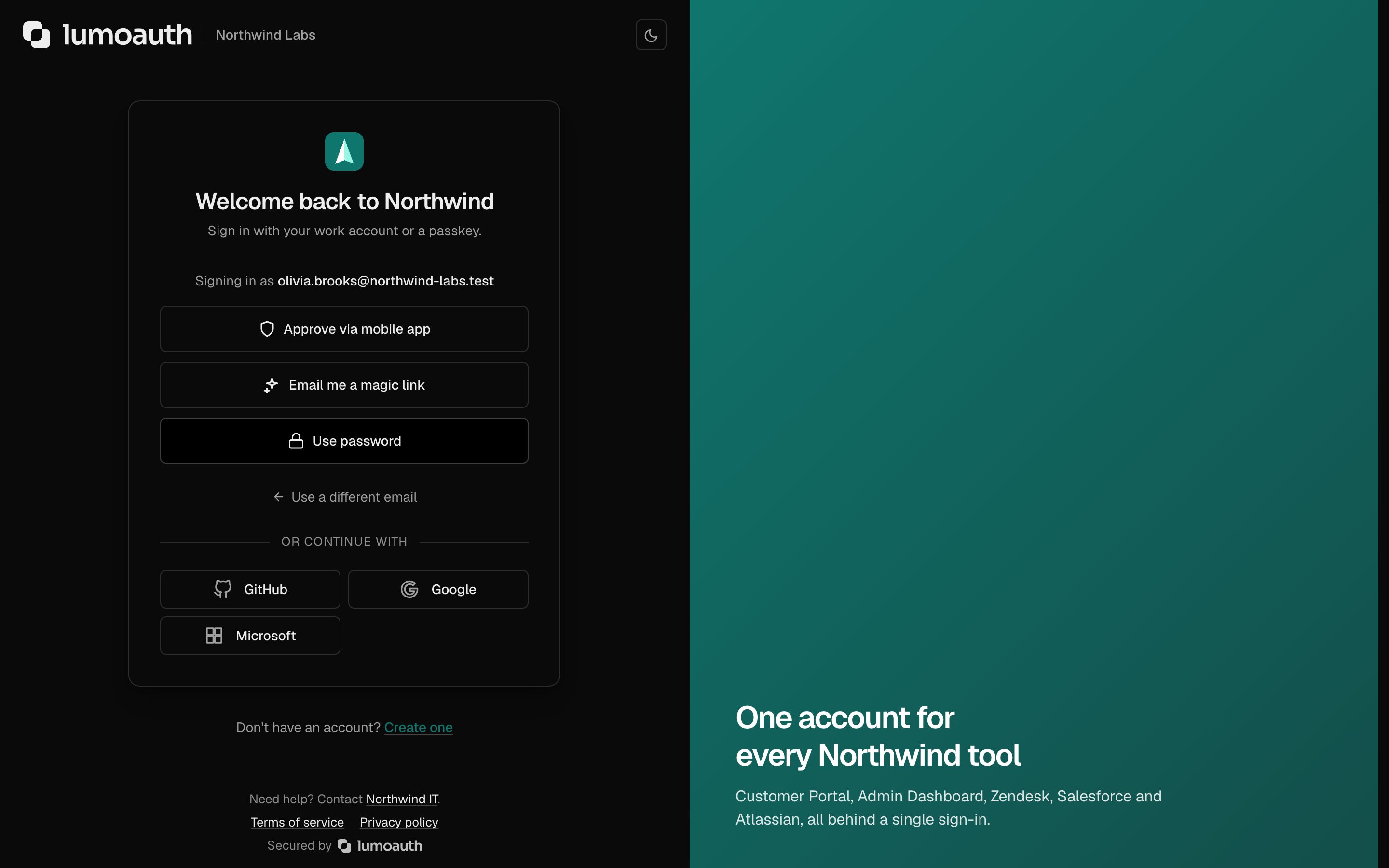
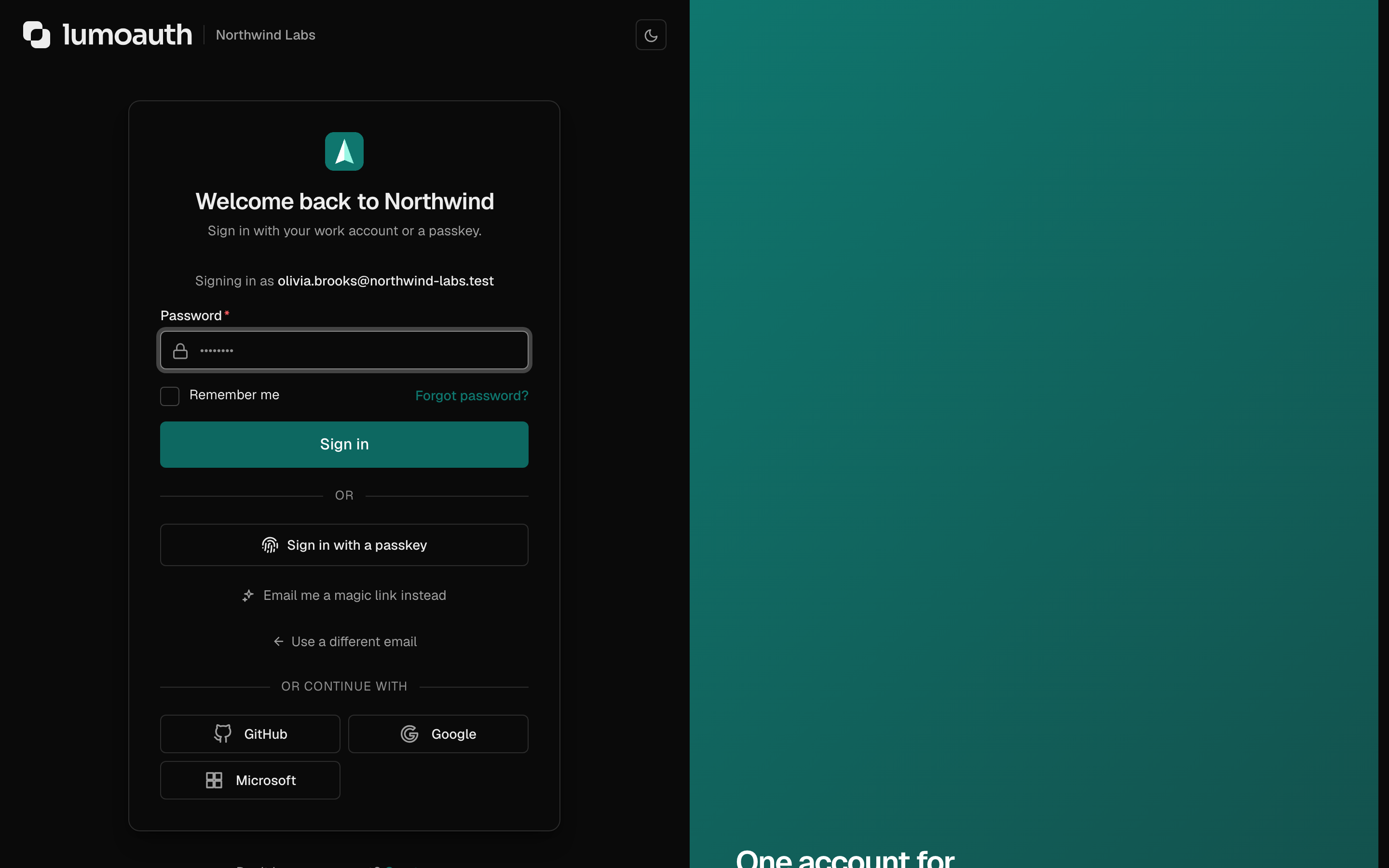
Login Process
- User enters their email, then their password (both on one form when Email-first login is off).
- LumoAuth validates the credentials against the stored password hash.
- If MFA is enabled → redirect to the MFA challenge.
- If adaptive auth is enabled → a risk score is calculated:
- Low risk → login succeeds.
- Medium risk → MFA challenge is triggered.
- High risk → login is blocked.
- On success → authorization code or session is issued.
Hosted login page for OAuth applications
Inside an OAuth flow the sign-in page is one of two:
| Page | When | Where credentials go |
|---|---|---|
| Organization login page | Default | /orgs/{orgId}/login, then back to /authorize |
| Application's branded login page | Applications → your app → Branding → Login page → Enable custom login page is on | POST /orgs/{orgId}/api/v1/oauth/login/submit |
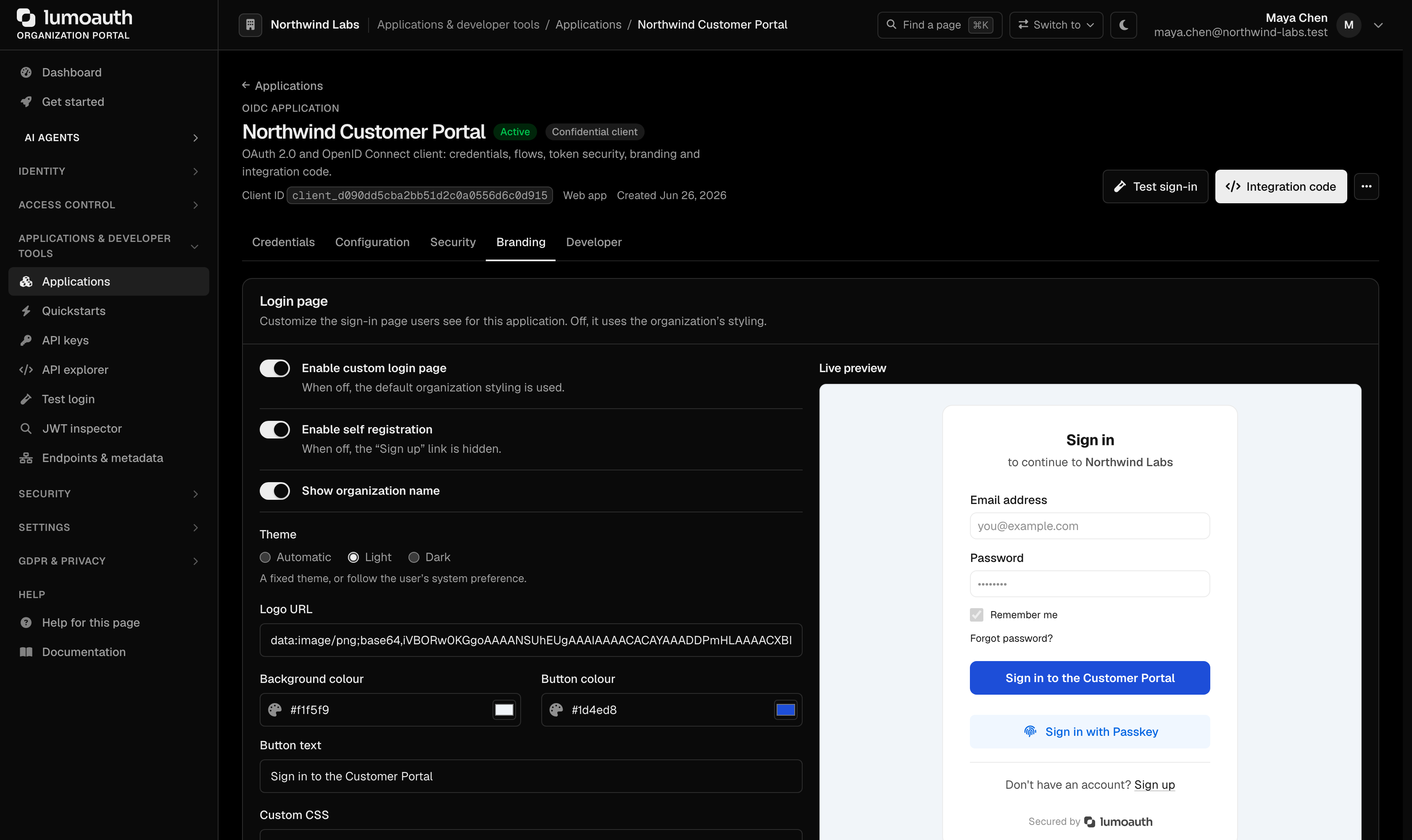
Both pages share one set of protections:
| Protection | Behaviour |
|---|---|
| CSRF token | Every submit carries a token (oauth_login on the branded page). A missing or stale token sends the user back to the form. |
| Client eligibility | The branded page only accepts credentials for an active application of this organization that has the custom login page enabled. |
| Rate limiting | Attempts are counted per client IP and per e-mail address (5 per 15 minutes). The per-address budget is reserved atomically before the password is checked, so parallel guesses cannot all slip under it. |
| Account lockout | 5 consecutive failures lock the account for 15 minutes. A correct password during the lock still fails and still counts. The lock is scoped to the organization whose sign-in page was used: accounts are unique per organization, so failures spent against one organization's page never lock the same e-mail address out of another organization, of the generic sign-in page or of the LumoAuth operator console. |
| Uniform failure | Wrong password, unknown e-mail and a locked account all show the same "Invalid credentials" message, so the page cannot be used to discover accounts. Once the per-address attempt budget is spent the page answers with an Account Temporarily Locked notice instead; wait 15 minutes. |
| LumoAuth operators | A LumoAuth operator cannot sign in through your organization's login page unless allow_root_admin_login has been enabled for it at your request. Such sign-ins are audited as critical events. |
Applications that render their own sign-in form can post JSON to POST /orgs/{orgId}/api/v1/oauth/login/json and receive a machine-readable status (complete, mfa_required with a challenge_url, invalid_credentials, blocked, inactive, rate_limited). It establishes the same browser session and never returns tokens; the application then continues to /authorize. The full contract is on the Authorization endpoint page.
Failed Login Handling
- Failed attempts are logged in the audit trail with the channel (
form,hosted_form,json) and the reason, which is never shown to the user. - After 5 consecutive failed attempts the account is locked for 15 minutes; the lock clears itself.
- Rate limiting per IP and per e-mail address slows brute-force attacks.
- Unknown e-mail addresses are handled exactly like wrong passwords (same message, same timing) so the form cannot be used to enumerate users.
- A lockout is audited as
account.lockedand raises a high security alert to your alert channels.
Signing out
The hosted "Sign out" links carry a CSRF token; a bare request to /logout is refused with 403. Applications should sign users out through the OpenID Connect end_session_endpoint instead, see Logout.
Password Reset
Users can reset their password with the Forgot password? link on the login page, or directly at:
/account/forgot-password
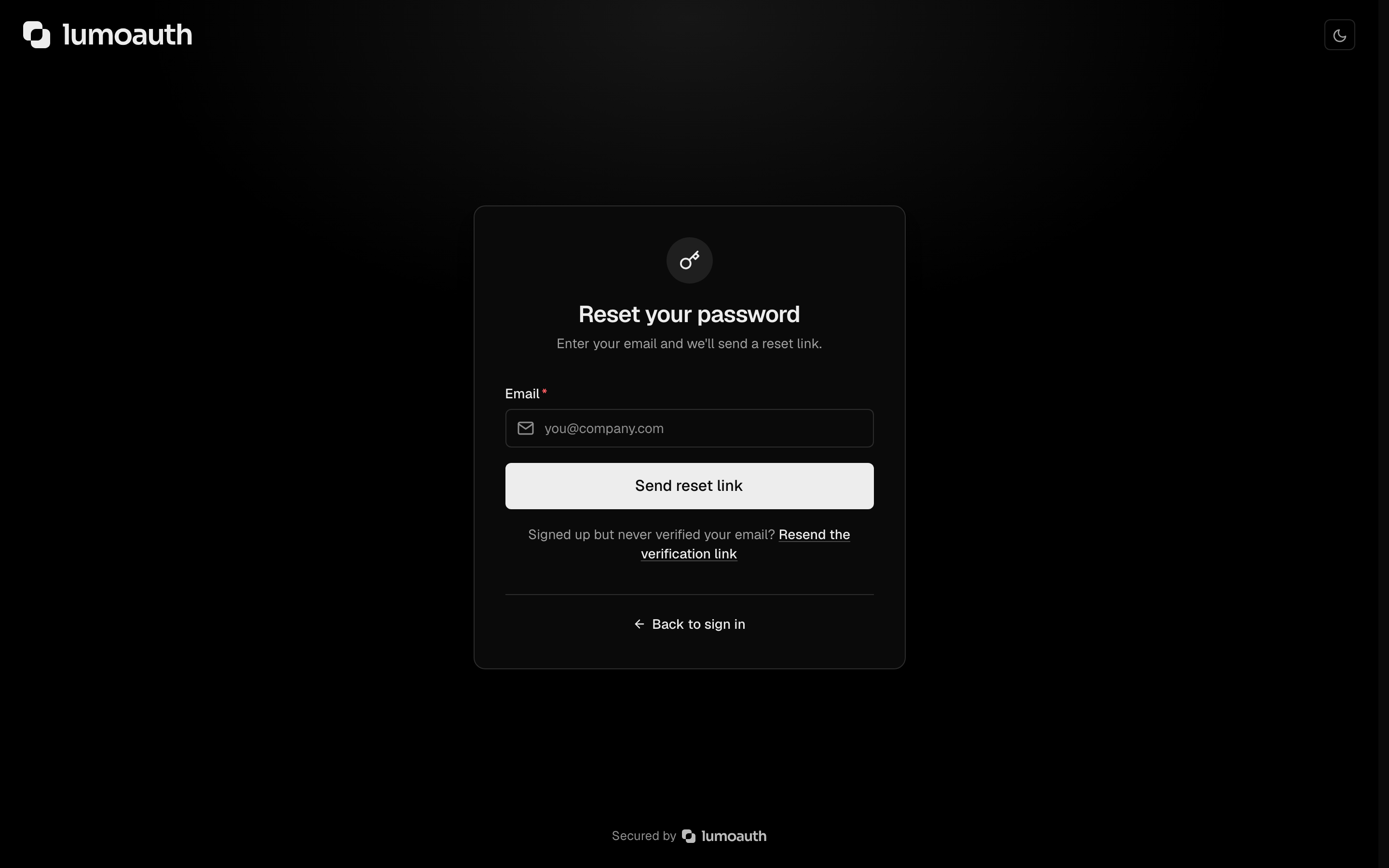
When the link comes from an organization's login page (/orgs/{orgId}/login) or from the reset email, it carries ?orgId={orgId}: the reset pages then show the organization's name in the header and title, and Back to sign in and the post-reset redirect return to that organization's login page rather than the generic /login. The same applies to the email-verification link.
Reset Flow
- User enters their email address.
- LumoAuth sends a password reset email with a secure, time-limited token. The page always answers "If an account exists with this email, you will receive password reset instructions."
- User clicks the link and sets a new password (checked against the password policy).
- The user's other sessions and OAuth tokens are revoked, and the owner gets a password-changed notice.
Completing a reset proves the user controls the mailbox, so it also marks the email as verified. If the account was created through a social provider that did not verify the address, the social link, MFA factors, passkeys and push devices added before that point are removed (audited as account.pre_verification_bindings_dropped).
Security Measures
- Reset links are valid for 15 minutes.
- Tokens are single-use.
- The reset link contains a cryptographically random token.
- Requests are limited per IP and email, and per email address alone (5 per hour), so rotating IPs cannot flood one inbox. A throttled request gets the same neutral answer.
Re-entering the current password
Forms that ask for the current password inside a signed-in session (change password, change email, delete account, forced password change) are limited per user to 5 per 15 minutes. The budget is spent before the password is compared, so once it is used up even the right password is refused until the window ends. Wrong passwords count toward the account lockout exactly like failed sign-ins, and a locked account cannot use these forms. On change password, change email and delete account, users who hold an MFA factor pass step-up first, so a session without fresh MFA cannot test password guesses at all.
Email Templates
Customize the emails sent during authentication under Settings → Login page & emails → Email templates:
/orgs/{orgId}/portal/settings/email-templates
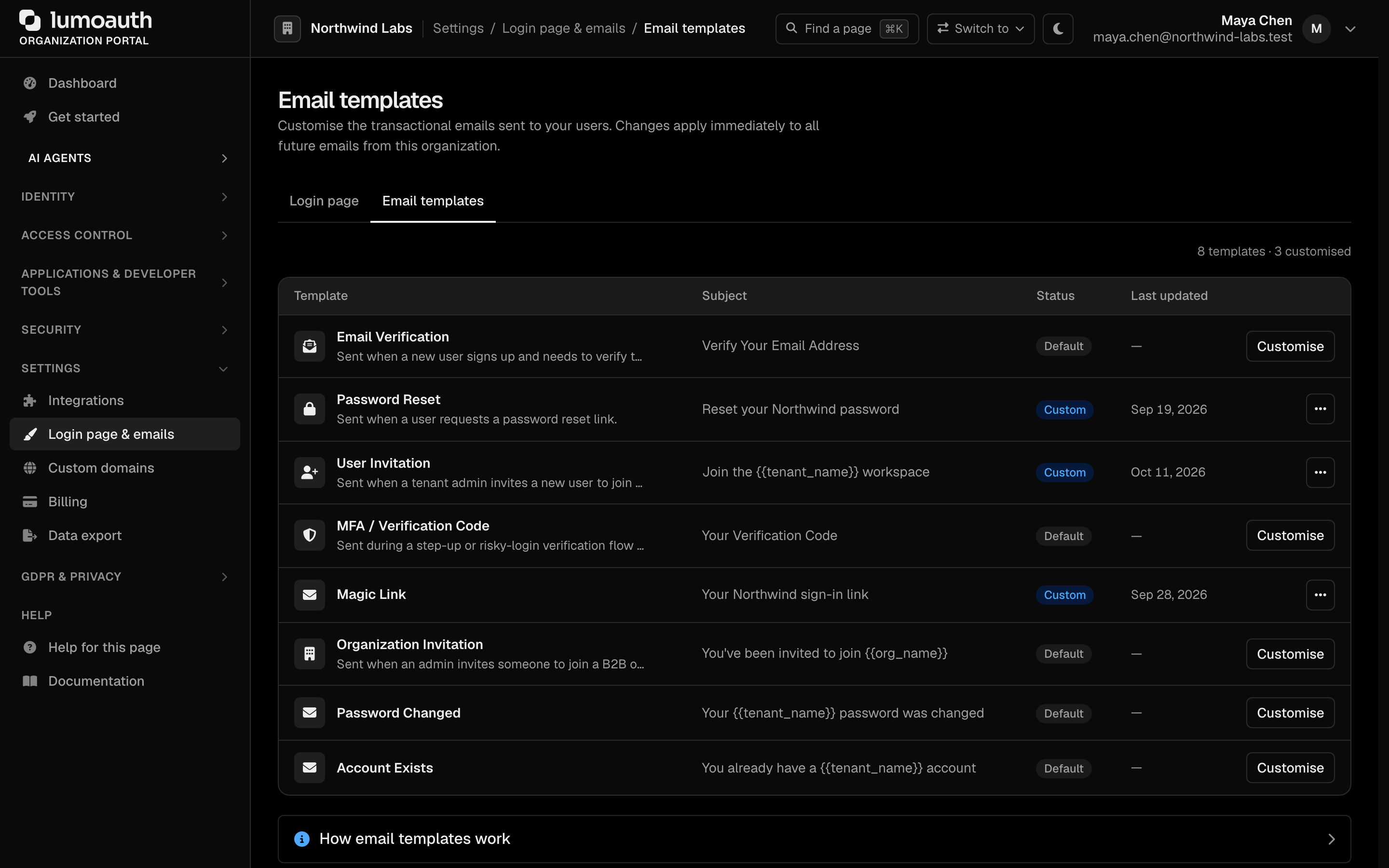
Available templates:
| Template | Sent When |
|---|---|
| Email Verification | Account needs email verification |
| Password Reset | User requests a password reset |
| User Invitation | An admin invites a user to the organization |
MFA Code (mfa_code) | A one-time code is delivered by email (MFA, multi-factor authentication, step-up or a risky sign-in) |
| Magic Link | A passwordless sign-in link is requested |
Organization Invitation (org_invitation) | A user is invited to join a customer organization |
| Password Changed | A user's password was changed |
Account Exists (account_exists) | Someone tries to register with an address that already has an account |
Related Guides
- Multi-Factor Authentication — add a second factor to email/password login
- Adaptive MFA — risk-based MFA enforcement
- Social Login — add social login buttons alongside email/password
- Magic Link & Email-First — passwordless alternative