Passkeys & WebAuthn
Passkeys provide passwordless authentication using the FIDO2/WebAuthn standard (WebAuthn is the browser API behind passkeys; FIDO2 covers the authenticators that hold them). The user authenticates with a biometric (fingerprint, face) or hardware security key, and your server never handles a shared secret. The private key never leaves the device; LumoAuth stores only the public key and verifies a signed challenge at login.
What Are Passkeys?
Passkeys are cryptographic credentials stored on the user's device. They use public-key cryptography — the private key never leaves the device, and the public key is stored in LumoAuth. Authentication happens via a challenge-response, which makes passkeys:
- Phishing-resistant — bound to the specific origin (domain).
- Free of shared secrets — nothing reusable to steal from the server.
- Biometric-backed — require fingerprint, face, or PIN to use.
- Cross-device — can sync across devices via platform credential managers.
Supported Credential Types
| Type | Examples | Use Case |
|---|---|---|
| Platform Authenticators | Touch ID, Face ID, Windows Hello | Built into the device |
| Roaming Authenticators | YubiKey, Titan Security Key | USB/NFC hardware keys |
| Synced Passkeys | iCloud Keychain, Google Password Manager, 1Password | Cross-device passkeys |
How It Works
Registration (Enrollment)
- The user starts from Secure your account after sign-in (where a passkey is the recommended first factor whenever the browser reports Touch ID, Face ID, Windows Hello or an Android screen lock), or from Sign-in & security → Add a sign-in method.
- They click Create a passkey.
- The browser prompts for biometric verification, a screen lock or a security key.
- A new public-private key pair is generated on the device; the private key never leaves it.
- LumoAuth verifies the attestation and stores the public key.
- The passkey is named after the device and browser, for example "Mac – Chrome" or "iPhone – Safari". Users can rename it later.
Passkeys are created as discoverable credentials (residentKey: required), and the request lists the user's existing passkeys in excludeCredentials so the same authenticator is not registered twice.
Authentication
- User enters their email (or clicks Sign in with a passkey).
- LumoAuth sends a cryptographic challenge to the browser.
- Browser prompts for biometric verification or PIN.
- The private key on the device signs the challenge and marks it user verified.
- LumoAuth verifies the signature with the stored public key and rejects the assertion if the user was not verified.
- Login is complete — no password needed.
User verification is required
A passkey is a complete sign-in on its own, so LumoAuth asks for user verification (UV) on every registration and every sign-in. UV means the authenticator confirmed who is present (biometric or PIN), not just that something was present (a touch, called user presence or UP). Concretely:
- Registration uses
userVerification: "required", so a credential can only be created with a PIN or biometric. A security key without a PIN prompts the user to set one. - Sign-in uses
userVerification: "required", and the server checks the UV flag in the signed assertion. An assertion produced by a bare touch is rejected. - Clients cannot downgrade this; the request options are generated server-side.
- Passkey user lookups are scoped to the organization whose login page or custom domain the ceremony runs on, so a credential registered in one organization cannot sign in to another.
What users see: Touch ID, Face ID, Windows Hello, Android biometrics or their password-manager prompt as usual; on a hardware key, a PIN prompt followed by a touch.
WebAuthn Level 2 (W3C) / FIDO2. The userVerification option distinguishes user presence (UP: someone touched the authenticator) from user verification (UV: the authenticator checked a PIN or biometric). When a passkey replaces the password, only UV proves that the account owner is the one signing in, so the relying party must request required and check the UV flag in the assertion's authenticator data. WebAuthn: user verification
Configuration
Enable Passkeys
Navigate to Security → Sign-in settings at:
/orgs/{orgId}/portal/settings/authentication
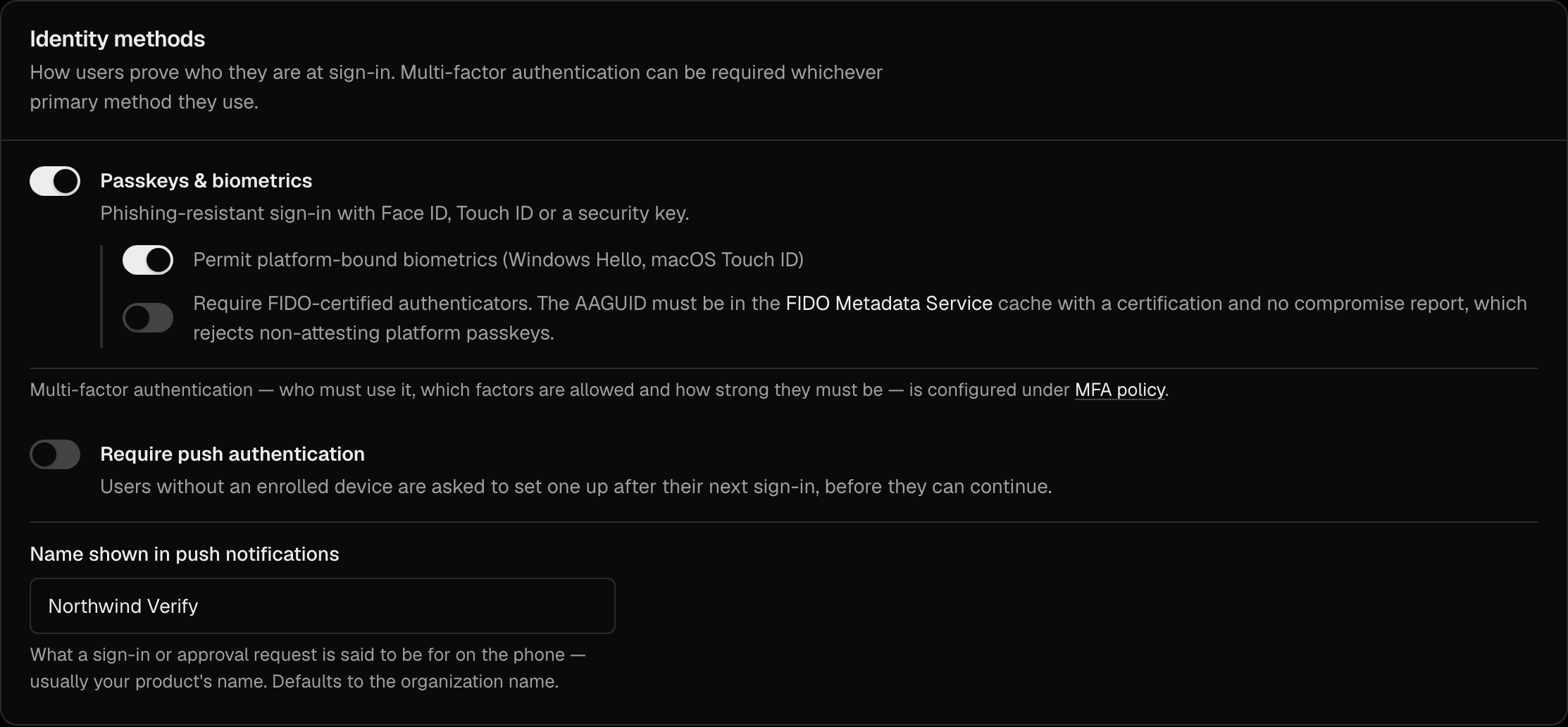
In the Identity methods section, turn on Passkeys & biometrics and click Save changes. Two sub-options sit below the switch: Permit platform-bound biometrics (Windows Hello, macOS Touch ID) and Require FIDO-certified authenticators.
Settings
| Setting | Description |
|---|---|
Passkeys & biometrics (passkey_enabled) | Users can register passkeys in account settings and sign in with them. Off means passkey sign-in is refused at the WebAuthn endpoints ("Passkey sign-in is not enabled for your organization. Sign in another way."), not just hidden on the login page, and the account page refuses new passkeys (403 passkeys_disabled) unless the MFA policy (multi-factor authentication) allows passkeys as a factor. |
| Require FIDO-certified authenticators | Only authenticators whose AAGUID appears in the FIDO Metadata Service cache with a certification and no compromise report may register. Applies to every registration path: the account page and the MFA API (400 with "This authenticator is not FIDO certified…"). |
Passkeys used as a second factor are governed by the MFA policy's allowed factors, not by Passkeys & biometrics, so turning passkey sign-in off does not lock out users who verify with a passkey as their second step.
User verification is not a setting: it is always required, for every organization.
WebAuthn Routes
LumoAuth exposes two distinct sets of WebAuthn endpoints — one for logging in with an existing passkey, and one for enrolling a passkey from account settings. Both follow the WebAuthn specification and are driven by the portal's navigator.credentials calls; you normally do not call them directly.
Login (passwordless sign-in):
POST /login/webauthn/options   → Generate authentication options (challenge)
POST /login/webauthn/result    → Verify the signed assertion and sign the user in
Account enrollment (add/remove a passkey):
POST   /account/security/passkey/options    → Generate registration options
POST   /account/security/passkey/register   → Complete registration
DELETE /account/security/passkey/{id}        → Remove an enrolled passkey
There is also an OAuth-flow passkey login endpoint used during the authorization flow:
GET /orgs/{orgId}/api/v1/oauth/passkey-login
User Experience
Enrolling a Passkey
From Secure your account (/auth/secure-account) or the account security page (/account/security → Add a sign-in method):
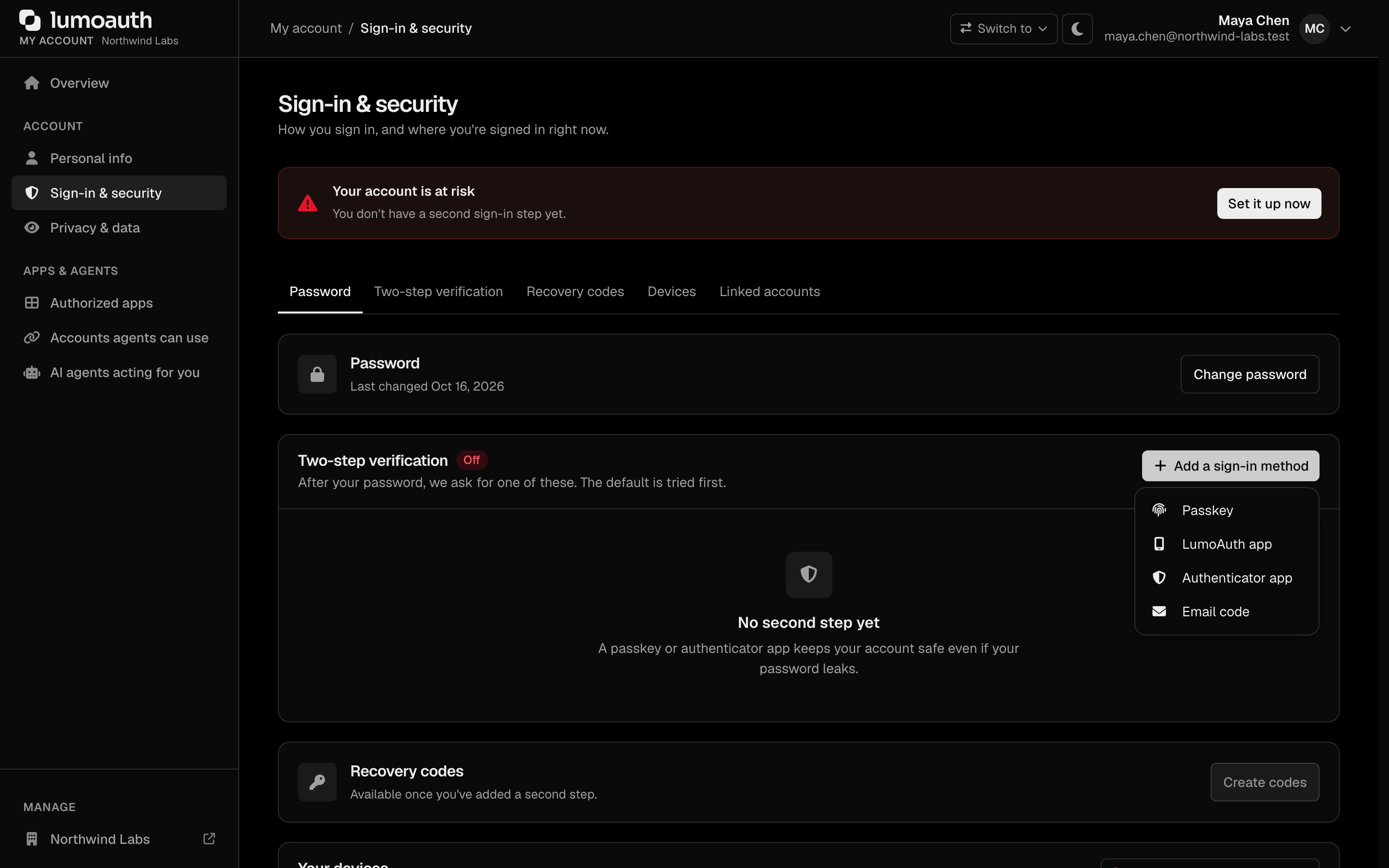
- Click Create a passkey (from Add a sign-in method, choose Passkey).
- Complete the biometric, screen-lock or security-key prompt.
- The passkey appears in Sign-in & security with its default name, the Strongest tier label and the date it was added.
If the user cancels the OS prompt, the screen stays where it was, without an error, and shows Try again next to the other ways to secure the account. A user who already holds a sign-in method must confirm it is them before adding a passkey (see step-up).
Logging In with a Passkey
On the login page:
- Click Sign in with a passkey (or start typing an email).
- The browser shows available passkeys.
- Select a passkey and verify with biometrics.
- Login proceeds — no password or MFA needed.
Managing Passkeys
Users manage passkeys under Sign-in & security (/account/security), together with their other sign-in methods:
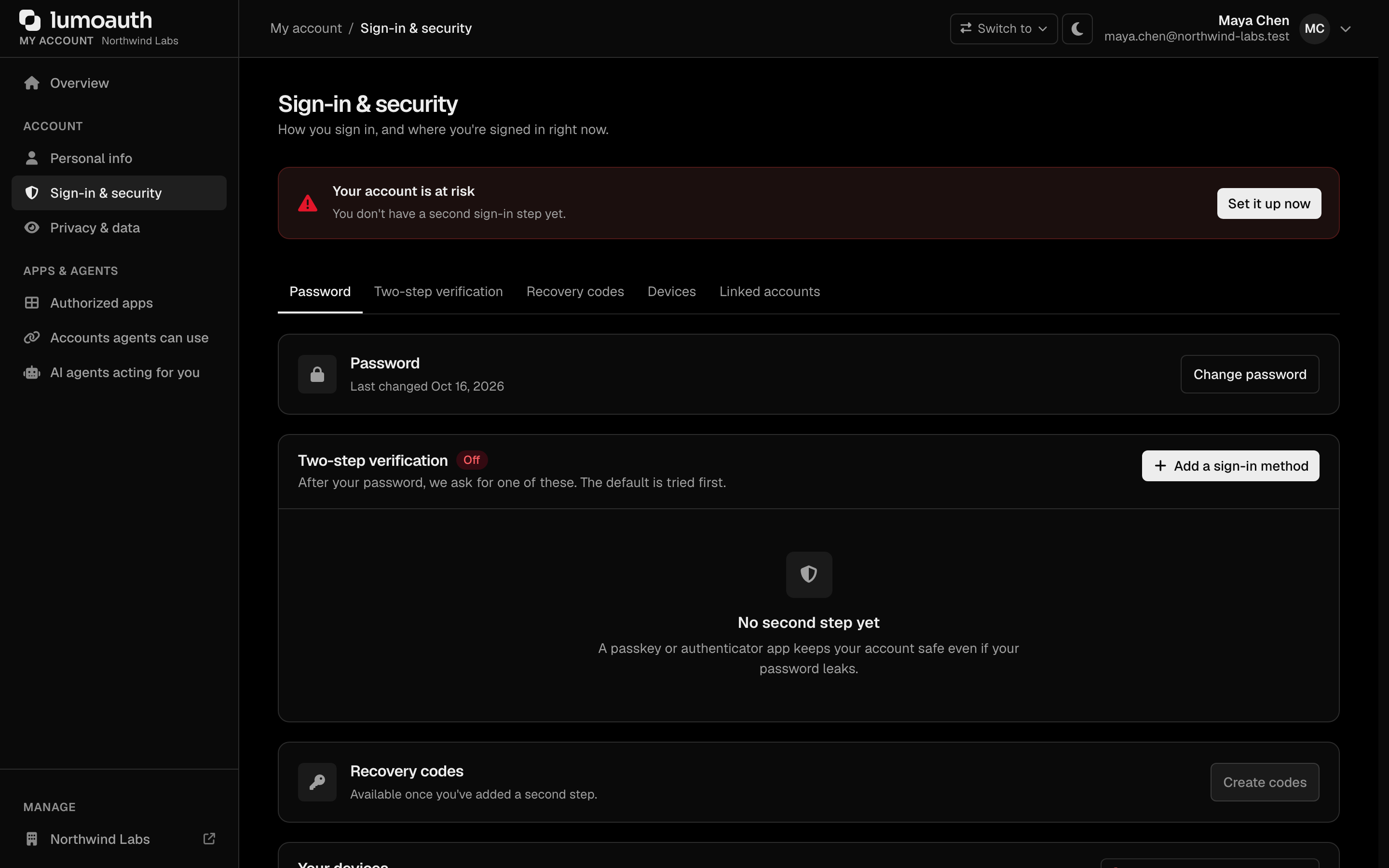
- See each passkey with its name, when it was added and when it was last used.
- Rename a passkey or Make default.
- Remove… a passkey. This needs a fresh verification with a different sign-in method when the user has one, and is refused when it is the user's last method and the organization requires MFA.
- Add another passkey.
Passkeys and the MFA policy
Passkeys are the strongest factor (tier 1, "Strongest") in the MFA policy and the first recommendation during enrollment.
- Passwordless (default). With the policy key
passwordless_passkeyon (portal: A passkey counts as both factors), signing in with a passkey that performed user verification satisfies both factors: no password and no second prompt. Tokens carryamr: ["hwk", "user", "mfa"]andacr: urn:lumoauth:acr:mfa:phr. - Passwordless off. A passkey sign-in counts as the first step only, and the user is asked for a second factor like any other sign-in.
- As a second factor. After a password, the MFA challenge can use a passkey: the browser shows its passkey prompt and the user confirms with biometrics. Assertions are restricted to the user's own passkeys.
- Step-up. Applications can demand a phishing-resistant sign-in with
acr_values=urn:lumoauth:acr:mfa:phr(orphr); see ACR and AMR.
If the organization removes passkey from allowed_factors, passkeys are not offered for enrollment and do not count at sign-in.
Security Benefits
| Feature | Passwords | Passkeys |
|---|---|---|
| Phishing risk | High — can be entered on fake sites | None — bound to origin |
| Server breach | Hashed passwords can be cracked | Only public keys stored |
| Replay attacks | Possible | Impossible — challenge-response |
| User effort | Remember complex passwords | Touch fingerprint sensor |
| Cross-site | Same password often reused | Unique per site |
Browser Support
Passkeys are supported in:
- Chrome 108+ (Windows, macOS, Android)
- Safari 16+ (macOS, iOS)
- Firefox 122+ (Windows, macOS, Linux)
- Edge 108+ (Windows, macOS)
For older browsers, passkey options will not appear and users can fall back to password + MFA authentication.
Troubleshooting
- "Sign-in failed" right after a successful touch on a security key. The key has no PIN, so it could not perform user verification. Set a PIN on the key (in the browser's or OS security-key settings) and try again; registration of a new key will ask for one automatically.
- Registration prompt asks to create a PIN. Expected on keys without one; user verification is mandatory.
- A passkey works on one organization's login page but not another's. Passkeys are tied to the organization they were registered in. Register a separate passkey per organization.
- Older automation or custom clients that sent
userVerification: "discouraged". The server ignores client preferences; update the client to allow the UV prompt.
Related Guides
- Authentication Overview — all authentication methods
- Multi-Factor Authentication — factor tiers, policy and recovery
- Email & Password — traditional fallback
Standards used on this page
| Plain name | Standard |
|---|---|
| Passkeys (WebAuthn and FIDO2) | W3C Web Authentication and FIDO Alliance CTAP |
See the standards reference for what each one covers and how LumoAuth uses it.