Magic Link & Email-First Login
Magic link is a passwordless sign-in method: the user enters their email address, LumoAuth emails a single-use link, and opening the link and confirming signs them in. LumoAuth also supports an email-first login pattern, where the user enters their email as the first step and the next step (password, magic link, push) is shown. The next step depends only on the organization's settings, never on whether the address has an account.
Use magic link when you want a low-friction passwordless flow (common in consumer apps). Use email-first when you want a single email field before the other sign-in options.
Magic Link Authentication
How It Works
- User enters their email on the login page.
- LumoAuth emails a secure, time-limited link to that address.
- The user opens the link. It shows a Continue signing in page; opening the link alone signs nobody in.
- The user confirms with Sign in. The confirm is a
POSTwith a CSRF token. It uses the token, signs the user in and redirects to your app. - The link is invalidated after first use.
The confirm step exists because mail scanners and link previewers fetch links in incoming mail. A plain GET no longer uses up the single-use token.
The email is never required to be registered: the server always responds with "check your inbox" regardless of whether the address exists, which prevents user enumeration.
Enabling Magic Link
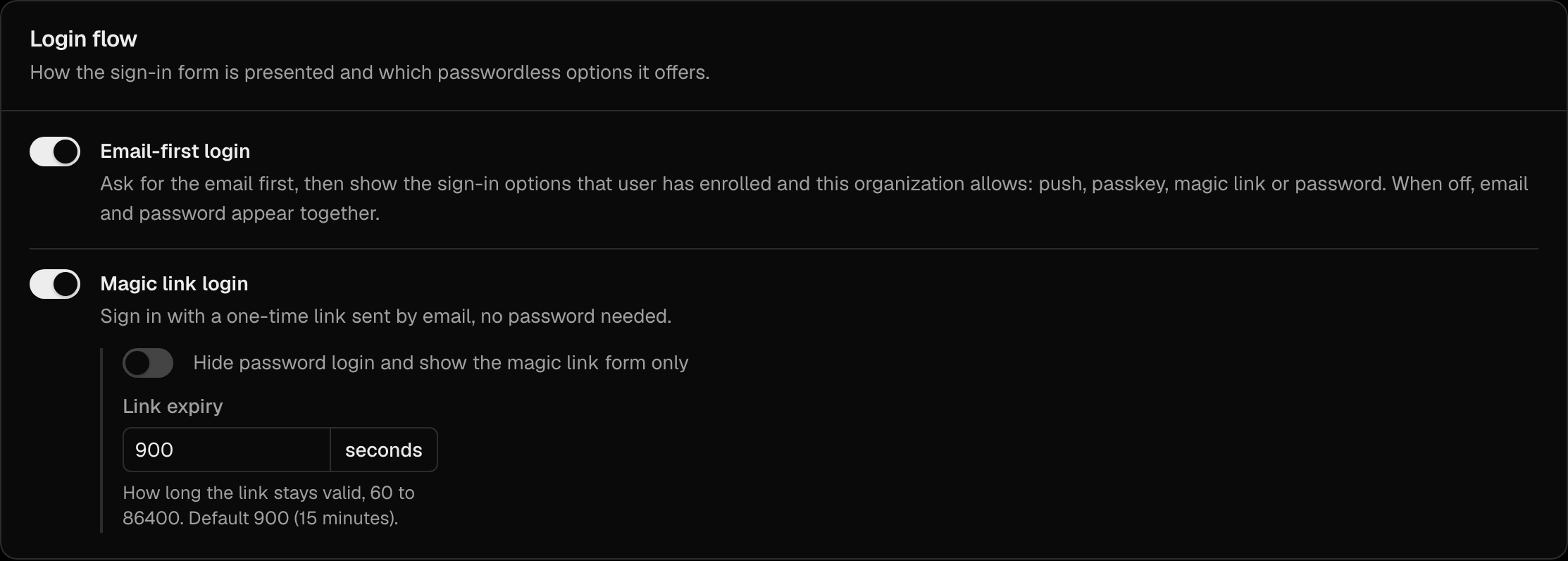
Configure magic link authentication under Security → Sign-in settings, in the Login flow section:
/orgs/{orgId}/portal/settings/authentication
| Setting | Description |
|---|---|
| Magic link login | Allow users to request a sign-in link instead of entering a password. Turning it on reveals the two options below. |
| Hide password login and show the magic link form only | Disable password login entirely — users must always use a magic link |
| Link expiry | How long the link is valid, in seconds: 60 to 86400, default 900 (15 minutes) |
Click Save changes to apply. Turning Magic link login off also stops links that were already sent. Both the confirm page and the confirm POST check the setting again, and the user is sent back to the sign-in page.
When Hide password login and show the magic link form only is enabled, the password field is hidden on the login page. This is mutually exclusive with password authentication — you cannot enable both simultaneously for the same organization.
Login Page Behaviour
When magic link is enabled, the login page shows an Email me a magic link instead button alongside the password field (or an Email me a magic link button instead of it, in magic-link-only mode). After the user submits their email:
- They are redirected to a "Check your inbox" confirmation page.
- The page shows the email address that was used and a hint to check spam.
- A try again link takes them back to the login page to start over.
Security Considerations
| Concern | Mitigation |
|---|---|
| Link interception | Links are single-use and expire after a configurable period |
| User enumeration | The server always responds with success, whether or not the email is registered |
| Replay attacks | Tokens are invalidated immediately after first use |
| Mail scanners / link previews | Opening the link only shows a confirm page; the token is used by the POST from that page |
| Magic links turned off | Links already in inboxes stop working as soon as the setting is off |
| Phishing | Links contain a cryptographically random token — no credentials are transmitted |
| Email delivery delay | Token expiry is configurable to account for delayed delivery |
Email-First Login Flow
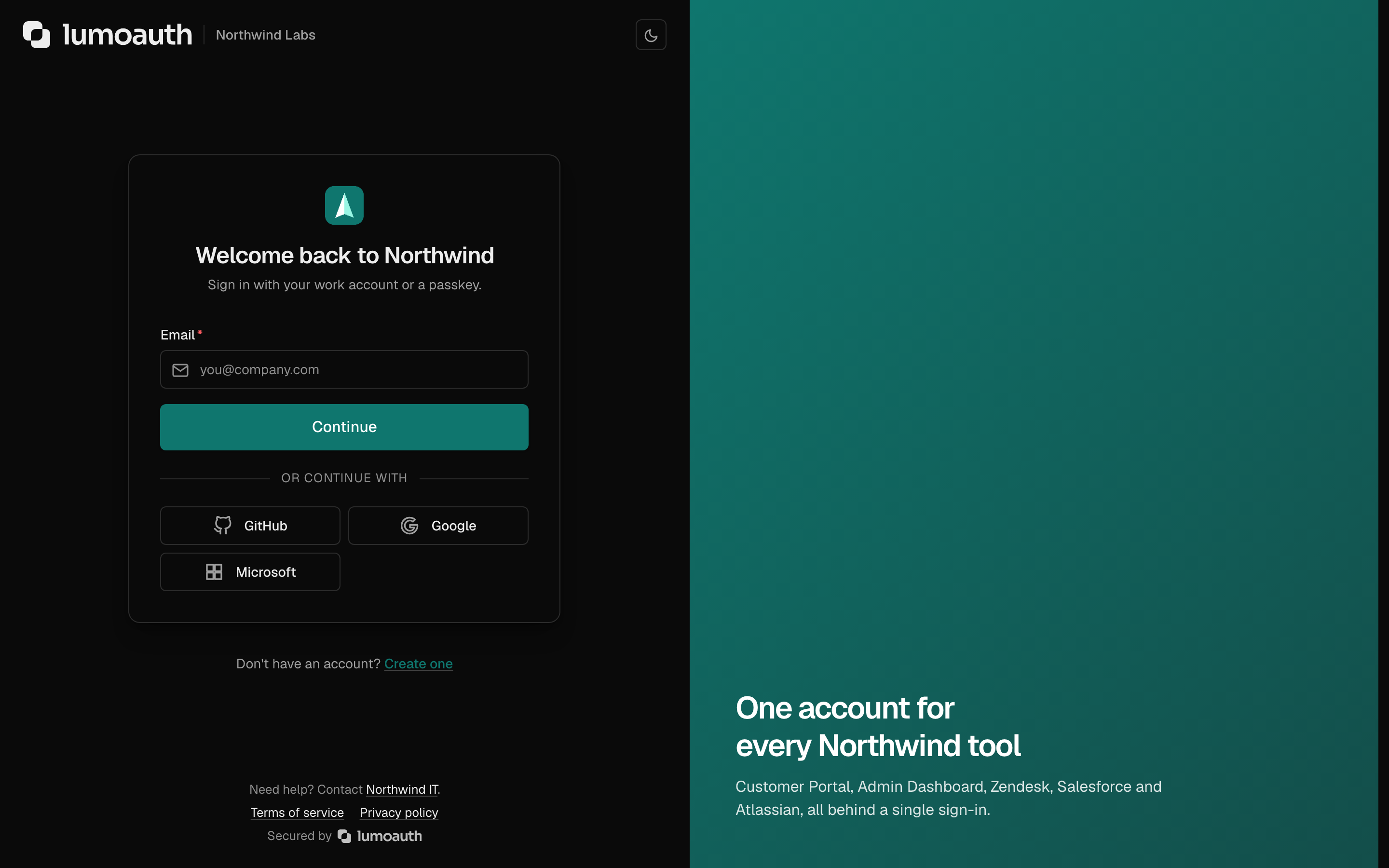
The email-first flow presents a single email input as the first step. After the user submits their email, the page shows the sign-in options the organization offers: password, magic link, push when anyone in the organization has an enrolled device, and Sign in with a passkey when passkeys are on. Every address gets the same next step. An unknown address fails at the password step exactly like a wrong password, so the flow does not reveal which addresses have accounts or which factors they use.
Enabling Email-First
Turn on Email-first login in the Login flow section of Security → Sign-in settings (shown above), then Save changes:
/orgs/{orgId}/portal/settings/authentication
When enabled, the login page shows only an email field initially. The next step is shown after the email is submitted. When off, email and password appear together.
Email Templates
Customize the magic link email under Settings → Login page & emails → Email templates (click Customise on the Magic Link row):
/orgs/{orgId}/portal/settings/email-templates
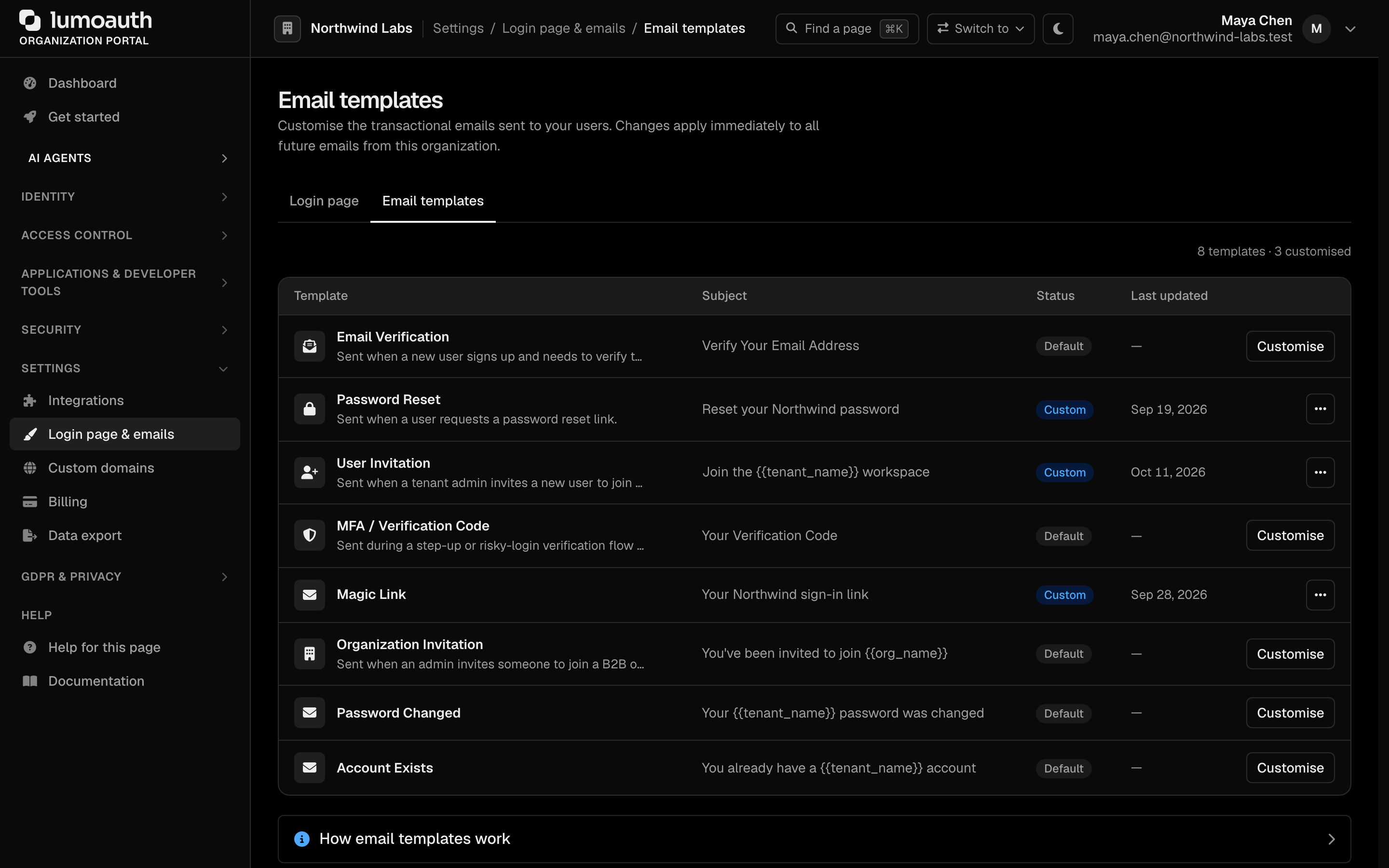
The Magic Link email template supports the following variables:
| Variable | Description |
|---|---|
{{magic_url}} | The sign-in link (required) |
{{user_name}} | The recipient's display name |
{{tenant_name}} | Your organization's display name |
{{expires_in}} | Human-readable expiry (e.g. "15 minutes") |
Server Endpoints
These endpoints are called by LumoAuth's login page. You can also call them directly when building a custom login UI using the SDK.
Request a Magic Link
POST /orgs/{orgId}/magic-link
Content-Type: application/x-www-form-urlencoded

email=user%40example.com&_target_path=%2Fdashboard
| Parameter | Required | Description |
|---|---|---|
email | Yes | The user's email address |
_target_path | No | Path to redirect to after login (e.g. /dashboard) |
Response: an HTML confirmation page is returned. The server always responds with HTTP 200 regardless of whether the email is registered.
Email-first options
Used by email-first flows to decide what to show after the user submits their email.
POST /orgs/{orgId}/check-email
Content-Type: application/x-www-form-urlencoded

email=user%40example.com
Response: the same for every address in the organization.
{
  "exists": true,
  "has_push_device": true,
  "has_passkey": false,
  "magic_link_enabled": true,
  "passkey_enabled": true,
  "password_enabled": true,
  "masked_email": ""
}
| Field | Type | Description |
|---|---|---|
exists | boolean | Always true. Kept for older clients; it says nothing about the address |
has_push_device | boolean | Anyone in the organization has an enrolled push device (push initiation answers every address the same way) |
has_passkey | boolean | Always false; show Sign in with a passkey when passkey_enabled is true |
magic_link_enabled / passkey_enabled | boolean | Organization settings |
masked_email | string | Always empty; show the address the user typed |
When has_push_device is true the response also carries push_initiate_url, push_status_url and push_login_url. The endpoint is rate-limited per IP and per target address (429) and CAPTCHA-gated with the login placement (403 with captcha_error).
SDK Integration
TypeScript / JavaScript
Use the AuthModule from @lumoauth/client to send magic links and implement email-first flows in custom UIs:
import { AuthModule } from '@lumoauth/client';

const auth = new AuthModule({
  baseUrl: 'https://app.lumoauth.dev',
  orgId: 'acme-corp',
  clientId: 'your-client-id',
});

// Send a magic link
await auth.requestMagicLink({ email: 'user@example.com' });

// Optional: redirect the user to a specific page after clicking the link
await auth.requestMagicLink({
  email: 'user@example.com',
  redirectUri: 'https://myapp.com/dashboard',
});

// Email-first: `exists` is always true (the answer never depends on the
// address), so always continue to the password / magic-link step.
await auth.checkEmailExists('user@example.com');
React SDK
The @lumoauth/react SDK provides purpose-built hooks for both flows:
useMagicLink()
Manages loading/sent/error state for the magic link form:
import { useMagicLink } from '@lumoauth/react';

function MagicLinkForm() {
  const [email, setEmail] = useState('');
  const { sendMagicLink, isLoading, isSent, error, reset } = useMagicLink();

  if (isSent) {
    return (
      <div>
        <p>Check your inbox — we sent a sign-in link to <strong>{email}</strong>.</p>
        <button onClick={reset}>Use a different email</button>
      </div>
    );
  }

  return (
    <form onSubmit={(e) => { e.preventDefault(); sendMagicLink(email); }}>
      <input
        type="email"
        value={email}
        onChange={(e) => setEmail(e.target.value)}
        placeholder="you@example.com"
        required
      />
      <button type="submit" disabled={isLoading}>
        {isLoading ? 'Sending…' : 'Send sign-in link'}
      </button>
      {error && <p className="error">{error}</p>}
    </form>
  );
}
useEmailFirst()
Implements the email-first check step. The server answers exists: true for every address, so onNewUser is only reached if the request fails; send new users to sign-up from a separate link rather than from this check.
import { useEmailFirst } from '@lumoauth/react';

function EmailStep({
  onKnownUser,
  onNewUser,
}: {
  onKnownUser: (email: string) => void;
  onNewUser: (email: string) => void;
}) {
  const [email, setEmail] = useState('');
  const { checkEmail, isLoading } = useEmailFirst();

  async function handleSubmit(e: React.FormEvent) {
    e.preventDefault();
    const exists = await checkEmail(email);
    if (exists) {
      onKnownUser(email);
    } else {
      onNewUser(email);
    }
  }

  return (
    <form onSubmit={handleSubmit}>
      <input
        type="email"
        value={email}
        onChange={(e) => setEmail(e.target.value)}
        placeholder="you@example.com"
        required
      />
      <button type="submit" disabled={isLoading}>
        {isLoading ? 'Checking…' : 'Continue'}
      </button>
    </form>
  );
}
Related Guides
- Email & Password Authentication — traditional credential-based login
- Social Login — OAuth-based login via external providers
- Multi-Factor Authentication — add a second factor to any login method
- SDKs & Libraries — TypeScript, React, and Python SDK reference