Social Login
Social login lets users sign in with an existing account from an external identity provider such as Google, GitHub, or Microsoft. LumoAuth handles the OAuth / OpenID Connect (OIDC) handshake with the provider, creates or links a local user account, and then issues its own tokens to your application. This reduces registration friction and improves conversion.
Supported Providers
| Provider | Protocol | Data Returned |
|---|---|---|
| OAuth 2.0 / OIDC | Email, profile, avatar | |
| GitHub | OAuth 2.0 | Email, profile, organization membership |
| Microsoft | OAuth 2.0 / OIDC | Email, profile, Azure AD integration |
| OAuth 2.0 | Email, profile, friends list | |
| Apple | OAuth 2.0 / OIDC | Email (private relay), name |
| OAuth 2.0 | Email, profile, professional info |
The Provider type list in the portal also offers X, Discord, Twitch and Slack (the list shows each provider's key capitalised, so GitHub appears as Github and LinkedIn as Linkedin). Any other OpenID Connect provider is added as an OIDC identity provider under Enterprise SSO (OIDC), see Enterprise SSO. Google and Microsoft providers have an Additional configuration section (Hosted domain for Google, Tenant ID for Microsoft). The Google hosted domain is enforced, not just hinted: the verified ID token's hd claim must equal it and the account's e-mail must be in that domain, otherwise the sign-in is refused and no account is provisioned.
How It Works
- User clicks a social login button on your login page.
- Redirect to provider. LumoAuth redirects to the provider's authorization page.
- User authenticates at the provider.
- Provider callback. The provider redirects back to LumoAuth with an authorization code.
- Account linking. LumoAuth creates or links a local user account.
- Token issuance. LumoAuth issues its own OAuth tokens to your application.
Account Linking Behavior
When a user authenticates via social login:
- New user, provider verified the email: a LumoAuth account is created and signed in (JIT provisioning).
- New user, provider did not verify the email (
email_verifiedmissing or false): the account is created inactive and the user is sent a verification link ("Almost there — we sent a link to your email address. Verify it, then sign in again."). Until the link is used the account cannot sign in, and it is deleted after 48 hours if never verified. See Unverified provider emails. - Existing user (same email): linked only when the provider verified the email, the existing account's email is verified, and the account has no local password, other provider or other sign-in source. Otherwise the sign-in is refused with "An account with this email already exists. Please sign in with your original method to link this provider."
- Multiple social accounts: a user can link multiple social providers to one account from the Sign in with other accounts section of Sign-in & security in their account.
Unverified provider emails
Some providers (or a custom OIDC provider) may return an address the user has not proven they own. Such an address is only a claim, so LumoAuth does not let it become a working account until the mailbox owner verifies it:
- Opening the verification link in the same browser that started the social sign-up keeps the social link; the user then signs in with the provider again.
- Opening it in another browser verifies the email but drops the social link, because the person who signed in at the provider may not own the mailbox.
- Verifying the email or completing a password reset on such an account removes everything attached while the email was unproven: the social link, MFA (multi-factor authentication) factors, passkeys and push devices, plus sessions and OAuth tokens. This is audited as
account.pre_verification_bindings_dropped.
Sign-in with Google, Microsoft or GitHub on LumoAuth's own /login and /register pages follows the same rule, and for providers that return a verified ID token, the ID-token claims win: the userinfo response can only fill in profile fields the ID token lacks, never sub, iss, aud, email or email_verified.
Configuration
Organization-Level Social Login
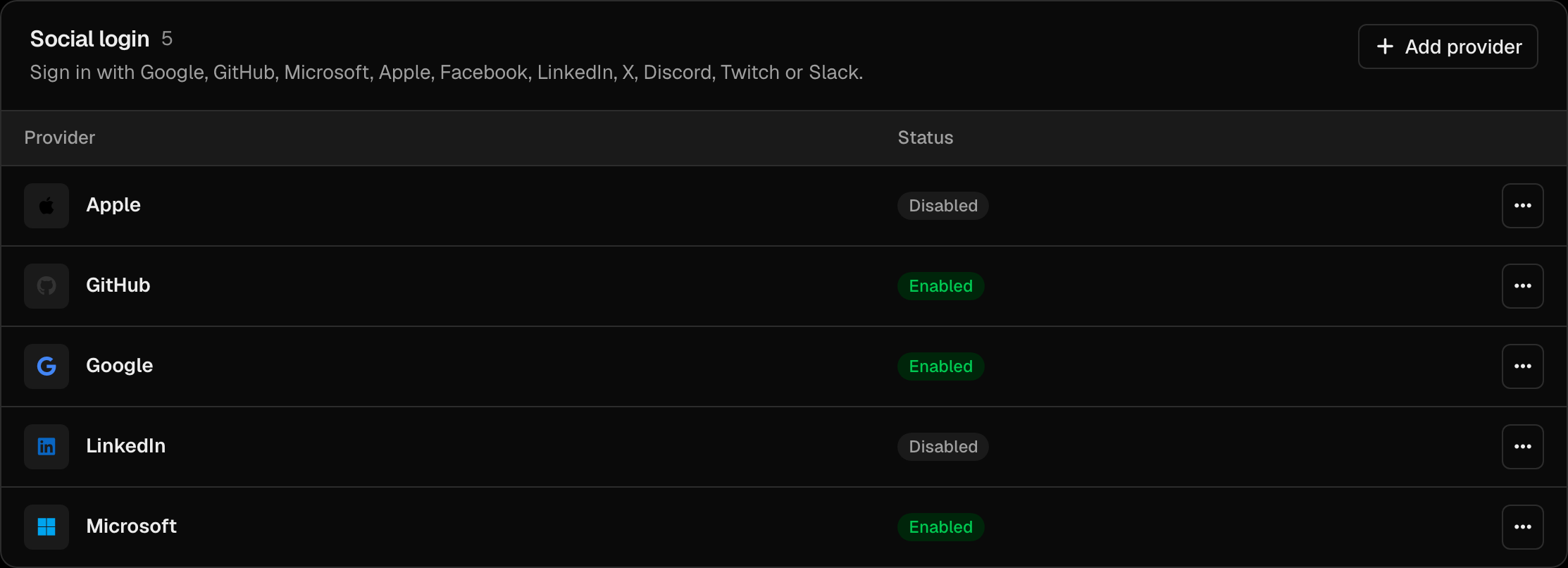
Social login providers are managed from the Integrations page (Settings → Integrations):
/orgs/{orgId}/portal/integrations
(The older /orgs/{orgId}/portal/social-login path now redirects here.) In the Social login section, click Add provider to register a new provider.
On the Add social login provider form, pick the Provider type (each provider can be added once per organization). You will need:
- Client ID — from the provider's developer console.
- Client secret — from the provider's developer console.
- Requested scopes — what data to request (email, profile, etc.). Filled in with the provider's defaults when you pick one.
The form also has an optional Display name for the "Sign in with…" button, an Enable immediately switch, Default roles and Enable for OAuth apps.
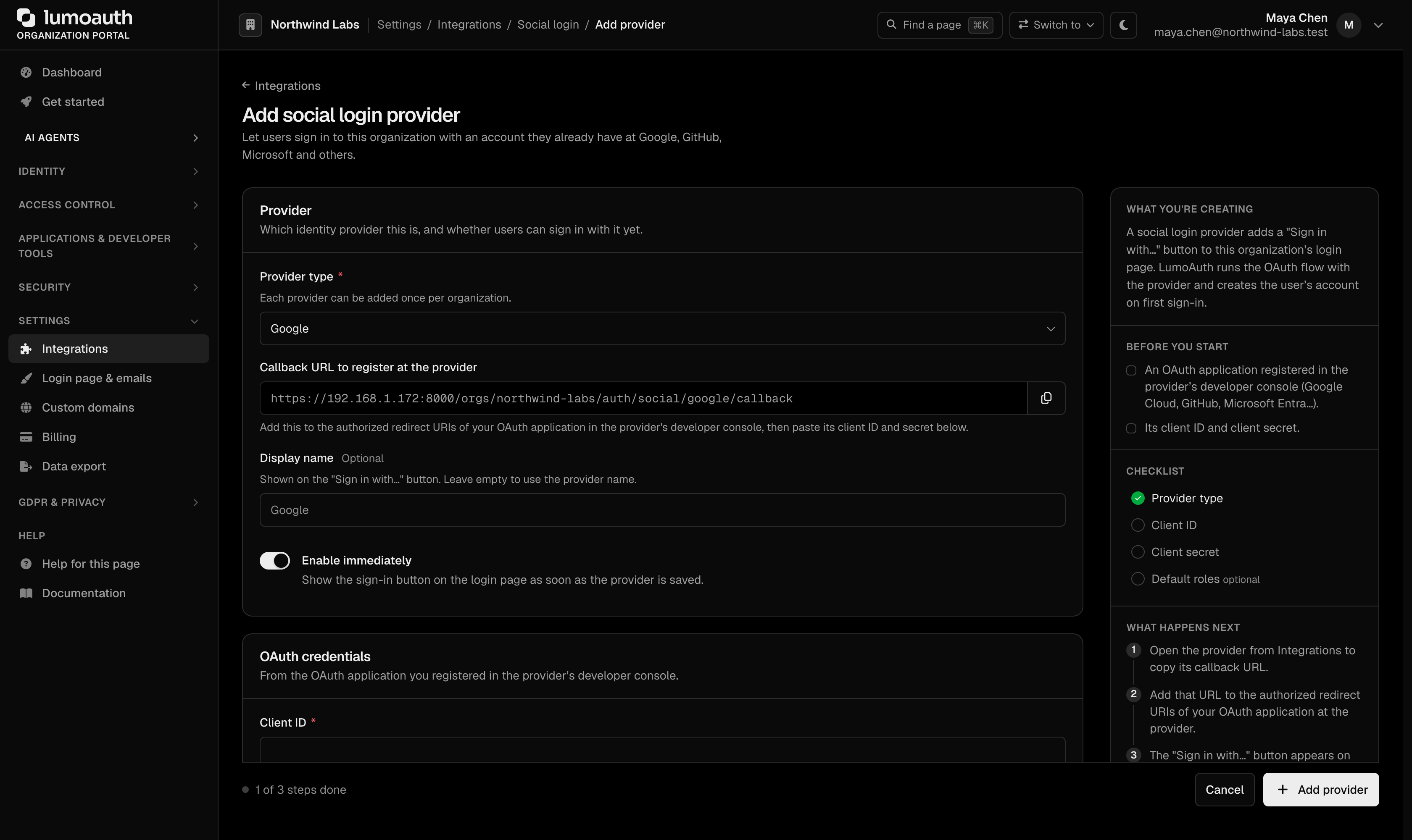
The callback URL (the redirect URI you register with the provider) is generated by LumoAuth from the organization's route and shown on the provider form once a provider type is selected. It cannot be changed; the Admin API ignores a callbackUrl in the request body.
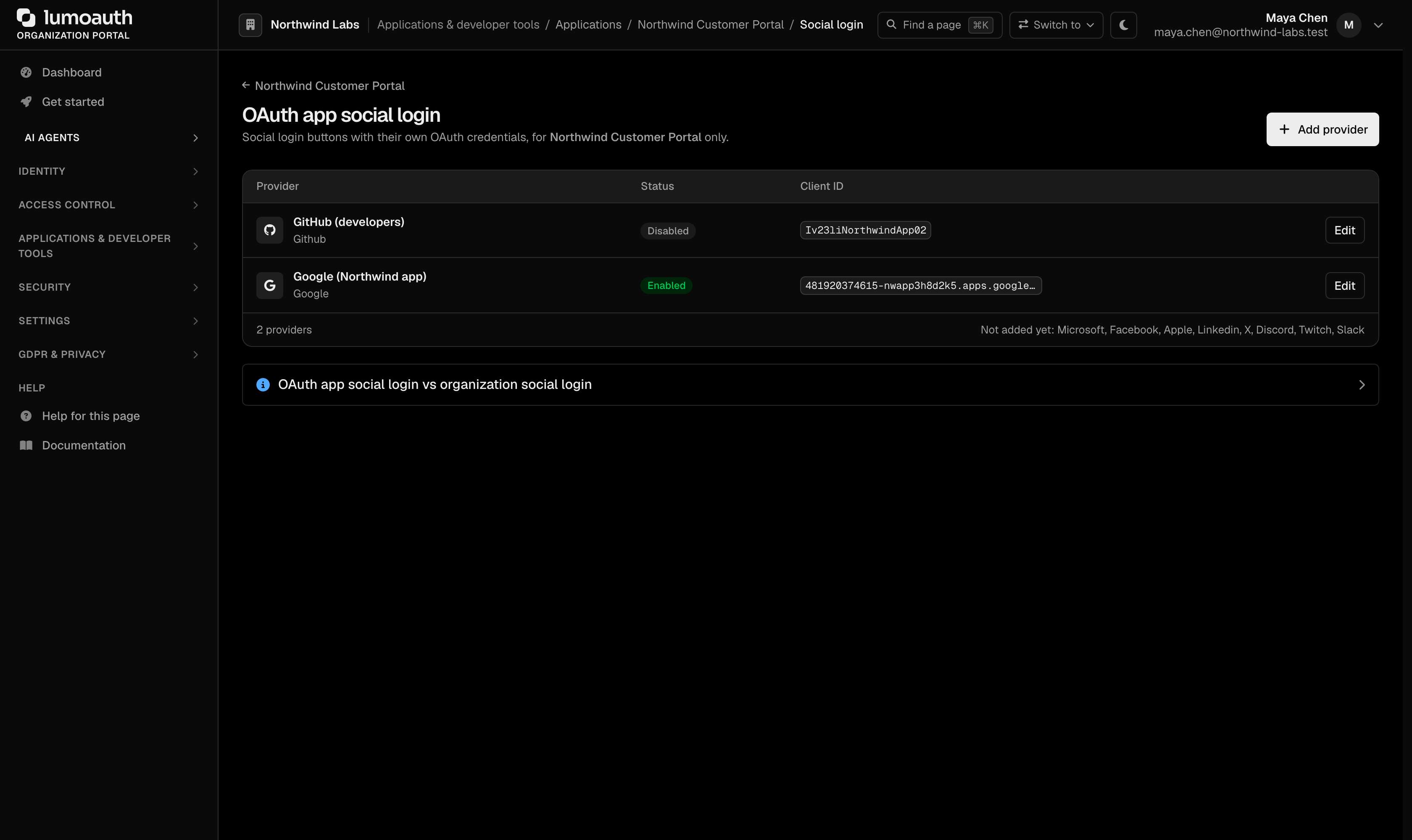
Per-Application Social Login
You can also configure social login on a per-application basis at:
/orgs/{orgId}/portal/applications/oidc/{clientId}/social-login
To get there, open the application under Applications, go to the Security tab and click Configure social login in the Authentication section. This lets different OAuth clients within the same organization show different social login buttons.
Setting Up Google Login
1. Create Google OAuth Credentials
- Go to the Google Cloud Console.
- Create a new project or select an existing one.
- Navigate to APIs & Services → Credentials.
- Click Create Credentials → OAuth client ID.
- Select Web application.
- Add the authorized redirect URI:
https://your-domain.com/orgs/{orgId}/auth/social/google/callback
- Copy the Client ID and Client Secret.
2. Configure in LumoAuth
- Go to
/orgs/{orgId}/portal/integrations. - In the Social login section, click Add provider and choose Google as the Provider type.
- Enter the Client ID and Client secret.
- Leave Enable immediately on and click Add provider.
Setting Up GitHub Login
1. Create GitHub OAuth App
- Go to GitHub Developer Settings.
- Click New OAuth App.
- Set the authorization callback URL:
https://your-domain.com/orgs/{orgId}/auth/social/github/callback
- Copy the Client ID and Client Secret.
2. Configure in LumoAuth
- Go to
/orgs/{orgId}/portal/integrations. - In the Social login section, click Add provider and choose Github as the Provider type.
- Enter the credentials and click Add provider.
Setting Up Microsoft Login
1. Register in Azure AD
- Go to the Azure Portal → App registrations.
- Click New registration.
- Add the redirect URI:
https://your-domain.com/orgs/{orgId}/auth/social/microsoft/callback
- Under Certificates & secrets, create a new client secret.
- Note the Application (client) ID and Client Secret.
2. Configure in LumoAuth
- Go to
/orgs/{orgId}/portal/integrations. - In the Social login section, click Add provider and choose Microsoft as the Provider type.
- Enter the credentials and click Add provider.
Social Login URLs
Each social provider has organization-specific authentication URLs:
Initiate:  /orgs/{orgId}/auth/social/{provider}
Callback:  /orgs/{orgId}/auth/social/{provider}/callback
Link:      /orgs/{orgId}/auth/social/{provider}/link    (link a provider to the signed-in user; the provider email must match the account's email)
Unlink:    /orgs/{orgId}/auth/social/{provider}/unlink  (POST)
Where {provider} is: google, github, microsoft, facebook, apple, linkedin, x, discord, twitch, slack.
User Experience
When social login is enabled, the login page displays:
- Social login buttons — one button per enabled provider.
- Email/password form — standard credential login (if enabled).
- Separator — visual "or" divider between social and credential login.
Users who sign up via social login can later:
- Set a password (for email/password login as well).
- Link additional social accounts.
- Remove linked social accounts (from the account settings page).
Account Settings
Users can manage their linked social accounts on the Sign-in & security page of their account, in the Sign in with other accounts section with its Link / Unlink buttons (shown when the user has a linked account or the organization has a provider they can link):
/account/security
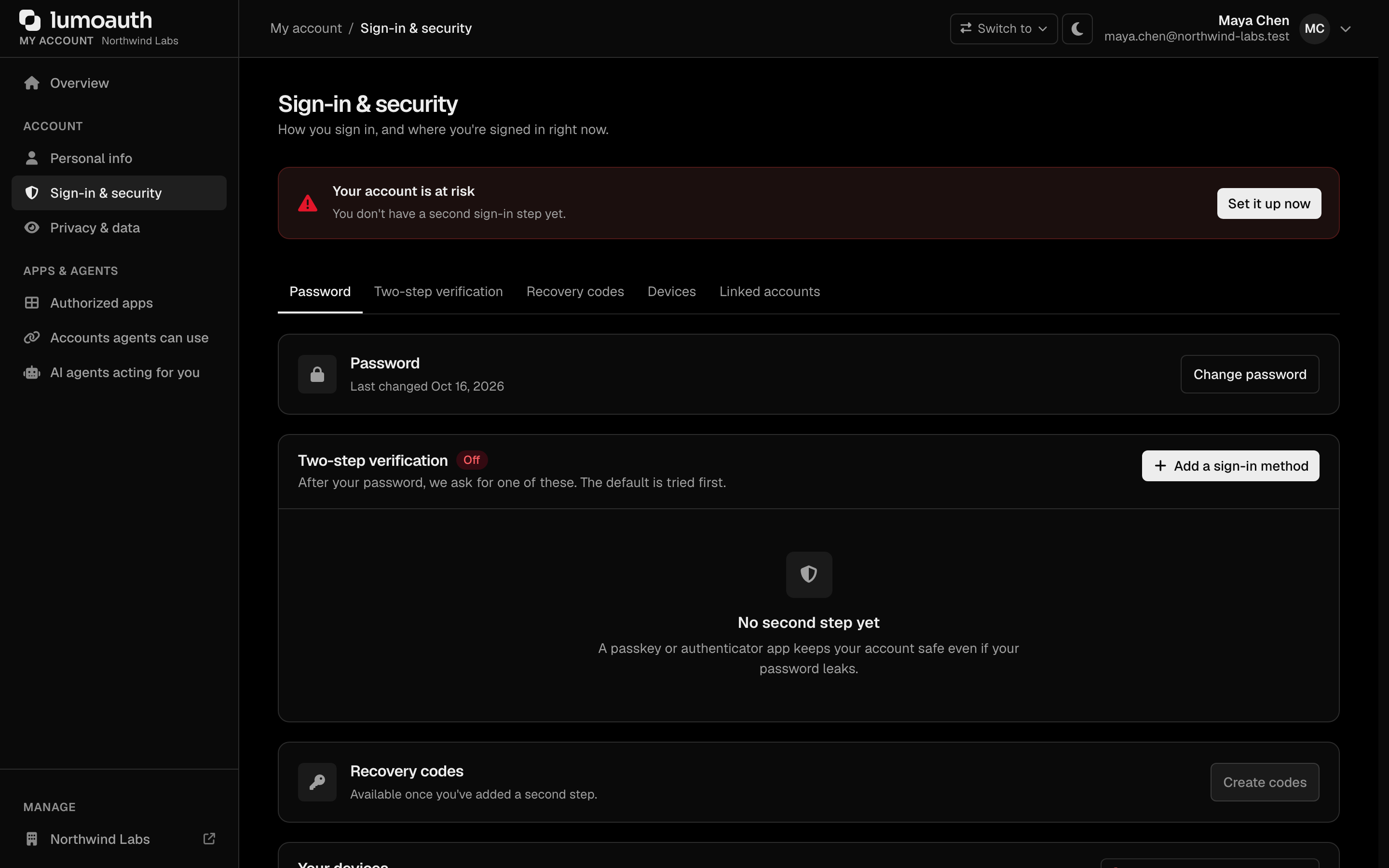
From here they can:
- View all linked social accounts.
- Link new social providers.
- Unlink social providers (if they have another login method).
Just-In-Time (JIT) Provisioning
When a user authenticates via social login for the first time, LumoAuth automatically:
- Creates a new user account in the organization.
- Populates the user profile with data from the social provider.
- Links the social account to the new user.
- Assigns the provider's default roles, if any are configured.
If a user with the same email already exists, the social account is linked to the existing user instead of creating a duplicate.
Default roles
Each provider can carry a list of roles that every account it provisions receives. Set them on the provider form (portal) or with defaultRoles in the Social Providers API. Because anyone who can sign in through the provider gets these roles, they follow the no privilege gain rule:
- A system role or a role that confers administrator authority (one holding permissions such as
users.create,roles.edit,idps.create,settings.manage,jit.approve; full list in the roles guide) is refused. The portal shows Role "X" is a system or administrative role and cannot be used as a social-login default role; the API returns400. - The administrator saving the form must hold every permission in the role. Otherwise: Cannot use role "X" as a default role: it contains permissions you do not hold.
- A rejected request leaves the provider's existing default roles untouched.
- At sign-in time LumoAuth checks again and skips any privileged role that somehow ended up in the list, logging a warning.
To give a social sign-up administrative rights, provision the account first and then assign the role in the portal.
Sign-in checks and sessions
A social sign-in goes through the same account checks as a password sign-in: a soft-deleted, blocked, inactive or temporarily locked user cannot get in through Google or GitHub either, and sees the same generic error. If the account has MFA enabled, the second factor is still required.
Each social sign-in creates a regular session that appears at /account/sessions and in the Admin API session list, so idle and absolute timeouts, revoke all sessions and administrator revocation apply to it exactly as to any other session. See Sessions.
Security Considerations
- State parameter. LumoAuth uses the OAuth
stateparameter to prevent CSRF attacks. - PKCE. When supported by the provider, PKCE is used for additional security.
- Token storage. Social provider tokens are encrypted in the database.
- Scope minimization. Only request the minimum scopes needed.
- Linking checks first. The link flow resolves the provider identity without creating any account. It is refused when that identity already belongs to another user, or when the provider returns an email that differs from the signed-in account's email ("This social account uses a different email address than yours, so it cannot be linked."). Providers that return no email at all, such as X, can be linked by a signed-in user.
- No provider text on the page. An
error/error_descriptionreturned by the provider is logged, not shown; users see a generic sign-in error.
Troubleshooting
- "Role ... cannot be used as a social-login default role" when saving a provider. The role is a system role or grants an administrative permission. Pick a role limited to application permissions, or assign the administrator role to the user afterwards.
- "it contains permissions you do not hold". You can only hand out what you have. Ask an administrator with the full permission set to save the provider, or trim the role.
- A deactivated user could sign in with Google before, and now cannot. Expected: social sign-in now runs the standard pre-authentication checks. Reactivate the user if this is unintended.
- "Almost there — we sent a link to your email address". The provider did not verify the address. The user opens the link (ideally in the same browser), then signs in with the provider again. Links can be re-sent from
/verify-email/resend. - Linking a provider fails with "different email address". When the provider returns an email, it must match the signed-in account's email. Change one of them, or sign in with the provider as a separate user.
- Social sessions were missing from the sessions page. They are listed now; sessions created before this change do not have a record and simply expire.
Related Guides
- Authentication Overview — all authentication methods
- Enterprise SSO — SAML and OIDC for corporate IdPs
- Multi-Factor Authentication — add MFA on top of social login
- Roles & Permissions — the no-privilege-gain rule behind default roles