Push Authentication
Push authentication lets users approve sign-ins from the LumoAuth app on their phone instead of typing a code. LumoAuth sends a notification, the app shows who is signing in and from where, and the user taps the number shown on the sign-in screen and confirms with biometrics or their passcode. A denial rejects the sign-in and records an audit event.
Push is a tier 2 ("Strong") factor in the MFA policy (multi-factor authentication). It works as:
- a second factor after a password (the MFA challenge),
- a step-up factor for sensitive actions, where the app can show what is being approved,
- a passwordless sign-in (email → push).
Prerequisites
- The user has the LumoAuth app on their phone and has enrolled it for their account.
- Push is included in the organization's plan and
pushis in the MFA policy's allowed factors (it is by default).
Number matching
Every sign-in, step-up and enrollment-test push is number-matched. This is mandatory and cannot be turned off.
- The sign-in page shows a two-digit number (10–99).
- The app shows three numbers; the user taps the one that matches the screen.
- The app signs the chosen number with the device key. A wrong number counts as a denial.
Number matching stops "MFA fatigue" attacks: an attacker who triggers pushes cannot get them approved by a user who taps without looking, because the user never sees the attacker's screen.
Approvals without a number are refused with number_match_required, so app versions released before September 2026 can no longer approve sign-in requests. Ask users to update the LumoAuth app. Agent approvals (Ask-to-Approve / CIBA) have no sign-in screen and are not number-matched.
How It Works
- Browser to LumoAuth: Sign in (password, or email for passwordless)
- LumoAuth to LumoAuth app: Push notification
- LumoAuth to Browser: Show number, e.g. 42
- LumoAuth app to LumoAuth: Fetch request details (signed)
- LumoAuth app to LumoAuth: Approve with number 42 (biometric + signature)
- LumoAuth to Browser: Sign-in continues
The approval screen in the app shows:
- the organization name and, when known, the application name,
- the approximate location, browser and operating system of the sign-in, and the time,
- for step-up, the action being approved when the application provides one (for example "Approve transfer of $500 to •••• 1122"),
- the number choices.
Approving requires the phone's biometrics or passcode. As a second factor or step-up, a push expires after 60 seconds; the sign-in page offers Resend (a new push with a new number) and Use a code from the app instead, which accepts the 6-digit offline code the app generates for the account. Passwordless push sign-in requests expire after 120 seconds.
"Deny – this wasn't me"
If the user did not start the sign-in, they tap Deny – this wasn't me. LumoAuth:
- denies the request,
- audits
mfa.push.deniedandmfa.push.reported_fraud(with the initiating IP, location and user agent) and delivers them to webhooks, - flags the account and emails the user that the attempt was blocked and that someone may know their password.
A plain Deny only denies the request and audits mfa.push.denied.
Limits
| Limit | Default |
|---|---|
| Push requests per user (passwordless sign-in, second factor and step-up) | 3 per 5 minutes; after that the user must use another factor |
| Denied requests | 2 denials within 10 minutes suspend push for the user for 30 minutes ("Push sign-in is paused on your account") |
| Passwordless push sign-in requests | Also rate-limited per email address and per client IP. Over the per-user budget or while push is suspended, the sign-in page looks the same but no push is sent. |
Enrolling a Device
Users enroll the app from Secure your account (/auth/secure-account, where push is recommended on phones and for users who already use the app elsewhere) or from Sign-in & security → Add a sign-in method (/account/security).
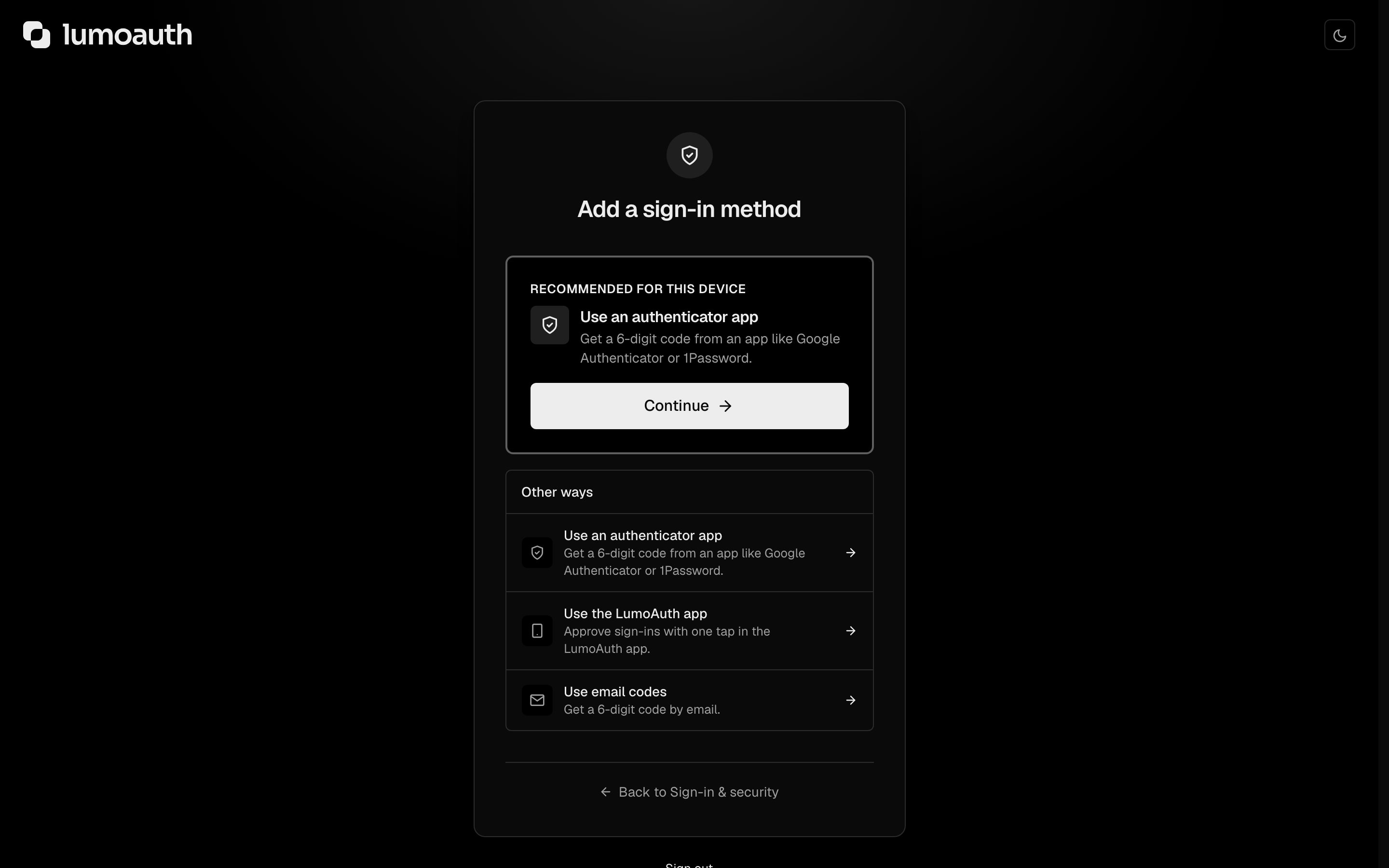
- Continue on the LumoAuth app screen (
/auth/secure-account/push). - On a computer, scan the QR code with the app. On a phone, tap Open the LumoAuth app (a
lumoauth://enroll?d=…link carrying the same data as the QR code). Users can also type the activation code shown under the QR code. - The app registers a device key with LumoAuth and receives an offline code seed, so it can show 6-digit codes without a network connection.
- LumoAuth immediately sends a test notification. The page shows a number; the user taps it in the app and approves.
- The page continues on its own once the test is approved. If the test is denied or expires, Send the test notification again.
The device only becomes usable after the test push is approved. The enrollment QR code, deep link and activation code are single-use and expire after 10 minutes. A user can have at most 5 active devices; other enrolled phones get a notification when a device is added.
Adding a device is a credential-changing action: a user's first sign-in method can be added within 15 minutes of signing in, and later ones need a fresh verification with an existing method. Otherwise POST /account/push-auth/start-enrollment returns 403 with "code": "reauthentication_required" and a reauth_url. The request also needs the CSRF token for the push_auth_start_enrollment token id (_token field or X-CSRF-Token header), so it can only be started from the LumoAuth page itself.
Admin-Initiated Enrollment
Organization admins can send a user an activation code by email:
- Go to Users (
/orgs/{orgId}/portal/users). - Open the user.
- In the Push authentication section, click Send activation code.

Managing Enrolled Devices
Devices appear as sign-in methods under Sign-in & security (/account/security):
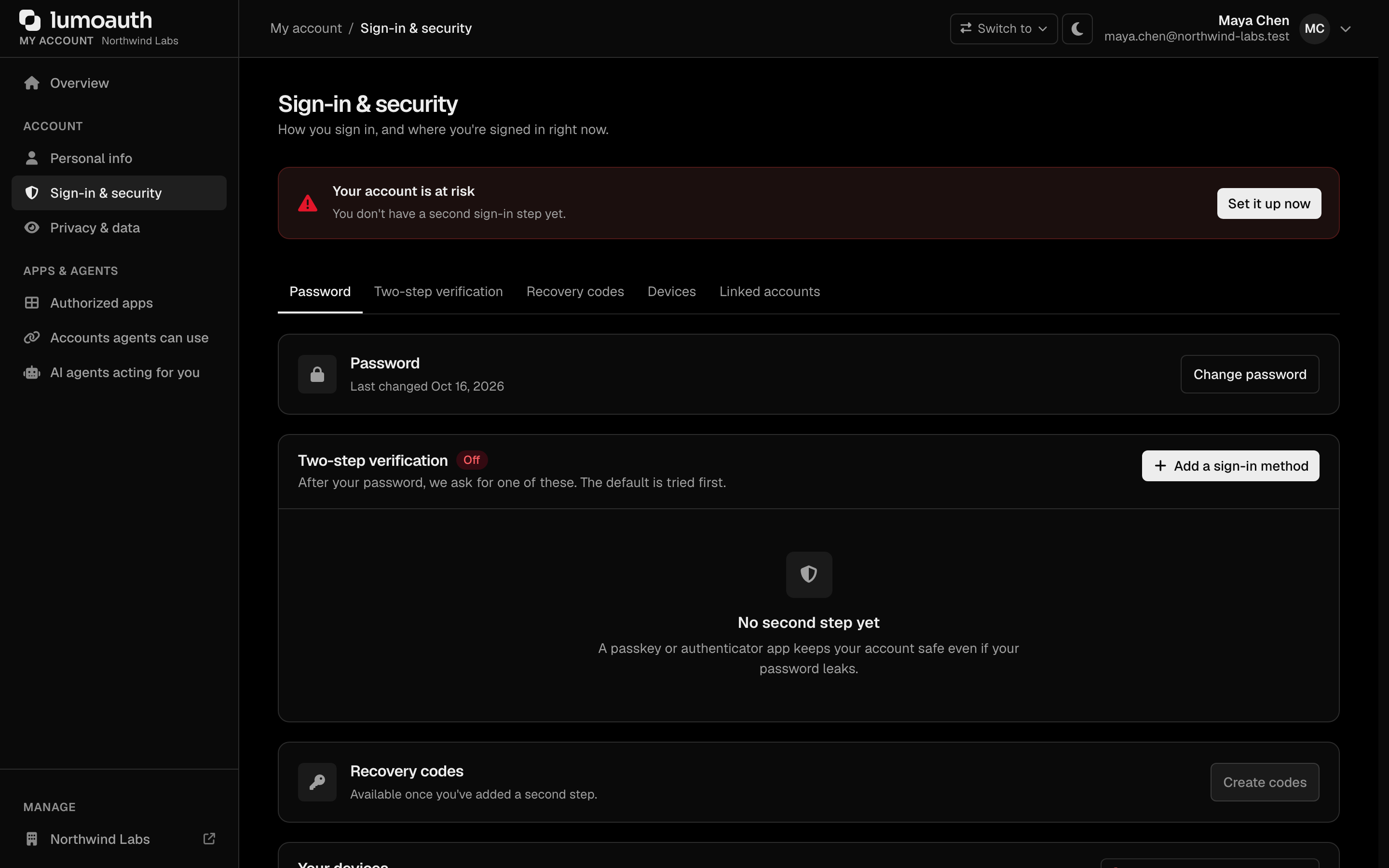
| Action | Description |
|---|---|
| View | Device name, Strong tier label, date added, last used time and place. A device still waiting for its test push shows Waiting for test approval. |
| Rename / Make default | Change the display name, or make push the factor started automatically at sign-in. |
| Remove… | Revoke the device. Needs a fresh verification with a different sign-in method where one exists; refused when it is the last method and MFA is required. Removing a device also revokes the user's trusted devices. |
To move to a new phone, enroll the new phone first, then remove the old one.
Enforcing Push Authentication
You can require an enrolled device for everyone:
-
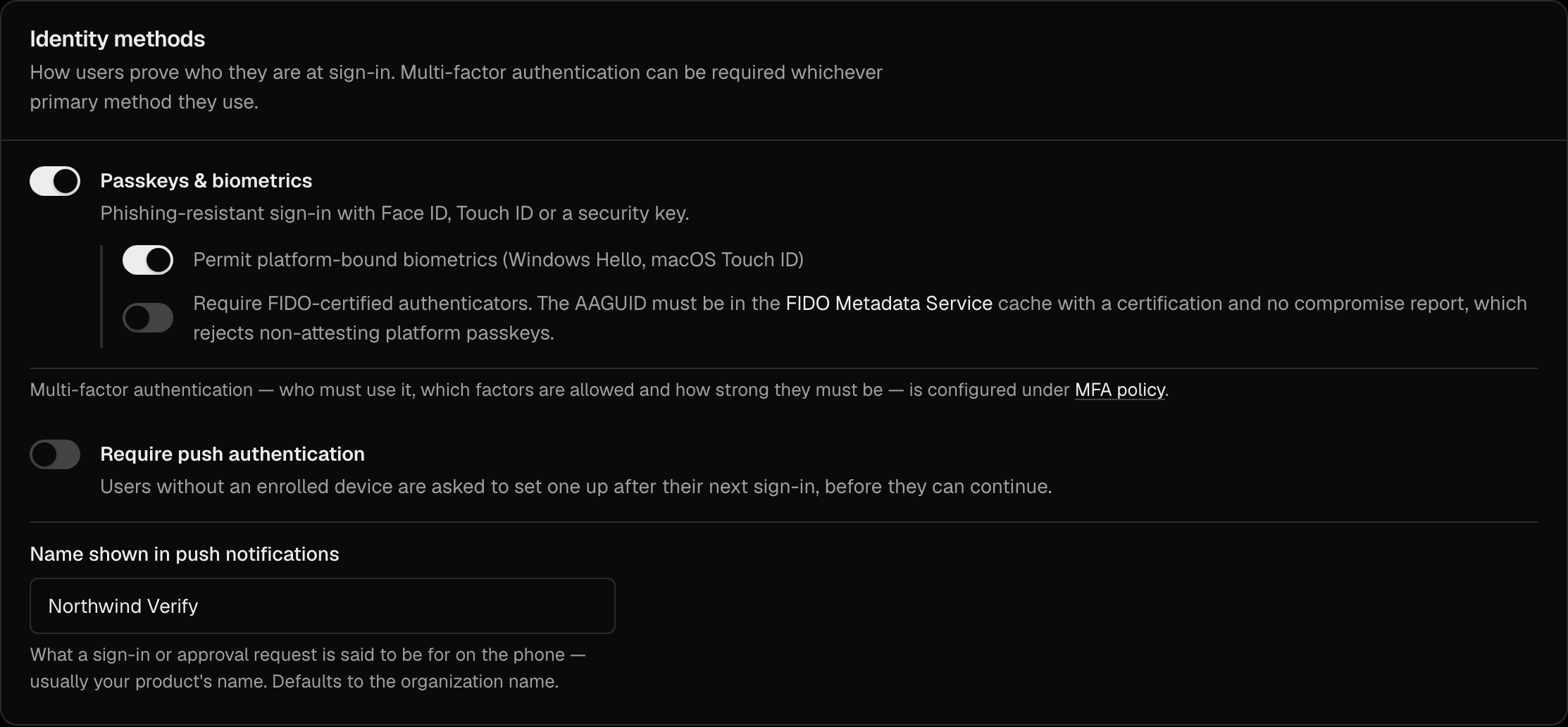
Go to Security → Sign-in settings (
/orgs/{orgId}/portal/settings/authentication). -
In the Identity methods section, enable Require push authentication and click Save changes.
-
Users without an active device are sent to the Push authentication required page (
/push-auth/enrollment-required) after sign-in and cannot continue until they finish. The switch is plan-gated.
The same section has Name shown in push notifications: what a sign-in or approval request is said to be for on the phone, for example your product's name. Left empty, notifications use the organization name.
Once enrolled, push becomes the user's default factor unless they already have a passkey, so the MFA challenge sends a push. For a general "everyone must use MFA" rule, prefer the MFA policy requirement Required, which lets users choose any allowed factor.
Security Considerations
| Concern | Mitigation |
|---|---|
| Push fatigue / accidental approval | Mandatory number matching; 3 pushes per 5 minutes; push suspended after 2 denials; Deny – this wasn't me alerts the user and the organization |
| Device compromise | Approvals need the device key and the phone's biometrics or passcode; users and admins can remove a device |
| Hijacked browser session used to enroll a rogue device | Enrollment needs a recent sign-in or fresh MFA plus a CSRF token, and ends with a test push the user must approve |
| Anonymous login requests cancelling pending approvals | Starting a push login for an email address only supersedes that user's earlier pending login pushes. Agent and CIBA approval requests are never touched by an anonymous caller. |
| Offline phone | Use a code from the app instead accepts the app's offline code; the user can also Try another way |
| Lost device | The user signs in with another factor or a recovery code and removes the device; an administrator can remove it or issue a temporary access code |
Admin: Lost Device
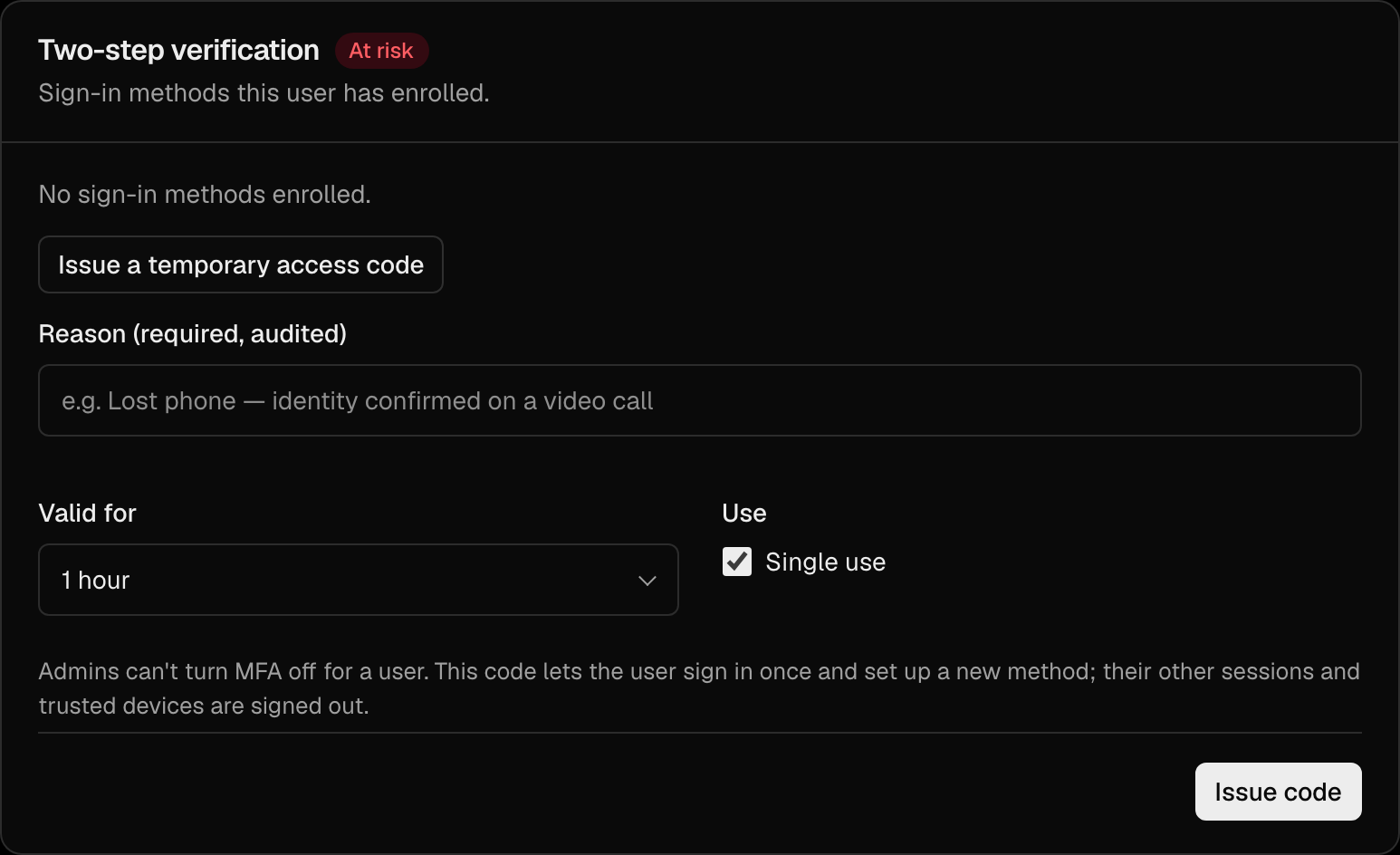
Administrators cannot switch MFA off for a user. When a user loses their phone:
- Go to
/orgs/{orgId}/portal/usersand open the user. - In Two-step verification, Remove the lost device. The user is notified.
- If the user has no other way to sign in, issue a temporary access code (Reason, Valid for, Single use, then Issue code) so they can sign in once and enroll a new device.
Related
- Multi-Factor Authentication
- Mobile approvals device API — the wire protocol the app uses
- Passkeys & WebAuthn
- Sign-in settings