Progressive Profiling & User Traits
Two complementary tools build up user profiles over time: Progressive Profiling collects information incrementally during the login flow, and User Traits store arbitrary custom attributes against any user.
User Traits
User traits are custom key-value attributes you can attach to any user in your organization. Use them to store application-specific data alongside the standard profile fields (name, email, etc.).
Supported Trait Types
| Type | Example |
|---|---|
| String | plan: "enterprise" |
| Number | credits: 500 |
| Boolean | email_opt_in: true |
| JSON | preferences: { theme: "dark", locale: "en-US" } |
Managing Traits in the Portal (Customer 360 View)
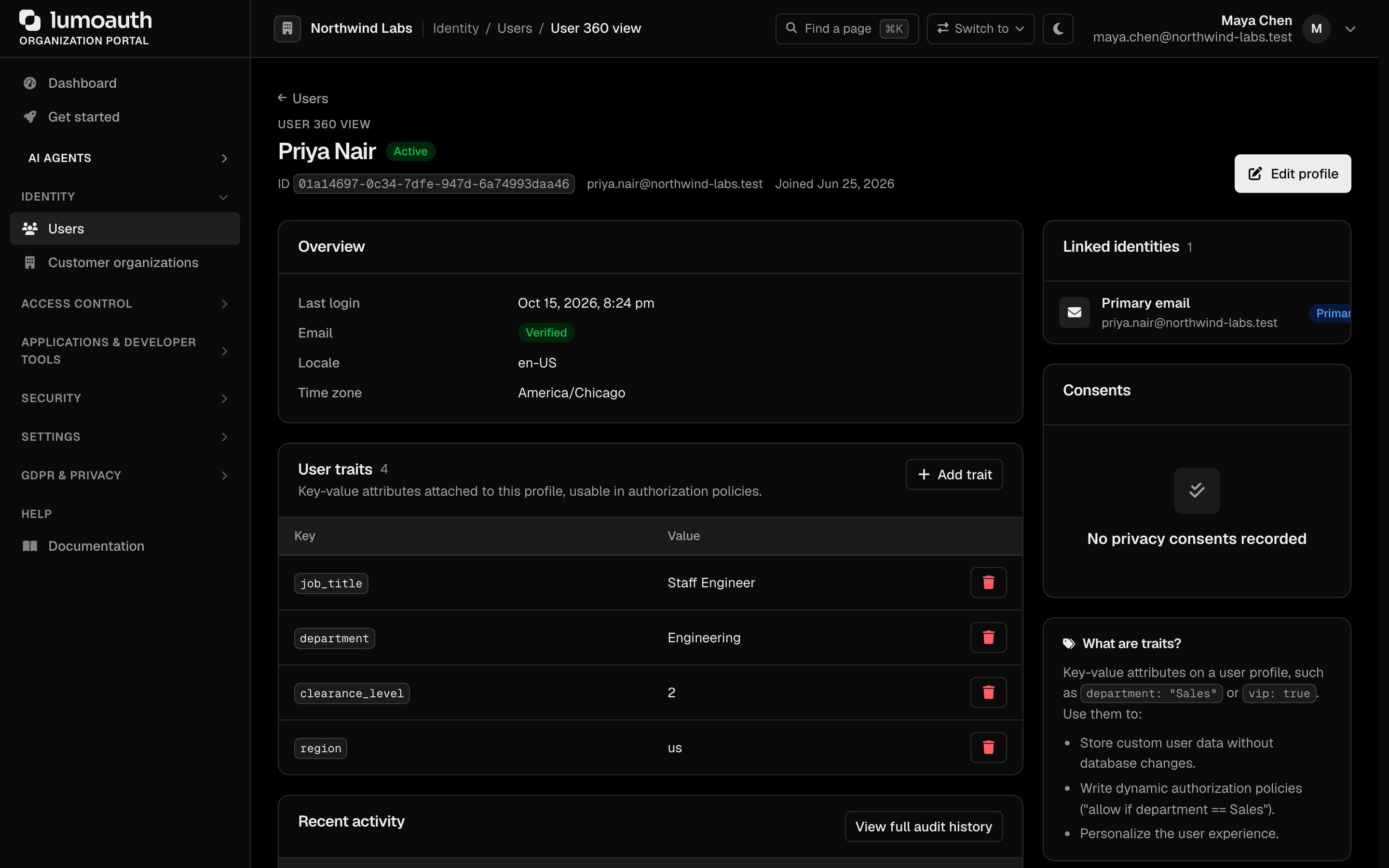
Each user has a Customer 360 view in the portal (titled User 360 view) — a single page showing everything about that user.
- On the Users page, open the ⋯ menu of a user and choose Customer 360 view (or go to
/orgs/{orgId}/portal/users/{userId}/360) - Find the User traits card
- Click Add trait (or Add first trait when the user has none)
- In the Add user trait dialog, enter the Key, choose the Type (String (text), Number, Boolean (true/false) or JSON (advanced)), enter the Value and click Save trait
- Click the trash icon next to a trait to delete it
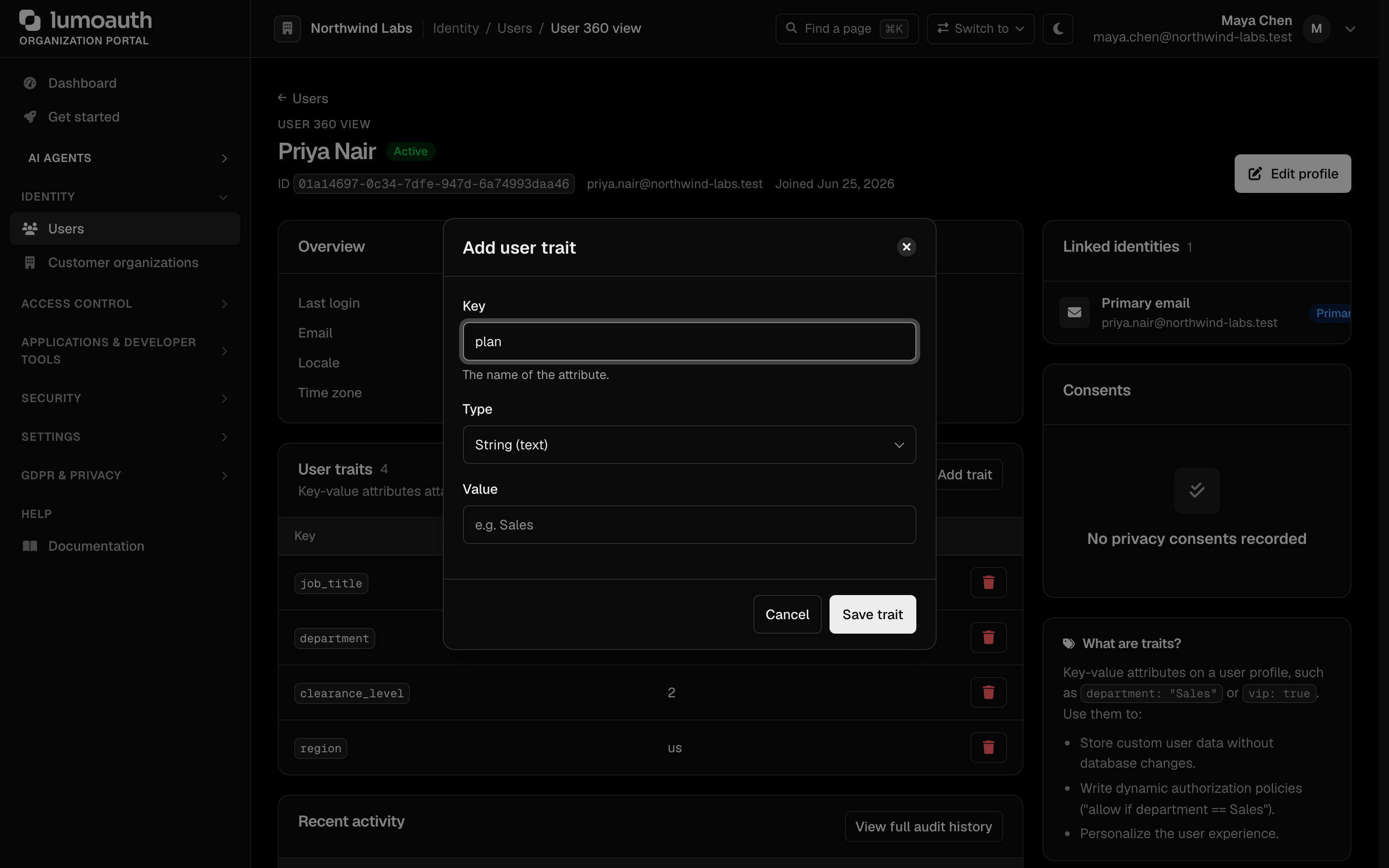
Existing traits are not edited in place, and adding a key that already exists is refused: to change a value, delete the trait and add it again, or use the API below. The user's edit page also lists the traits in a User traits card.
The 360 view also shows:
- Linked identities (connected social or enterprise accounts)
- Consents with their dates
- Recent activity (last 20 audit entries)
Traits via API
# Set a trait
curl -X PUT https://your-domain.com/orgs/{orgId}/api/v1/abac/users/{userId}/attributes/{slug} \
  -H "Authorization: Bearer {admin_token}" \
  -H "Content-Type: application/json" \
  -d '{"value": "enterprise"}'

# Read all traits for the current user (available in the user's session)
curl https://your-domain.com/orgs/{orgId}/api/v1/abac/my-attributes \
  -H "Authorization: Bearer {access_token}"
Using Traits in Authorization
User traits integrate with ABAC (Attribute-Based Access Control). You can write policies that evaluate trait values at runtime:
user.traits.plan == "enterprise" AND user.traits.email_opt_in == true
See ABAC for details on writing trait-based policies.
Progressive Profiling
Progressive profiling lets you collect user information gradually — asking for one or two fields at a time during the login or post-login flow — rather than presenting a long registration form upfront.
How It Works
- A user authenticates normally
- LumoAuth evaluates whether any configured profile rules apply to this user
- If a rule matches (e.g., "user has not provided their job title"), the user is redirected to the profile completion step
- The user fills in the requested fields
- The profile data is saved and the user continues to your application
This approach improves registration conversion rates while still collecting the data you need over time.
Enabling Progressive Profiling
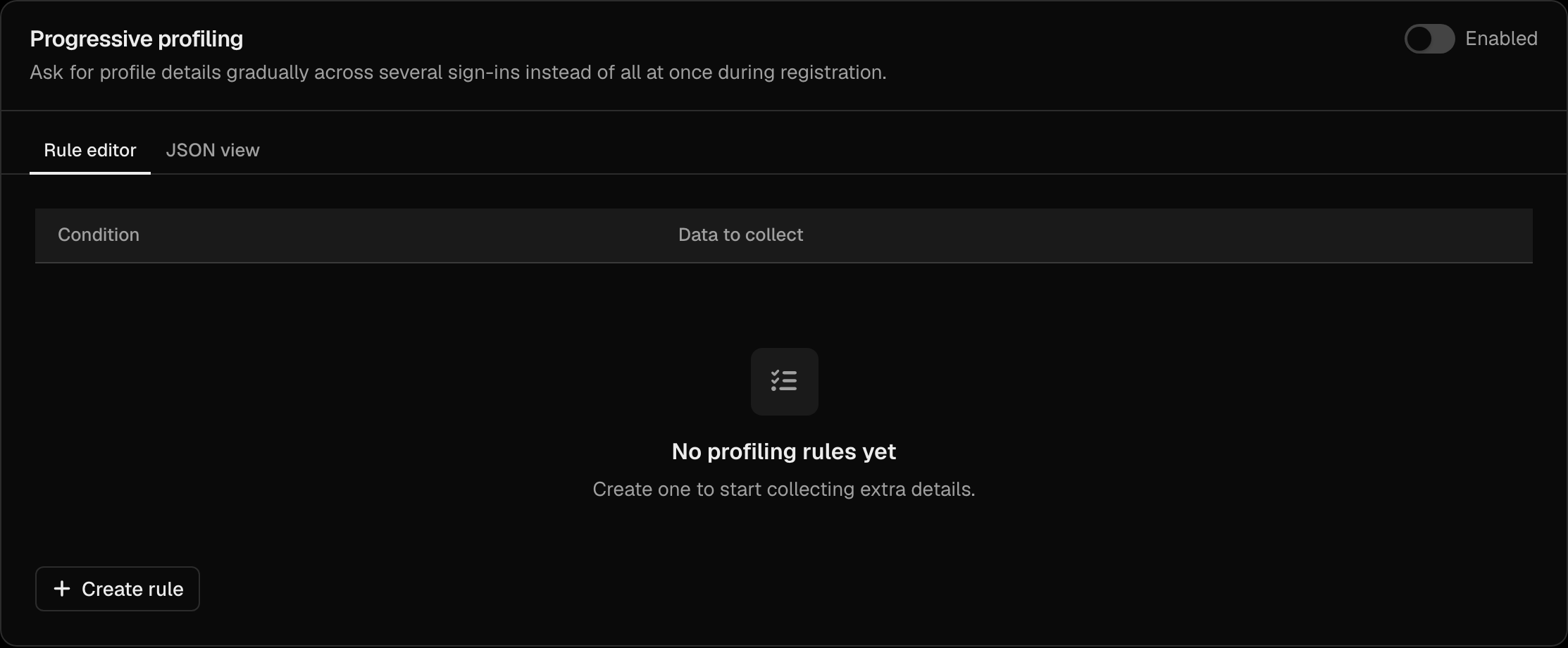
- Go to Sign-in settings (
/orgs/{orgId}/portal/settings/authentication) and open the Progressive profiling section - Turn the Enabled switch in the section header on
- Click Create rule to define when and what to ask for
- Click Save changes at the bottom of the page
Configuring Profiling Rules
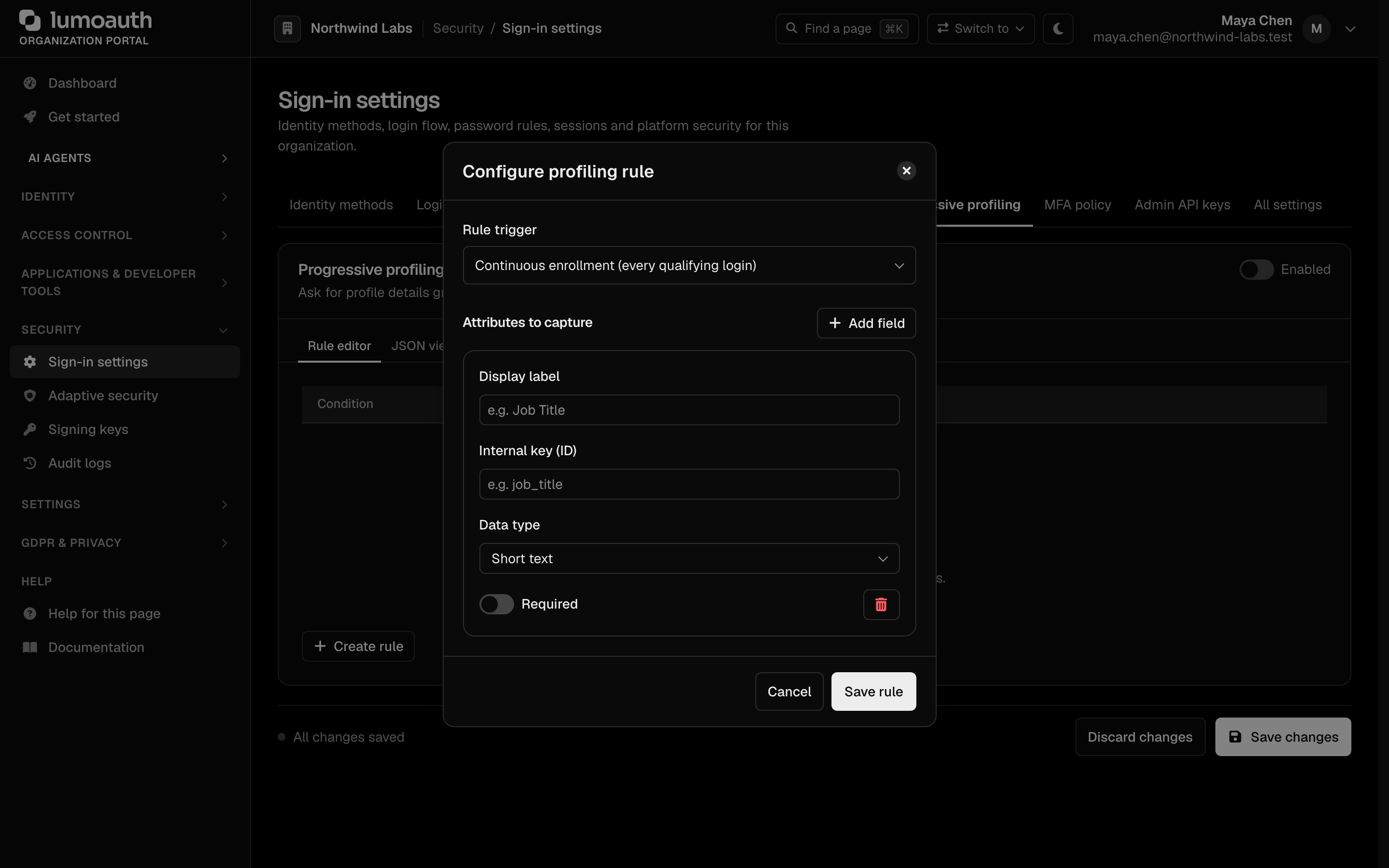
Create rule opens the Configure profiling rule dialog:
- Choose the Rule trigger: Continuous enrollment (every qualifying login) or Milestone based (after X login sessions)
- Under Attributes to capture, fill in a Display label, an Internal key (ID) and a Data type (Short text, Long text, Number or Switch) for each field, and switch Required on for fields the user must fill in. Add field adds another one
- Click Save rule, then Save changes on the page
The same rules can be edited as JSON on the JSON view tab; the two views stay in sync. Each rule specifies:
| Field | Description |
|---|---|
id | Identifier of the rule (generated by the rule editor) |
trigger | When to show the prompt: always, or a login-count condition such as login_count >= 3 |
fields | The fields to collect. Each one has a key (the trait it is saved as), a label shown to the user, a type (text, textarea, number or boolean) and required |
Example rule:
[
  {
    "id": "rule_1",
    "trigger": "login_count >= 3",
    "fields": [
      { "key": "job_title", "label": "Job title", "type": "text", "required": true },
      { "key": "phone", "label": "Phone number", "type": "text", "required": false }
    ]
  }
]
A rule is complete for a user once every one of its fields is stored in the user's traits; it is not shown again after that.
Profile Completion Flow
When a rule triggers, the user lands on /account/complete-profile/. This page:
- Shows only the fields configured in the matching rule
- Labels fields that are not required as optional; they can be left empty
- Saves responses as user traits
Use multiple rules with different conditions to gather data at the right moments — for example, ask for a job title at every sign-in until it is provided, and for a phone number from the third login.