User Invitations
Invite users to join your organization via email. Invitation-based onboarding ensures only authorized users can create accounts.
Sending Invitations
Via Portal
- Go to Users in the sidebar and click Invite users (the Invite users page,
/orgs/{orgId}/portal/users/invite) - Enter one or more Email addresses (one per line or comma-separated to invite several people at once)
- Optionally add a Personal message, which is included in the invitation email
- Optionally select Roles to pre-assign to every invited user
- Click Send invitations
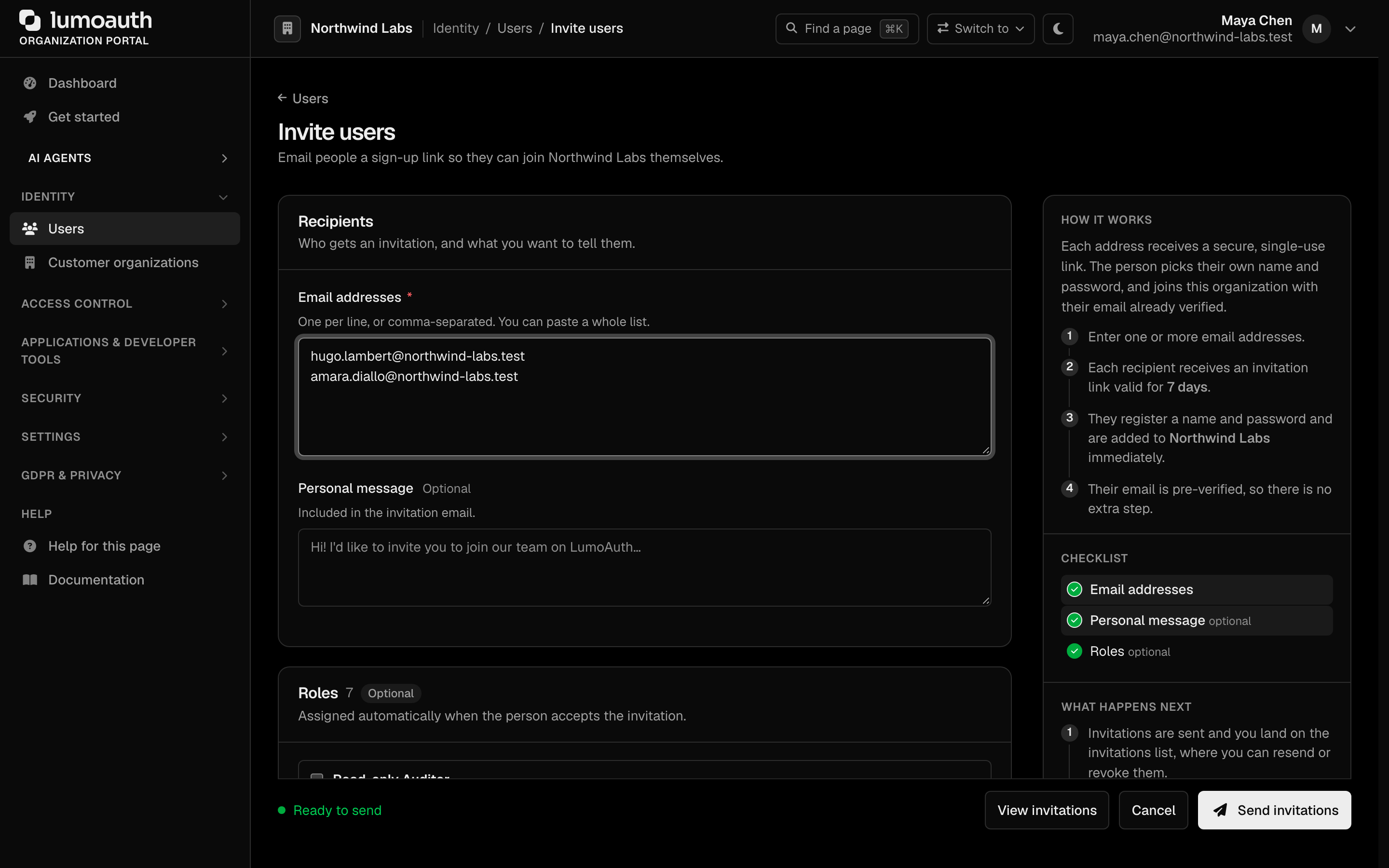
Each recipient receives an email with a link to complete registration, and you land on the Invitations list. There is no separate "bulk" page — entering multiple addresses on the Invite users page sends one invitation per address. Sending a new invitation to an address that already has a pending one revokes the earlier invitation.
The invitation form pre-assigns roles only. Groups cannot be pre-assigned at invite time; add the user to groups after they accept.
Invitation Flow
The password the invitee sets must meet the organization's password policy and breached-password check.
If the invited address is held only by a pending self-service sign-up (registered but never verified, never signed in), the invitation can still be accepted: the pending sign-up is removed and the invitee's account takes its place. Someone who registers an address first cannot block an invitation to it.
Invitation Settings
| Setting | Description | Default |
|---|---|---|
| Expiration | How long the invitation link is valid | 7 days |
Requiring invitations (disabling self-registration)
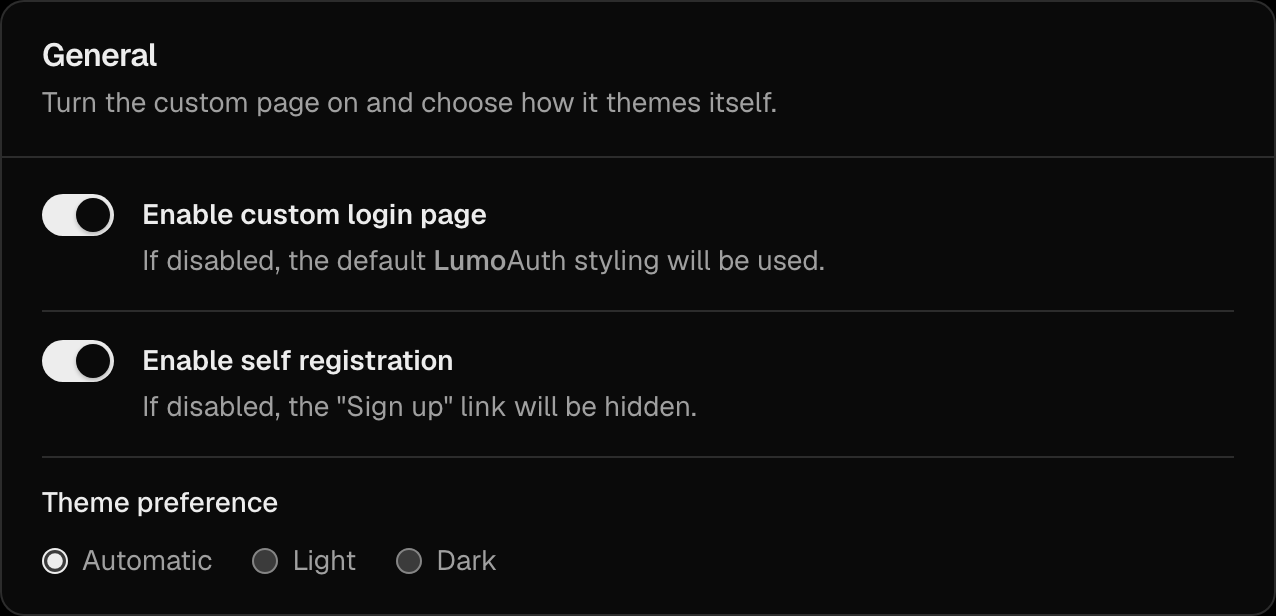
LumoAuth does not have a separate "invitation-only" mode. Instead, self-registration is governed by a single Enable self registration toggle in the General section of the Login page settings (/orgs/{orgId}/portal/settings/login-page). Turn it off and save to make invitations the only way to create an account.
Managing Invitations
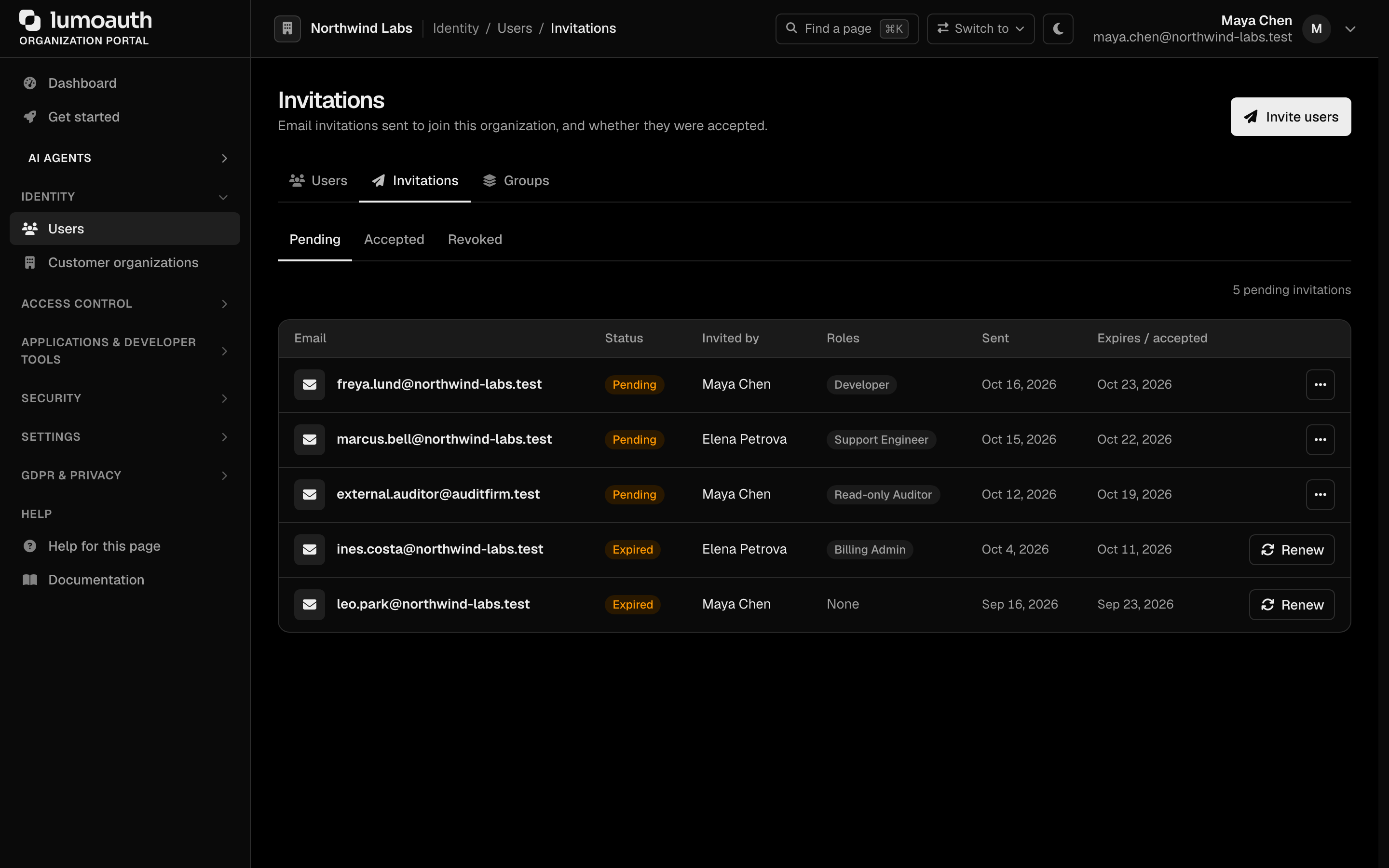
Invitations are listed on the Invitations page (/orgs/{orgId}/portal/users/invitations), reached with the Invitations button on the Users page or View invitations on the Invite users page. The Pending, Accepted and Revoked tabs filter the list.
| Action | Description |
|---|---|
| View pending | The Pending tab shows all outstanding invitations |
| Resend | Send the invitation email again |
| Revoke | Cancel a pending invitation |
Customizing Invitation Emails
Customize the User Invitation template on the Email templates page (/orgs/{orgId}/portal/settings/email-templates) by clicking Customise on its row:
- Subject line
- Body content
- Branding (logo, colors)
- Custom message from the admin
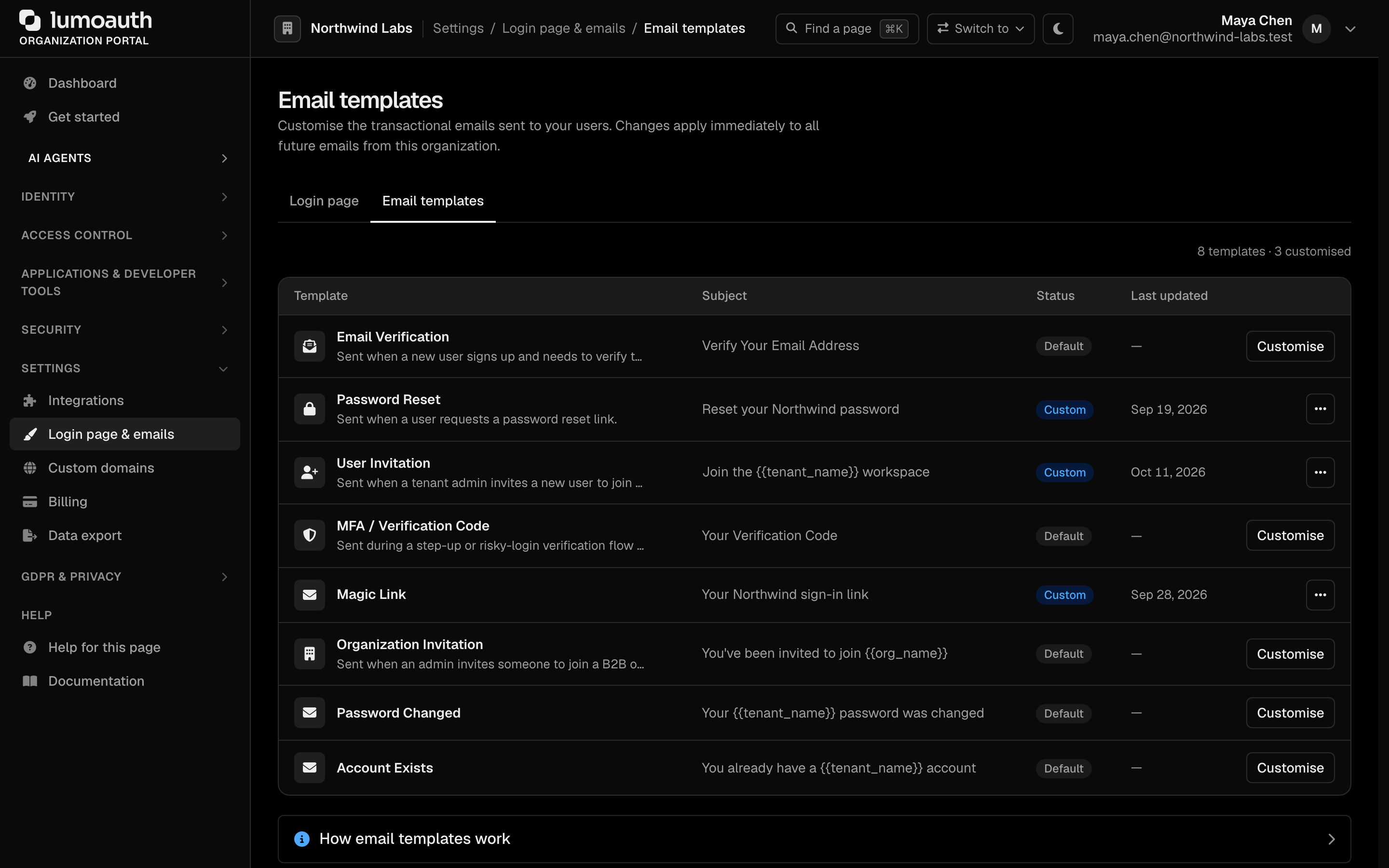
See Email Templates for details.
Related Guides
- User Management Overview - Full user lifecycle
- Account Self-Service - User-initiated actions
- Email Templates - Customize email content