Customer organizations
Customer organizations (Identity → Customer organizations in the portal) let you model the companies, teams or departments your product serves inside a single LumoAuth organization — each with its own members and roles — while sharing one organization configuration. The rest of this page says "organization" for a customer organization unless it says otherwise.
What are customer organizations?
A customer organization is a named group within your organization. Each user can belong to one or more of them, and each has its own members and role assignments.
Common use cases:
| Use Case | Example |
|---|---|
| B2B SaaS | Each customer company gets its own organization |
| Enterprise app | Different departments (Engineering, Finance, Sales) |
| Multi-workspace | Each project or workspace is modeled as an organization |
Managing customer organizations
There are two surfaces for organization management:
| Surface | URL | Use for |
|---|---|---|
| Admin portal | /orgs/{orgId}/portal/organizations (Customer organizations in the sidebar, under Identity) | Create organizations, view members and roles, send and manage email invitations, edit an organization's settings |
| Customer portal (what the organization's own members see) | /b2b/{orgId}/{organizationSlug}/ | Day-to-day member and role management for a single organization (add/update/remove members, create/edit/delete roles), plus a Your access page that tells each member their role, what it allows, which applications they can sign in to and which administrators to ask — backed by JSON APIs under /b2b/{orgId}/{organizationSlug}/api/* |
Admin Portal
Navigate to /orgs/{orgId}/portal/organizations to:
- Create a new organization
- View organization members and their roles
- Manage invitations — invite users to join an organization, and resend or revoke pending ones
- Edit settings — display name, logo URL, description and whether the organization is active
- Delete an organization
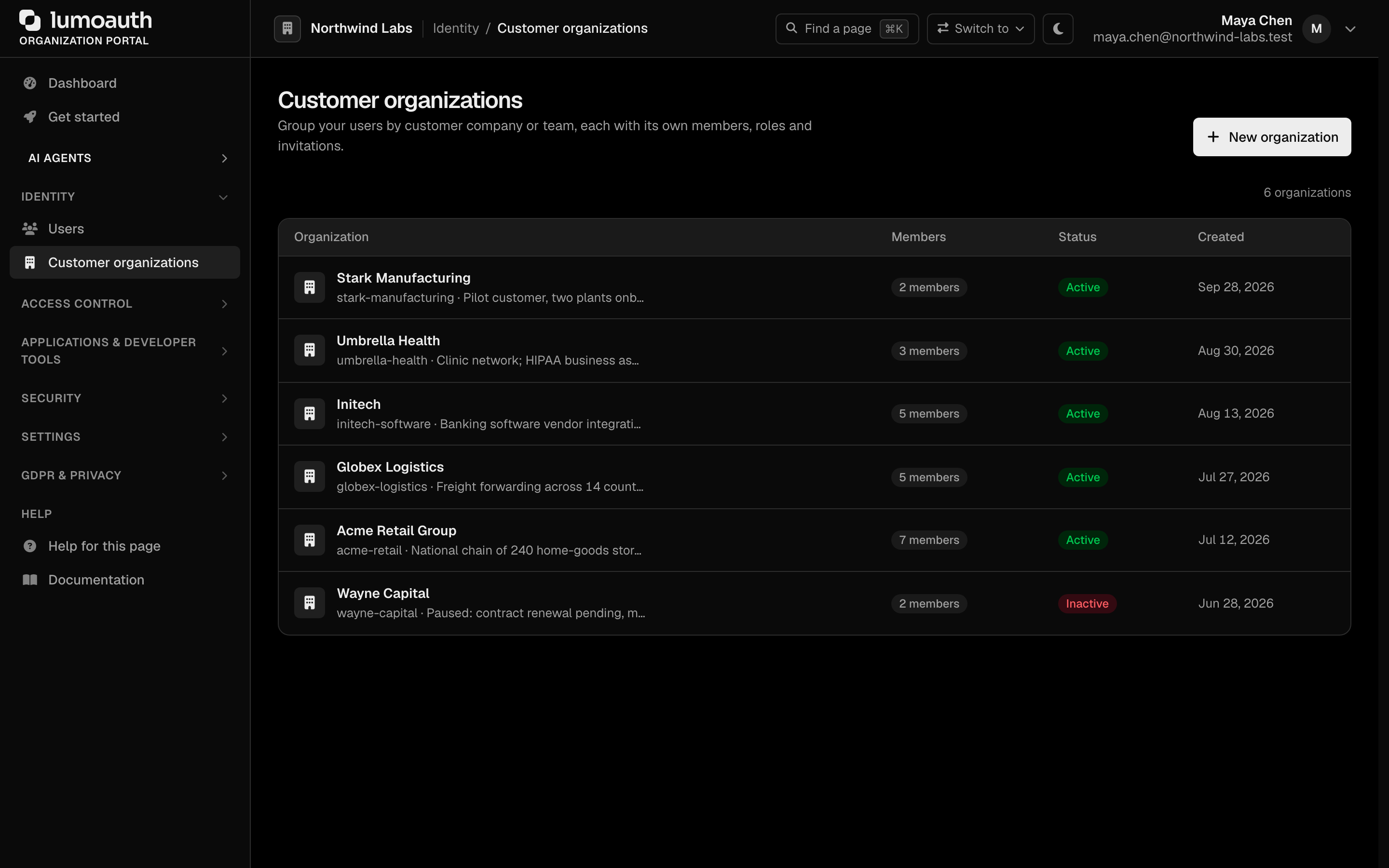
Click an organization to open it. Its page has four tabs: Members, Roles, Pending invitations and Settings.
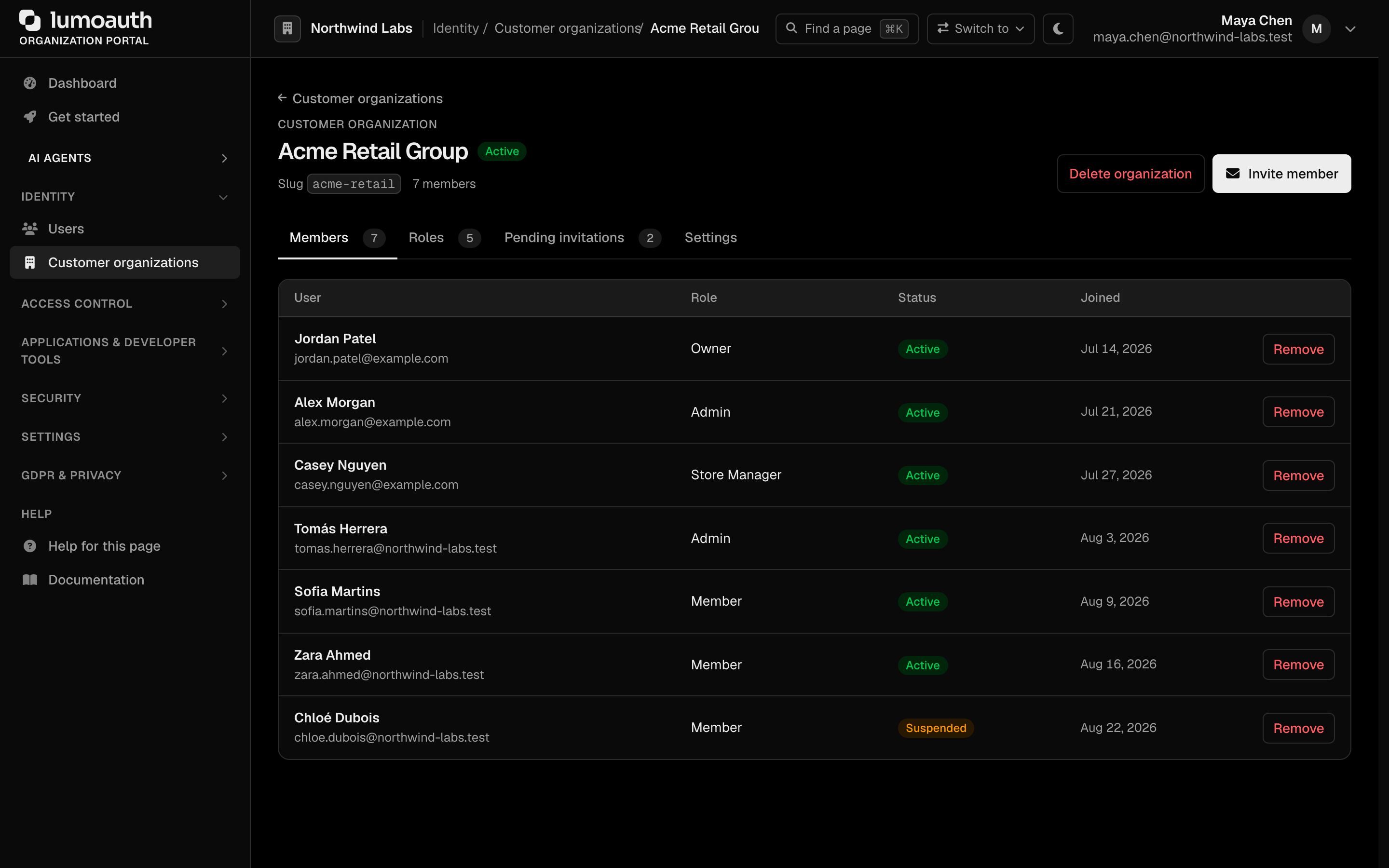
Direct member assignment and role authoring are done in the customer organization portal (or the Admin API).
Creating an Organization
- Go to
/orgs/{orgId}/portal/organizations - Click New organization
- Enter a Name and, optionally, a Slug (generated from the name if left blank), a Display name and a Description
- Click Create organization
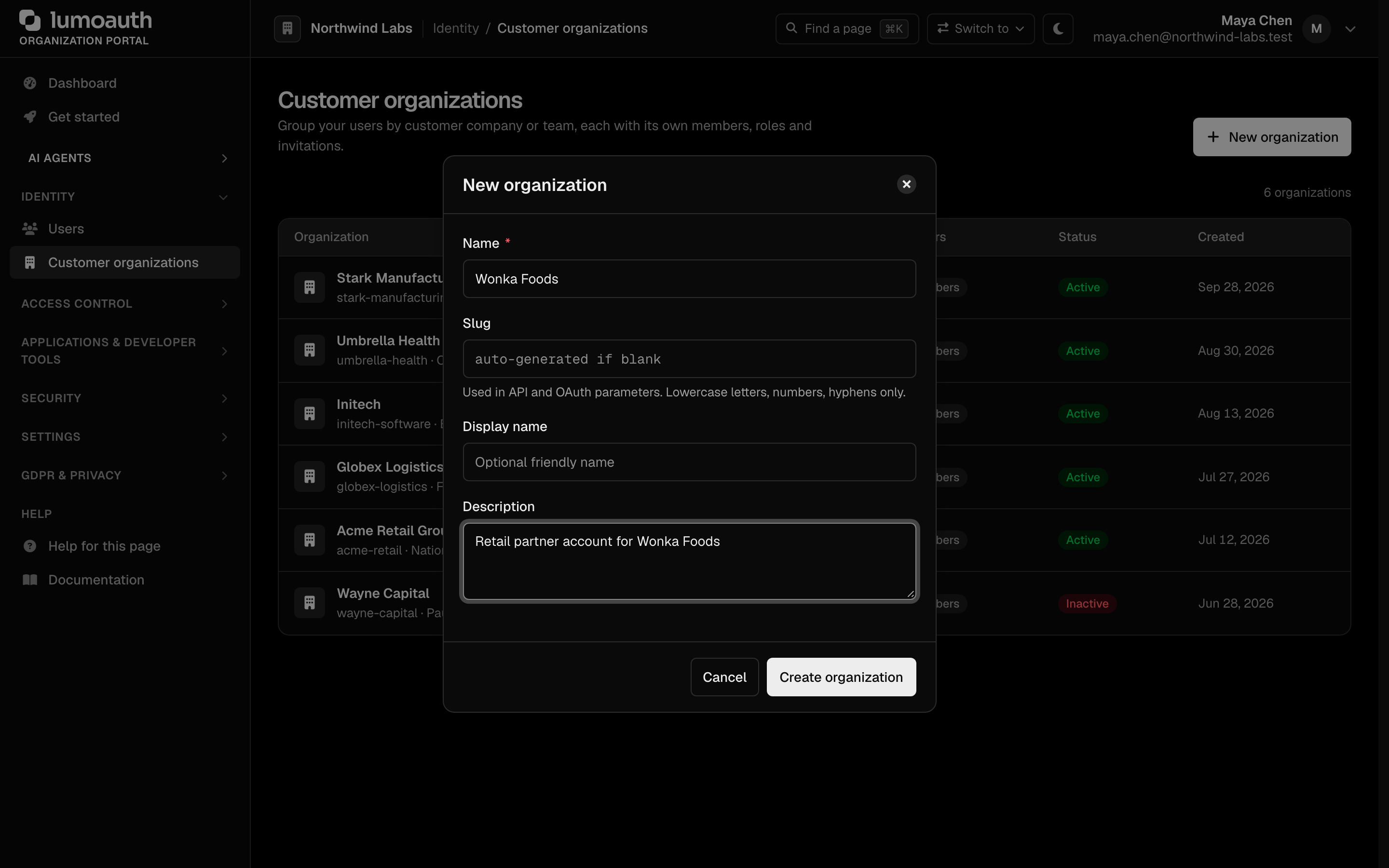
Members
Each organization has a list of members. A member is an organization user with an assigned role within the organization.
Adding Members
From this admin portal page, members are added by invitation (by email — see Inviting Users to an Organization below). There is no "search an existing user and add" control here.
To add or update members directly (without an email invite), use the dedicated customer organization portal at /b2b/{orgId}/{organizationSlug}/ or the Admin API (POST .../organizations/{organizationId}/members).
Updating a Member's Role
Update a member's role from the customer organization portal (PATCH /b2b/{orgId}/{organizationSlug}/api/members/{memberId}) or via the Admin API (PUT /orgs/{orgId}/api/v1/admin/organizations/{organizationId}/members/{userId}).
Removing Members
On the organization's Members tab, click the Remove button next to a member and confirm to remove them from the organization. Their organization account and roles are not affected.
Organization Roles
Organization roles are separate from organization-level roles. They are scoped to a specific organization and can be used to represent position or permissions within that organization (e.g., Admin, Member, Viewer).
Defining Organization Roles
On /orgs/{orgId}/portal/organizations, opening an organization and selecting the Roles tab shows a read-only list of the organization's roles (name, slug, type, and whether it is the default). A new organization starts with the system roles Admin, Member (the default) and Owner. This admin portal page does not create roles.

To create or edit organization roles, use the customer organization portal or the Admin API:
- Customer portal:
POST /b2b/{orgId}/{organizationSlug}/api/roles(update:PATCH .../roles/{roleId}, delete:DELETE .../roles/{roleId}) - Admin API:
POST /orgs/{orgId}/api/v1/admin/organizations/{organizationId}/roles
You can then assign that role to any member of the organization.
When a user signs in to an organization, access tokens carry org_id, org_slug, org_name and org_role. Your application can read these claims to make authorization decisions based on a user's organization context. The claims are only added for an active organization of the token's own organization and an active membership.
Inviting Users to an Organization
You can invite users who are not yet members of your organization to join an organization.
Sending an Invitation
- Go to the organization in the portal
- Click Invite member
- Enter the user's Email address
- Select the Role they will receive on joining
- Optionally add a Personal message
- Click Send invitation
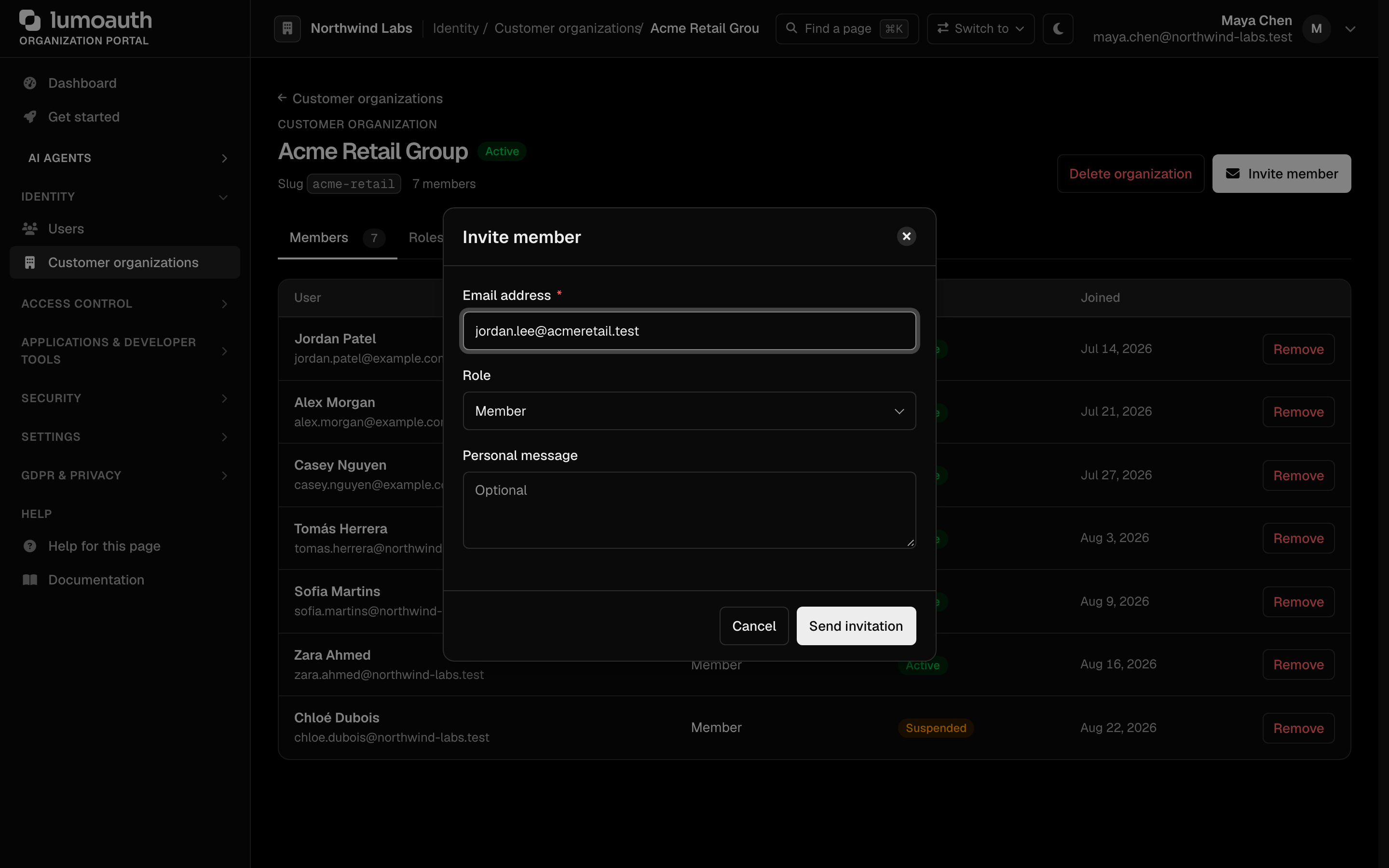
The invited user receives an email with a link. When they click it, they are prompted to register (if they don't have an account) or log in, and are then added as an organization member.
A new account created from the invitation must meet your organization's password policy and breached-password check. After accepting, the user is signed in through the normal sign-in pipeline: an adaptive-authentication block sends them to the sign-in page instead ("Your account is ready… Please sign in to continue."), and the MFA policy applies as for any other sign-in.
Managing Invitations
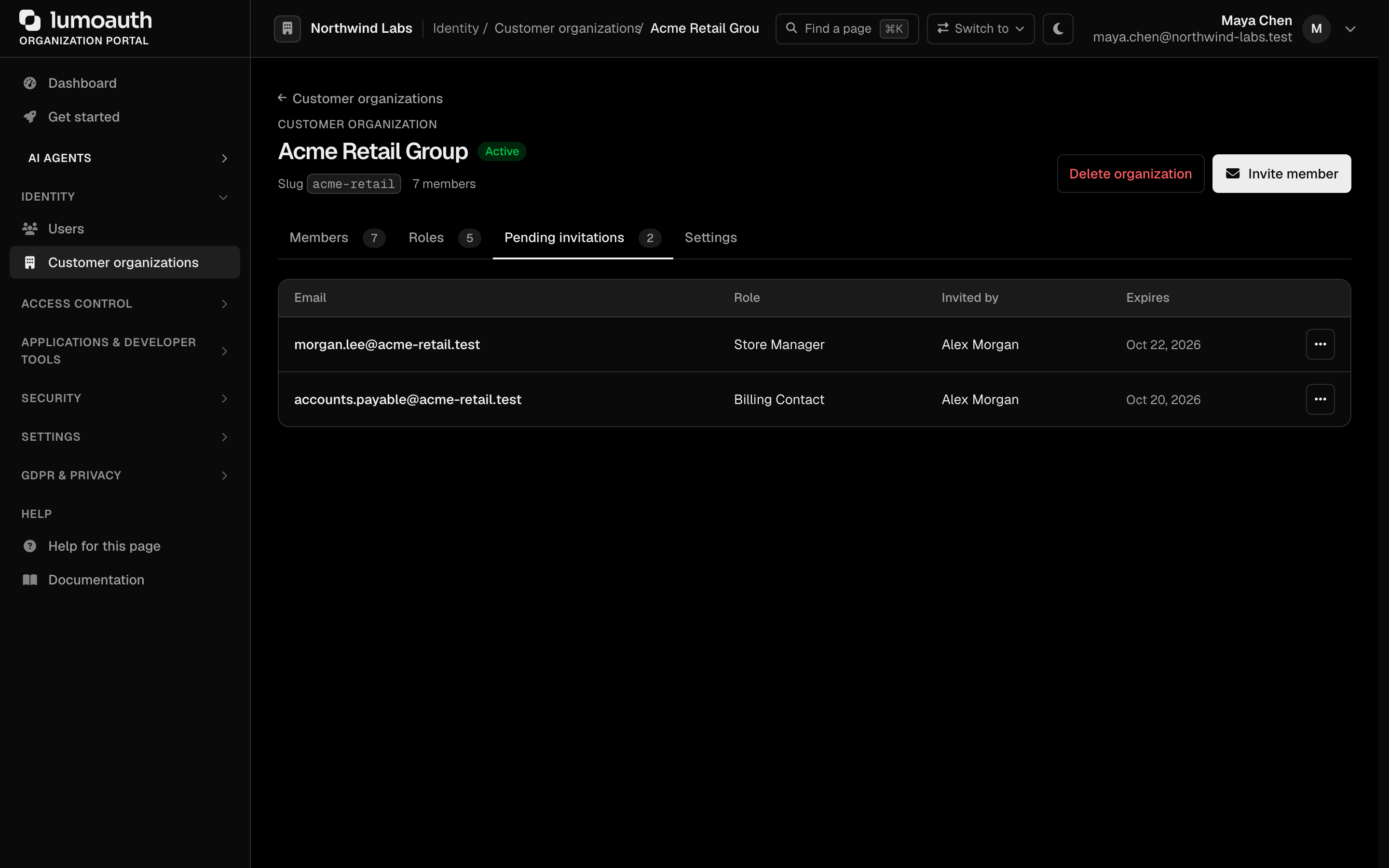
In the organization's Pending invitations tab you can:
- View all pending invitations and their expiry
- Resend an invitation that was not received (⋯ menu on its row)
- Revoke a pending invitation (⋯ menu on its row)
Deactivating an Organization
To deactivate an organization without deleting it, open its Settings tab in the portal, turn Active off and click Save settings, or set isActive to false through the API (PUT /orgs/{orgId}/api/v1/admin/organizations/{organizationId}).

A deactivated organization grants nothing:
- its members cannot sign in through it (
/authorizedoes not bind the session to it, and it does not count as a membership for applications restricted to customer organization members); - tokens carry no
org_*claims for it.
Suspended memberships behave the same way for that one member. Members keep their accounts and can still sign in where they have no organization requirement. Reactivate by turning Active back on (or setting isActive back to true).
An organization's owner can also deactivate it from the customer portal: Organization → Settings, then Deactivate … under Danger zone. The dialog states how many active members are affected and requires the organization's name to be typed back (the API, PATCH /b2b/{orgId}/{organizationSlug}/api/settings with {"isActive": false, "confirmName": "<name>"}, enforces the same). Because deactivation closes the portal for the owner too, only your administrators can reactivate it from the admin portal.
People who open a customer portal they cannot use see a page that names the organization and the reason — not a member, membership suspended, organization deactivated, or a page reserved for administrators — with links to their other organizations and their account.
User Self-Service
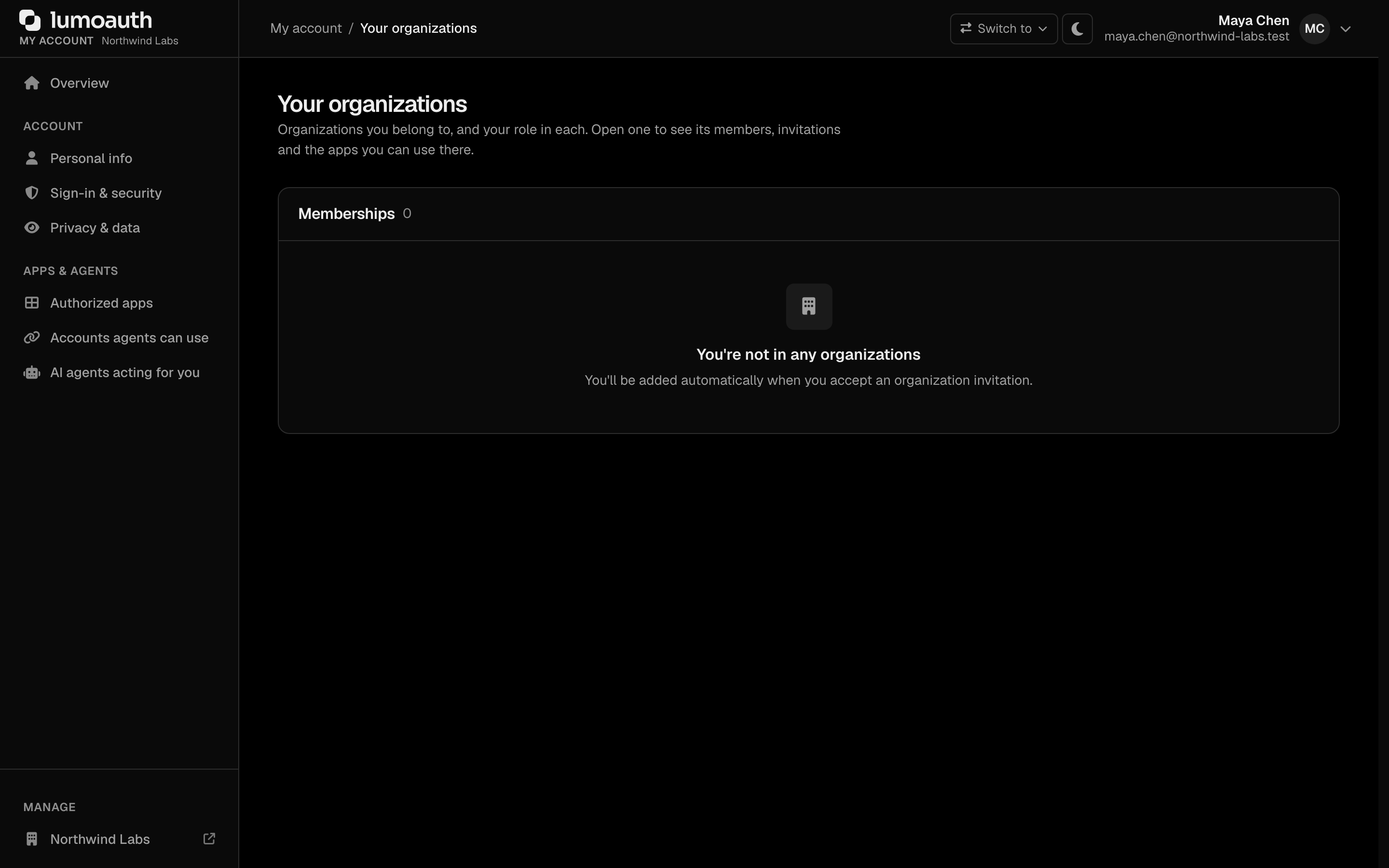
Users can view their own organization memberships from their account page:
- Navigate to
/account/organizations(Your organizations in the My account sidebar; the old/orgs/{orgId}/account/organizationsURL redirects there) - See all organizations they belong to, along with their role in each
API Access
The full organization lifecycle is available via the Admin API. These routes take two distinct path parameters: {orgId} is your organization slug, and {organizationId} is the customer organization's id — they are not the same value.
| Operation | Endpoint |
|---|---|
| List organizations | GET /orgs/{orgId}/api/v1/admin/organizations |
| Create organization | POST /orgs/{orgId}/api/v1/admin/organizations |
| Get organization | GET /orgs/{orgId}/api/v1/admin/organizations/{organizationId} |
| Update organization | PUT /orgs/{orgId}/api/v1/admin/organizations/{organizationId} |
| Delete organization | DELETE /orgs/{orgId}/api/v1/admin/organizations/{organizationId} |
| List members | GET /orgs/{orgId}/api/v1/admin/organizations/{organizationId}/members |
| Add member | POST /orgs/{orgId}/api/v1/admin/organizations/{organizationId}/members |
| Update member role | PUT /orgs/{orgId}/api/v1/admin/organizations/{organizationId}/members/{userId} |
| Remove member | DELETE /orgs/{orgId}/api/v1/admin/organizations/{organizationId}/members/{userId} |
| List org roles | GET /orgs/{orgId}/api/v1/admin/organizations/{organizationId}/roles |
| Create org role | POST /orgs/{orgId}/api/v1/admin/organizations/{organizationId}/roles |
| List invitations | GET /orgs/{orgId}/api/v1/admin/organizations/{organizationId}/invitations |
| Create invitation | POST /orgs/{orgId}/api/v1/admin/organizations/{organizationId}/invitations |
| Revoke invitation | DELETE /orgs/{orgId}/api/v1/admin/organizations/{organizationId}/invitations/{invId} |
| Resend invitation | POST /orgs/{orgId}/api/v1/admin/organizations/{organizationId}/invitations/{invId}/resend |