Groups
Groups let you collect users — by team, department, project, or any criterion — and assign roles to the group rather than to each member. Every member inherits the roles the group holds, so adding or removing a user from the group changes their effective permissions without touching individual role assignments.
Use groups when many users share the same access needs. Groups slot on top of RBAC (role-based access control) — they do not replace roles.
How Groups Work
Assign a role to a group and every member picks up the role's permissions. Remove a user from the group and they lose those permissions (unless the same role is also assigned directly to them).
Managing Groups
Create a Group
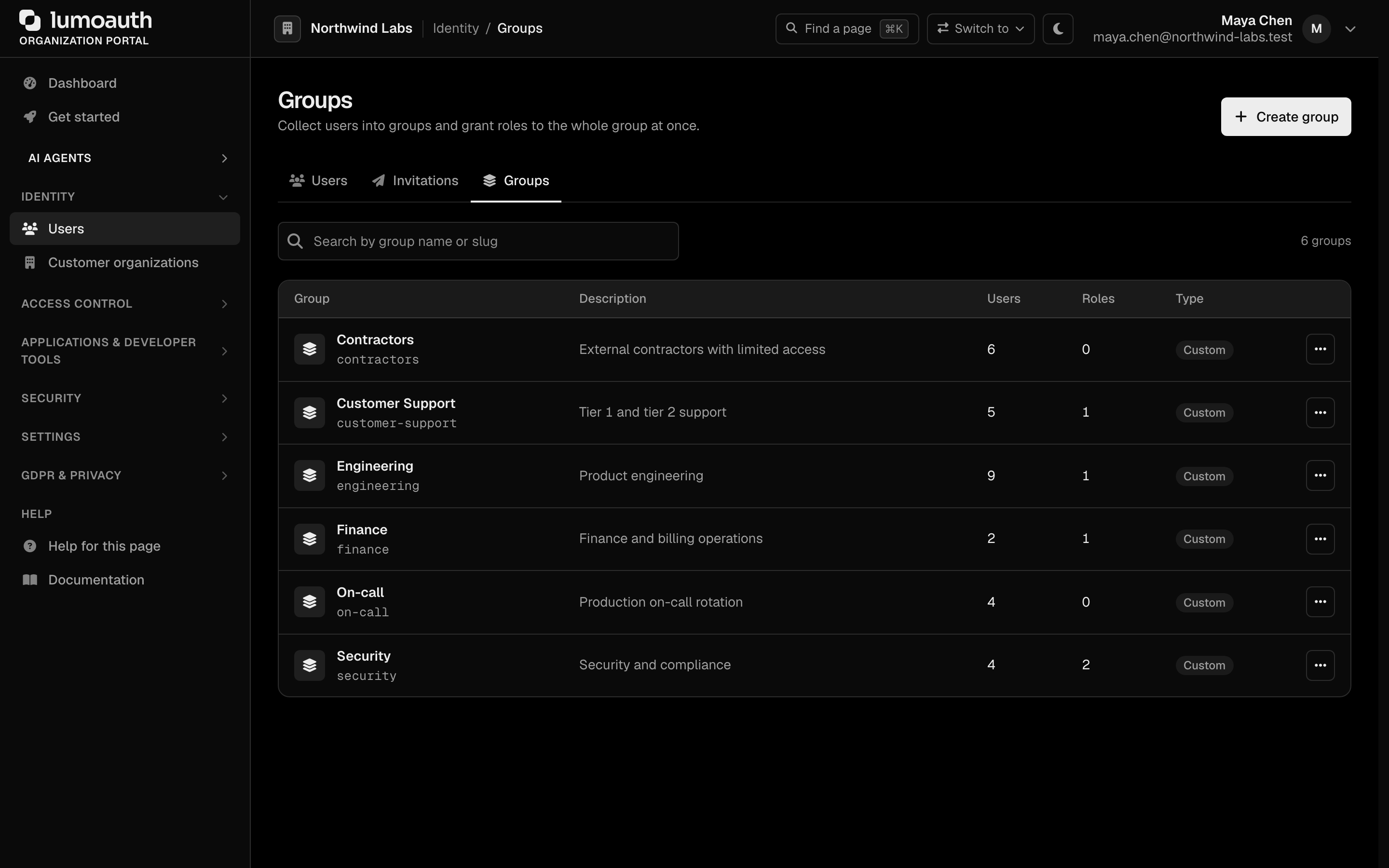
- In the sidebar, under Identity, open Users, then the Groups tab (
/orgs/{orgId}/portal/groups; the other tabs are Users and Invitations). The list shows each group's name and slug, description, number of users and roles, and type, with a search box for the name or slug. The row menu (...) edits or deletes a group; system groups have no row menu and cannot be deleted.
- Click Create group.
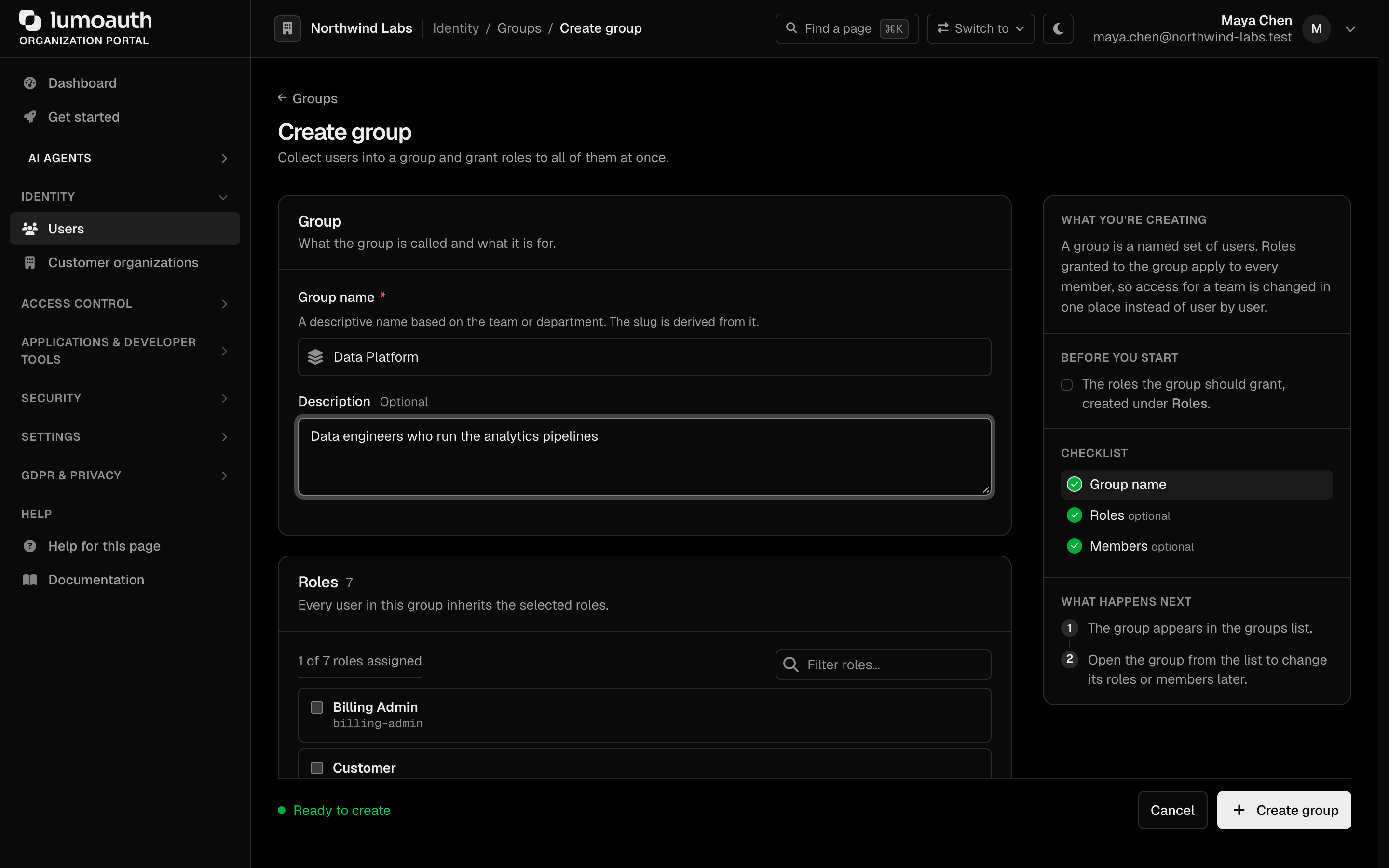
- Fill in:
| Field | Description | Example |
|---|---|---|
| Group name | Display name. The slug is derived from it | Data Platform (slug data_platform) |
| Description | Optional. Group purpose | Data engineers who run the analytics pipelines |
| Roles | Optional. Roles every member inherits; a filter box narrows the list when there are more than six roles | Developer |
| Members | Optional. Users to add now; you can add more later |
- Click Create group. The checklist beside the form shows which parts are filled in; only the group name is required.
Add Members
- On the Groups page, click the group's name to open it.
- Scroll to the Members section.
- Tick the users to add (untick to remove; with more than six users a filter box searches name and email), then click Save changes. The Members count shows how many users the group has.

Assign Roles to a Group
- On the Groups page, click the group's name to open it.
- Scroll to the Roles section.
- Tick the roles every group member should inherit, then click Save changes. In the screenshot, for example, Engineering holds Developer and Security holds Security Analyst and Read-only Auditor.
API Examples
# Create a group
curl -X POST https://your-domain.com/orgs/{orgId}/api/v1/admin/groups \
  -H "Authorization: Bearer {admin_token}" \
  -H "Content-Type: application/json" \
  -d '{
    "name": "Engineering",
    "slug": "engineering",
    "description": "Engineering team"
  }'

# Add a user to a group (one user, or several via "userIds": [...])
curl -X POST https://your-domain.com/orgs/{orgId}/api/v1/admin/groups/{groupId}/members \
  -H "Authorization: Bearer {admin_token}" \
  -H "Content-Type: application/json" \
  -d '{"userId": "user-uuid"}'

# Assign a role to a group
curl -X POST https://your-domain.com/orgs/{orgId}/api/v1/admin/groups/{groupId}/roles \
  -H "Authorization: Bearer {admin_token}" \
  -H "Content-Type: application/json" \
  -d '{"roleId": "role-uuid"}'
Permission Resolution
A user's effective permissions come from two sources:
- Directly assigned roles — roles attached to the user.
- Group-inherited roles — roles attached to groups the user belongs to.
Use Cases
| Scenario | Groups Setup |
|---|---|
| Team-based access | One group per team (Engineering, Marketing, Sales) |
| Project-based access | One group per project with project-specific roles |
| Department hierarchy | Groups for departments, sub-groups for teams |
| Temporary elevated access | Add user to the group, remove when no longer needed |
| Onboarding | Add a new hire to their team's group — they inherit all required roles |
Related
- Roles & Permissions — define roles and permissions.
- ABAC (attribute-based access control) — reference group membership from policy conditions.
- Access Control Overview — compare all authorization models.