Service Provider (SP) Mode
In SAML 2.0 (OASIS XML-based SSO standard), a Service Provider trusts an Identity Provider to authenticate users and issue signed assertions. Configure LumoAuth as a SAML SP to accept logins from external IdPs like Okta, Azure AD, OneLogin, PingIdentity, or ADFS. Use SP mode when users already have identities in a corporate directory and you want them to sign into LumoAuth-protected applications with those credentials.
SP-Initiated SSO Flow
In the SP-initiated flow, the user begins at your application and is redirected to the external IdP for authentication.
- User to LumoAuth: Access App / Click "Login with SSO"
- LumoAuth to External IdP: AuthnRequest (SAML Redirect)
- External IdP to User: IdP Login Prompt
- User to External IdP: Enter Credentials / MFA
- External IdP to LumoAuth: SAML Response (Signed Post to ACS)
- Note: Validate Assertion & Provision User
- LumoAuth to User: Session Established & Redirect to App
SP Metadata Endpoint
GET
/orgs/\{orgId\}/saml/sp/metadata
Returns the SAML SP metadata XML document (the file that describes LumoAuth's ACS and logout endpoints and its signing certificate). Provide this URL to your external IdP to configure the integration automatically.
Example Request
curl https://app.lumoauth.dev/orgs/acme-corp/saml/sp/metadata
Response
MIICo...


            urn:oasis:names:tc:SAML:1.1:nameid-format:emailAddress
SSO Login Endpoint
GET
/orgs/\{orgId\}/saml/sp/login
Initiates the SAML SSO flow by generating an AuthnRequest and redirecting the user to the configured external IdP.
Parameters
| Parameter | Required | Description |
|---|---|---|
return_url | No | Local URL to redirect to after successful SSO. Must be a same-origin path; off-site URLs are rejected and the default organization dashboard is used instead. |
Example
url
https://app.lumoauth.dev/orgs/acme-corp/saml/sp/login
    ?return_url=https://app.lumoauth.dev/orgs/acme-corp/portal/
Login with Specific IdP
GET
/orgs/\{orgId\}/saml/sp/login/\{idpId\}
When multiple IdPs are configured, use this endpoint to specify which IdP to use:
url
https://app.lumoauth.dev/orgs/acme-corp/saml/sp/login/42
Assertion Consumer Service (ACS)
POST
/orgs/\{orgId\}/saml/sp/acs
Receives and processes SAML Responses from the IdP. This endpoint:
- Validates the SAML Response signature
- Verifies the assertion audience and timestamps
- Extracts user attributes from the assertion
- Creates or updates the user (JIT provisioning)
- Establishes a session and redirects to RelayState
Request Body (from IdP)
| Parameter | Description |
|---|---|
SAMLResponse | Base64-encoded SAML Response XML |
RelayState | Optional redirect URL preserved from AuthnRequest |
The ACS endpoint only accepts SAML responses from configured IdPs. Do not call it directly — it is only meant to be invoked as part of the SSO redirect flow.
Single Logout (SLO)
GET/POST
/orgs/\{orgId\}/saml/sp/slo
Handles Single Logout requests and responses. Supports both IdP-initiated and SP-initiated logout.
Logout messages must be signed. At this endpoint LumoAuth always verifies the XML signature on an inbound LogoutRequest or LogoutResponse, regardless of the Require signed responses setting, and an SP-initiated LogoutResponse is correlated to the LogoutRequest LumoAuth issued. An unsigned logout message is rejected. Sign-in is unaffected: login keeps the per-IdP setting because the assertion is always required to be signed.
SAML 2.0 Profiles, Single Logout Profile (OASIS, section 4.4). The problem: a LogoutRequest only needs a user's NameID, which is often just their e-mail address, so an unsigned request lets anyone force-logout anyone. The requirement: a Service Provider must verify the IdP's signature on logout messages before terminating a session. Turn on logout signing in your IdP (Okta: Sign SAML logout requests; Entra ID: certificate signing on the app). SAML 2.0 Profiles
Configuration Guide
Step 1: Get Your SP Metadata
Copy your SP metadata URL and provide it to your external IdP. The portal shows it, with a Copy SP metadata URL button, in the Enterprise SSO (SAML) section of Settings → Integrations:

Your SP Metadata
https://app.lumoauth.dev/orgs/{your-organization}/saml/sp/metadata
Step 2: Configure the External IdP
In your IdP's admin console, create a new SAML application with these settings:
| Setting | Value |
|---|---|
| ACS URL | https://app.lumoauth.dev/orgs/\{organization\}/saml/sp/acs |
| Entity ID | https://app.lumoauth.dev/orgs/\{organization\}/saml/sp/metadata |
| NameID Format | emailAddress |
| SLO URL | https://app.lumoauth.dev/orgs/\{organization\}/saml/sp/slo |
Step 3: Add the IdP to LumoAuth
Quick setup (recommended):
- Navigate to Settings → Integrations in your organization portal and find the Enterprise SSO (SAML) section
- Click Add SAML IdP
- Paste your IdP's metadata URL into the Metadata URL field of the Import from IdP metadata card and click Fetch from metadata URL — LumoAuth fetches and parses the metadata server-side and fills in the Entity ID, SSO/SLO endpoints, NameID format, signing certificate, and its SHA-256 fingerprint automatically. If you only have the metadata as a file, paste the raw XML instead.
- Review the populated values, adjust security and provisioning options, then click Add identity provider.
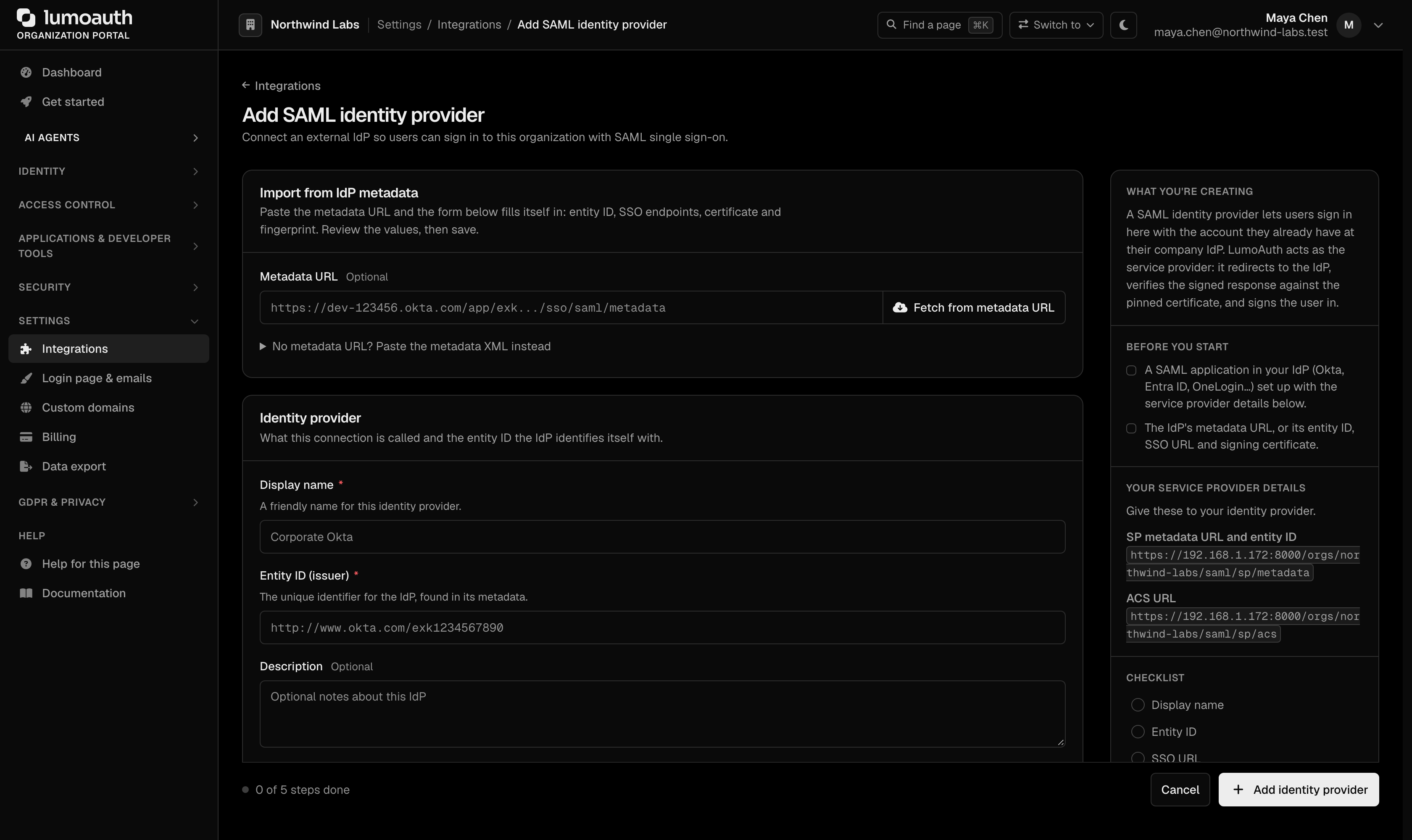
Notes on metadata import:
- The metadata URL must be a public
https://endpoint (private/internal addresses are rejected). - When the metadata lists multiple signing certificates (key rollover), the certificate expiring last is selected and a warning shows the alternatives.
- An expired IdP certificate is imported with a warning so you can stage a rotation, but logins will fail until the IdP presents a valid certificate.
- Each import is recorded in the audit log as
saml.metadata_imported.
Manual setup:
- Navigate to Settings → Integrations and find the Enterprise SSO (SAML) section
- Click Add SAML IdP
- Enter a Display name and the IdP's metadata:
- Entity ID (issuer): IdP's unique identifier
- SSO URL: IdP's Single Sign-On endpoint
- X.509 certificate (PEM): IdP's X.509 signing certificate
- Certificate fingerprint (SHA-256): must match the pasted certificate
- Configure security and provisioning options
- Click Add identity provider, then test at
/orgs/{orgId}/saml/sp/login
Security Settings
| Setting | Default | Description |
|---|---|---|
Require signed responses | ✓ Enabled | Verify the SAML response envelope is signed by the IdP. Logout messages are always required to be signed, whatever this setting says. |
Require signed assertions | ✓ Enabled | Verify the assertion within the response is signed. Always on; cannot be disabled. |
Sign authentication requests | Disabled | Sign authentication and logout requests sent to the IdP |
Assertion timestamps are validated with a fixed tolerance of 180 seconds; it is not configurable in the portal.
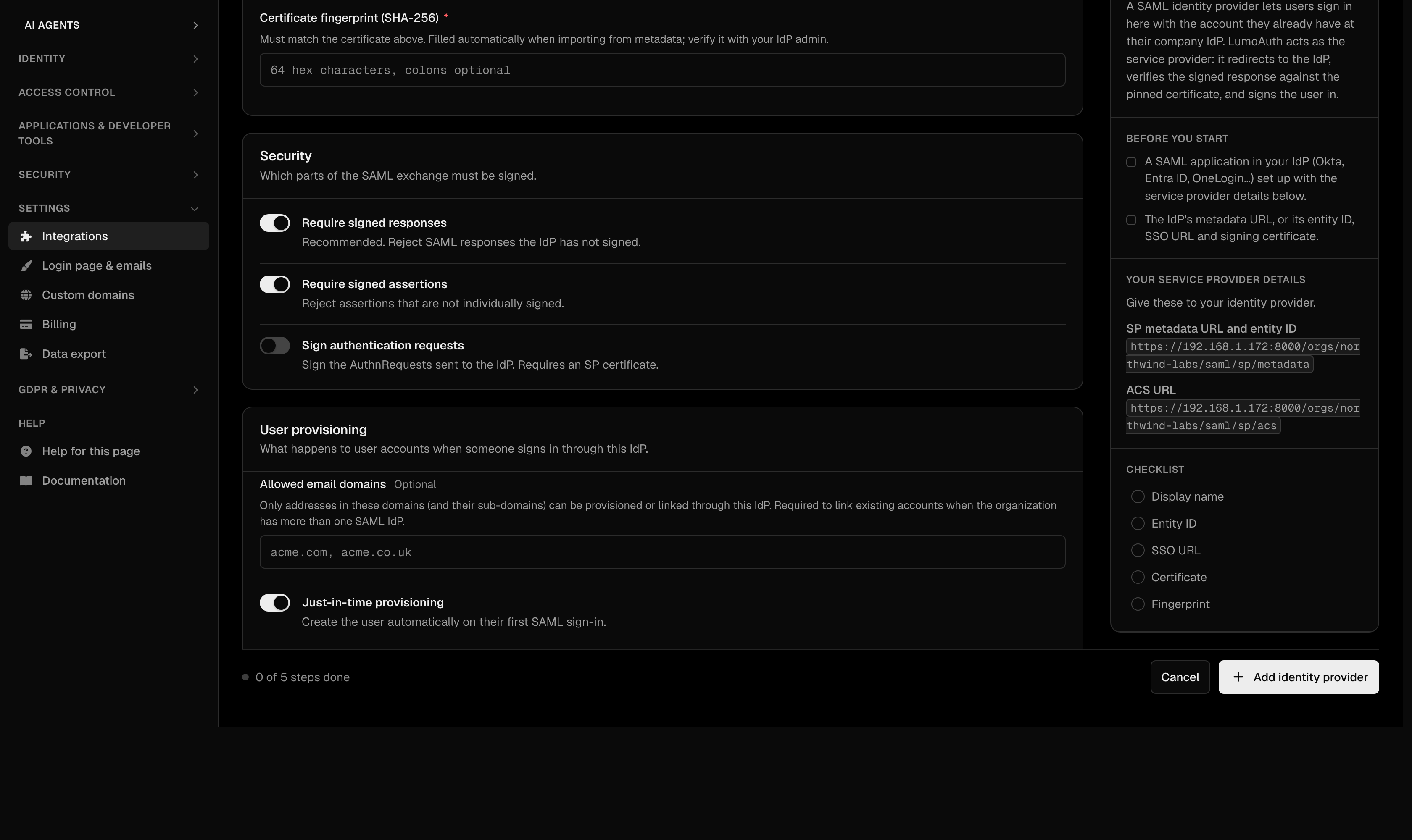
Just-In-Time (JIT) Provisioning
JIT provisioning automatically creates user accounts on their first SAML login:
| Setting | Description |
|---|---|
Just-in-time provisioning | Create new users automatically on first login |
Update user attributes on sign-in | Sync user attributes from SAML on each login |
Allowed email domains | Domains (and their sub-domains) this IdP may provision or link accounts for, e.g. acme.com, acme.co.uk. Empty = the entity ID host is used (https://idp.acme.com covers @acme.com), and only when this is the organization's sole SAML IdP for linking to existing accounts. Required for linking when the organization has several SAML IdPs. |
Users are bound to the issuing IdP as saml:{idpConfigId}:{nameId}, so a NameID from one IdP never matches a user of another. An existing account is linked by email only when the IdP asserts email_verified and is authoritative for the domain, and never when the account has a local password, a social provider or another SAML IdP. Provisioning outside the IdP's domains is refused (saml_jit_domain_mismatch). Details, including relinking accounts created before per-IdP binding, are in Enterprise SSO.
Provisioned users start without roles. The IdP configuration can carry a stored default-role list, but the portal exposes no field for it today, and at sign-in any system role or role that confers administrator authority in that list is skipped with an audit event (saml_default_role_skipped). Assign roles in the portal or through SCIM groups; the rule is explained in No privilege gain.
Attribute Mapping
SAML attributes are mapped to user fields automatically. The friendly names below, their WS-Federation claim URIs (http://schemas.xmlsoap.org/ws/2005/05/identity/claims/...) and their LDAP object identifiers (urn:oid:...) are all recognised:
| SAML Attribute | User Field |
|---|---|
email, mail, emailAddress | |
displayName, name, cn | Display Name |
givenName | First Name |
surname, sn | Last Name |
Popular IdP Configuration
Okta
- In Okta Admin, go to Applications → Create App Integration → SAML 2.0
- Set Single sign on URL to your ACS URL
- Set Audience URI to your SP Entity ID
- Configure attribute statements (email, firstName, lastName)
- Copy the IdP metadata URL from the Sign On tab
Azure AD / Entra ID
- In Azure Portal, go to Enterprise Applications → New application → Non-gallery
- Set up single sign-on → SAML
- Enter your SP Entity ID and Reply URL (ACS)
- Download the Federation Metadata XML
OneLogin
- In OneLogin, go to Applications → Add App → SAML Custom Connector
- Configure ACS URL and Audience
- Download the IdP metadata
Error Responses
| Error | Cause | Solution |
|---|---|---|
| Invalid Signature | IdP certificate mismatch | Update the IdP certificate in your configuration |
| Audience Mismatch | SP Entity ID doesn't match | Verify the Audience in IdP matches your SP Entity ID |
| Assertion Expired | Clock skew between servers (more than 180 seconds) | Sync the IdP's clock |
| No IdP Configured | Missing IdP configuration | Add the IdP configuration in the organization portal |
| Missing NameID | IdP not sending NameID | Configure NameID in the IdP application settings |
| "Account already exists but is not linked to this identity provider" | The organization has several SAML IdPs and the user's account predates per-IdP binding (saml_legacy_binding_ambiguous in the audit log) | Relink the account to the right IdP; see Accounts created before per-IdP binding |
| "Account already exists; please sign in with your existing method" | An account with the asserted email has a local password, a social provider or another SAML IdP | Expected: SAML never takes over such an account |
| New users from a second IdP are not created | The email domain is not in the IdP's Allowed email domains (saml_jit_domain_mismatch) | Add the domain to that IdP |
| Logout fails, session stays active | The IdP sent an unsigned LogoutRequest | Enable logout-message signing on the IdP; unsigned logout messages are always rejected |