Organization Admin Portal
The organization admin portal is the primary interface for managing an organization's identity configuration, users, applications, and security settings.
URL: /orgs/{orgId}/portal/
Portal Dashboard
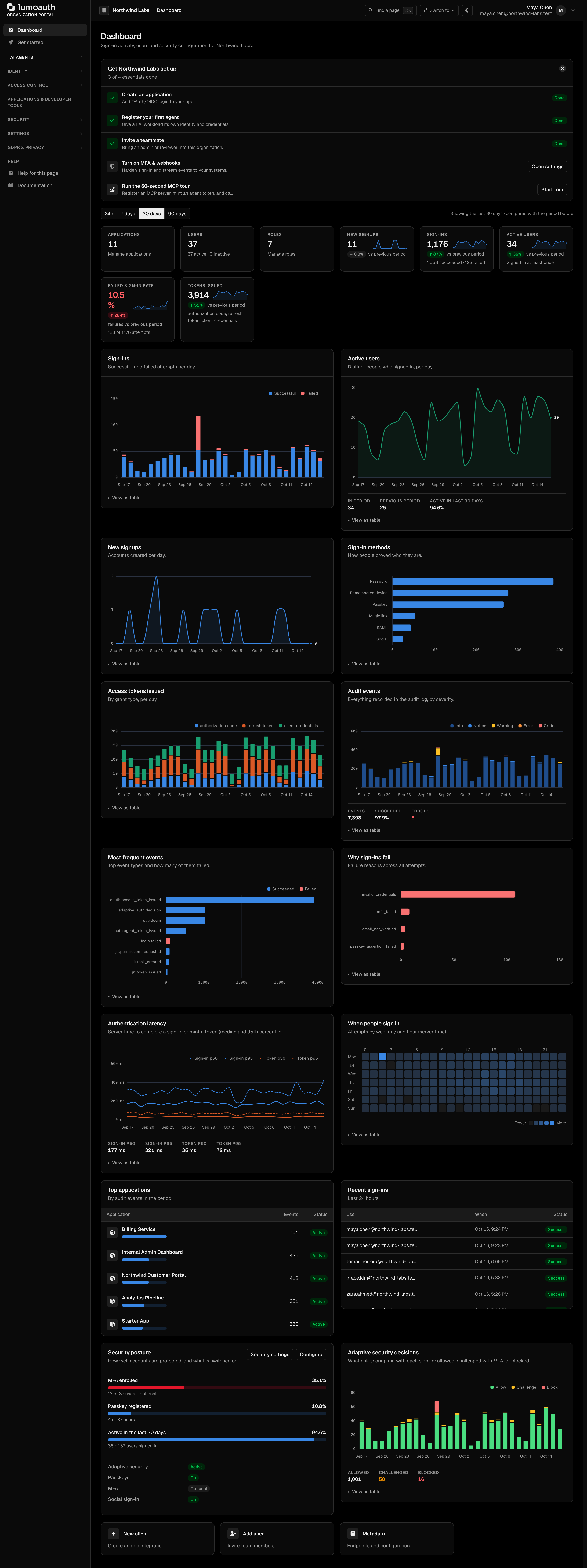
The portal root, /orgs/{orgId}/portal/, is the dashboard. It provides an at-a-glance view of:
- A Get your organization set up checklist (create an application, register your first agent, invite a teammate, turn on MFA and webhooks). It is dismissible, and when you chose An AI agent on Get started the agent step comes first. A new organization also gets a Your Starter App is ready card with the client ID, issuer and links to the quickstart and a test sign-in
- A time-range switch (24h, 7 days, 30 days, 90 days) that drives every tile and chart, each compared with the period before
- Tiles for Applications, Users, Roles, New signups, Sign-ins, Active users, Failed sign-in rate and Tokens issued
- Charts for Sign-ins, Active users, New signups, Sign-in methods, Access tokens issued, Audit events, Most frequent events, Why sign-ins fail, Authentication latency, When people sign in (a weekday-by-hour heatmap) and Adaptive security decisions
- Lists for Top applications and Recent sign-ins (last 24 hours), plus a Security posture card (MFA and passkey coverage, recently active users)
- Quick actions: New client, Add user and Metadata
See Analytics for what each panel counts.
Portal Sections
The left sidebar groups everything into the sections below, in this order. Entries you have no permission for are hidden.

Home
The two entries at the top of the sidebar, above the first group heading.
| Entry | URL | What it is |
|---|---|---|
| Dashboard | /orgs/{orgId}/portal/ | At-a-glance health, setup checklist, recent activity |
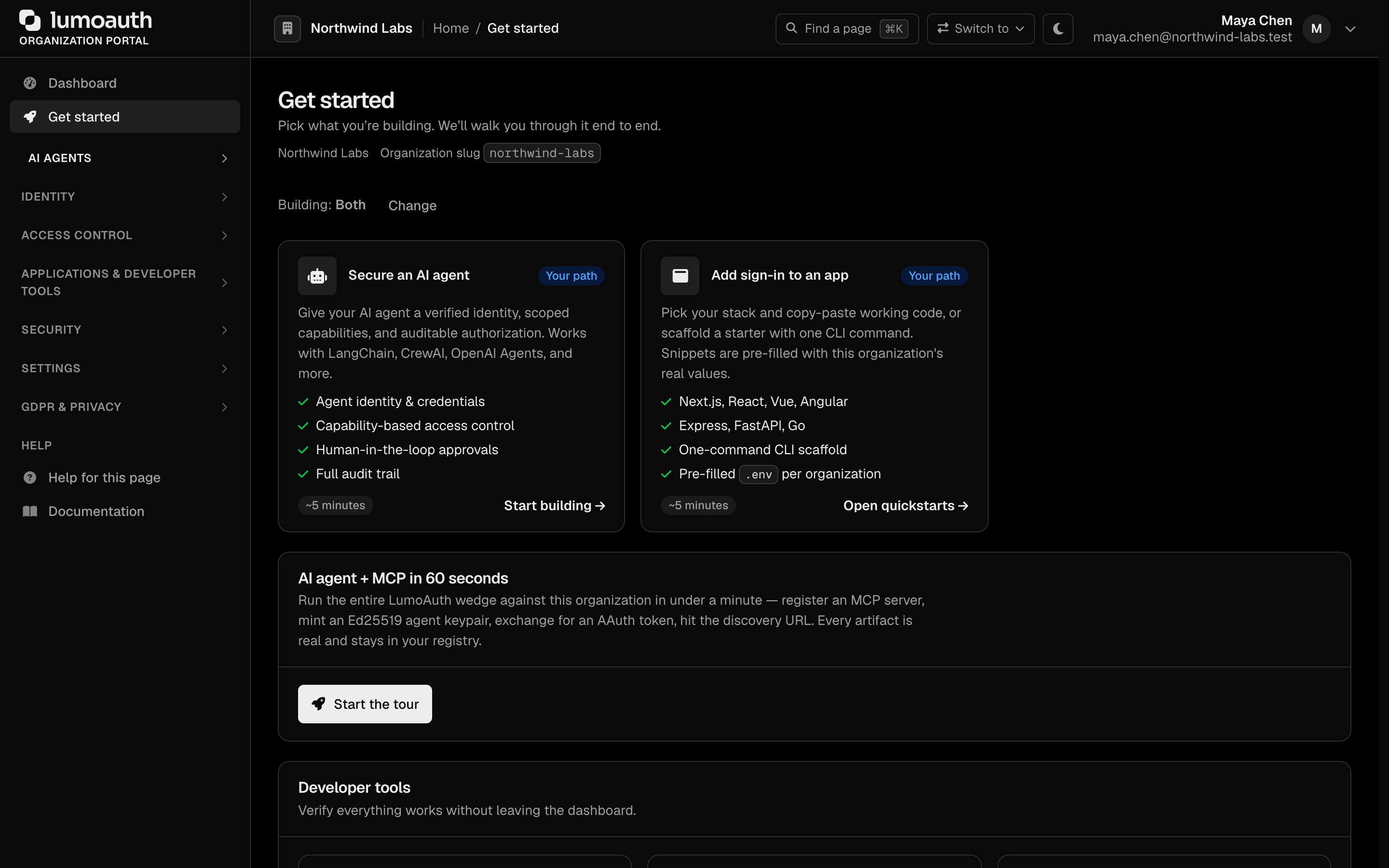
| Get started | /orgs/{orgId}/portal/onboarding | Guided setup. Answer What are you building? (An app people sign in to, An AI agent or Both) once per organization and the page — and the dashboard checklist — lead with that path. The page offers Secure an AI agent (Start building) and Add sign-in to an app (Open quickstarts), the AI agent + MCP in 60 seconds tour, and Your organization credentials (organization slug, auth server URL and OIDC discovery URL) |
AI Agents
| Entry | URL | Description |
|---|---|---|
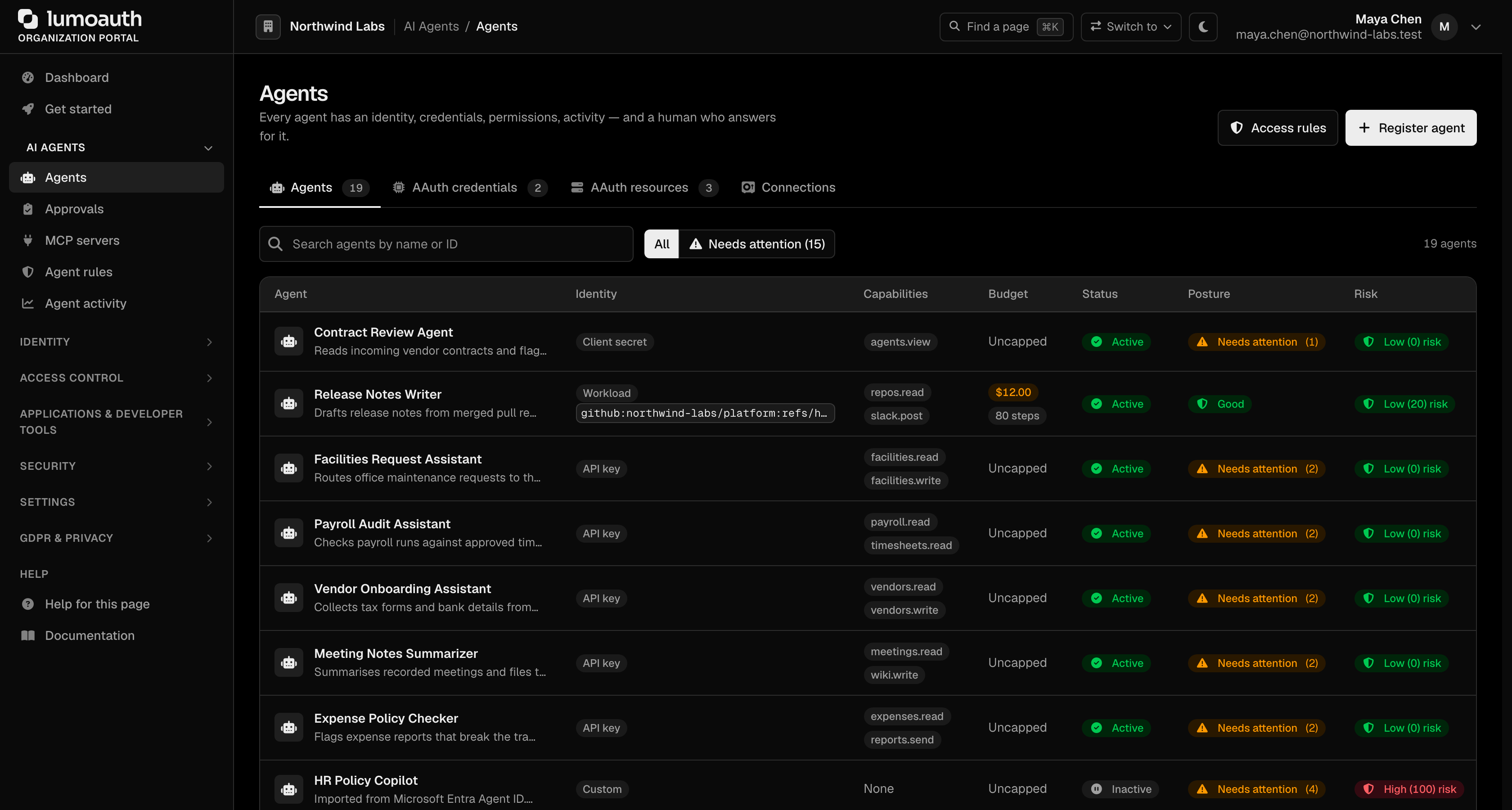
| Agents | /orgs/{orgId}/portal/agents | Register agents (Register agent) and see what they are allowed to do. Tabs: Agents, AAuth credentials, AAuth resources (with the issuer's discovery endpoints) and Connections (/portal/connections, third-party services agents call on a user's behalf). The list has an All / Needs attention filter and an Access rules shortcut. An AAuth credential is how an agent proves its identity: its old /portal/aauth/agents/{id} URL opens the agent, and its keys are edited as AAuth credentials there |
| Approvals | /orgs/{orgId}/portal/approvals | Everything waiting on a human: permission requests (decided in place), user consents and action approvals, behind a type filter. /portal/jit-approvals serves the same page |
| MCP servers | /orgs/{orgId}/portal/mcp-servers | Register and protect MCP servers (Register MCP server) |
| Agent rules | /orgs/{orgId}/portal/agents/policies | Tabs: Access rules (conditional access when an agent authenticates), Auto-approve rules (/portal/agents/rules/auto-approve) and Cross-app access (/portal/delegation, which applications and identity providers may obtain tokens for other applications on a user's behalf) |
| Agent activity | /orgs/{orgId}/portal/caep-dashboard | Tabs: Activity (fleet activity and CAEP) and Security signals (/portal/agent-guard/security-signals). See Agent activity below |
If you may manage identity providers but not agents, the group shows a single Agent rules entry instead, which opens the Cross-app access tab (/orgs/{orgId}/portal/delegation).
See AI Agents.
Agent activity
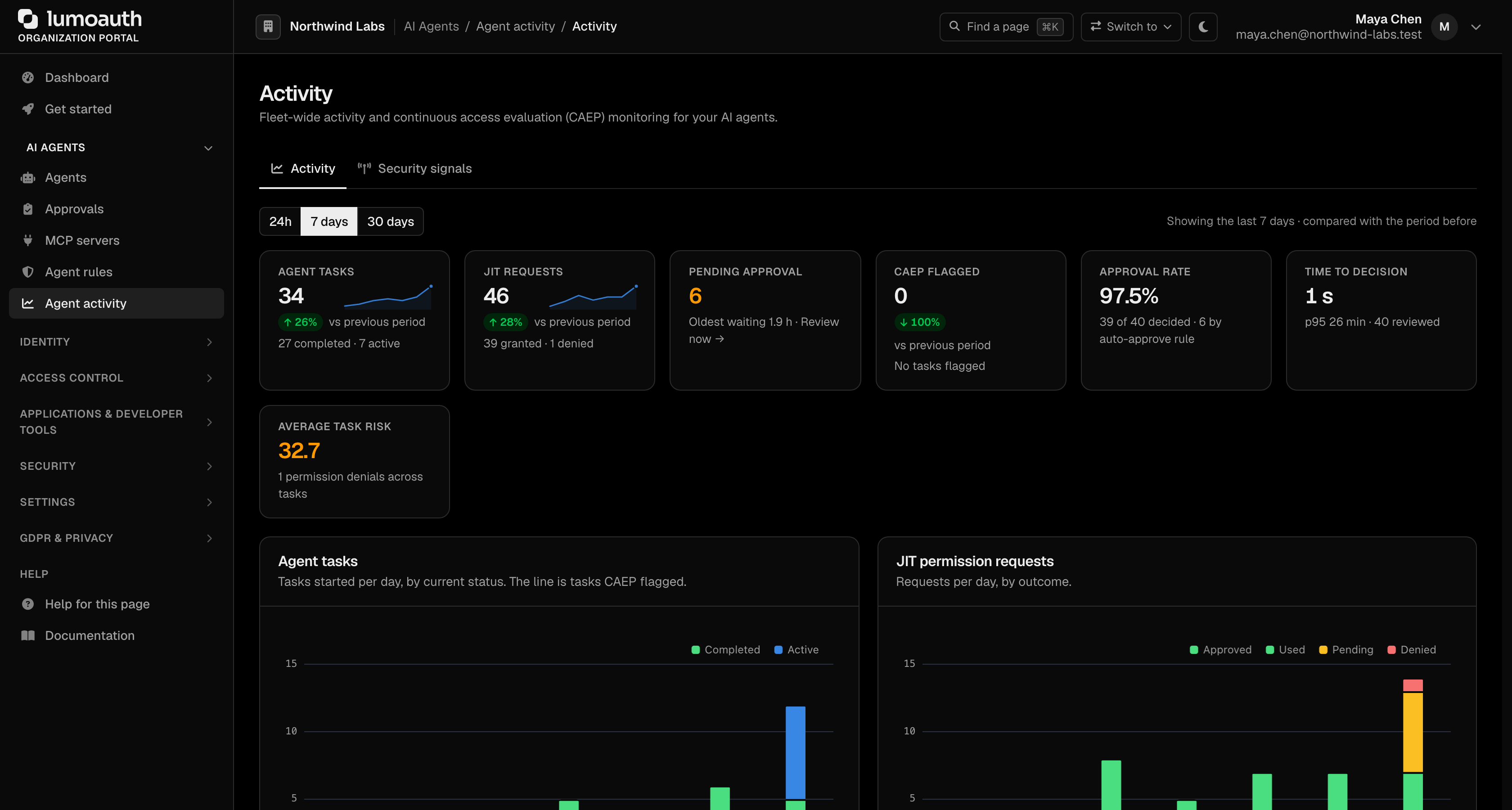
Agent activity (/orgs/{orgId}/portal/caep-dashboard) is the fleet view for your agents. A 24h / 7 days / 30 days switch drives the tiles (Agent tasks, JIT requests, Pending approval, CAEP flagged, Approval rate, Time to decision, Average task risk) and the Agent tasks and JIT permission requests charts. The Security signals tab manages the continuous access evaluation streams that tell receivers when an agent's access changes.
Identity
| Entry | URL | Description |
|---|---|---|
| Users | /orgs/{orgId}/portal/users | Invite users (Invite users), create users with a password (Create user), view profiles, assign roles. Tabs: Users, Invitations and Groups (/portal/groups, organize users into groups; not a sidebar entry of its own) |
| Customer organizations | /orgs/{orgId}/portal/organizations | Customer organizations within your organization, with their own members and invitations |
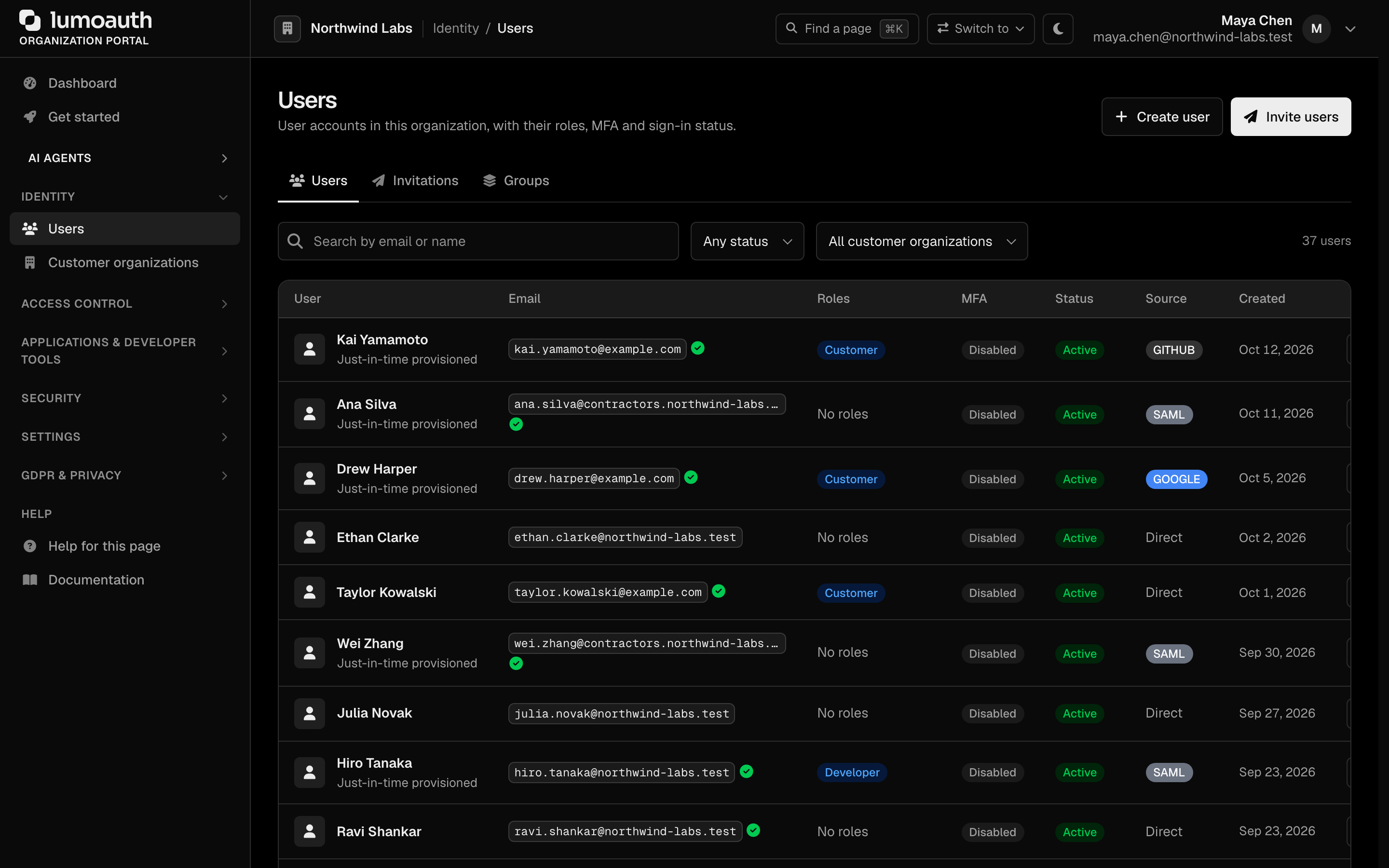
See User Management.
Access control
| Entry | URL | Description |
|---|---|---|
| How access works | /orgs/{orgId}/portal/access | Landing page: the three models, what each answers, what you have set up, and the order one decision is evaluated in |
| Roles & permissions | /orgs/{orgId}/portal/roles | Tabs: Roles (create and manage RBAC roles — start here) and Permissions (/portal/permissions, the catalog roles are built from). Draft with AI opens AI policy authoring when AI is enabled |
| Relationships | /orgs/{orgId}/portal/zanzibar/ | Fine-grained relationship-based access (add-on) |
| Attribute rules | /orgs/{orgId}/portal/abac/ | Attribute-based access control policies (add-on) |
| Test access | /orgs/{orgId}/portal/permissions/tester | One tester, three modes: roles & permissions, attribute rules (/portal/abac/tester, with what-if attribute overrides) and relationships (/portal/zanzibar/tester, with the expansion of who holds the relation) |
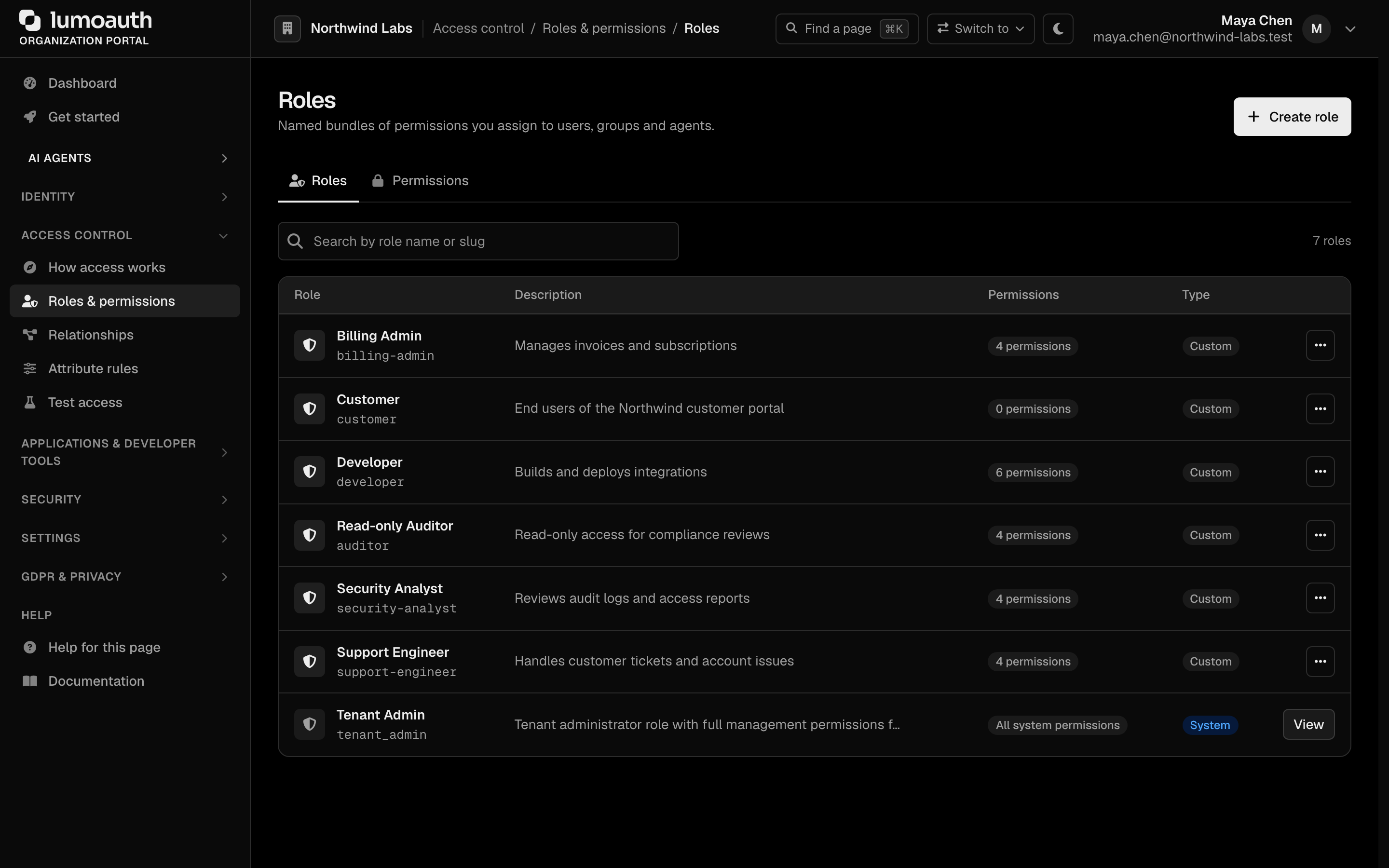
See Access Control for how to choose between the three models.
Applications & developer tools
| Entry | URL | Description |
|---|---|---|
| Applications | /orgs/{orgId}/portal/applications | OAuth 2.0 / OIDC and SAML applications. Click New application |
| Quickstarts | /orgs/{orgId}/portal/onboarding/quickstart | Copy-paste integration snippets pre-filled with your organization values. Each framework tab lists only clients of the kind its snippets need (public PKCE for browser apps, confidential for server apps, machine-to-machine for scripts), can create one that returns to the tab, and ends with Check it worked — the first sign-in through the selected client |
| API keys | /orgs/{orgId}/portal/settings/api-keys | Keys for the Admin API. Click Create API key |
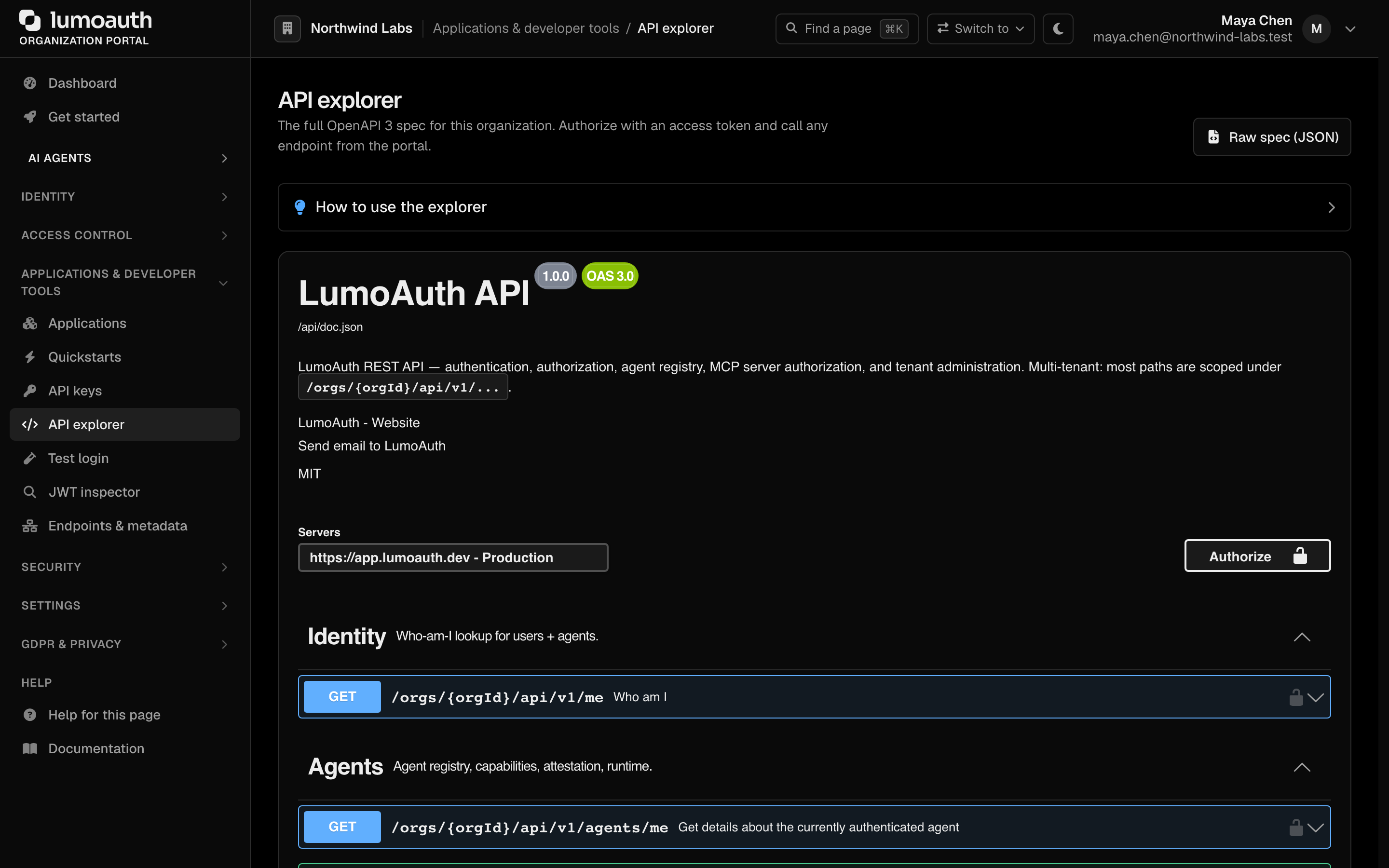
| API explorer | /orgs/{orgId}/portal/developer/api-explorer | Try API calls from the browser |
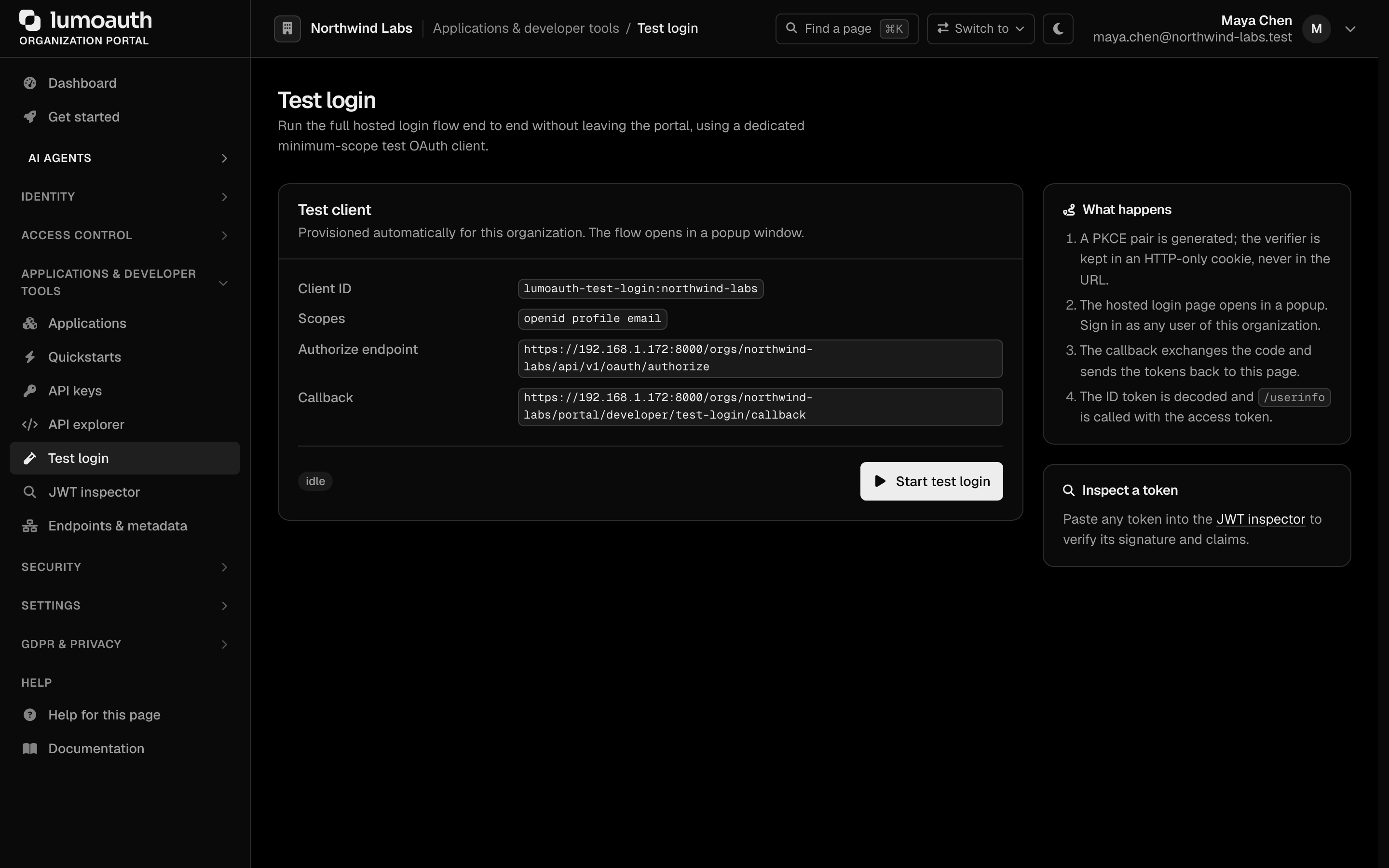
| Test login | /orgs/{orgId}/portal/developer/test-login | Run a real sign-in against your organization |
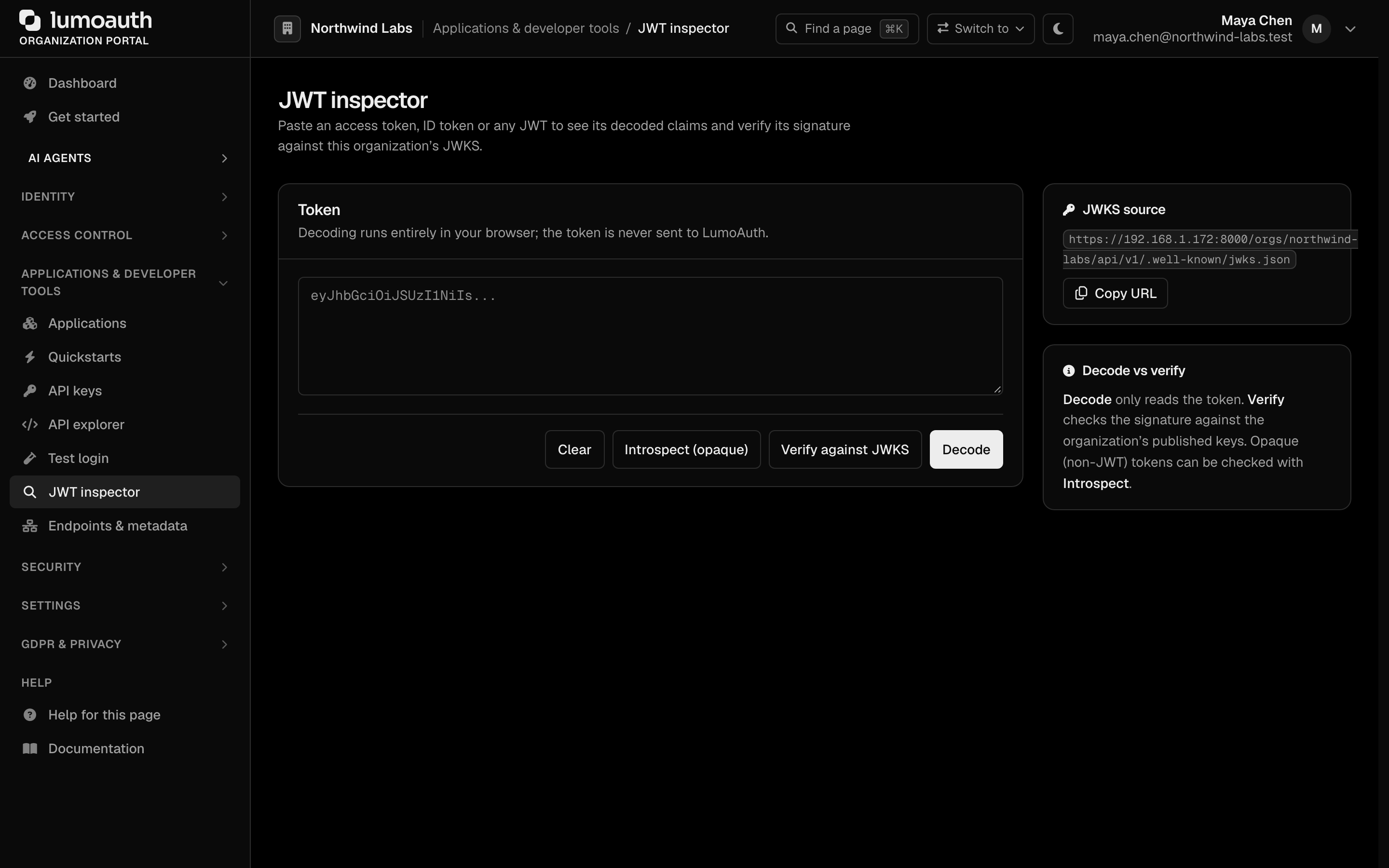
| JWT inspector | /orgs/{orgId}/portal/developer/jwt-inspector | Decode and check tokens |
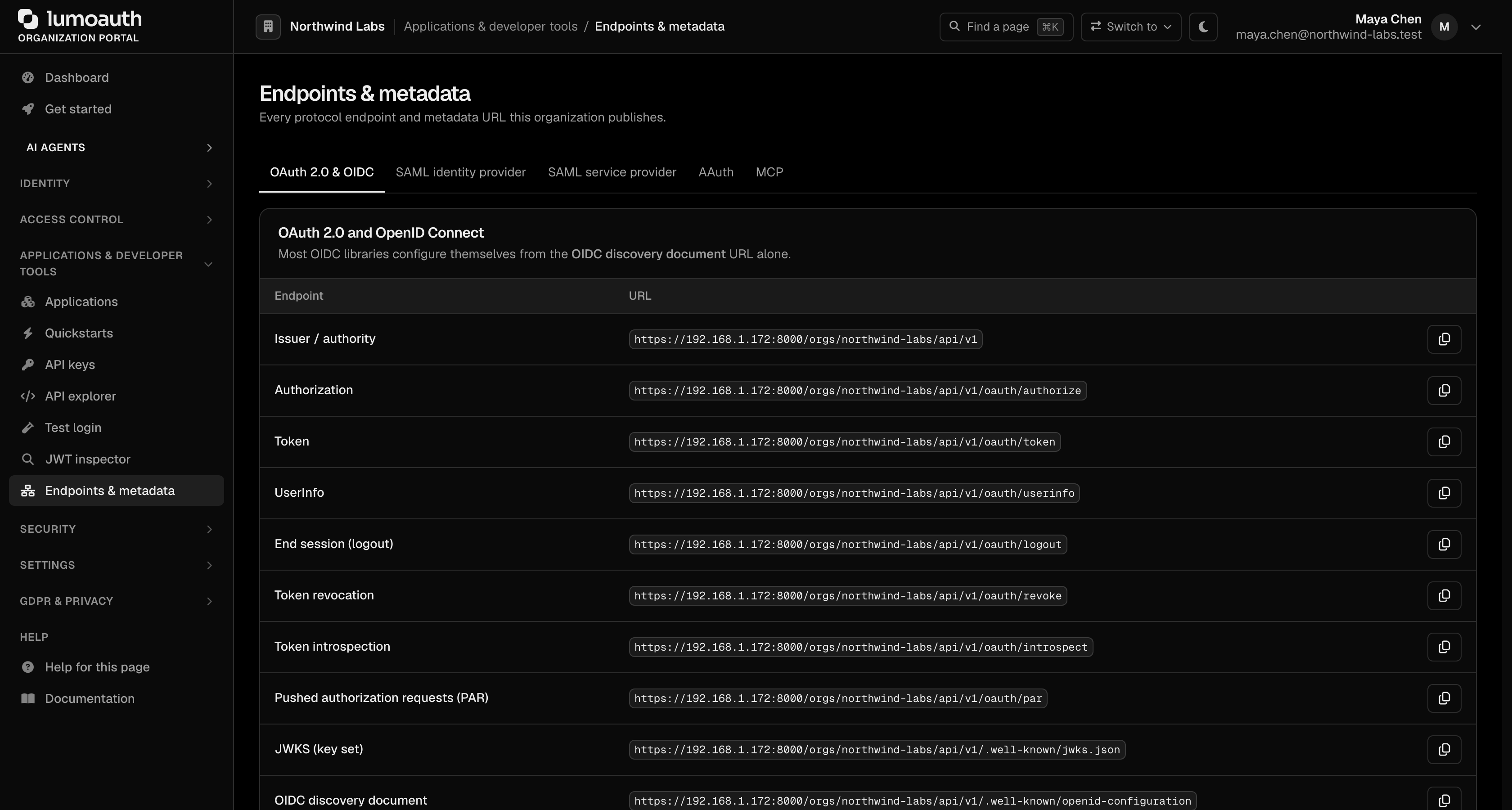
| Endpoints & metadata | /orgs/{orgId}/portal/metadata | Issuer, discovery document, JWKS and other endpoint URLs |
The Applications page has two tabs: Yours (the applications you created) and Provided by LumoAuth (first-party clients such as the LumoAuth CLI, managed for you). Search by name or identifier.
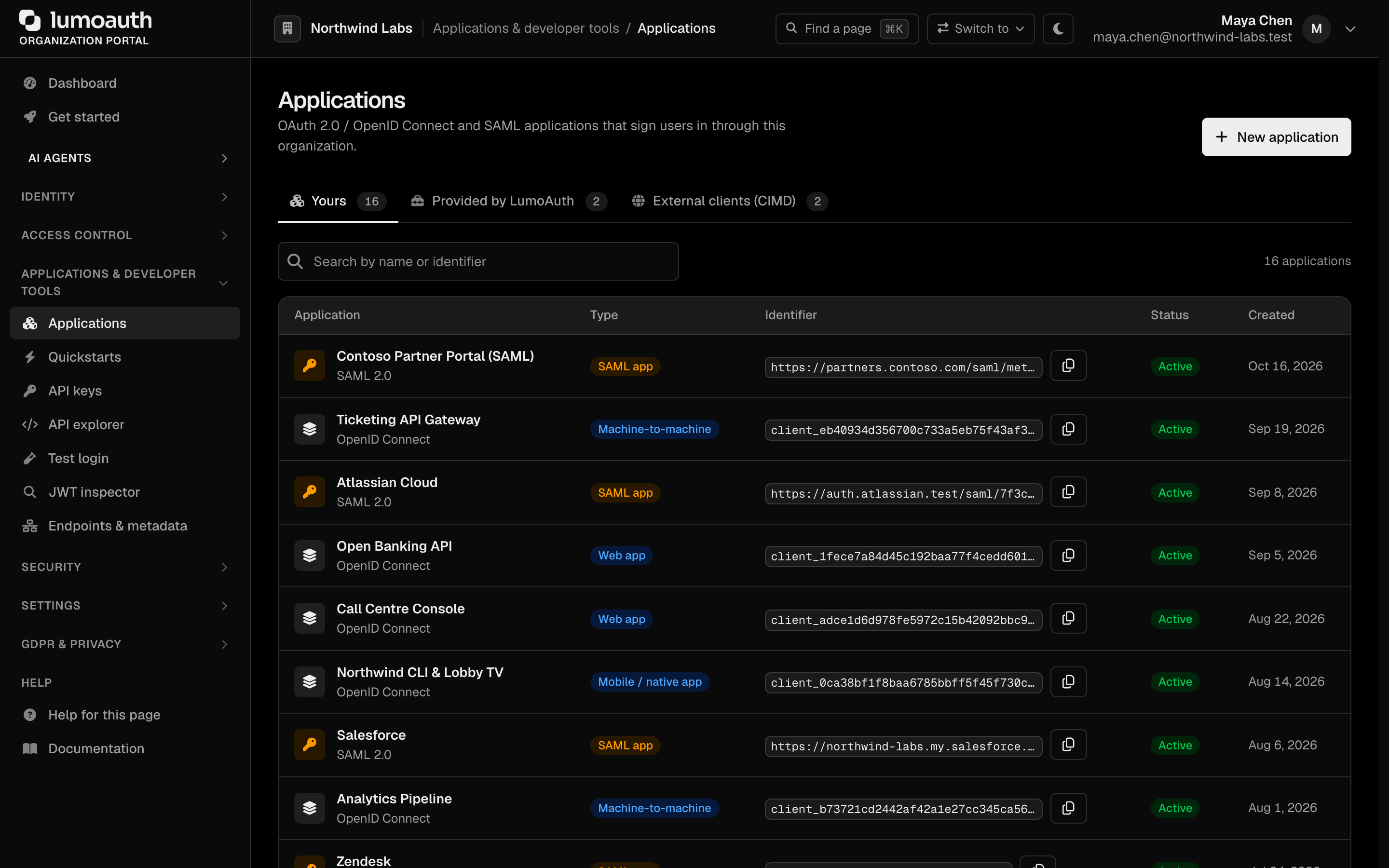
See Applications.
Developer tools
API explorer loads the organization's OpenAPI 3 spec in an interactive explorer (with a Raw spec (JSON) link). Choose Authorize, paste a Bearer access token, then expand an endpoint to try it. Open How to use the explorer for a short guide.
Test login runs the complete hosted sign-in flow without leaving the portal, using a dedicated test client that LumoAuth provisions for the organization (its client ID, scopes, authorize endpoint and callback are shown). Start test login opens the sign-in in a popup, exchanges the code with PKCE and shows the Token response, the Decoded ID token claims and the /userinfo response (or an Error).
JWT inspector decodes an access token, ID token or any JWT in your browser (the token is never sent to LumoAuth). Decode reads the header and claims, Verify against JWKS checks the signature against the organization's published keys, and Introspect (opaque) asks the introspection endpoint about non-JWT tokens.
Endpoints & metadata lists every URL your integrations need, one tab per protocol: OAuth 2.0 & OIDC (issuer, authorization, token, UserInfo, logout, revocation, introspection, PAR, JWKS and the discovery document), SAML identity provider, SAML service provider, AAuth and MCP. Each has a copy button.
Security
| Entry | URL | Description |
|---|---|---|
| Sign-in settings | /orgs/{orgId}/portal/settings/authentication | Identity methods, login flow, password standards, session timeout, MFA policy |
| Adaptive security | /orgs/{orgId}/portal/settings/adaptive-auth | Risk-based authentication settings |
| Signing keys | /orgs/{orgId}/portal/signing-keys | Manage JWT signing keys (RSA/EC) |
| Audit logs | /orgs/{orgId}/portal/audit-logs | View all authentication and admin events |

Settings
| Entry | URL | Description |
|---|---|---|
| Integrations | /orgs/{orgId}/portal/integrations | One hub for social login (Add provider), enterprise SSO (SAML and OIDC), LDAP, SCIM, webhooks, log export, alerting and more |
| Login page & emails → Login page | /orgs/{orgId}/portal/settings/login-page | Branding, layout and self-registration for the sign-in, registration and consent pages |
| Login page & emails → Email templates | /orgs/{orgId}/portal/settings/email-templates | Customize verification, reset, invite emails |
| Custom domains | /orgs/{orgId}/portal/custom-domains | Map your domain to this organization |
| Billing | /orgs/{orgId}/portal/billing | Plan, usage and add-ons |
| Data export | /orgs/{orgId}/portal/data-export | Export organization data |

Webhooks are managed under Settings → Integrations → Webhooks (add one at /orgs/{orgId}/portal/integrations/webhooks/create). From there you can send a test event and open a webhook's delivery history. They are also available through the Admin API at /orgs/{orgId}/api/v1/admin/webhooks.
GDPR & privacy
| Entry | URL | Description |
|---|---|---|
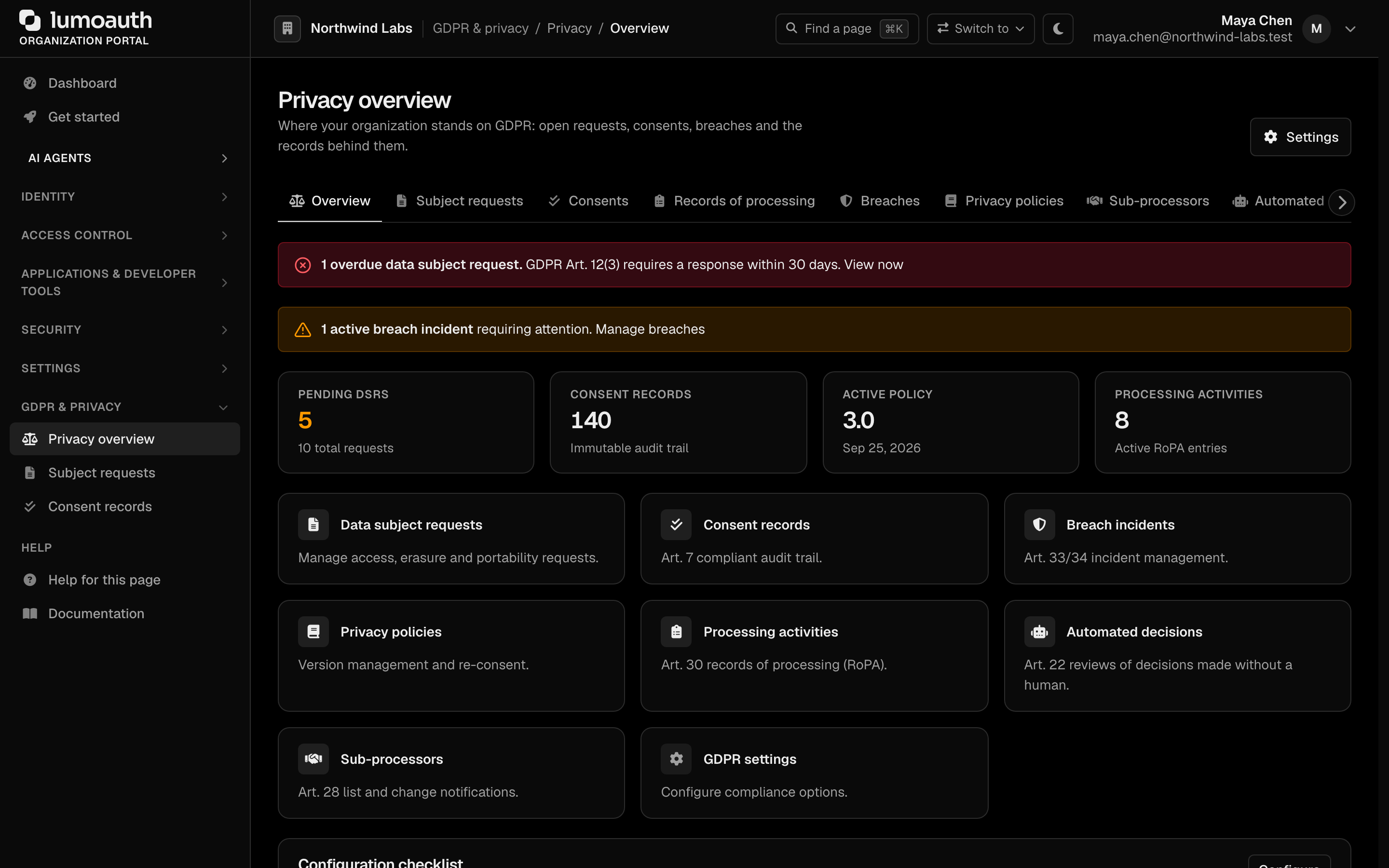
| Privacy overview | /orgs/{orgId}/portal/gdpr | Entry point to breach incidents, privacy policies, processing activities and GDPR settings |
| Subject requests | /orgs/{orgId}/portal/gdpr/dsr | Data subject access and deletion requests |
| Consent records | /orgs/{orgId}/portal/gdpr/consent-records | Who consented to what, and when |
Help
Help for this page opens the guide for the page you are on, in a new tab (see the portal page → guide map; the entry is hidden on pages without a guide). Documentation opens the home page of this documentation site.
Portal Navigation
Portal Access
Who Can Access the Portal?
Users with the organization admin role (the system role named Tenant Admin in the portal) can access the full portal. Anyone else who holds at
least one admin-plane system permission (for example only users.view, or only jit.approve)
can open the portal too, but sees only what they may use:
- the sidebar hides every entry the user holds no permission for;
- each page and action checks its own permission (
users.viewto list users,users.editto save one,billing.managefor billing,gdpr.managefor privacy requests, and so on) and answers403otherwise; settings.managecovers authentication and security settings, API keys, custom domains and integrations, not the whole portal.
See How the admin permissions work.
Logging In
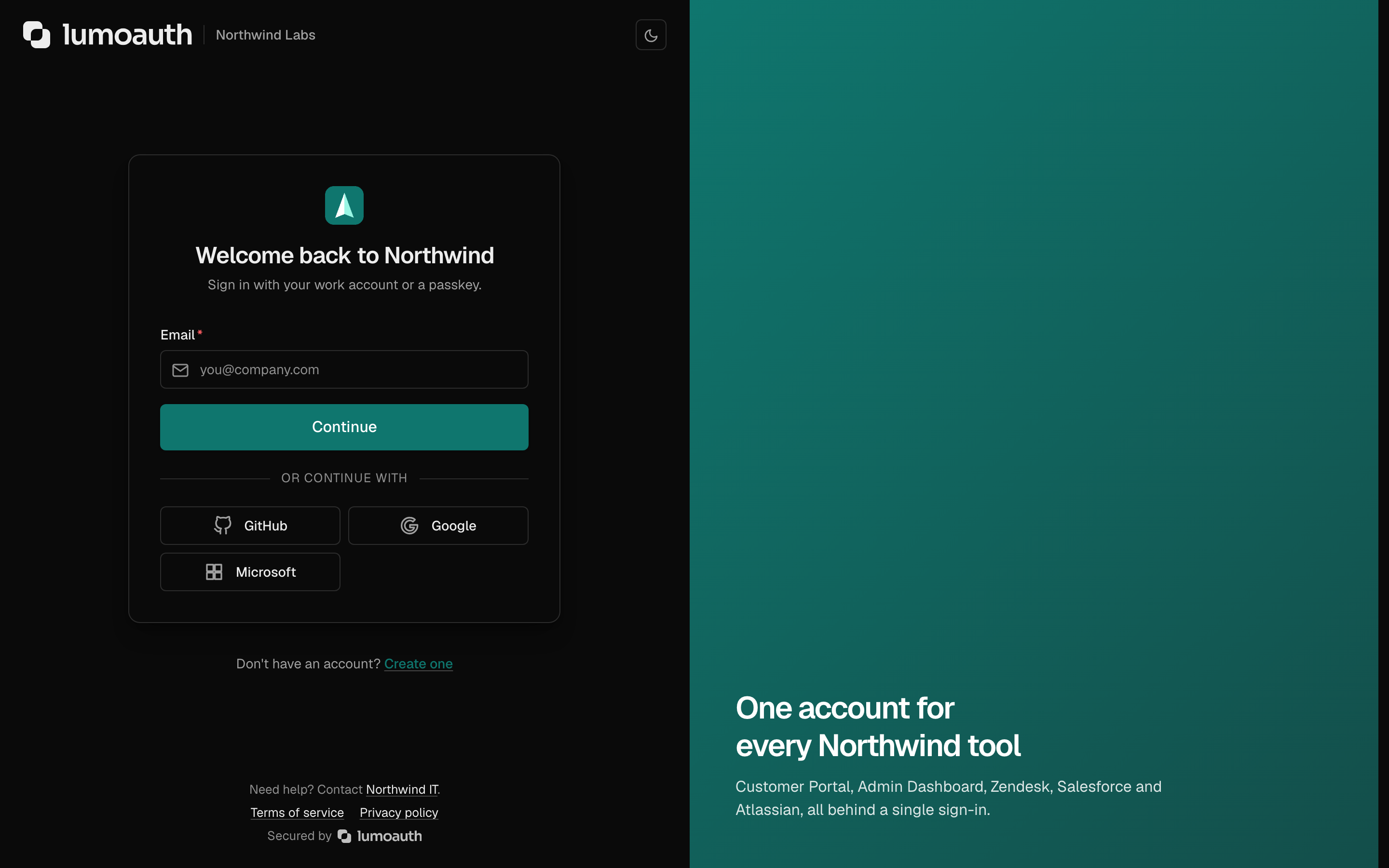
Organization admins log in through the standard login page at /orgs/{orgId}/login and are redirected to the portal after authentication.
Related Guides
- Organization Setup - Create and configure organizations
- Custom Domains - Use your own domain
- Access Control Overview - Manage roles and permissions