Login Page & Branding
Customize the login page for each organization — logo, brand colors, background, layout, custom CSS, custom HTML, and AI-generated themes. Branding is scoped per organization and can be further overridden per OAuth application.
Accessing Login Page Settings
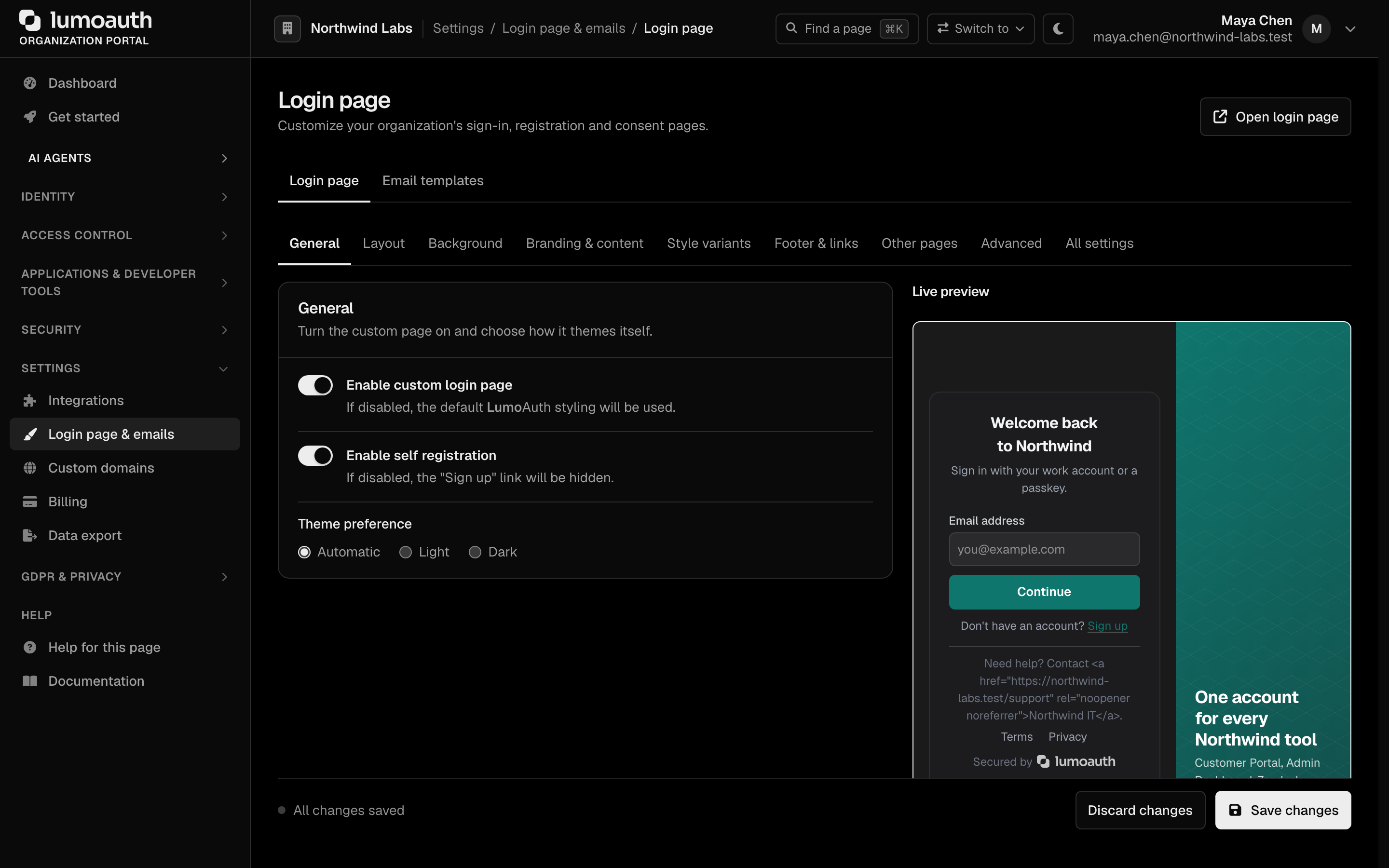
Go to Settings → Login page & emails → Login page (/orgs/{orgId}/portal/settings/login-page) in your organization portal. The page is one form split into sections (General, Layout, Background, Branding & content, Style variants, Footer & links, Other pages, Advanced) with a Live preview beside it.
Under General, turn on Enable custom login page; while it is off, the default LumoAuth styling is used and none of the settings below (including custom CSS and layouts) reach a page. Enable self registration controls whether the "Create one" link is shown, whether or not the custom page is on. Theme preference picks automatic, light or dark; choosing light or dark fixes the theme for every visitor and removes the theme toggle from your sign-in pages. Click Save changes to apply, and use Open login page at the top to see the result on the real page.
The settings apply to the whole sign-in journey of your organization: sign-in, password reset, email verification and MFA. Registration and the OAuth consent and device pages follow their own switches under Other pages.
Basic Branding
Logo
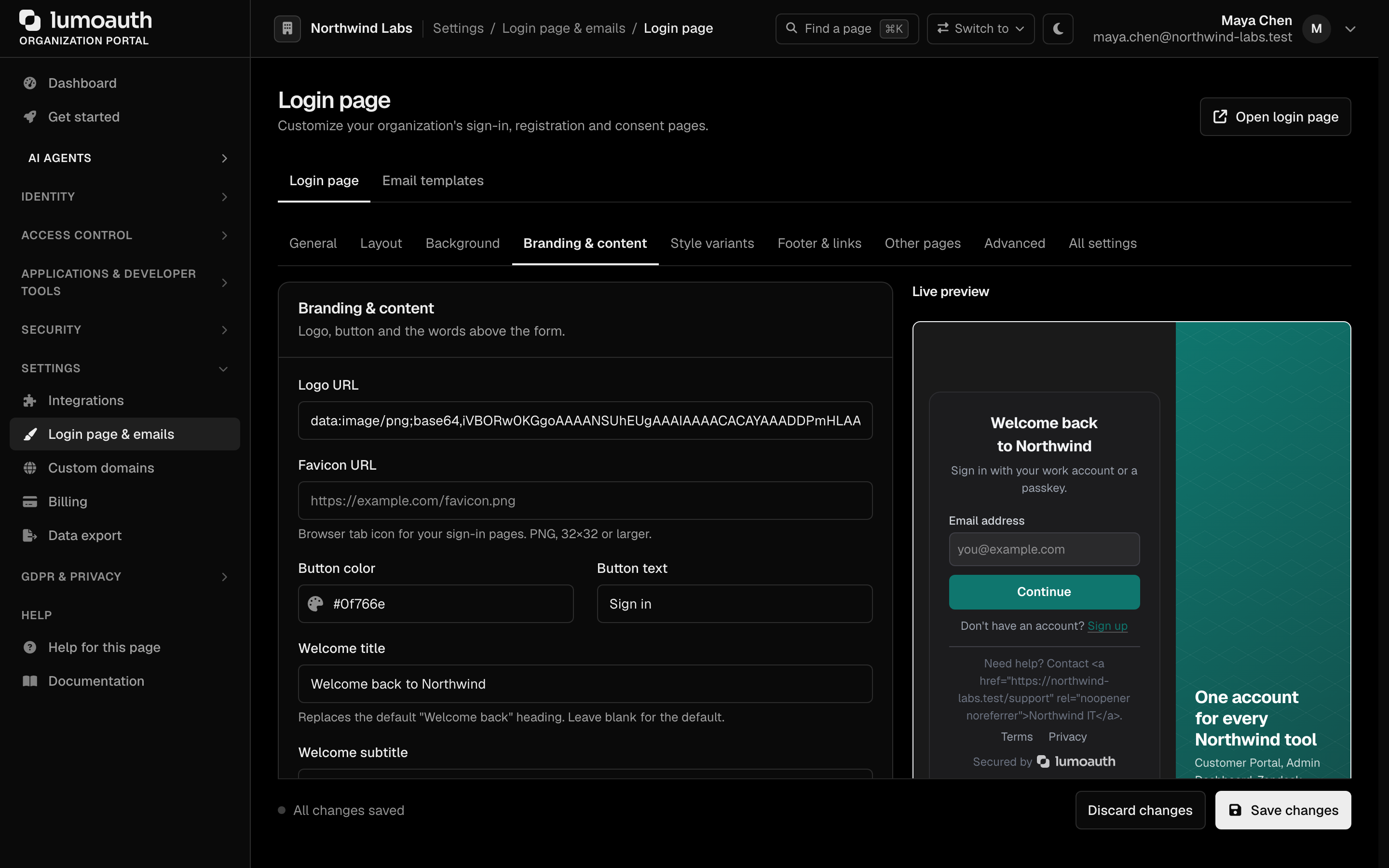
In Branding & content, enter the https:// address of your logo in Logo URL to display it at the top of the login page. Recommended format: PNG or SVG, transparent background, minimum 200px wide. Favicon URL sets the browser tab icon of your sign-in pages.
Image and link fields accept https:// (or http://) addresses only; a small inline data: PNG, JPEG, GIF or WebP also works for images. Anything else is refused when you save and the page tells you which field was not stored.
Welcome Text
Set Welcome title to replace the default "Welcome back" heading shown above the login form — for example, "Welcome to Acme Corp" — and Welcome subtitle to replace the line beneath it. Button text changes the label of the sign-in button. The title and button text are plain text; the subtitle and footer text keep bold, italics and links and drop any other HTML.
Show organization name controls the name next to the mark at the top of the page, and Show org name in subtitle adds "to continue to your organization" under the title when you have not set a subtitle of your own.
Footer Text
In Footer & links, add a Custom footer text message, such as contact information or a support link, and optionally a Terms of service URL and Privacy policy URL.
Colors & Background
| Setting | Description |
|---|---|
| Button color (Branding & content) | Used for the sign-in button, links and focus rings. The button label switches between white and near-black automatically so it stays readable on your colour. |
| Background type (Background) | Choose between Solid color, Gradient, Image, or Pattern only |
| Show geometric pattern overlay (Background) | Adds a subtle pattern on top of the background, in the Pattern style you pick |
For a gradient background, pick one of the preset swatches or enter a linear-gradient(), radial-gradient() or conic-gradient() value. For an image background, Overlay opacity darkens the image so text stays readable. Text that sits directly on your background (the header, the footer, the line under the form) follows the background's lightness, not the visitor's theme. A solid background left at the default white keeps the standard light and dark grounds.
Layout Options
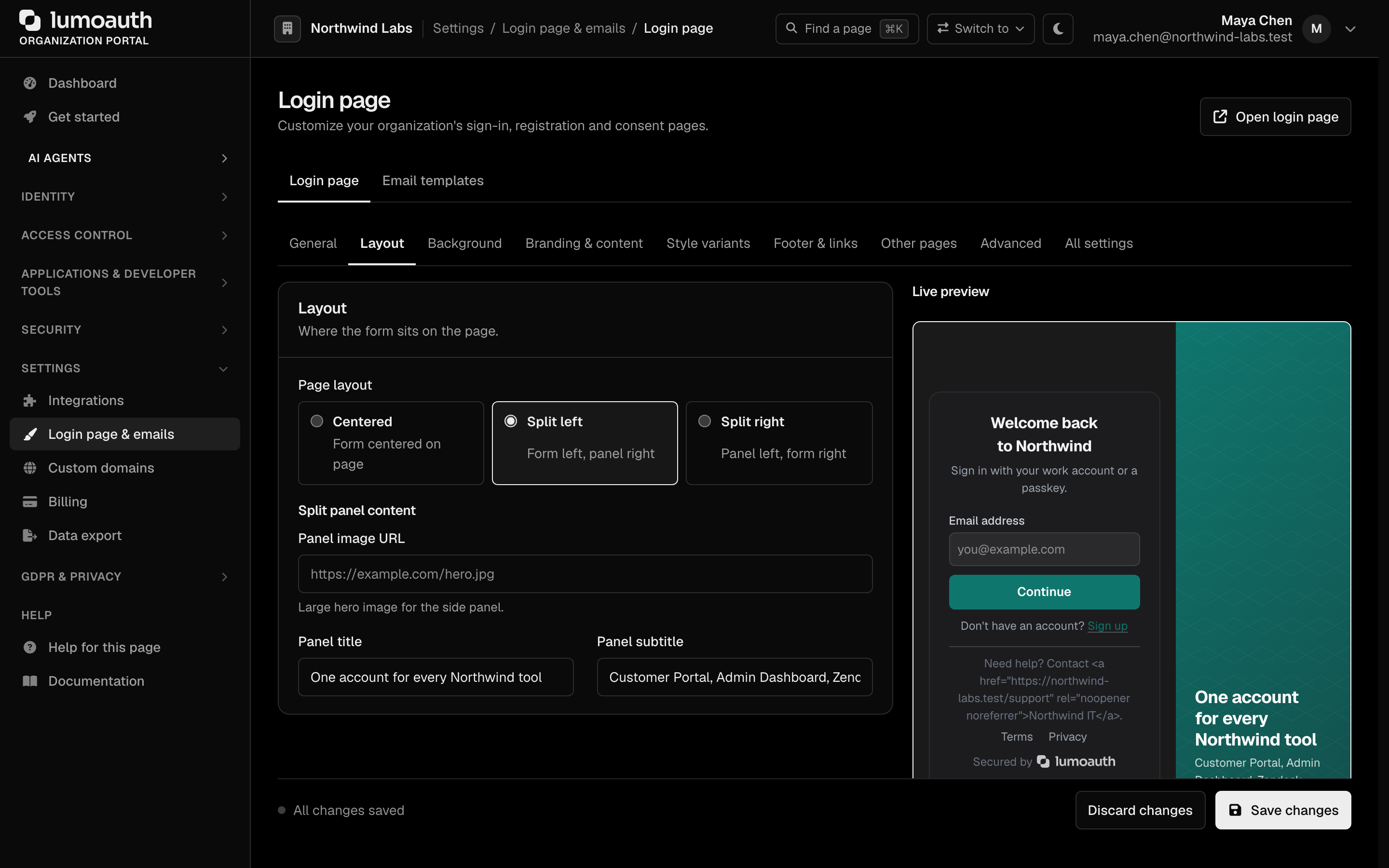
Under Layout, pick a Page layout to control how the login form is positioned on the page: Centered, Split left (form left, panel right) or Split right (panel left, form right). In the split layouts the panel shows your background, or the Panel image, with the Panel title and Panel subtitle over it; on phones the panel is hidden and the form takes the full width. Style variants sets the shape of inputs (rounded, square, pill), buttons (filled, outline, pill) and the form card (card, flat, glass).
Per-Application Branding
You can configure separate branding for individual OAuth applications:
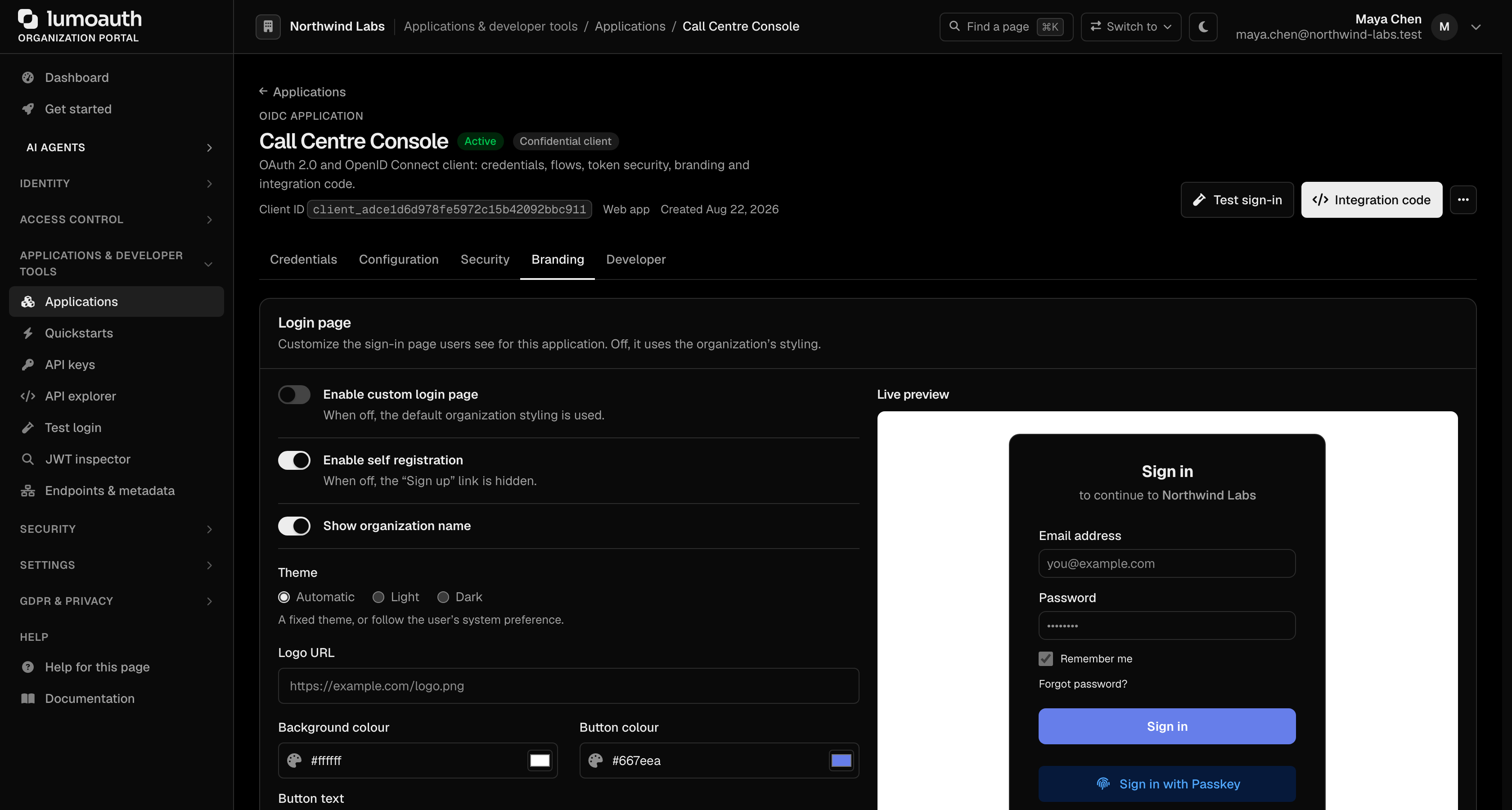
- Go to
/orgs/{orgId}/portal/applications/oidc/{clientId} - Open the Branding tab
- In the Login page section, turn on Enable custom login page and override the organization-level logo, background and button colours, button text and custom CSS for this specific application. Everything the application does not set (layout, background type, footer and so on) comes from the organization's settings.
- Click Save login page
This is useful if you serve multiple products under one organization but want each to have its own branded login experience.
AI Theme Generation
LumoAuth can automatically generate a matching color scheme and visual style by analyzing your website.
- Go to
/orgs/{orgId}/portal/settings/login-page - Click Generate theme with AI at the top of the page (the button is shown only when an AI provider is configured)
- Enter your website URL and click Generate
- LumoAuth analyzes your site's colors, fonts, and style, then suggests a matching login page theme
- Preview the result and apply it or adjust individual settings
AI theme generation requires a configured AI provider and a plan that includes it (Pro or higher). The feature uses your website's publicly accessible home page — no login or access is needed.
Custom CSS
Add your own stylesheet in the Custom CSS tab of the Advanced customization section and click Save changes. It is loaded after the settings above, on your organization's sign-in pages only, so a plain class selector is enough to override them:
/* A rounder card with a brand-coloured border */
.lumo-card {
  border-radius: 20px;
  border: 2px solid #16a34a;
}

.lumo-auth-title { font-size: 2rem; }
.lumo-button-primary { letter-spacing: 0.02em; }

@media (max-width: 480px) {
  .lumo-auth-footer { font-size: 11px; }
}
Applying custom CSS requires the Pro plan or higher; on other plans the section shows an upgrade notice and the stylesheet is not served.
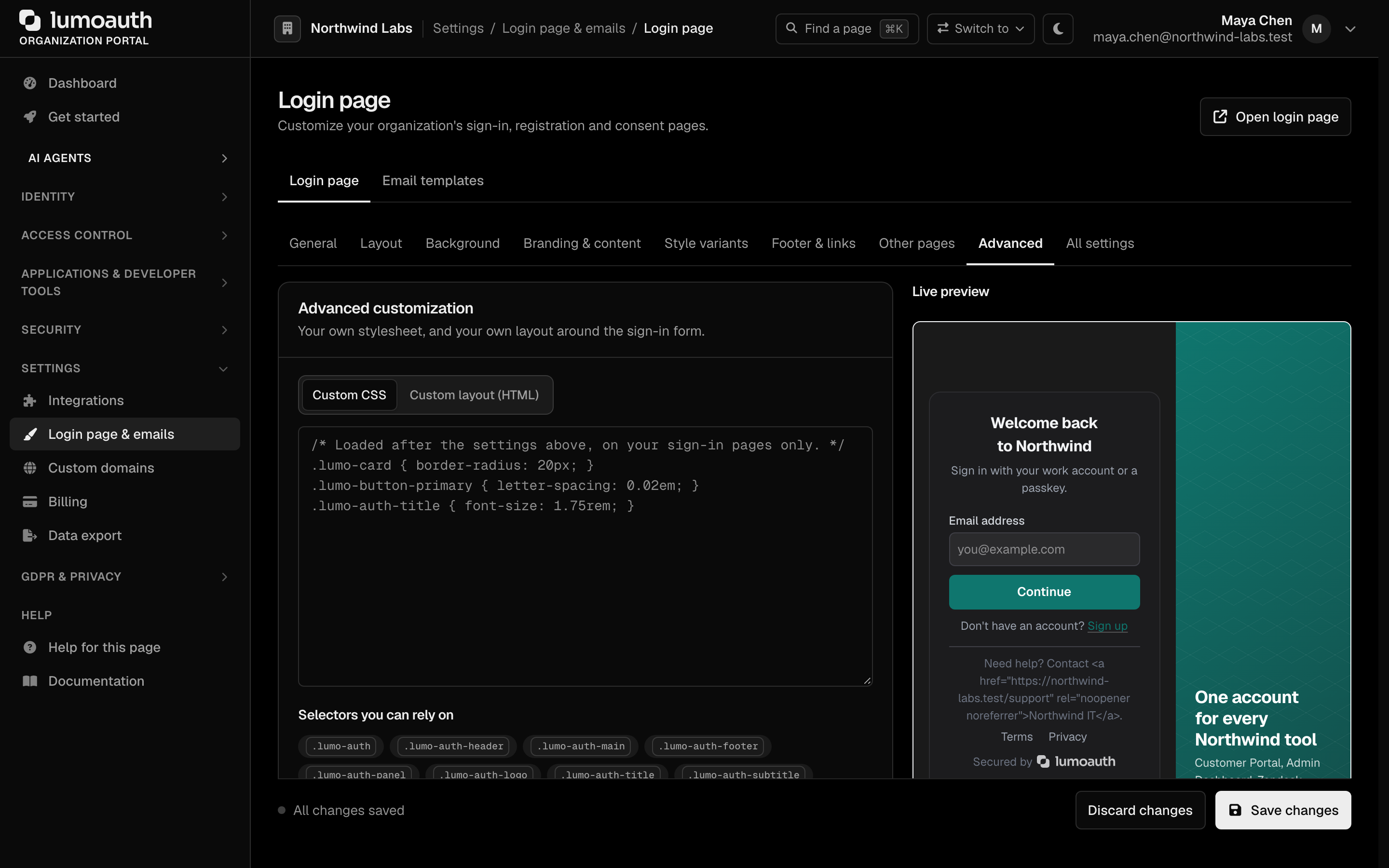
Selectors you can rely on
| Selector | Element |
|---|---|
.lumo-auth | The page. Carries data-auth-layout, data-auth-input, data-auth-button and data-auth-card with your chosen variants. |
.lumo-auth-header, .lumo-auth-main, .lumo-auth-footer | Top bar, the area around the form, and the footer |
.lumo-auth-panel, .lumo-auth-panel-title, .lumo-auth-panel-subtitle | The side panel of the split layouts |
.lumo-auth-logo, .lumo-auth-title, .lumo-auth-subtitle, .lumo-auth-signup | Logo, heading, the line under it, and the "Create one" line |
.lumo-card | The form card |
.lumo-input | Text fields |
.lumo-button, .lumo-button-primary, .lumo-button-secondary | Buttons |
Other class names on the page are implementation details and can change between releases.
What the CSS filter allows
Your stylesheet is served from the origin shared by every organization, so LumoAuth does not try to spot dangerous CSS: it parses the stylesheet and rebuilds it from the parts it recognises. Anything else is dropped. The same filter runs on the portal form, the Admin API and AI-generated themes, and again every time the stylesheet is served.
| Kept | Details |
|---|---|
| Style rules | Class, element and attribute selectors, combinators, the common pseudo-classes and pseudo-elements (:hover, :focus-visible, :not(), :is(), :has(), :nth-child(), ::before, …) and nesting |
@media, @supports, @container, @layer, @keyframes | With their nested rules |
| Declarations | Standard and custom (--name) properties; colour, gradient, transform, filter, shape, timing and math functions; var(), calc(), attr(), env() |
| Inline images | url() with a data: PNG, JPEG, GIF or WebP only |
| Dropped | Reason |
|---|---|
@import, @font-face, @namespace and every other at-rule | Loads from another site or changes how the page is parsed |
url() with any address (https://, //, relative paths), image-set(), image(), src(), cross-fade(), element() | A request the page would make. Attribute selectors plus per-character background images are a known way to read what a user types. |
data: URLs other than raster images | SVG and non-image data URLs can carry script |
expression(), behavior, -moz-binding, javascript: | Script execution in old browsers |
| Functions that are not on the allow-list, and backslash escapes outside quoted strings | An escape such as \75rl( could otherwise hide a blocked function |
HTML (</style>, <script>) | The stylesheet is never placed inside a page, and markup is removed anyway |
A declaration with a dropped part is removed as a whole; the rest of the rule stays. The stylesheet is stored in a normalized form (one rule per line, comments removed) and can be up to 64 KB. Use the Logo and Background image fields for hosted images. Web fonts cannot be loaded from custom CSS.
Custom HTML
The Custom layout (HTML) tab of the Advanced customization section lets you arrange the sign-in page yourself. You write the markup around the form and mark where each part goes; LumoAuth always renders the sign-in form itself, so a layout cannot change how credentials are collected.
<section class="acme-login">
  <header class="acme-top">
    {{ logo }}
    {{ title }}
  </header>
  <p class="acme-tagline">Everything your team needs, behind one sign-in.</p>
  {{ widget }}
  {{ signup_link }}
</section>
Style the layout from the Custom CSS tab using your own class names. The layout applies to the sign-in page (not to registration or consent) and needs the same plan as custom CSS.
| Placeholder | What is put there |
|---|---|
{{ widget }} | The sign-in form: messages, the email and password steps, passkey, magic link and social buttons. Required, once. |
{{ logo }} | Your logo |
{{ title }} | The welcome title |
{{ subtitle }} | The welcome subtitle |
{{ signup_link }} | The "Create one" line, when self registration is on |
{{ org_name }} | Your organization's name, as text |
A layout without {{ widget }} is saved but not used: the standard page is shown and the settings page tells you why. Each placeholder is used once, and only between tags; a placeholder inside an attribute (for example in a link address) is removed.
What is kept when you save:
| Kept | Details |
|---|---|
| Elements | div, span, p, h1 to h6, a, img, br, hr, ul, ol, li, section, article, header, footer, nav, main, aside, blockquote, figure, figcaption, strong, b, em, i, u, small |
| Attributes | class, role, aria-label, aria-hidden, lang, dir; on a: href, target, title; on img: src, alt, width, height |
| Link schemes | https, http (rewritten to https) and mailto. Links get rel="noopener noreferrer". |
| Image sources | https only (an http source is rewritten to https). Images are requested without a referrer. |
Everything else is dropped: script, style, iframe, object, embed, form, input, button, link, meta, svg, comments, inline style attributes, event handlers such as onclick, and the id, name and data-* attributes (the sign-in form finds its own elements by them). The layout can be up to 20 KB and is filtered again every time the page is rendered. Welcome and footer text go through a stricter version of the same filter (inline formatting and links only).
The sign-in pages do not run organization-supplied JavaScript, and the pages' Content Security Policy only allows LumoAuth's own scripts. If you need behaviour the hosted page does not offer, build your own sign-in UI on the OAuth and authentication APIs.
Changes to the login page are recorded in the audit log as branding.login_page_updated, including whether the custom CSS or layout changed.
Preview
The Live preview panel beside the form updates as you change settings, so you can see the result before you click Save changes. Nothing goes live until you save. The preview is a sketch of the structured settings: custom CSS and layouts are never run inside the portal, so check them with Open login page after saving.
Per-Application Consent Page
In addition to the login page, you can also customize the OAuth consent page per application:
- Go to
/orgs/{orgId}/portal/applications/oidc/{clientId} - Open the Branding tab and scroll to the consent page section
- Turn on Enable custom consent page and configure the page title, description, logo and colours shown to users when they authorize your app
- Click Save consent page
Related
- Custom Domains — serve your login page from your own domain
- Email Templates — customize transactional email appearance
- OAuth Applications — per-client branding settings