Custom Domains
Custom domains let you serve an organization's authentication pages under your own domain instead of the default /orgs/{orgId}/ path, so users see https://auth.acme.com/login rather than the default URL.
How It Works
| Without Custom Domain | With Custom Domain |
|---|---|
https://lumoauth.example.com/orgs/acme-corp/login | https://auth.acme.com/login |
https://lumoauth.example.com/orgs/acme-corp/api/v1/oauth/authorize | https://auth.acme.com/api/v1/oauth/authorize |
https://lumoauth.example.com/orgs/acme-corp/api/v1/.well-known/openid-configuration | https://auth.acme.com/api/v1/.well-known/openid-configuration |
When a custom domain is configured, the /orgs/{orgId} prefix is no longer needed. LumoAuth automatically maps requests to the correct organization based on the domain.
Setting Up a Custom Domain
1. Add the Domain in LumoAuth
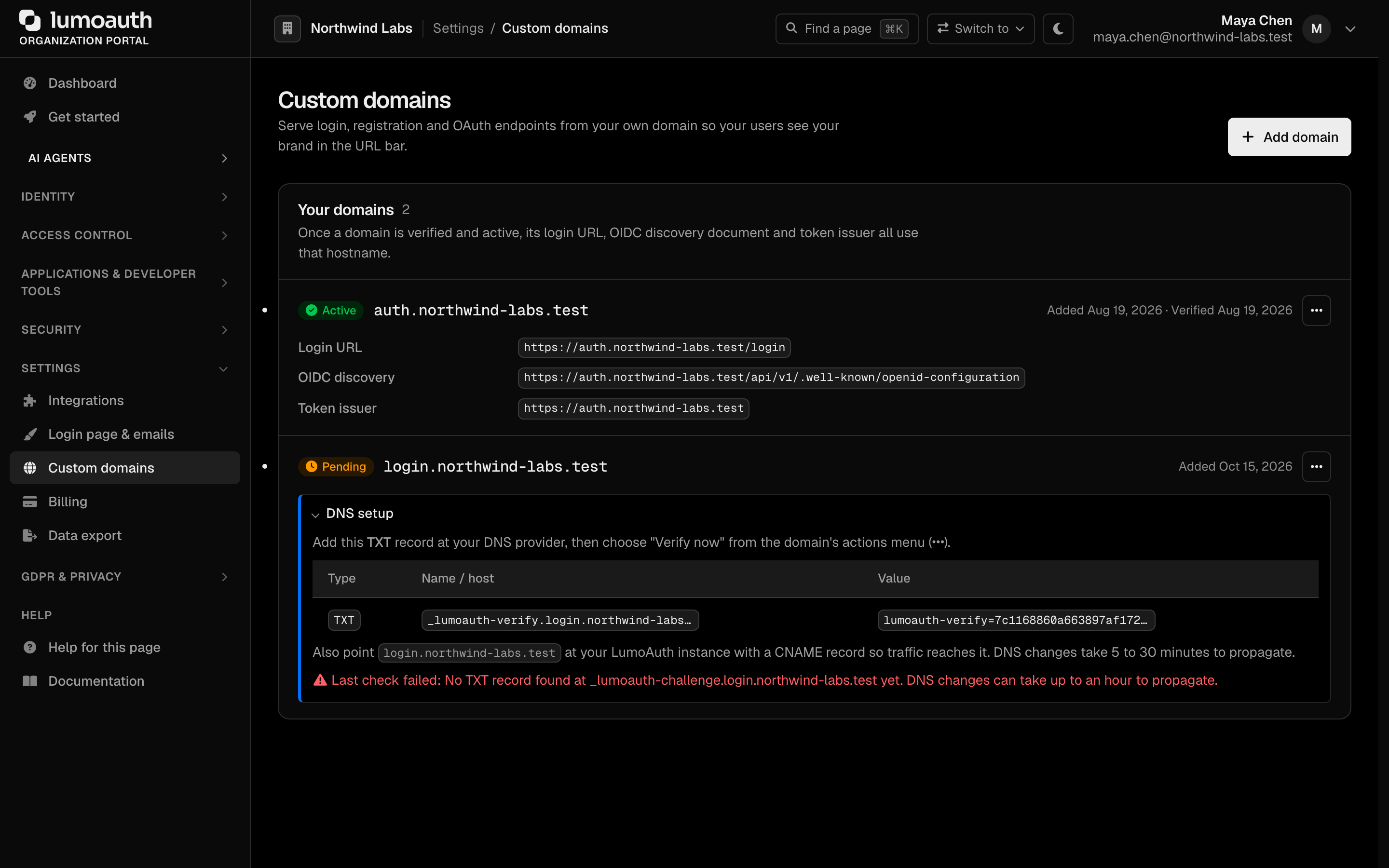
- Go to Settings → Custom domains (
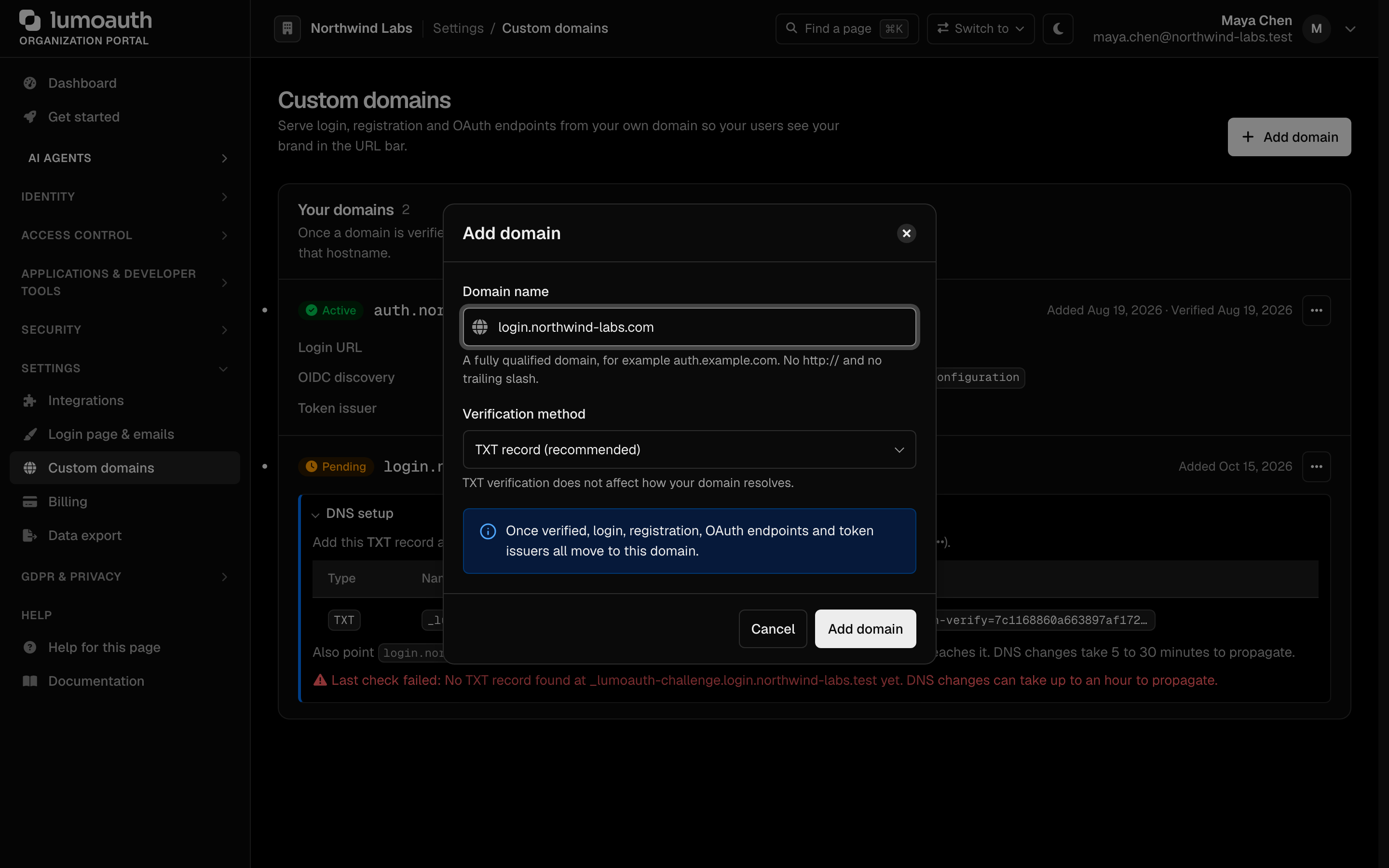
/orgs/{orgId}/portal/custom-domains) - Click Add domain
- Enter your Domain name (e.g.,
auth.acme.com), with nohttp://and no trailing slash - Pick a Verification method: TXT record (recommended), which does not affect how the domain resolves, or CNAME record
- Click Add domain
Custom domains are a paid-plan feature; see the pricing matrix.
2. Configure DNS
Open DNS setup on the new domain's card and add the TXT or CNAME verification record it shows at your DNS provider. Then add a CNAME record pointing your domain to your LumoAuth instance so traffic reaches it:
auth.acme.com CNAME lumoauth.example.com
Or for an apex domain, use an A record pointing to your LumoAuth server IP.
3. TLS Certificate
LumoAuth handles TLS certificates for custom domains. After DNS propagation, the certificate is provisioned automatically.
4. Verify the Domain
Once DNS is configured, choose Verify now from the domain's actions menu on the Custom domains page. LumoAuth confirms the verification record and activates the custom domain.
OIDC Discovery with Custom Domains
When a custom domain is active, the OIDC discovery document updates automatically:
Before:
{
  "issuer": "https://lumoauth.example.com/orgs/acme-corp/api/v1",
  "authorization_endpoint": "https://lumoauth.example.com/orgs/acme-corp/api/v1/oauth/authorize",
  "token_endpoint": "https://lumoauth.example.com/orgs/acme-corp/api/v1/oauth/token"
}
After:
{
  "issuer": "https://auth.acme.com",
  "authorization_endpoint": "https://auth.acme.com/api/v1/oauth/authorize",
  "token_endpoint": "https://auth.acme.com/api/v1/oauth/token",
  "jwks_uri": "https://auth.acme.com/api/v1/.well-known/jwks.json"
}
The endpoints keep their /api/v1/... paths; only the /orgs/{orgId} prefix disappears. The issuer is the bare domain with no path.
Issuer and token validation
Every token minted for a request that arrived on the custom domain carries "iss": "https://auth.acme.com"; every token minted on the organization path carries "iss": "https://lumoauth.example.com/orgs/acme-corp/api/v1". The iss parameter on authorization responses and the iss in introspection responses follow the same rule. In short: the issuer is whatever the discovery document of the entry point you use says.
- Pick one entry point per application (the custom domain, once verified).
- Fetch its discovery document at startup and pass
issuerandjwks_urito your OIDC library. - Never mix entry points inside one application: a code obtained on
auth.acme.comand redeemed on the/orgs/acme-corp/path yields a token whoseissyour app will reject, which is the correct outcome under the issuer identifier check.
Tokens minted before 16 September 2026 carried https://lumoauth.example.com/orgs/acme-corp (no /api/v1). LumoAuth's own verifiers accept that legacy value until those tokens expire; new tokens never carry it.
The issuer identifier in the response and OpenID Connect Core 3.1.3.7 require the client to compare iss with the discovery issuer byte-for-byte. To comply after enabling a custom domain, update your application's configured issuer to the bare domain (or, better, read it from discovery). See the integrator checklist.
Multiple Custom Domains
An organization can have multiple custom domains, but only one is designated as the primary domain. For requests that arrive on a verified domain, the issuer is that domain. The primary domain is the issuer LumoAuth uses when it mints a token outside of a request (background jobs, CLI commands), so keep your applications on the primary domain.
| Use Case | Primary Domain | Additional Domain |
|---|---|---|
| Login portal | auth.acme.com | - |
| Partner portal | auth.acme.com | login.partner.acme.com |
Managing Custom Domains
Navigate to /orgs/{orgId}/portal/custom-domains:
- Add domain - Register a new custom domain
- Verify now - Confirm DNS configuration
- Set primary - Designate the primary domain for token issuance
- Enable / Disable - Turn a domain on or off without removing it
- Remove - Delete a custom domain mapping
All except Add domain are in each domain's actions menu.
Custom domains are managed exclusively through the portal — there is no public REST API for them. The portal actions map to the following endpoints (all require an authenticated organization-admin session, not a Bearer token):
| Action | Method & Path |
|---|---|
| List domains | GET /orgs/{orgId}/portal/custom-domains |
| Add a domain | POST /orgs/{orgId}/portal/custom-domains/add |
| View DNS instructions | GET /orgs/{orgId}/portal/custom-domains/{domainId}/dns-instructions |
| Verify a domain | POST /orgs/{orgId}/portal/custom-domains/{domainId}/verify |
| Set primary domain | POST /orgs/{orgId}/portal/custom-domains/{domainId}/set-primary |
| Enable / disable a domain | POST /orgs/{orgId}/portal/custom-domains/{domainId}/toggle |
| Remove a domain | POST /orgs/{orgId}/portal/custom-domains/{domainId}/delete |
Troubleshooting
| Issue | Solution |
|---|---|
| Domain verification fails | Confirm the TXT or CNAME verification record is correctly set and propagated (dig auth.acme.com CNAME) |
| TLS certificate not provisioned | Wait for DNS propagation (up to 48 hours), then re-verify |
| OIDC discovery returns old URLs | Clear any caches; the discovery endpoint updates immediately on the server |
| Token validation fails after domain change | Update your applications to the new issuer, which is the bare domain (https://auth.acme.com), or read it from discovery |
iss mismatch reported by your OIDC library | Your app started the flow on one entry point and validates against another. Use one entry point per application. |
Related Guides
- Organization Setup - Create and configure organizations
- Organization Portal - Navigate the admin portal
- Applications - Update application URLs after domain changes
- Integrator checklist - Issuer validation and redirect URI rules
Standards used on this page
| Plain name | Standard |
|---|---|
| Issuer identifier in the response | RFC 9207 |
| OpenID Connect (OIDC) | OpenID Connect Core 1.0 |
See the standards reference for what each one covers and how LumoAuth uses it.