Enable SSO, Authentication & Authorization for Your App
Add login, enterprise SSO, and fine-grained access control to your application. This guide registers your app, wires a login button in React, Node.js, or Python, optionally enables SAML/OIDC SSO, and adds permission checks to protect routes.
- A LumoAuth organization — sign up at app.lumoauth.dev
- Your app's redirect URI (e.g.
https://myapp.com/auth/callback)
Step 1: Register Your Application
In the Organization Portal, go to Applications → New application.
| Field | Value |
|---|---|
| Protocol | OpenID Connect |
| Application name | Your app name |
| What the application is | Web application (for server-side) or Single-page or mobile app (for React/Vue/Angular) |
| Redirect URI | https://myapp.com/auth/callback |

Click Create application and copy your Client ID (and Client Secret for web apps). The client secret is shown once, on the page you land on; afterwards it can only be regenerated. For a single-page app, also add its origin under Browser CORS origins on the application's Configuration tab.
Step 2: Add a Login Button
React / SPA
npm install @lumoauth/react
import { LumoAuthProvider, SignIn, SignedIn, SignedOut, UserButton } from '@lumoauth/react';

// Wrap your app root
function App() {
  return (
    <LumoAuthProvider
      domain="https://app.lumoauth.dev"
      orgId="YOUR_ORG_ID"
      clientId="YOUR_CLIENT_ID"
    >
      <SignedIn>
        <UserButton showName />
        <Dashboard />
      </SignedIn>
      <SignedOut>
        <SignIn afterSignInUrl="/dashboard" />
      </SignedOut>
    </LumoAuthProvider>
  );
}
Node.js / Express
The Express integration ships as the @lumoauth/express package. It mounts
the PKCE login flow (/auth/login, /auth/callback, /auth/logout) and exposes
requireAuth() — you don't hand-roll the code exchange.
npm install @lumoauth/express express express-session
import "dotenv/config";
import express from "express";
import session from "express-session";
import { lumoAuthMiddleware, requireAuth } from "@lumoauth/express";

const app = express();

// Session middleware MUST be mounted before lumoAuthMiddleware.
app.use(session({
  secret: process.env.SESSION_SECRET,
  resave: false,
  saveUninitialized: false,
}));

app.use(lumoAuthMiddleware({
  baseUrl: "https://app.lumoauth.dev",
  organization: "YOUR_ORG_ID",
  clientId: "YOUR_CLIENT_ID",
  clientSecret: "YOUR_CLIENT_SECRET", // omit for public clients
  postLoginRedirect: "/dashboard",
}));

// req.user is populated after sign-in; requireAuth() gates a handler.
app.get("/dashboard", requireAuth(), (req, res) => res.json(req.user));
See the SDKs reference for the full
middleware and requireAuth() options.
Python (FastAPI)
pip install 'lumoauth[fastapi]' itsdangerous
The lumoauth.fastapi router mounts /login, /callback, and /logout for you;
get_current_user is the dependency you use everywhere else. SessionMiddleware
must be mounted before the router.
import os
from fastapi import FastAPI, Depends
from fastapi.responses import RedirectResponse, HTMLResponse
from starlette.middleware.sessions import SessionMiddleware
from lumoauth.fastapi import lumo_auth_router, get_current_user, User

app = FastAPI()
app.add_middleware(SessionMiddleware, secret_key=os.environ["SESSION_SECRET"])

app.include_router(
    lumo_auth_router(
        base_url="https://app.lumoauth.dev",
        organization="YOUR_ORG_ID",
        client_id="YOUR_CLIENT_ID",
        client_secret="YOUR_CLIENT_SECRET",  # omit for public/SPA clients
        callback_path="/auth/callback",
    ),
    prefix="/auth",
)

@app.get("/dashboard", response_class=HTMLResponse)
def dashboard(user: User | None = Depends(get_current_user)):
    if user is None:
        return RedirectResponse("/auth/login")
    return f"<h1>Hi {user.email}</h1>"
See the full FastAPI quickstart for required-auth and scope-checked dependencies.
Step 3: Enable Enterprise SSO (Optional)
Enable SAML or OIDC SSO (single sign-on through your customer's own identity provider) so users can log in with their corporate identity.
In the portal: Settings → Integrations → Enterprise SSO (SAML) → Add SAML IdP, or Enterprise SSO (OIDC) → Add OIDC IdP
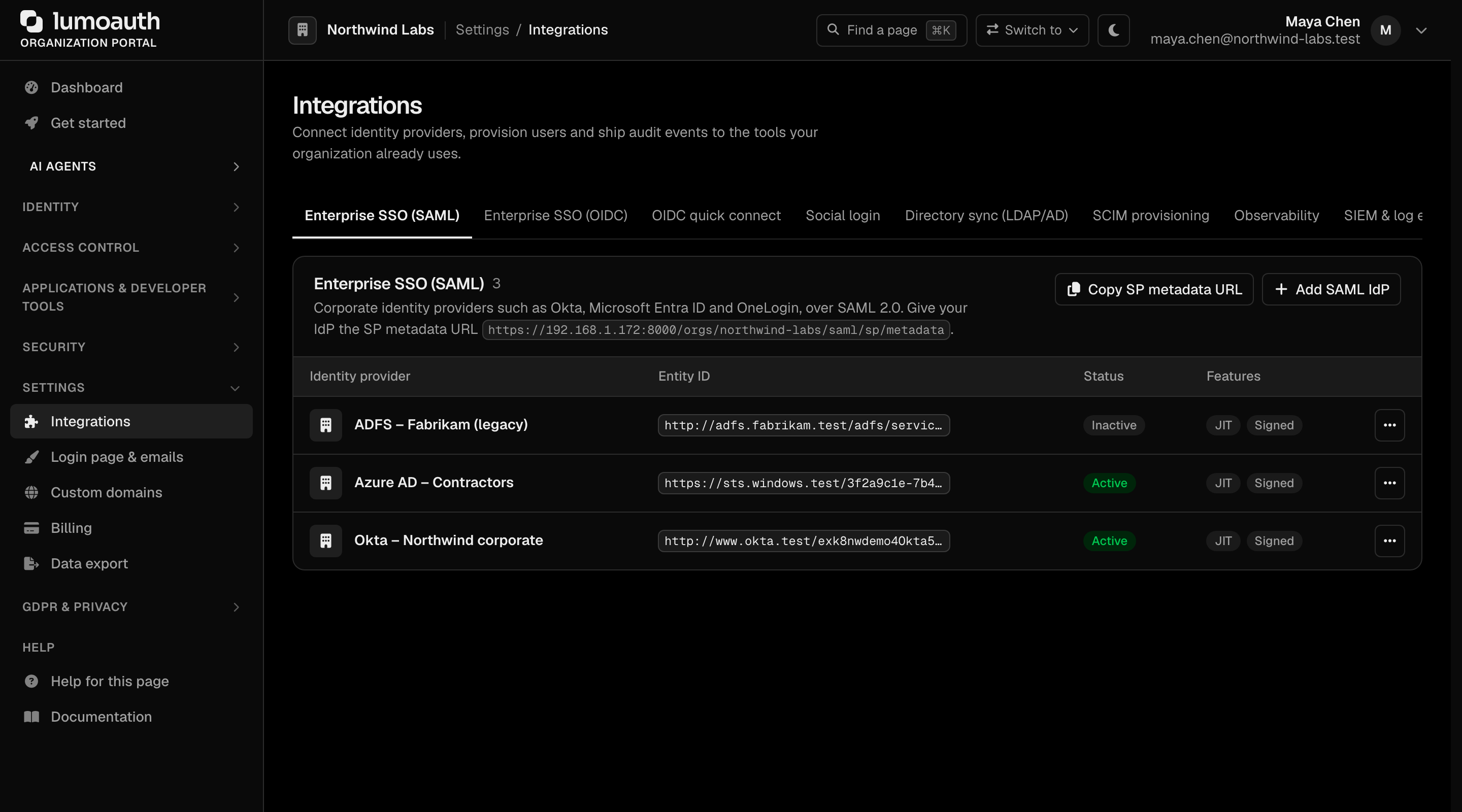
- SAML 2.0: Paste your IdP metadata URL or XML
- OIDC: Enter your IdP's issuer URL, client ID, and secret (the endpoints are discovered from the issuer)
Your login page automatically shows the SSO option — no code changes required.
Step 4: Protect Routes with Permissions
Define roles and permissions in the portal under Access control → Roles & permissions.
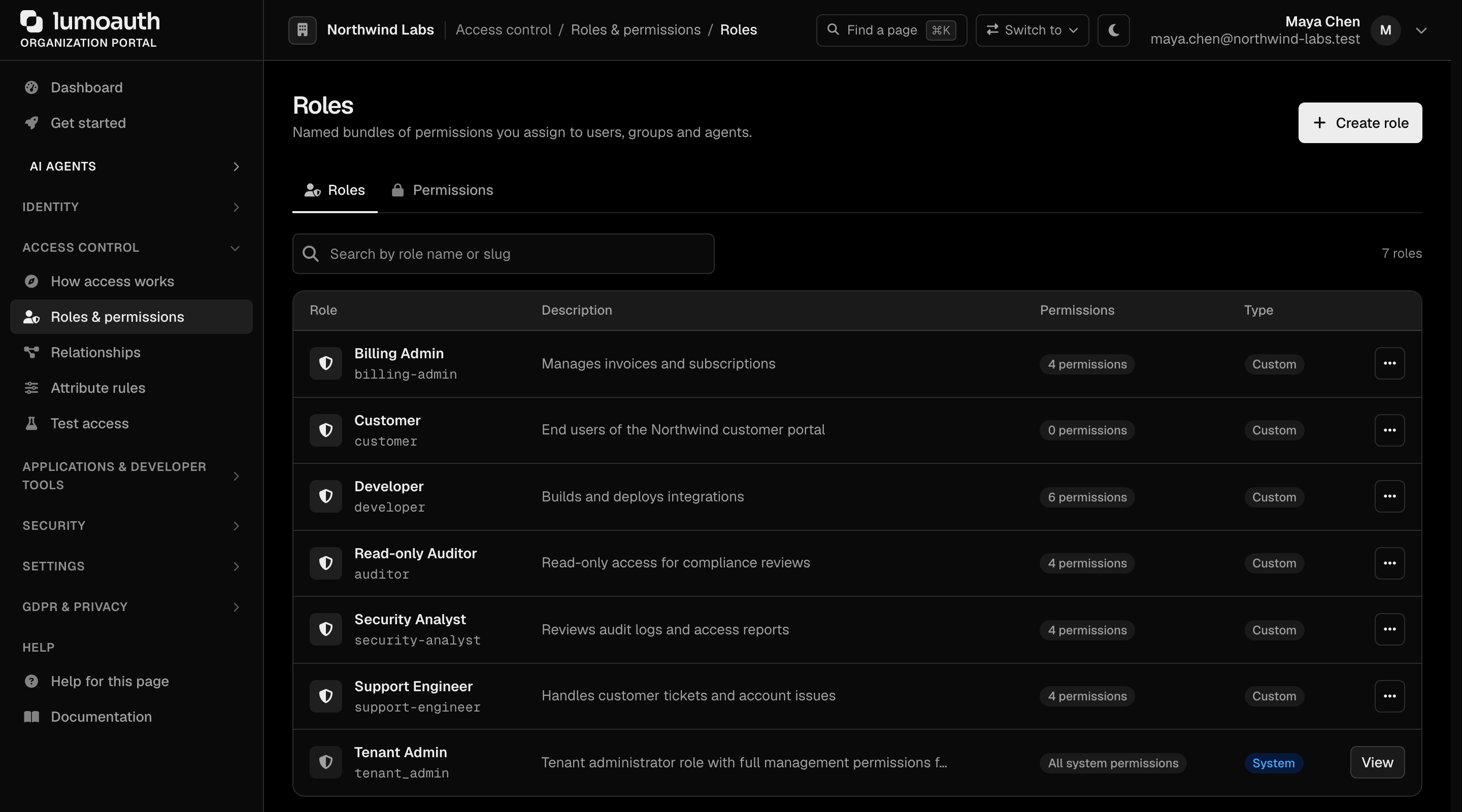
Then check permissions in your app. The authorization endpoints are global
(/api/v1/authz/..., no /orgs/{orgId} prefix); the organization comes from
the token:
curl -X POST https://app.lumoauth.dev/api/v1/authz/check \
  -H "Authorization: Bearer USER_ACCESS_TOKEN" \
  -H "Content-Type: application/json" \
  -d '{"permission": "billing.manage"}'
{ "allowed": true }
In React, use the Protect component:
import { Protect } from '@lumoauth/react';

<Protect permission="billing.manage" fallback={<p>Access denied</p>}>
  <BillingDashboard />
</Protect>
What's Next
| Topic | Description |
|---|---|
| OAuth 2.0 & OIDC | Deep-dive into token flows |
| Access Control | RBAC, ABAC, Zanzibar ReBAC |
| Enterprise SSO | SAML and OIDC federation |
| Multi-Tenancy | Isolate customers in your SaaS |
| React Quickstart | Full React integration guide |
| Node.js Quickstart | Full Node.js integration guide |